How to recover deleted files from computer: An IT expert's guide for Indianapolis businesses
It happens in a flash. One wrong click, and that critical report you’ve spent all week on vanishes into thin air. The single most important thing to do right now? Stop using the computer immediately. Seriously. Don't touch a thing. This one action can make or break your chances of getting that file back.
That Heart-Stopping Moment a File Vanishes
We've all been there. That jolt of cold panic is a feeling every business owner in Indianapolis knows well. One second, you're putting the finishing touches on a client proposal; the next, you're staring at an empty space where it used to be. Before you start frantically clicking around or downloading the first "free" recovery tool you see on Google, just take a breath.
What you do in the next five minutes is absolutely crucial. It can be the difference between a simple recovery and permanent data loss.
Your First 5 Minutes After Deleting a File
To make it dead simple, here’s a quick-reference guide for that initial "Oh no!" moment. These are the moves that will give you the best shot at a successful recovery.
| What to Do Immediately | Why It's a Game-Changer | What to Absolutely Avoid |
|---|---|---|
| Stop all activity. | Prevents new data from overwriting your lost file's space. | Installing any new software (especially recovery tools). |
| Check the Recycle Bin/Trash. | It's the most common and easiest recovery point. | Surfing the web or checking email. |
| Disconnect from the network. | Halts background updates and sync processes. | Saving any new files or documents. |
| Unplug external drives. | If the file was on one, this freezes it in its current state. | Running disk cleanup or defragmenting tools. |
| Power down the computer (if needed). | A last resort to completely halt all write operations. | Restarting the computer over and over. |
Following these steps buys you precious time and keeps your lost file from being buried under a mountain of new data.
Why You Must Stop Everything
Here’s a little secret about how your computer works: when you "delete" a file, it doesn't actually get erased. Instead, your operating system just marks the physical space that file occupied on your hard drive as "available." The data is still there, just invisible and incredibly vulnerable.
Every single thing you do—opening your browser, downloading a program, even just moving your mouse around—creates tiny new bits of data. Your computer, seeing that "available" space, won't hesitate to write over your lost file. Poof. Gone for good.
Pro-Tip from the Trenches: If the file you deleted was on a USB stick or an external hard drive, yank that thing out of the computer immediately. This is the digital equivalent of putting it on ice, perfectly preserving its state while you figure out your game plan.
This simple infographic sums up the three golden rules for any business owner who's just watched a file disappear.
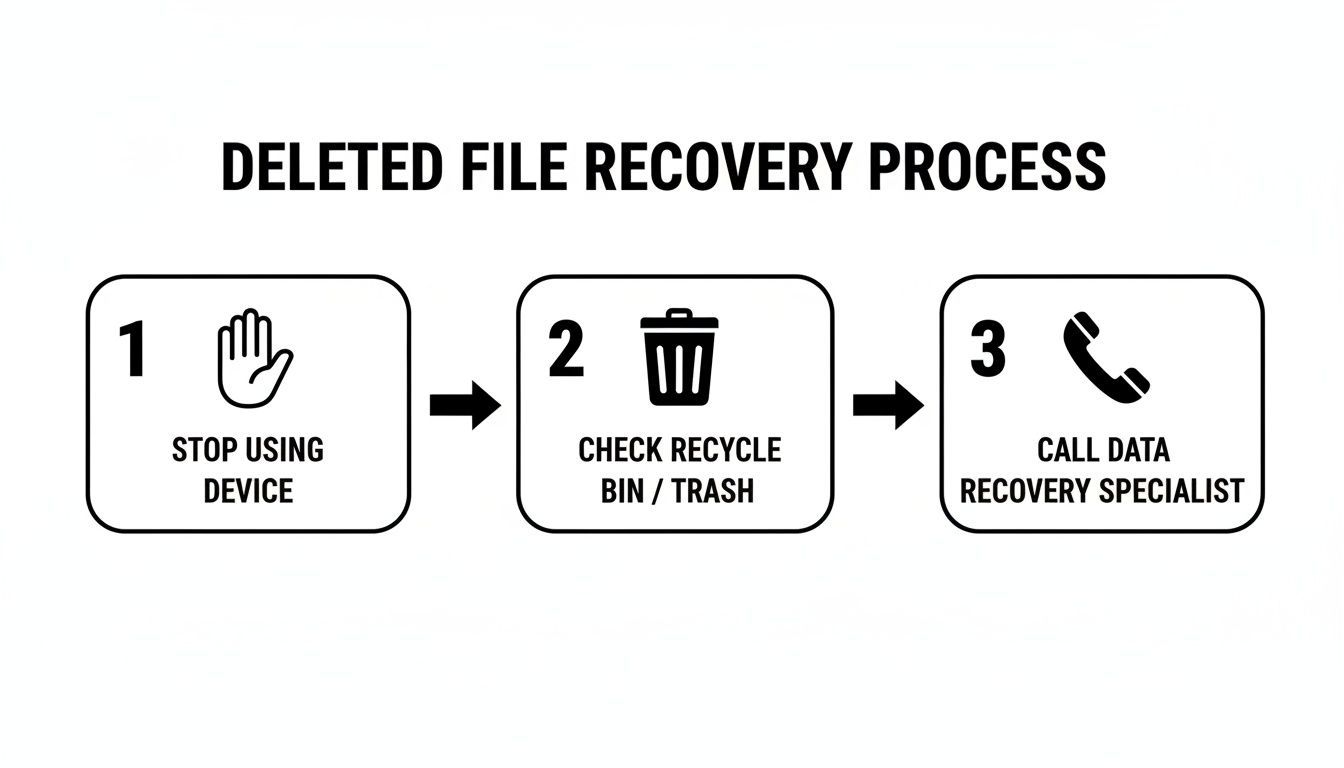
This Stop, Check, Call process is your best shot at turning a potential catastrophe into a minor inconvenience.
The Scale of the Problem
If you're feeling a bit foolish, don't. This happens to everyone. The global Data Recovery Services Market is a testament to that, valued at a staggering $4.5 billion in 2024 and projected to climb to $9.55 billion by 2029. That massive number is driven by everything from data breaches to the sheer explosion of devices we all use daily.
For a deep dive into the nitty-gritty of platform-specific steps, this is a great guide on How to Recover Deleted Files. But remember, the basic principles are always the same. What you do first matters most, and knowing when to throw in the towel on a DIY attempt is a skill in itself.
That's where having a local IT partner in the Greenwood area really pays off. Instead of sweating it out while navigating complex software, you can have an expert on-site in a hurry. We handle the stress, you get your data back, and everyone's sanity remains intact.
If you’ve just had that heart-stopping moment and need a calm, steady hand, we’re right here. Contact Finchum Fixes IT for a consultation, and let’s get your files back where they belong.
Your Computer’s Built-In Recovery Safety Nets
Before you start frantically Googling "data recovery software" and reaching for your credit card, let’s take a deep breath. Your computer probably already has some fantastic, built-in tools designed for this exact moment. Think of them as your first line of defense—the digital equivalent of checking under the sofa cushions before declaring your keys lost forever.
For a lot of businesses, the mere thought of data recovery brings on a cold sweat. Imagine a critical hard drive failing, taking months of project files with it. It’s a real and growing threat; the Data Recovery as a Service Market is expected to hit $4.1 billion by 2024, climbing at a 12.9% CAGR. Why? Because things like accidental deletions and boot failures hit 1 in 5 businesses every single year. You can dig into the market trends shaping data recovery services if you're a numbers person, but the takeaway is simple: learning to use the tools you already have is a huge first step.
Unlocking Windows Recovery Features
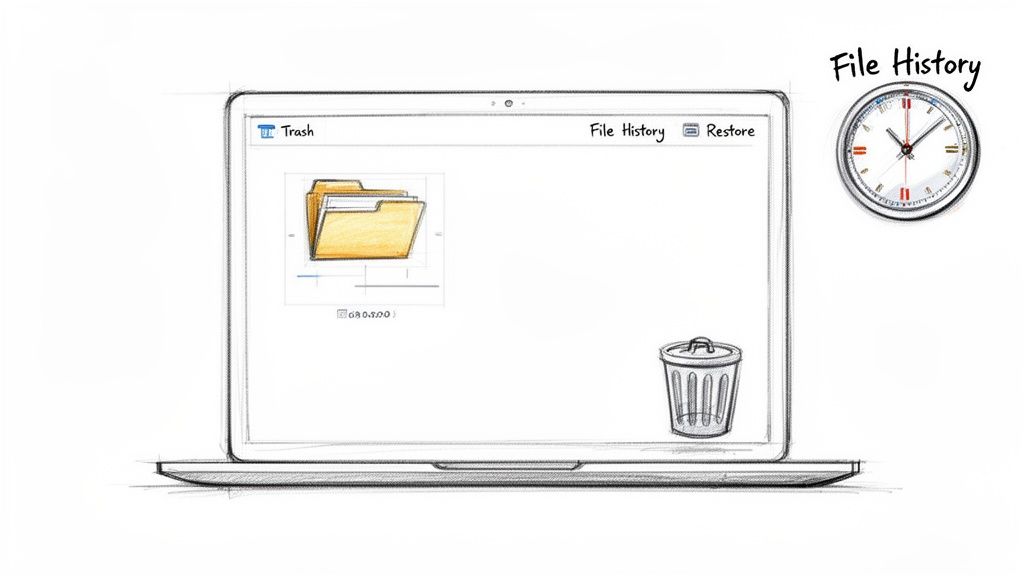
If you're on a Windows PC, your first stop is always the Recycle Bin. But don't just give it a quick glance. We can make it a whole lot more useful.
Most people leave the Recycle Bin on its default settings, which is a big mistake. Right-click the icon, pop into 'Properties', and you can crank up the maximum storage size. This gives you a much bigger buffer, preventing Windows from automatically purging older deleted files to make room for new ones. It’s a tiny tweak that can be an absolute lifesaver.
Once you’ve checked the bin, it’s time to look at a seriously underrated hero: File History. When it's turned on, this feature is like a time machine for your most important folders. It quietly saves copies of your files to an external drive, creating a version history you can browse through. Accidentally saved over a critical report? No sweat. Just roll it back to yesterday's version.
Pro-Tip Quick Fix: Seriously, enable File History right now. Grab an external USB drive, head to Settings > Update & Security > Backup, and click 'Add a drive'. Pick your drive, flip the switch on, and you’re done. It's a five-minute job that provides an incredible safety net.
Mastering Your Mac’s Recovery Tools
For all our Greenwood-area clients rocking a Mac, the process is just as simple, starting with the Trash. It’s your first port of call, but macOS has an even more powerful trick up its sleeve.
The undisputed champion here is Time Machine. If you've ever plugged in an external drive and seen a prompt about using it for backups, that’s Time Machine calling. It doesn't just save one copy; it creates incremental backups of your entire system. This lets you literally fly back in time to a specific day or even an hour to grab a file exactly as it existed then. It’s magic.
And here’s a cool secret: even if your backup drive isn't connected, your Mac might still be saving your bacon. Newer versions of macOS create local snapshots on your startup disk that last for about 24 hours. Think of them as mini, temporary Time Machine backups, giving you a small window to recover a file even if you’re working from a coffee shop.
It’s All About Being Proactive
Here’s the catch with both Windows' File History and Apple's Time Machine: they are completely useless until you turn them on. They are proactive tools, not reactive ones. Waiting until after disaster strikes is simply too late.
Setting up these features is a cornerstone of any solid IT strategy. It's one of the first things we implement for our managed IT clients across Central Indiana. We don't just turn them on; we make sure they are checked and verified regularly. Because a backup you haven't tested isn't a backup—it's just a hope.
Actionable Steps You Can Take Today
- For Windows Users:
- Right-click the Recycle Bin, go to Properties, and give it more space.
- Hook up an external drive and turn on File History for your 'Documents' and 'Desktop' folders.
- For Mac Users:
- Get an external drive, designate it for Time Machine, and let that first backup run.
- Check the Time Machine icon in your menu bar occasionally to make sure backups are running smoothly.
Taking these small steps transforms your computer from a place where files can vanish without a trace to a system with built-in second chances.
If this feels a bit out of your comfort zone, or you’d rather have the peace of mind that comes from a professionally managed plan, that's what we're here for. Reach out to Finchum Fixes IT for a consultation, and let's get your data properly protected.
Diving into Third-Party Recovery Software
So, the built-in tools failed you and the Recycle Bin is an empty wasteland. What now? A quick search will throw a dizzying number of third-party recovery programs at you, many screaming "FREE!" It's a digital minefield out there, and to actually recover deleted files from your computer, you need to know which tools are life rafts and which are cleverly disguised anchors.
These programs are essentially digital archaeologists. They work by scanning your hard drive for the faint breadcrumbs left behind by "deleted" files. See, when you delete something, the data isn't immediately vaporized; the space it occupies is just marked as "available" for new data. Recovery software meticulously digs through these available sectors, hunting for the unique signatures that identify a file as a Word doc, a JPEG, or your mission-critical QuickBooks database.
The Tools We Actually Trust
Trust me, not all recovery tools are created equal. A lot of the "free" ones are dangerously limited, and some are just malware wearing a trench coat. After years of pulling Indianapolis businesses out of data-loss fires, we've learned to rely on a few specific tools that consistently get the job done without making things worse.
- Recuva (from the makers of CCleaner): This is usually our first recommendation for simple, no-fuss recoveries. It’s easy to use, has a surprisingly powerful deep scan mode for those stubborn files, and the free version is often all you need for recently deleted documents.
- Disk Drill: A bit more of a heavyweight, Disk Drill has a slick interface and can pull data from just about any storage device you can think of. It also has a neat feature called "Recovery Vault" that adds an extra layer of protection to prevent this whole mess from happening again. Crucially, the free version lets you see what it can recover, so you know if it's worth paying for the full version before you pull out your wallet.
The real magic in these tools is the "condition" status they provide. They’ll tell you if a file's chance of recovery is "Excellent," "Poor," or a lost cause. This gives you a realistic expectation of success before you even start the process.
Your Pre-Download Security Check
Downloading the wrong program can turn a simple data loss problem into a full-blown cybersecurity nightmare. Shady software often bundles malware, ransomware, or spyware with its so-called "fix." Before you even think about clicking "download," run through this quick mental checklist.
- Who made this? Stick with well-known developers like CCleaner (Recuva), CleverFiles (Disk Drill), or EaseUS. A quick Google search should reveal a long history and a professional reputation.
- Does the website look legit? Typos, broken images, and aggressive pop-up ads are giant red flags. Close the tab.
- Can I trust the reviews? Look for detailed reviews on reputable tech sites, not just the glowing five-star testimonials on the product’s own homepage.
- Can I try before I buy? Reputable software will almost always let you scan your drive and preview the recoverable files for free. If a program demands payment just to see what it found, it’s a scam.
Pro-Tip: The #1 Rule of Data Recovery This is the cardinal sin. I can't stress this enough. Never, ever install recovery software onto the same drive you're trying to recover files from. The installation process itself writes new data, which could permanently overwrite the very file you're fighting to save.
Making this one mistake can turn a recoverable file into digital dust. It's like trying to rescue someone who fell through thin ice by running out to help them—you're just going to make the situation catastrophically worse.
The Simple USB Drive Workaround
Thankfully, avoiding this disaster is incredibly easy. All you need is a basic USB flash drive.
Your game plan is to download and run the recovery software from a separate, "neutral" location. Many top-tier tools, including Recuva, offer a "portable" version. This is the golden ticket—it means the entire program can run directly from your USB stick without any installation. Just download it to the USB (preferably using a different computer), plug it into the computer with the missing files, and run it from there.
If a portable version isn't available, no sweat. Just run the installer and, when it asks where you want to install the program, make sure you select your USB drive as the destination, not your C: drive.
By running the software from an external drive, you guarantee that no new data is written to the compromised drive. This preserves the integrity of your lost files and gives you the absolute best shot at a successful recovery. It’s a simple, non-negotiable step that separates a successful DIY rescue from a data disaster. If this sounds overwhelming or the files are just too important to risk, remember that having a local IT partner in Greenwood means you don't have to go it alone.
When you're staring down a critical data loss, navigating the murky waters of recovery software just adds another layer of stress. If you need a hand or just want an expert to take the wheel, Finchum Fixes IT is here. Reach out for a consultation, and let's get your important files back where they belong.
When It’s Time to Wave the White Flag and Call a Pro
You've tried the built-in tools. You’ve even fired up some fancy recovery software. But that all-important file is still missing in action. This is the moment of truth—the point where a DIY attempt can quickly spiral into a permanent, irreversible data catastrophe.
Some data loss situations aren't just tricky; they're digital landmines. One wrong move, and boom... it's all over.
The key is knowing the difference between a software-level glitch and a full-blown hardware failure. Think of it like this: a deleted file is a flat tire you can probably change yourself. A hard drive that's clicking and grinding? That's a seized engine. You wouldn't try to fix that with a wrench from your garage, and the same logic applies here.
Red Flags That Mean "Stop Immediately!"
If you see, or hear, any of the following signs, it's time to hit the brakes. Hard. Don't run any more software. Don't reboot "just one more time." Power down the machine and get help.
- The Click of Death: Is your hard drive making any strange clicking, grinding, or whirring noises? That's the sound of a mechanical failure. The drive is literally destroying itself from the inside, and every second it's running is making things worse.
- Now You See It, Now You Don't: Does your drive randomly appear and disappear from your system? This often points to failing electronics or a serious firmware problem.
- Catastrophic Crashes: If your data vanished right after a Blue Screen of Death (BSOD), constant system freezes, or the computer refusing to boot, the root cause is much deeper than a simple accidental deletion.
- The "Oops, Wrong Drive" Format: Accidentally formatting a drive is a gut-wrenching feeling. While recovery software might have a chance, the odds are not in your favor. Professional tools have a far greater ability to piece that puzzle back together.
A Cautionary Tale from a Greenwood Business: We once got a panicked call from a local accounting firm. They had a clicking hard drive and decided to run recovery software on it for a few hours. By the time it got to our lab, the drive's internal read/write heads had scraped the magnetic platters, turning their client's crucial financial records into literal dust. It was completely unrecoverable—a disaster that a single phone call could have prevented.
Logical vs. Physical Failure: Knowing the Battlefield
To make the right call, you have to understand the two main types of data loss. The software we've been talking about is for logical recovery. It's designed to find files on a perfectly healthy, functioning hard drive where data was accidentally deleted or the file system got scrambled.
Physical recovery is a whole different ballgame. This is for drives that are physically toast—maybe they were dropped, got wet, fried by a power surge, or just wore out. This isn't a software problem; it's a hardware one. It requires a specialized, dust-free cleanroom where technicians can physically open the drive, replace broken parts, and painstakingly extract the raw data bit by bit. This is precision engineering, not something you can do on your desk.
That sinking feeling you get when a critical folder disappears? It's a universal experience. It's the engine driving the Data Backup and Recovery Market, which is set to explode from $15.7 billion in 2025 to an incredible $31.2 billion by 2032. The File Recovery Software market alone is predicted to jump from $1.8 billion to $4.5 billion in that same period. You can dig into the explosive growth of the data recovery market to see just how common these emergencies are becoming.
DIY Recovery vs. Professional Service
Making the right choice upfront is everything. A wrong move can be the difference between getting your data back and losing it forever. Here’s a quick guide to help you decide.
| The Problem You're Facing | Your Next Move | The Risk of Getting It Wrong |
|---|---|---|
| You accidentally deleted a file or folder from a drive that's working perfectly. | DIY Software. This is what recovery software is built for. Stop using the drive and run the tool immediately. | Low. The main risk is overwriting the deleted data by continuing to use the computer before you run the recovery scan. |
| Your drive is making clicking, grinding, or buzzing sounds. | Professional Service. Power it down NOW. This is a physical failure, and continued use will cause more damage. | Catastrophic. You could cause permanent platter damage, making a full recovery impossible, even for a professional. |
| You accidentally formatted the wrong partition or external drive. | Could go either way. DIY is possible but risky. A professional service has a much higher success rate. | High. A failed DIY attempt can corrupt the underlying data structure, making a professional recovery much more difficult. |
| The drive isn't showing up in your OS, or it appears and disappears randomly. | Professional Service. This points to a failure in the drive's electronics or firmware, not a simple deleted file. | High. Trying to force a connection or running DIY tools can corrupt the firmware or cause a short, ruining the drive. |
| Data was lost due to a virus or malware infection. | Professional Service. You don't know the extent of the damage or what the malware may have done. | Medium to High. You could spread the malware or misinterpret the data corruption, leading to a failed recovery attempt. |
| The computer won't boot, and you're seeing a BSOD or other major system errors. | Professional Service. The data loss is a symptom of a much larger problem with the drive or operating system. | High. Trying to fix the boot issue could easily overwrite the very data you're trying to save. |
In short, if the hardware seems perfectly fine, a careful DIY attempt is reasonable. If the hardware is showing any sign of trouble, stop and call for backup.
Why a Local Partner in Central Indiana Is Your Best Bet
When your business data is on the line, you don't have time to mail a critical hard drive across the country and wait in line for a verdict from a faceless corporation. The clock is ticking.
This is where having a local IT partner right here in the Indianapolis area makes all the difference. We can get on-site, diagnose the situation properly, and tell you straight up if it's a logical issue we can solve right away or if it needs the cleanroom environment of a dedicated recovery lab. You get a direct, honest answer from a real person—not a vague email from a support ticket.
If you've hit a wall or are seeing any of the red flags we mentioned, don't roll the dice. For hands-on, expert data recovery services, get in touch with Finchum Fixes IT. Let us take over and give you the absolute best chance of getting your crucial data back where it belongs.
Building a Bulletproof Backup Strategy
Everything we've covered so far is about reacting. It’s what you do after the "oops" moment. Now, let’s get proactive so you can spend less time worrying about file recovery and more time running your business. A rock-solid backup strategy isn't just some IT buzzword; it's the cheapest insurance policy you'll ever buy.
Trying to recover files without a backup is like showing up to a house fire with a water pistol. A proper backup strategy, on the other hand, is like having a full-blown sprinkler system—it kicks in and saves the day before everything goes up in smoke.
Unpacking the 3-2-1 Backup Rule
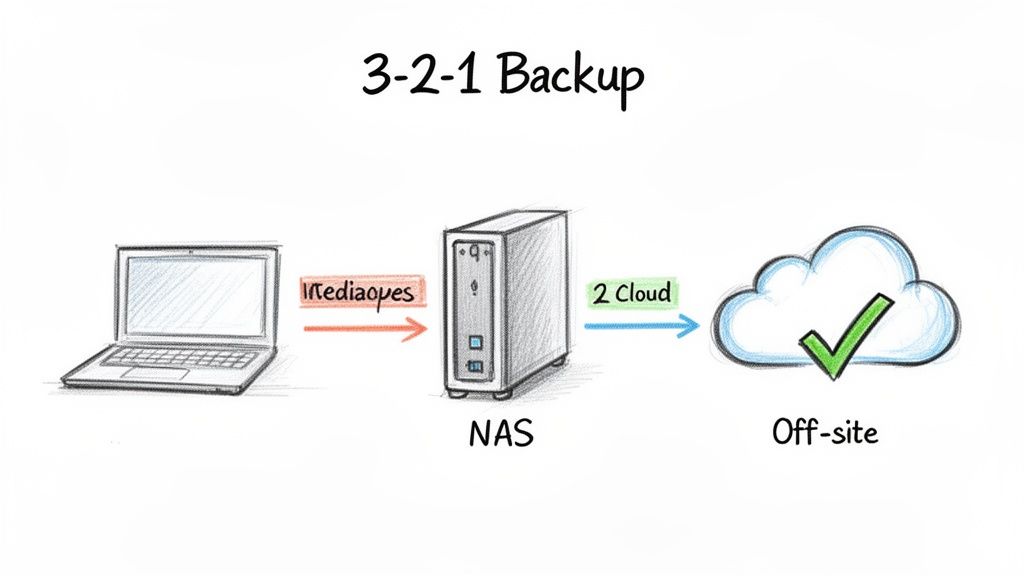
The gold standard in this industry is something we live by: the 3-2-1 Backup Rule. It sounds technical, but it’s brutally simple and shockingly effective. This is the framework we use for everyone, from a solo entrepreneur in Greenwood to a multi-office firm in downtown Indianapolis.
Here’s how it works:
- Three Copies of Your Data: This means the original file on your computer plus at least two backups. Let's be real: one copy is no copy, two is one, and three is the bare minimum for sleeping well at night.
- Two Different Types of Media: Don't put all your eggs in one basket. If your only backup lives on an external hard drive that sits right next to your computer, a power surge could fry them both. Your backups need to live on different kinds of storage—think an internal drive and a cloud service.
- One Copy Stored Off-Site: This is the real game-changer. A fire, flood, or theft can wipe out your office and any backups inside it. An off-site copy, whether it's in the cloud or a physical drive at another location, is what ensures your business survives a true catastrophe.
This strategy isn't just for recovering an accidentally deleted spreadsheet. It's your frontline defense against ransomware, hardware meltdowns, and every other digital disaster waiting in the wings. A big part of this is realizing that cloud services themselves aren't backups, which is why understanding the critical reasons to backup Microsoft 365 is so important.
Practical Solutions for Indiana Businesses
Putting the 3-2-1 rule into practice doesn’t have to break the bank. For our local clients, we usually set up a hybrid approach that just works.
A Network-Attached Storage (NAS) device is a fantastic place to start. Picture a small, private server humming away in your office, creating fast, local backups for every computer on your network. Boom—that covers your second copy on a different type of media.
For that all-important off-site copy, a secure cloud backup service is the modern solution. These services automatically zip your data up to encrypted servers, keeping it safe and accessible from anywhere. This is your ultimate safety net.
Pro-Tip Quick Fix: Don't just set it and forget it. The single biggest mistake I see businesses make is assuming their backups are working. We tell our clients to test their backups at least quarterly. Seriously, pick a random file, try to restore it, and make sure it opens. A backup you can't restore from is just expensive digital clutter.
Tying Backups Into Your Cybersecurity Plan
A bulletproof backup strategy is a cornerstone of any good cybersecurity plan. Think about it: if a ransomware attack locks up all your files, having a clean, offline backup means you can tell the hackers to take a hike. You don’t even have to think about paying the ransom. Just wipe the infected machines, restore your data, and get back to work.
This is where having a local IT partner in Central Indiana really pays off. We don't just sell you a backup drive; we weave it into a complete security plan. We design, implement, and monitor these systems to make sure they're always working, always tested, and always ready to be the hero. For us, a proper backup system is about giving our clients total peace of mind. You can see how we build a digital fortress around your business by checking out our cybersecurity services.
If the thought of managing all this feels like a headache, you're not alone. It’s a mission-critical task that’s easy to push to the back burner… until it’s too late. Don’t wait for a disaster to discover holes in your safety net. Reach out to Finchum Fixes IT for a chat, and let’s build a backup strategy that lets you focus on what you do best.
Got Questions About File Recovery? We've Got Answers.
That sinking feeling when a file vanishes is usually followed by a flood of frantic questions. We hear them all the time from businesses here in Indianapolis, so let's tackle the big ones head-on.
What About Files I Nuked with Shift + Delete?
Believe it or not, you can usually get those back. Hitting 'Shift + Delete' in Windows just tells your computer to skip the Recycle Bin. It doesn't actually vaporize the file on the spot.
Think of it like this: the file's data is still physically on your drive, but the space it occupies is now flagged as "vacant." As long as you don't save anything new that moves into that vacant spot, a recovery is very likely. This is why you must stop using the computer immediately—every second you wait increases the risk of that data being overwritten for good.
Is Getting Files Back from an SSD a Nightmare?
It can be. In fact, it's often a race against a nearly impossible clock. Modern Solid-State Drives (SSDs) have a feature called TRIM, which is great for performance but terrible for recovery.
TRIM is like a hyper-efficient janitor that runs in the background, permanently wiping the data from deleted files to keep the drive speedy.
Because of TRIM, your window to recover a lost file from an SSD is razor-thin. If it's a mission-critical file, the smartest thing you can do is shut the machine down completely and call a pro. Don't risk it.
So, What's This Going to Cost Me?
The price tag for professional data recovery can swing dramatically. For a "logical" recovery—where the drive is healthy but you've accidentally deleted something or formatted the disk—we can often use advanced software to pull the data back. That might set you back a few hundred dollars.
A "physical" recovery is a whole different ballgame. If the drive is making a clicking sound, won't spin up, or took a tumble, it needs to be opened in a dust-free cleanroom. This is delicate, highly specialized work that can easily cost thousands. This huge cost difference is exactly why we say a tested backup plan is the best tech investment a business can ever make.
For a more detailed breakdown, you can check out our complete FAQ page.
Can't I Just Use System Restore to Get My Files?
Nope, and this is a common misunderstanding that can lead to a lot of heartache. A Windows System Restore has one job: to roll back your system files and settings. It’s perfect for fixing issues caused by a wonky driver update or a piece of software that went rogue.
It does not affect your personal files at all—no documents, no photos, no spreadsheets. You can't use System Restore as a time machine to undelete that report you just accidentally deleted. For that, you need a real backup or a proper file recovery tool.
Facing a data disaster is stressful, but you're not in it alone. If you've hit a wall and need an expert to step in, Finchum Fixes IT is ready to help. Reach out for a consultation, and let's bring your data home.
Article created using Outrank