How to Speed Up a Slow Computer: A No-Nonsense Guide for Indiana Businesses
How to Speed Up a Slow Computer: A No-Nonsense Guide for Indiana Businesses
That spinning wheel isn't just an annoyance—it's a direct hit to your payroll. When you need to speed up a slow computer, the biggest bang for your buck comes from three simple moves: culling unnecessary startup programs, doing a deep disk cleanup, and running a full malware scan to find hidden resource hogs. You can knock these out in under 15 minutes and get an immediate boost.
Why Your Slow Computer Is Secretly Costing You a Fortune
Let's cut to the chase. For any busy Indiana business, every minute an employee spends staring at a loading screen is money circling the drain. It's not a minor frustration; a slow computer actively sabotages productivity, demoralizes your team, and creates operational bottlenecks that you are absolutely paying for.
Put it in real-world numbers. If an employee loses just five minutes every hour to a sluggish machine, that’s over three hours of productive time vaporized each week. For a team of ten? You’re looking at more than 30 hours of paid time disappearing into thin air. That's a part-time salary you're spending on just… waiting.
This flowchart gives you a straightforward path to start figuring out what's gone wrong.
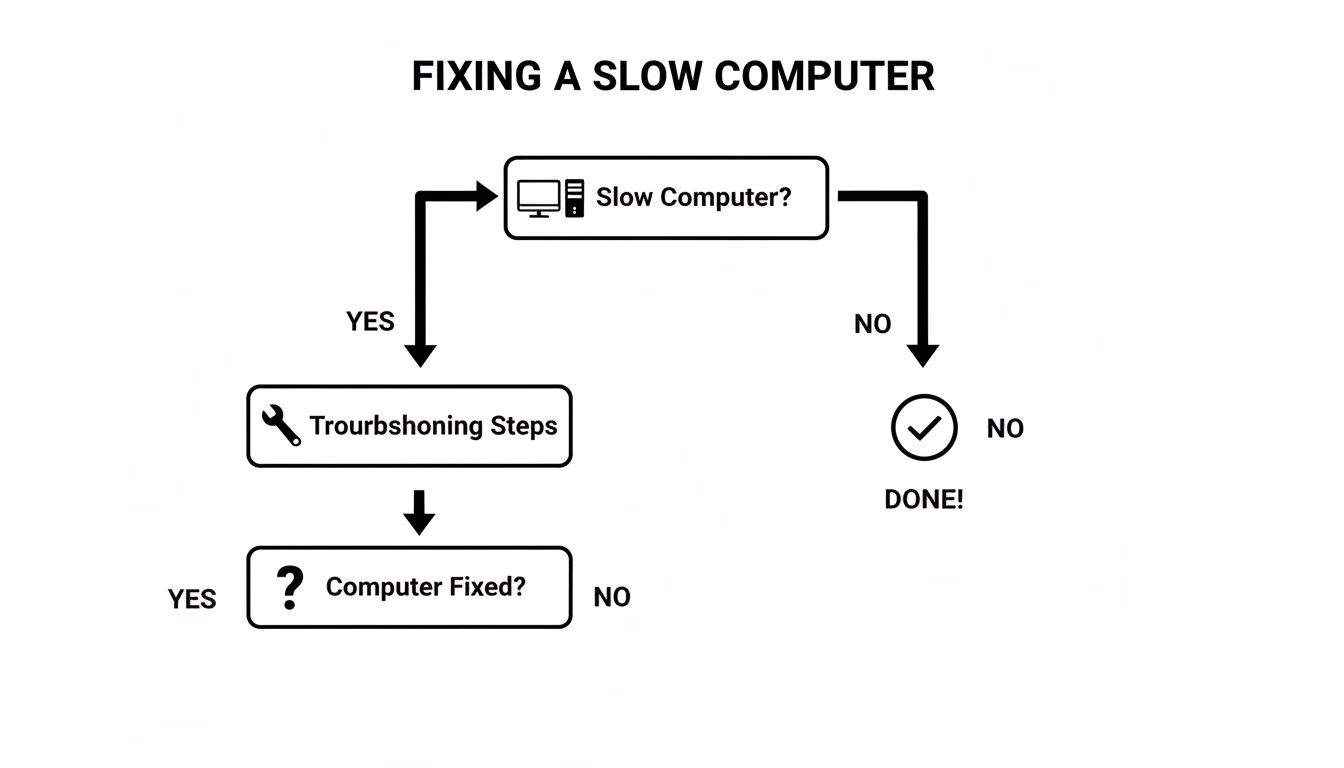
The chart highlights a core principle we live by in IT: start with a simple diagnostic question and follow a logical path to the solution. Don't just start clicking things and hoping for the best.
Quick Fixes and Their Business Impact
Before diving into complex diagnostics, let's tackle the low-hanging fruit. The table below breaks down the three most common culprits and shows the real-world business benefit of sorting them out immediately.
| Actionable Quick Fix | How It Slows You Down | Business Benefit of the Fix |
|---|---|---|
| Tame Startup Programs | Dozens of apps launch at boot, eating up RAM and CPU before you even start working. | Faster boot times mean your team gets to work sooner. Less background clutter means a more responsive PC all day. |
| Execute a Deep Disk Cleanup | A cluttered hard drive (less than 15-20% free space) forces the OS to work overtime just to find files. | Improves file access speeds and overall system responsiveness. Prevents crashes caused by a lack of temporary file space. |
| Run a Full Malware Scan | Malicious software runs silently, stealing system resources to spy on you or serve ads. | Frees up significant processing power and memory. Protects sensitive company and client data from being compromised. |
These aren't just IT chores; they are strategic moves to reclaim lost time and protect your bottom line.
High-Impact Fixes You Can Do Right Now
Forget the deep technical dives for a moment. We’re starting with three ruthless, high-impact fixes you or your staff can perform on a coffee break.
-
Tame Your Startup Programs: Over the years, countless apps—from chat clients to PDF readers—decide they need to launch the second your computer boots up. Each one grabs a slice of memory and processing power before you’ve even opened a spreadsheet. It’s the digital equivalent of ten people shouting at you the moment you walk into the office.
-
Do a Real Disk Cleanup: I’m not just talking about emptying the Recycle Bin. We mean hunting down the gigabytes of temporary internet files, old downloaded installers, and system caches that accumulate like digital dust bunnies. When your drive gets too full, your operating system has no elbow room to work, and performance grinds to a halt.
-
Scan for Hidden Malware: Malware and spyware are notorious resource thieves. These nasty programs are designed to run silently in the background, consuming CPU cycles and memory to track your activity or pop up ads. A suddenly slow computer is one of the classic warning signs of an infection.
Pro-Tip #1: The Friday Afternoon Tune-Up Have your team set a recurring weekly calendar reminder to run a quick malware scan and disk cleanup. Turning this into a simple Friday-afternoon habit is one of the most effective, zero-cost ways to keep systems running smoothly and securely.
The Overlap Between Performance and Security
Here's something many people miss: a sluggish computer isn't just a productivity problem; it's often a screaming cybersecurity red flag.
Malware doesn't just make your cursor lag—it steals data, compromises client information, and can open the door to a devastating ransomware attack. That slow, unresponsive system could very well be a symptom of a much bigger, more expensive problem brewing.
By regularly performing this basic maintenance, you're practicing good digital hygiene that boosts both speed and security. A clean, optimized machine is simply a safer machine.
But what if these initial steps don’t move the needle? That’s when it’s time to call in a local expert. For businesses in the Indianapolis or Greenwood area, having an IT partner like Finchum Fixes who can provide on-site diagnostics means you get a definitive answer fast, without boxing up your critical hardware and shipping it off to a stranger.
Digging Deeper Than the Basic Fixes
Alright, so you’ve decluttered the digital junk drawer and given any malware the boot, but your machine is still moving at the speed of rush hour traffic on I-465. This is where we need to pop the hood and get our hands dirty. The quick wins are behind us; now we're onto the kind of essential maintenance that IT pros live and breathe. These next few steps are absolutely vital if you want that "like-new" speed to actually stick around.
We're about to dive into your system's core software components. Neglecting this stuff is like never changing the oil in your car—sooner or later, everything is going to grind to a halt.
System and Driver Updates are Not Optional
Think of your computer’s software like a football team. The Operating System (OS)—your Windows or macOS—is the head coach calling the plays. The drivers are the individual players, each one an expert at communicating with a specific piece of hardware, like your graphics card or Wi-Fi adapter. If the coach and players aren't working from the same playbook, you get fumbles, missed signals, and a whole lot of lag.
Outdated drivers are a classic, and sneaky, cause of major performance bottlenecks. A manufacturer might release a new driver that fixes a bug causing your graphics card to work ten times harder than necessary. Ignoring that update is like leaving free horsepower sitting in the garage.
Pro-Tip #2: Master Your Updates Don’t just wait for the big OS update notification. Go directly to your computer manufacturer's website—think Dell, HP, or Lenovo—and find their proprietary update tool. This little gem often sniffs out critical firmware and driver updates that Windows Update completely misses, and it can be the key to solving a really stubborn slowdown.
The Unbreakable Link Between Updates and Security
For any business owner in Indiana, keeping software current isn't just about speed; it's a security deal-breaker. Cybercriminals actively hunt for vulnerabilities in old software. When a company like Microsoft or Adobe pushes out a security patch, they're basically shouting from the rooftops, "Hey, we found a hole, and here's the plug!"
Putting off that update is like hearing a locksmith fixed the faulty lock on your neighbor's door and then deciding to leave your own front door wide open. It’s a literal invitation for trouble. Every unpatched piece of software on your network is a potential welcome mat for ransomware.
This leads to a simple, non-negotiable rule for any business:
- Operating System Updates: Your absolute first line of defense. Install them.
- Key Software Updates: Your web browser, PDF reader, and office suite are huge targets. Keep them patched.
- Driver Updates: Make sure your hardware is running both efficiently and securely with the latest drivers.
Trade Flashy Visuals for Pure Speed
Modern operating systems are obsessed with eye candy—sleek animations, transparent windows, and fading menus. They look cool, but they chew up a shocking amount of processing power and memory. It’s like putting heavy, chrome rims on a race car; it might look impressive, but it’s just slowing you down.
If you value raw performance over aesthetic flair, you can dial these visual effects way back. In Windows, you can find this under "Adjust the appearance and performance of Windows." Simply selecting "Adjust for best performance" tells your system to prioritize function over form, every time.
This one tweak can make an older computer feel dramatically snappier, especially if it's working with limited graphics power.
Pro-Tip #3: Unleash the "High Performance" Power Plan Dig into your computer’s power settings. Most laptops and even some desktops default to a "Balanced" plan to save a little energy, but this often means your processor is running at half-speed. Switching to the "High Performance" power plan tells your CPU to run at its maximum clock speed, giving you a consistent and immediate boost in responsiveness.
Look, the reality for most business owners in Greenwood and Indianapolis is that juggling these updates and settings across a fleet of computers is a tedious chore that’s way too easy to forget. This is precisely where a managed IT service becomes a game-changer. We automate the whole patching and maintenance headache, making sure every machine is secure, updated, and optimized—all without you ever having to lift a finger.
If you’re done chasing down drivers and want a team to handle the heavy lifting, that's what we do. Reach out to Finchum Fixes IT, and let's talk about putting your computer maintenance on autopilot so you can get back to what you do best.
Smart Hardware Upgrades That Actually Pay Off
So, you’ve done all the digital spring cleaning. You’ve run the scans, uninstalled forgotten programs, and decluttered your desktop, but your computer still feels like it’s wading through mud. What gives?
Sometimes, the problem isn't the software—it’s the old, tired hardware chugging away inside the case. When your software fixes hit a brick wall, it's time to talk about throwing a little money at the problem. But we’re not talking about buying a whole new machine just yet. A couple of targeted, affordable upgrades can make an old PC feel brand new again.
The Two Upgrades That Make All the Difference
Forget what you see in gaming magazines. For a business computer, you don't need a flashy graphics card or a beastly new processor. The real performance killers are almost always your storage drive and your memory.
-
Swap That Old Hard Drive for an SSD: This is, without a doubt, the single biggest bang-for-your-buck upgrade you can make. Your old Hard Disk Drive (HDD) is a relic of another era, with spinning metal platters and a physical arm that has to race back and forth to find your data. Think of a record player. A Solid-State Drive (SSD), on the other hand, is all digital, using flash memory with no moving parts. The business impact: boot times drop from minutes to seconds, and applications load instantly, saving your team countless moments of frustration.
-
Give It More RAM (Random Access Memory): Think of RAM as your computer's desk space. Every program, every browser tab, every document you open takes up a piece of that desk. When you run out of space, your computer starts stacking things on the floor—a slow part of your main storage drive called "virtual memory." The business impact: adding more RAM allows your team to multitask efficiently with dozens of tabs and apps open without the PC breaking a sweat, preventing productivity-killing slowdowns.
These two components are the heart and soul of your computer’s daily performance. Upgrading them is the quickest way to get back in the fast lane.
Should You Upgrade or Just Replace It?
Before you start shopping for parts, it's worth asking: is this old machine even worth the investment?
A computer that's only two or three years old is the perfect candidate. Its processor is likely still more than capable for typical business tasks, but the manufacturer probably saved a few bucks by shipping it with a slow HDD or the bare minimum amount of RAM.
But if your PC is creeping up on five years old or more, you’re in the land of diminishing returns. At that age, the processor itself is the real bottleneck. You can put the fastest SSD and all the RAM in the world in it, but it’ll still be held back by an outdated engine.
That slow computer isn't just frustrating; it's a security risk. Old machines often can't run modern operating systems, which means they stop receiving critical security updates, leaving your business wide open to attacks.
Quick Fix: Securely Dispose of Your Old Drive So, you've upgraded to a zippy new SSD. Great! But what do you do with the old drive? Do not just throw it in the trash. That drive is a treasure trove of sensitive data—client lists, financial records, passwords, you name it. Even if you "delete" the files, they are easily recoverable. True data security means either physically shredding the drive or using professional software to overwrite every last bit of data until it’s irretrievable.
At Finchum Fixes IT, our CompTIA-certified pros have seen it all. We’ve watched client computers get a 300% speed boost just from an HDD-to-SSD upgrade, with data transfer speeds rocketing from a sluggish 100 MB/s to over 500 MB/s.
Hardware Upgrade Cost vs Performance Boost
Deciding on an upgrade often comes down to budget. Here’s a quick look at what you can expect to spend and the kind of performance lift you'll get for your money.
| Upgrade Type | Average Cost | Expected Performance Gain | Best For |
|---|---|---|---|
| SSD Upgrade | $75 - $200 | High (200-500% Faster) | Dramatically speeding up boot times, file access, and application loading. This is the best all-around upgrade. |
| RAM Upgrade | $50 - $150 | Medium | Users who multitask heavily with many browser tabs, large spreadsheets, or multiple applications open at once. |
| CPU Upgrade | $250 - $600+ | Variable | Professionals doing intensive work like video editing or complex data analysis. Often not cost-effective for older PCs. |
| New PC | $700 - $1,500+ | Very High | Computers older than 4-5 years where the processor, motherboard, and other components are all bottlenecks. |
As you can see, an SSD and a bit more RAM offer an incredible return on investment, bringing new life to a machine for a fraction of the cost of a full replacement.
For our clients in Greenwood and across the Indianapolis area, we make this entire process painless. We can perform the upgrade right in your office, migrate all your data to the new drive flawlessly, and securely destroy the old one, ensuring your confidential information stays that way.
Not sure if your PC is worth saving? Give us a call. We’ll give you a straight, honest assessment to help you make the best financial decision for your business.
What If Your Internet Is the Real Problem?
You've cleaned up the software, decluttered the startup menu, and maybe even swapped out some hardware. But that cloud-based spreadsheet still feels like it’s loading through molasses, and your video calls are choppy enough to give you a headache. It's time we consider an uncomfortable truth: maybe the problem isn't your computer at all.
What if it's your internet connection?
A sluggish network connection can make even the most powerful PC feel like a dinosaur. When your business relies on cloud apps, file sharing, and video conferencing, a poor connection becomes the ultimate bottleneck. A lightning-fast computer is just a fancy paperweight if it's constantly waiting for data to crawl through the pipes.
Wi-Fi Is Convenient, But Wires Are King
We all love the freedom of Wi-Fi, but in a business setting, that convenience can come at a steep price. Compared to a good old-fashioned wired connection, Wi-Fi can be frustratingly fickle.
You’d be surprised what can interfere with a wireless signal:
- Physical Roadblocks: Concrete walls, metal filing cabinets, and even the breakroom microwave can throw a wrench in your Wi-Fi performance.
- Digital Traffic Jams: Every device in your office—plus all the ones in the neighboring businesses—is competing for the same wireless channels. It gets crowded fast.
- Aging Hardware: The router you bought five years ago probably wasn't designed for a world where half your team is on a video call while the other half is syncing massive files to the cloud.
Plugging in an Ethernet cable sidesteps all that chaos. It's a direct, stable pipeline to your network that delivers consistently faster speeds and much lower latency. The difference is often night and day.
Pro-Tip: Go Wired Whenever Possible For any computer that doesn't move—like the front desk PC, your main workstation, or a server—plug it directly into the network. It’s the single best way to rule out network lag as the source of your slowdowns. This simple, five-second fix can have a huge impact.
Is Your Business Network Keeping Pace?
The internet has evolved at a blistering pace. Just back in 2018, the average global broadband speed was a modest 45.9 Mbps. By 2023, that number had shot up to 110.4 Mbps, largely thanks to the rollout of fiber optic connections. You can get the full scoop on this performance jump in Cisco's Annual Internet Report. For your business, this means the demands on your network are higher than ever.
An outdated network infrastructure—we're talking old routers, switches, and cabling—will cripple your productivity, even if you’re paying your provider for a top-tier plan. It's like trying to fill a swimming pool through a cocktail straw.
Don't Forget About Cybersecurity
A slow network can sometimes be a symptom of a much bigger problem: poor security. If your business Wi-Fi is unsecured or still using ancient encryption methods (like WEP or WPA), you're not just risking slow speeds. You're practically hanging up a "welcome" sign for anyone who wants to hop on your network and snoop around.
A properly secured modern network should be using WPA3 encryption, the current gold standard. You should also have a completely separate and isolated guest network. This lets visitors get online without giving them a backstage pass to your company's critical files, servers, and systems.
Quick Fix: Run a Speed Test the Right Way Don't just Google "speed test" and click the first result from your laptop on Wi-Fi. To get a true reading of the speed you're paying for, plug a computer directly into your router or modem with an Ethernet cable. This gives you a clean baseline without wireless interference muddying the results.
If the numbers you see are way below what's on your internet bill, it's time to have a chat with your provider. If the wired speed is great but your Wi-Fi is slow, you’ve found your culprit: the wireless network needs an upgrade.
Having a local IT partner here in the Indianapolis area means you don't have to play these guessing games. We can come on-site, take a look at your entire setup, and design a robust, secure network that gets rid of these bottlenecks for good.
If you have a sneaking suspicion that your internet is holding your business back, reach out for a consultation. We'll help you pinpoint the real problem and build a solution that lets your business finally operate at full speed.
Creating a Maintenance Routine That Sticks
We’ve navigated through a ton of fixes, from simple software tweaks to major hardware surgery. But here’s the real talk: keeping a computer humming along isn't a one-and-done deal. It's more like owning a classic car; you can't just ignore it and expect it to perform. An ounce of prevention truly is worth a pound of cure, and building a simple maintenance habit is the secret to stopping slowdowns before they even start.
Don't worry, this isn't about adding a dozen new chores to your to-do list. It’s about creating a few smart habits that quickly become second nature, keeping your team in the flow and your data safe.
Your Quick-and-Dirty Preventative Maintenance Checklist
Think of this as your weekly or monthly pit stop. Just 15 minutes can save you hours of headaches down the road.
- Schedule Your Backups. This is the big one. Non-negotiable. Whether it's a cloud service or a physical drive, make sure your backups are automated and consistent. A hard drive failure isn't an "if"—it's a "when." And without a backup, it can be a business-ending disaster.
- Update with a Purpose. Stop hitting "Remind Me Later." Pick a specific time each week to install all pending software, driver, and OS updates. This closes security gaps and makes sure all your programs are playing nicely together.
- Actually Clean Your Machines. Dust is the arch-nemesis of performance. It clogs fans, traps heat, and forces your computer to throttle itself to avoid a meltdown. A can of compressed air is your best friend here—a quick blast every few months keeps things cool and clear.
Pro-Tip: The "End of Day" Shutdown Don't just put your computer to sleep every night. Shut it down completely at least a few times a week. This is like a mental reset for your machine, forcing it to clear out its memory (RAM) and kill off any stubborn background tasks that have been quietly hogging resources. It’s the easiest system refresh you’ll ever do.
Knowing When to Tap Out and Call a Pro
A solid maintenance routine will squash about 90% of common performance issues. But the other part of being smart is knowing when you’re in over your head. Trying to DIY a major hardware or software problem can turn a small hiccup into a catastrophe in a hurry.
Think of it this way: you can change your own oil, but you probably wouldn't try to rebuild the engine on the side of the highway.
Red Flags That Scream "Call for Backup"
If you see any of these, stop what you’re doing. These aren't just quirks; they're symptoms of a serious underlying problem that needs an expert.
- The Blue Screen of Death (BSOD): This infamous error is your computer’s emergency brake. It points to a critical failure—a dying component, a corrupt driver, or a deep OS issue. Ignoring it is like playing Russian roulette with your data.
- Weird Noises: Your computer should hum, not click, grind, or whine. That clicking sound is often the death rattle of a failing hard drive. Power it down immediately to give yourself the best shot at recovering your files.
- Malware That Won't Die: You've run every scan imaginable, but the pop-ups and bizarre behavior keep coming back. You’re dealing with a nasty infection that has dug its claws deep into your system and won’t let go without a fight.
- Failure to Boot: If the machine won't even start up properly, you're well past the point of simple software fixes. Something is fundamentally wrong.
This is exactly why having a local IT partner in Central Indiana is so valuable. When disaster strikes, you don't want to be on hold with a call center on the other side of the planet. You need someone who can get on-site in Greenwood or Indianapolis and put hands on the problem—fast.
If you’re seeing any of these red flags, or you’re just ready to hand off your IT maintenance for good, we’re here. Reach out to Finchum Fixes IT for a no-obligation consultation, and let’s build a plan to keep your business running at full throttle.
Your Top Questions, Answered
Look, we get it. When your computer slows to a crawl, you just want straight answers. As the go-to IT guys for businesses all over the Indianapolis area, we've heard every question in the book. Here are the quick, no-fluff answers to the ones that pop up most often.
How Often Should My Business Replace Its Computers?
For most small businesses we work with, the sweet spot is every 3-5 years. Think of it less as an expense and more as a strategic investment in keeping your team productive.
After about three years, you'll start to notice that a computer just doesn't have the horsepower for modern software anymore. By the five-year mark, you’re not just dealing with a sluggish machine; you're inviting security risks. Older hardware often can't run the latest operating systems, which means you miss out on critical security patches. Planning for replacements prevents the agony of a sudden meltdown and the lost revenue that comes with it.
A Little Local Insight As a Greenwood-based IT partner, we help our clients create a predictable hardware budget. This turns what used to be an expensive emergency into a planned, manageable part of doing business. You get the right tools at the right time, without the sticker shock.
Is It Cheaper to Upgrade My PC or Just Buy a New One?
Ah, the classic "repair or replace" debate. The honest answer? It really depends on the computer's age and what’s making it choke.
If your machine is in that 2-4 year old window, a few smart upgrades can give you an incredible bang for your buck. Moving from an old spinning hard drive to a modern Solid-State Drive (SSD) or doubling the RAM can make a PC feel brand new. It’s a game-changer.
But if the processor—the computer's brain—is over five years old, you're better off putting your money toward a new machine. Trying to upgrade a truly ancient PC is like putting a V8 engine in a go-kart. Sure, the engine is powerful, but the rest of it just can't handle the new speed. We can run a quick diagnostic and give you a straight-up recommendation.
Will Deleting a Bunch of Files and Photos Actually Help?
Yes... but probably not for the reason you think. This is a huge misconception. Deleting files only helps if your main hard drive is bursting at the seams.
Your computer needs about 15-20% free space to breathe—to manage temporary files, shuffle data, and just operate smoothly.
- Is your drive over 85% full? If so, then yes, deleting large files you don't need will give you an immediate and noticeable performance boost.
- Got plenty of free space? Deleting a few Word docs isn't going to make a bit of difference. Your time is much better spent uninstalling old programs you never use.
Why Is My Computer So Slow When I First Turn It On?
Nine times out of ten, a painfully slow startup is caused by too many programs trying to launch themselves the moment you log in.
Over time, everything you install wants to wedge itself into your startup routine. Adobe, Spotify, cloud sync apps—they all want to be first in line, creating a digital traffic jam that grinds your computer to a halt before you've even opened your email.
Quick Fix: Tame the Startup Stampede You can fix this one yourself. On a Windows PC, just hit Ctrl+Shift+Esc to open the Task Manager. Click on the "Startup apps" tab and look at that list. Be ruthless. Disable everything that isn't absolutely essential for getting your day started (leave your antivirus alone, though). This is one of the quickest wins for a faster boot time.
If you've run through these tips and you're still watching that little circle spin, it’s time to call in the pros. At Finchum Fixes IT, we provide hands-on, expert IT support for businesses across Central Indiana. Stop letting a slow computer frustrate your team. Schedule a consultation with us today and let's get your tech moving at the speed of your business.
Article created using Outrank