How to Prevent Data Loss: A Business Recovery Plan
Prevention starts with knowing what must come back first, who owns it, and how long a restore can take. Keep isolated, immutable backups, lock down devices and access, and rehearse restores against your recovery targets. A completed backup job that has never been restored is an untested guess, not a recovery capability.
You own a business along the I-65 corridor. The closet server has hummed since the last remodel at the Greenwood business park. Payroll is due Friday, someone has forwarded an “updated invoice,” and the shared drive looks wrong. That is when how to prevent data loss becomes the difference between an afternoon of cleanup and a week of idle staff.
Businesses that recover well already know which system they would miss first, who is responsible for it, and how long a restore is allowed to take. Measure the plan by restore time, missing files, and how much recent work must be recreated. A backup that finishes on schedule still proves nothing about recovery until someone restores it.
Map Your Risks and Price Your Downtime
If the shared drive disappears for a day, which jobs stop first? Start by listing payroll, client files, the line-of-business app, email, accounting, and shared storage. Assign one owner to each system. If two people only “kind of” own accounting, nobody is responsible for deciding what gets restored first.
Estimate an hour of downtime from your own payroll and lost revenue, not a vendor's slide. The exact cost depends on which work stops and how long it stays stopped. Use the estimate to compare recovery priorities with the cost of controls, then record the assumptions so you can revisit them when the business changes.
Treat ransomware as the default
Verizon's 2025 Data Breach Investigations Report examined 22,052 security incidents and 12,195 confirmed breaches. It found ransomware in 88% of breaches affecting small and medium-sized businesses, compared with 39% in larger organizations. The report also found third-party involvement doubled from 15% to 30%, so include cloud apps and vendors in your risk map.
For every system, set a recovery time objective (RTO) and recovery point objective (RPO). RTO is how long staff can be idle before service returns. RPO is how much recent work you can afford to lose and re-enter. Those targets make the downtime estimate useful: a system with a short RTO or RPO needs a different recovery plan from one that can wait.
| Loss scenario | Typical trigger | First control | Early warning sign |
|---|---|---|---|
| Ransomware | Phishing email or exposed remote desktop | Immutable off-site backup and endpoint detection | Mass file renames or encrypted shares |
| Accidental deletion | Staff cleanup or a misdragged folder | Versioning and retention in Microsoft 365 | Missing folders in SharePoint or OneDrive |
| Hardware failure | Aging server disk or RAID controller | Monitored RAID with hot spare | SMART errors or degraded array alerts |
| Departing employee | Account left active after exit | Formal offboarding checklist | New mail forwarding rules |
| SaaS data loss | Vendor retention window has passed | Third-party SaaS backup | Records missing after an integration change |
| Lost or stolen laptop | Device left in a car | Full-disk encryption and remote wipe | Device offline and unreachable |
For a Johnson County team, start with the system a crew along the I-65 corridor would miss most. Write down who depends on it, how long they can work without it, and what revenue or payroll is affected. Then rank the next systems by the same criteria. This risk assessment methodology for Indiana SMBs offers a way to structure that scoring. If buying tools is the bottleneck, which procurement tasks to automate first is a relevant guide to procurement priorities. A backup job marked complete still does not prove you can recover; track restore time, missing files, and the data-loss interval when you test recovery.
Build Backups That Survive Ransomware
A backup job can finish cleanly and still leave you unable to reopen the business. Build around the 3-2-1-1-0 rule: keep three copies of the data, on two media types, with one off-site copy, one immutable or offline copy, and zero errors after verification. A USB drive beside an aging file server in a Greenwood business park does not meet that standard.
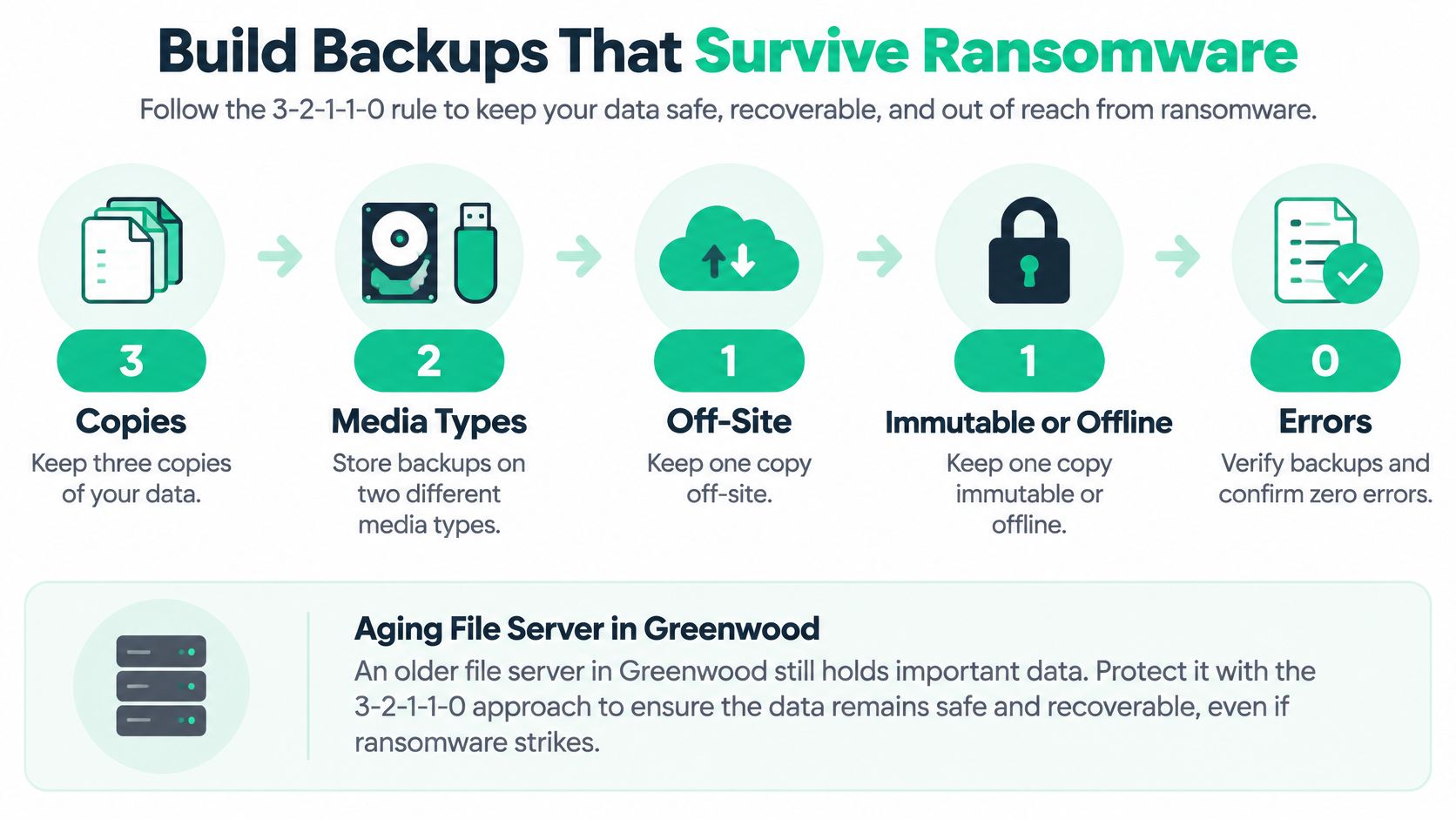
CISA's StopRansomware Guide recommends delete protection or object lock. Immutability prevents backup objects from being deleted or overwritten during retention. A second copy on a network share does not offer that protection if the same admin account can erase both. Include the supporting systems too: a database is of little use without its application server, identity service, and network.
Set tiers before you buy storage
| Workload tier | Example systems | RPO target | RTO target | Copy rule |
|---|---|---|---|---|
| Tier 1 critical | Line-of-business database, ERP, point-of-sale | 1 hour | 4 hours | 3 copies, 1 immutable off-site |
| Tier 2 important | File server, accounting, email archive | 4 hours | 8 hours | 2 copies, 1 offline or object-locked |
| Tier 3 standard | Workstation images, print server | 24 hours | 2 business days | 2 copies, 1 off-site |
| Tier 4 low priority | Archive shares, old project files | 7 days | 5 business days | 1 off-site copy |
| SaaS data | Microsoft 365, Google Workspace | 24 hours | 24 hours | Third-party SaaS backup with defined retention |
Use the tiers to set restore order, not just storage costs. Revenue systems go first because the sequence should reflect how the business earns money.
- Run a business-impact analysis and assign each system a tier.
- Set RPO and RTO using the table. A 4-hour RPO means up to four hours of entries could be lost, not a week.
- Keep a copy in cloud storage with object lock, or use Veeam Backup for Microsoft 365 for mail and SharePoint. Native retention in Microsoft 365 and Google Workspace holds deleted items only for a limited window, so it may not recover last spring's mailbox.
- On Windows Server, run
wbadmin start backup -backupTarget:E: -include:C: -allCritical -quietfrom an elevated prompt, then checkwbadmin get versions. A green job status confirms the job finished, not that the system can be restored. - Give backup administrator accounts separate credentials and phishing-resistant MFA. If someone compromises the daily admin account, the backup account should remain out of reach.
- Schedule daily incrementals and a quarterly full-system restore. Record restore time, missing-file rate, and the data-loss interval.
- Compare file counts and checksums after restoration. A backup that has never been restored is an untested guess.
Practical rule: A finished job is not a recovered server. Measure how long recovery takes, how many files are missing, and how much recent work is lost. If those results are unknown, the backup has not yet proved it can do the job.
For the copy strategy, see what the 3-2-1 backup rule means for Indiana SMBs. SME data protection with Networking2000 also discusses business backup design.
Lock Down Devices, Patches and Admin Access
Backups don't help if the laptop that syncs them is wide open. Four controls close most of the avoidable gaps, and each one has a check you can run this week.
Endpoint protection and patches
Run Bitdefender GravityZone with EDR, and confirm every laptop reports in weekly. A device silent for more than seven days is a laptop you don't control. Set a monthly window for Windows and third-party apps, and land critical fixes inside seven days. A fleet six months behind is what ransomware scans for. Keep one baseline in Group Policy or Microsoft Intune, and alert when a machine drifts.
Admin rights, encryption, and MFA
Daily-use accounts shouldn't be local administrators. In PowerShell, run Get-LocalGroupMember -Group Administrators. Cross-check in cmd with net localgroup administrators. If your bookkeeper is on that list, that's the failure.
Confirm BitLocker with manage-bde -status. Protection Off, or no recovery key stored in your password vault or Microsoft Entra ID, means a stolen laptop in a parking lot is a data-loss event. A sticky note under the keyboard doesn't count as key storage. Require phishing-resistant MFA, such as FIDO2 security keys, for admins and anyone who moves money.
| Control | Command or tool | Failed check looks like |
|---|---|---|
| Local admin audit | Get-LocalGroupMember -Group Administrators | Daily-use accounts listed as members |
| Admin cross-check | net localgroup administrators | Names missing from the approved admin list |
| BitLocker status | manage-bde -status | Protection Status shows Protection Off or no recovery key stored |
| Patch currency | Get-HotFix | No critical fix installed within seven days of release |
| Endpoint reporting | Bitdefender GravityZone console | Device silent for more than a week |
A 30-day pass looks like this.
- Inventory devices: List every laptop, server, and spare before you change policy.
- Strip standing admin: Remove local admin from daily accounts and retest a normal login.
- Turn encryption on: Store BitLocker keys in Entra ID or the vault the same day.
- Set patch rings: Pilot, then broad, with critical fixes inside seven days.
Patch rings fail when the pilot group is "whoever is in the office." A tighter cadence is in these patch management practices for 2026.
Segment the Network and Protect Your Wi-Fi
One infected laptop on a flat network becomes a company-wide outage because malware scans the subnet for shares, backups, and servers. Spotty Wi-Fi in an old brick building downtown makes it worse. Staff hop onto guest SSIDs, and you lose the map of who is where.
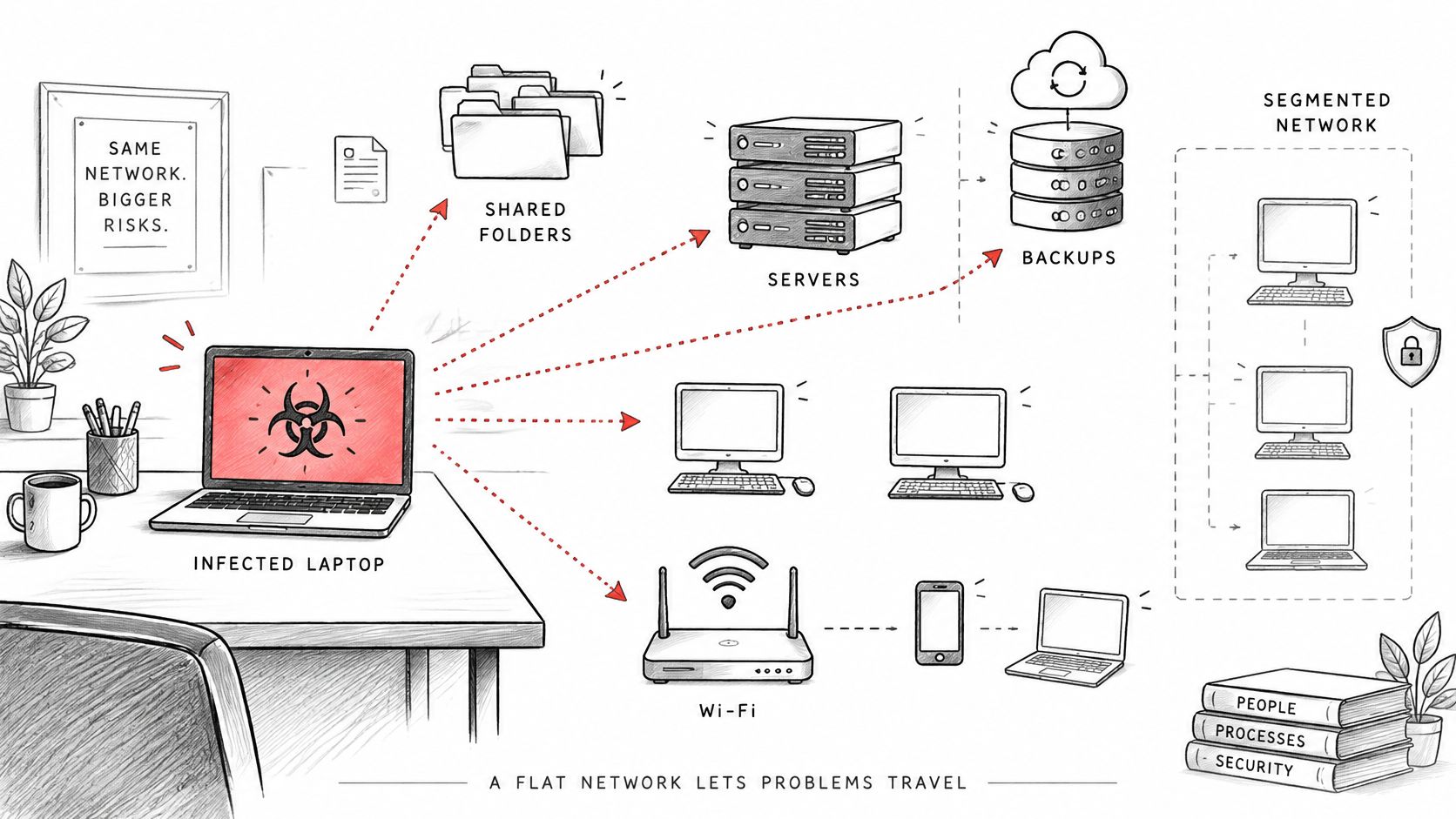
VLANs that actually block the spread
On a UniFi Network controller, build separate VLANs for corporate staff, guest Wi-Fi, IoT and printers, and a management or backup VLAN reachable only from admin workstations. Firewall rules should block workstation-to-backup traffic and allow only the backup protocol from the backup server. Zero Trust architecture here is plain. Every device has to prove itself before it touches the backup VLAN. A printer doesn't get to chat with the file server.
Wi-Fi in older Johnson County offices
Run a site survey before you buy more access points. Place latency-optimized mesh nodes on wired backhaul instead of daisy-chained radios, which just repeat a weak signal. Use WPA3-Enterprise where clients support it, and WPA2/WPA3 transition mode for older gear, with separate SSIDs mapped to those VLANs. Set 5 GHz channel width to 80 MHz only where a survey shows the air is quiet. Wider channels in a brick building full of neighbors just shout over each other.
This short walkthrough shows how a flat LAN lets one laptop reach everything else.
After you segment, a restore network can sit on its own VLAN so only scanned-clean devices come back. That's the difference between containing one laptop and rebuilding the office.
Train People and Stop Phishing Before It Lands
Verizon's 2024 Data Breach Investigations Report found the human element in 68% of breaches, while errors alone accounted for 28%. More than half of those errors came from misdelivery, such as sending information to the wrong recipient, and end users were responsible for 87% of reported errors. The controls belong on the desk, not only in the firewall.
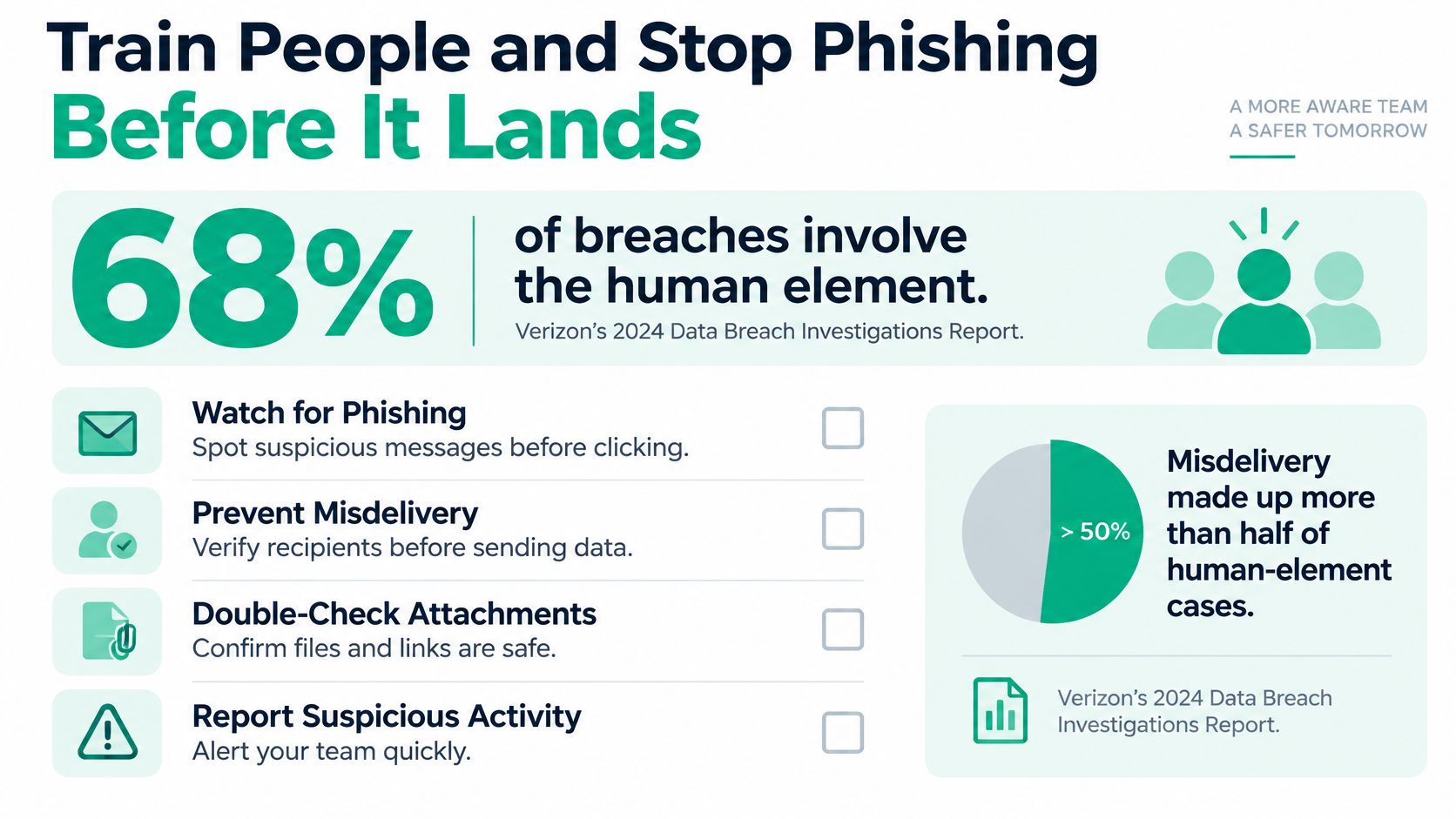
Skip the annual slide deck. Build checks people hit during normal work.
- Require a phone call-back to a known number before any wire transfer or bank-detail change. The number comes from your records, not the email that just arrived.
- Add an approval step before anyone emails files that contain customer records. One extra click beats a privacy incident.
- Turn on external-sender banners in Microsoft 365 Exchange Online so lookalike domains stand out in the inbox.
- Run a 15-minute phishing simulation each month. Coach the person who clicked. Don't punish them, or the next click stays quiet.
One-time training fails because staff turn over and attackers rewrite lures every quarter. The refresh has to be continuous. Each mistake you stop is an afternoon your team doesn't spend rebuilding records, which is billable time you keep.
A banner and a call-back stop more bad wires than another hour of slides.
Pair that habit with a written business guide to phishing and ROI so finance and IT share the same rule.
Test Restores and Write a DR Plan That Works
Restoring is the proof. A job that says "successful" is the promise.
NIST SP 800-34 says recovered data must be validated for completeness, backup media tested for reliability and integrity, and contingency procedures exercised. A federal implementation guide recommends testing contingency plans at least annually, with sampled restoration of selected functions. For Indiana SMBs, a defensible baseline is monthly sampled restores, quarterly application restores, and one annual end-to-end exercise, with pass and fail set before you start.
| Test | Frequency | What you restore | Pass criteria |
|---|---|---|---|
| Sampled file restore | Monthly | Representative Tier 1 and Tier 2 files from shares and mailboxes | Checksums match and permissions are intact |
| Application restore | Quarterly | Accounting database into an isolated VLAN | Record counts match source and the app launches |
| Full endpoint or VM restore | Quarterly | One server image onto spare hardware | Boots clean, scan passes, services start |
| SaaS export test | Quarterly | Mailbox and shared drive sample | Items restored within the RPO |
| Tabletop exercise | Annually | Compromised admin account scenario | Runbook followed and gaps logged |
| End-to-end drill | Annually | Full critical service stack | Measured RTO met and documented |
Pull media from the same path you'd use in an emergency. Restore into an isolated VLAN, scan before reconnecting, and compare record counts, checksums, timestamps, and permissions. Log restore start, service-back time, data-loss interval, failed objects, and the fix. Then retest.
What to watch between tests
Centralize logs and alert on backup job failures, immutability setting changes, and new admin accounts. If nobody is on call after hours, SOC-as-a-Service monitoring covers the gap so a failed job doesn't sit until Monday.
Write one DR document: scope, roles, a call tree, tiers with RTO and RPO, dependencies (DNS, licenses, identity, encryption keys), vendor contacts, and restore order. Restore identity and DNS first, then databases, then applications, then endpoints. Print a copy and keep it offline. A plan that lives only on the file server dies with the file server.
Before any restore, triage in this order.
- Isolate affected systems on a quarantine VLAN in UniFi, or pull the cable.
- Name the failed service and what it needs, such as identity, DNS, and the database it reads.
- Classify the cause as hardware failure, accidental deletion, malware, or an authentication compromise.
- Preserve evidence first. From a privileged prompt, run
wevtutil epl Security C:\IR\Security.evtx. - List recovery points with
wbadmin get versionsand pick one that predates the compromise. - Scan that copy, restore in priority order onto the recovery VLAN, and reconnect only devices that pass.
Common misses are restoring a few Word files, skipping encryption keys, and leaving backup credentials in the production domain.
Decide When to Call Managed IT or a Recovery Lab
Bring in outside help when no one owns the backups, restores have never been tested, an outage recurs, or your organization must address HIPAA contingency planning or CMMC requirements. NIST CSF gives other organizations a shared vocabulary for the Recover function: documented procedures and evidence that they work. A backup job marked “successful” is not proof of recovery. Track restore time, missing files, and the data-loss interval, then test the process.
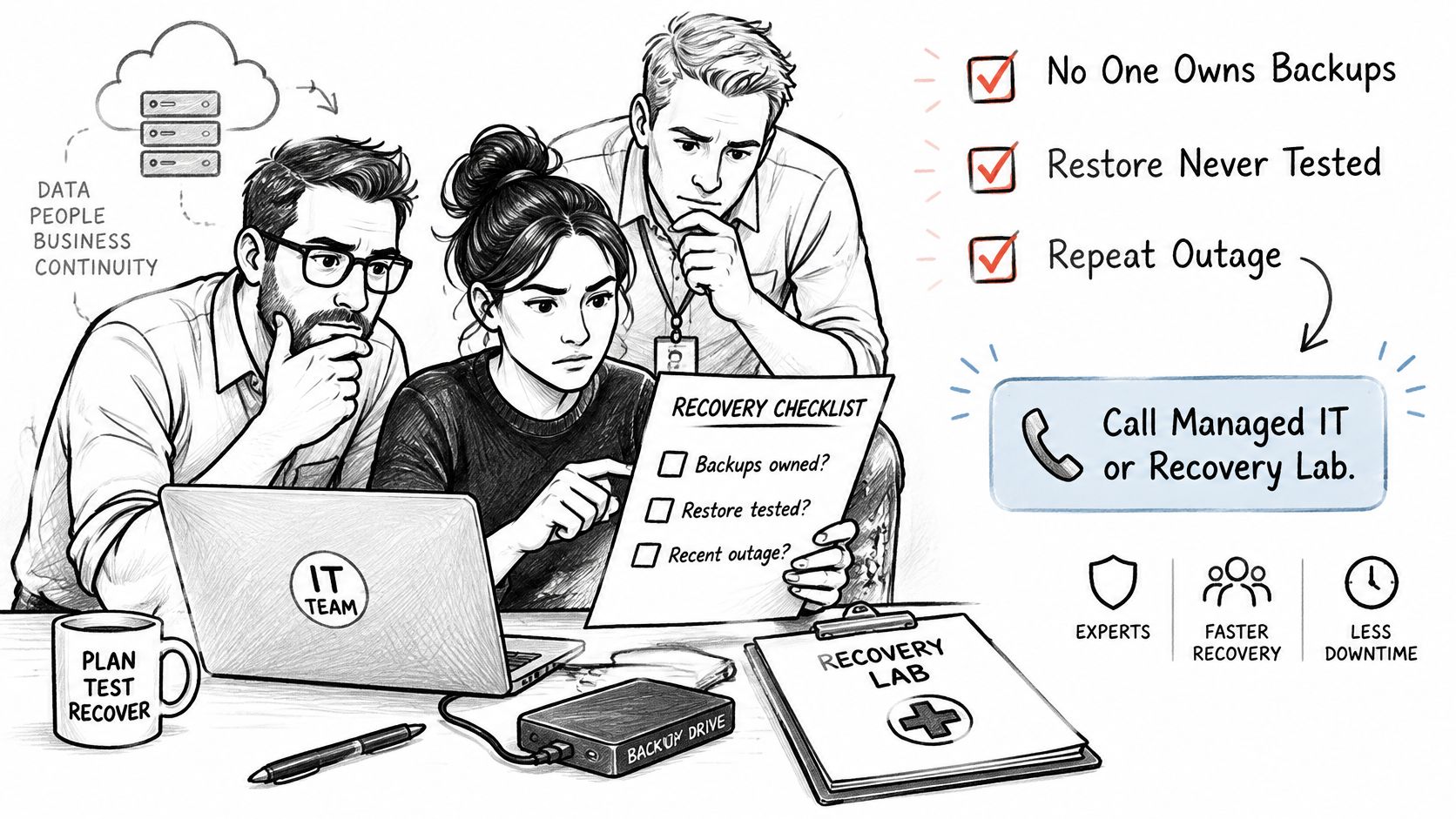
Keep DIY work away from a clicking drive or a failed RAID array. Power it down. Repeated spins or rebuild attempts can overwrite recoverable data, so send the device to a bit-level data recovery lab instead of experimenting with it. It is not a weekend project.
Break-fix work can create unpredictable labor spikes. Managed backup, patching, and monitoring make those costs more predictable and keep staff focused on their regular work instead of rebuilding PCs. IBM's 2024 Cost of a Data Breach Report found that organizations using security technologies extensively across prevention workflows had average breach costs $2.2 million lower than those that did not. A small business may not see that difference on its own ledger, but preventing an incident is still preferable to scrambling through one.
Greenwood and Indianapolis businesses, Johnson County operations along the I-65 corridor, Hamilton County companies, and downtown Indy tech teams face the same practical risk: a server nobody planned to replace. Finchum Fixes IT provides managed backups, encryption, access controls, and data recovery. For damaged drives, review its data recovery services to understand when lab work is appropriate.
Bring your RTO and RPO sheet to Finchum Fixes IT to review your backup, restore, and recovery plan. Check whether the actual restore time meets your RTO, and whether missing files stay within your RPO. A backup that has never been restored is still an untested guess.