A Business Owner's Guide To Blue Screen Of Death Troubleshooting
TL;DR: Key Takeaways for Business Owners
- A Blue Screen of Death (BSOD) is a critical system failure that can cost your business up to $9,000 per minute in downtime. It's a stop on revenue, not just a tech glitch.
- Immediate Action: Before rebooting, take a photo of the screen to capture the Stop Code. This code is the essential first clue for a fast diagnosis.
- Isolate the Cause: Reboot into Safe Mode. If the crashing stops, the problem is likely a bad software update or a faulty driver (like a UniFi networking driver). If it still crashes, suspect failing hardware like RAM or the hard drive.
- Proactive Prevention: A managed IT strategy prevents these crashes by vetting patches and monitoring hardware health. This converts "wasted tech time" into predictable budgets and ensures compliance with standards like HIPAA and CMMC.
It’s a sight that makes any business owner’s stomach drop. That sudden, jarring blue screen isn't just a computer glitch; for any business in Greenwood or along the busy I-65 corridor, it's a full-stop on your revenue. When you're faced with the infamous Blue Screen of Death (BSOD), your first move is stunningly simple: grab a pen or your phone and write down the error code.
That single line of text is your first, best clue. Before you even think about rebooting, capture that code. It’s the key to turning a crisis into a fix and getting your team back online.
What A Blue Screen Really Means For Your Business
Let's be clear: a Blue Screen of Death means Windows has hit a wall. It’s a critical system failure so severe that the operating system has to slam on the brakes to prevent actual hardware damage. For you, the business owner, this translates directly into lost productivity and hemorrhaging cash. Downtime can cost a shocking $9,000 per minute, and a single crashed workstation can completely derail an entire team's workflow.
Picture a logistics coordinator in a bustling Johnson County warehouse. Their PC goes blue, and suddenly, shipping manifests vanish and trucks sit idle at the loading dock. Or think about a CPA firm in Hamilton County during the height of tax season; a BSOD on a key partner's machine brings billable hours to a screeching halt. This isn't just an IT headache. It's a financial emergency.
Over our 17 years of serving local businesses, we’ve seen it all. A BSOD is almost never a random fluke. It’s often the first symptom you can see of a much deeper problem, like a failing server in a Greenwood business park or a software conflict spreading through a downtown Indy tech company.
These crashes are warning shots. If you ignore them, you're risking catastrophic data loss down the line. That cryptic stop code on the screen is your Rosetta Stone for figuring out the root cause. This guide is your action plan for BSOD troubleshooting, turning those baffling error messages into a clear path forward.
We're going to cover:
- First 5 Minutes: Your immediate triage plan the moment a screen goes blue.
- Code Breaking: What common stop codes like
CRITICAL_PROCESS_DIEDactually mean. - Safe Mode Sleuthing: Using Safe Mode like a detective to figure out if it's a software or hardware problem.
- Proactive Plays: How a managed IT strategy stops these fires before they start, turning chaotic tech costs into a predictable budget.
Common BSOD Stop Codes And What They Mean For Your Business
When a Blue Screen of Death appears, the stop code it displays is your most valuable piece of information. These codes, while cryptic, point directly to the type of failure that occurred. Below is a quick-reference table to help you decode some of the most common ones we see in the field.
| Stop Code | Common Name | Likely Cause | Business Impact |
|---|---|---|---|
0x000000EF | Critical Process Died | A critical Windows process failed. Often caused by a bad update, corrupt system file, or failing hard drive. | High. System is unstable and may not boot. Work stops immediately. |
0x0000007B | Inaccessible Boot Device | Windows can't access the system partition. Can be a failed boot drive, incorrect BIOS settings, or a driver issue. | Critical. The computer will not start, making all local data and applications inaccessible. |
0x000000D1 | Driver IRQL Not Less Or Equal | A faulty device driver (e.g., for a printer, graphics card, or network adapter) tried to access memory improperly. | Medium to High. Can cause intermittent crashes, disrupting workflow and risking unsaved data. |
0x0000001A | Memory Management | A severe memory management error. This often points directly to failing RAM modules or RAM-related driver issues. | High. Leads to frequent crashes and a high risk of data corruption. |
0x00000050 | Page Fault in Nonpaged Area | Requested data was not found in memory. Usually caused by bad RAM, a faulty driver, or an issue with antivirus software. | Medium. Causes sporadic application crashes and system instability. |
Understanding these codes helps you gauge the severity of the issue. A driver-related crash might be a quick fix, while a boot device error signals a much more serious hardware failure that could sideline an employee for days.
Ignoring a BSOD is like putting a piece of tape over your car's check engine light—the underlying problem is only going to get worse and a lot more expensive to fix. For businesses needing to maintain compliance with regulations like HIPAA for healthcare or CMMC for defense contractors, persistent system instability is a red flag that can become a serious regulatory risk.
A solid troubleshooting strategy is a fundamental part of business continuity, and that absolutely includes knowing your backup and recovery options are solid. You can learn more about how enterprise data backup solutions guarantee business uptime in our detailed article.
Your First Response Plan For Any BSOD Event
Ugh. The Blue Screen of Death. That sudden, soul-crushing flash of blue on an employee’s screen is enough to ruin anyone’s morning. But before you let the panic set in, your first move is dead simple: grab a phone and snap a picture.
Seriously. That string of text near the bottom, usually labeled Stop Code, is the single most important clue you'll get. Just restarting and hoping for the best is a rookie move that burns through time and money. You need to know if this was just a random hiccup or the first warning shot from a much bigger problem, like an old server sputtering its last breath in a Greenwood business park.
Triage And Safe Mode Diagnosis
With the error code safely documented, go ahead and do a hard shutdown by holding down the power button. Now, try restarting. If the PC boots up and acts like nothing happened, you might have dodged a bullet. But if it crashes again or gets stuck in a reboot loop, it’s time to call in the cavalry: Safe Mode.
Safe Mode is Windows's stripped-down, diagnostic state. It only loads the absolute bare essentials to run the system. This makes it an incredibly powerful test:
- If the PC runs fine in Safe Mode: The culprit is almost certainly software. Think recent program installs, driver updates, or some other conflicting application.
- If the PC still crashes in Safe Mode: Now we're looking at something more serious. This usually points to a core Windows OS problem or, more likely, a piece of failing hardware like bad RAM or a dying hard drive.
For so many of the business owners we work with across Johnson County, this simple test is the fork in the road. It helps you instantly slash the list of potential problems in half.
From the Field: A Real-World Example We got a frantic call from a growing company in Hamilton County whose whole office kept crashing. Their network ran on UniFi gear, and things were getting ugly. We walked them through booting one of the problem machines into Safe Mode, and what do you know? It was perfectly stable. That told us the hardware was fine. We quickly traced the issue back to a brand-new, buggy UniFi networking driver that had just been released. A quick driver rollback saved them from a full-day outage that would have brought their entire operation to a standstill.
Understanding The Common Causes
Trust me, you're not the first person to see a BSOD, and you won't be the last. A staggering 20-30% of Windows users run into these errors every year. And the number one cause? Funky drivers, which account for a massive 45% of all crashes. We see it all the time with businesses up and down the I-65 corridor. If you want to dive deeper into the data, a Microsoft telemetry report that analyzed over a billion crashes is a real eye-opener.
This flowchart lays out the exact path we take when we first encounter a Blue Screen of Death, from that initial crash to using Safe Mode to figure out what’s gone wrong.
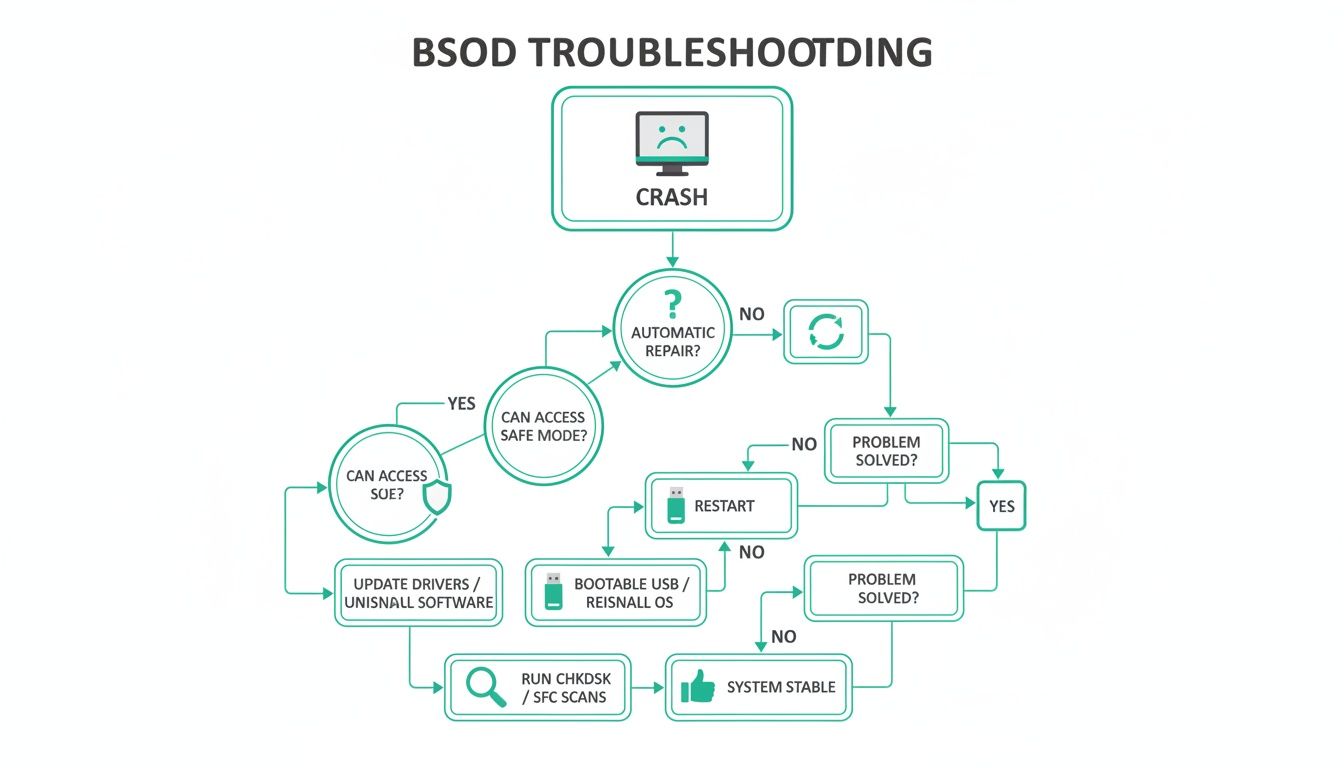
The big takeaway here is how much you can learn just by restarting and trying Safe Mode. It’s the fastest way to determine if you’re dealing with a software headache or a potentially critical hardware failure.
Getting this initial triage right is everything. Fumbling around in the dark can easily lead to lost data or even more system damage, turning a small annoyance into a major expense. Following a methodical process isn't just good troubleshooting; it’s a core part of a strong security posture. For more on that, take a look at our guide on endpoint security best practices for Indianapolis SMBs.
Isolating Problematic Drivers and Software Updates
So, your computer suddenly stopped crashing in Safe Mode? That's your "Aha!" moment. That quiet, bare-bones environment is your proof: the problem isn't with the guts of your machine. Your core hardware and Windows files are most likely in the clear.
The real culprit is almost certainly a recent software install or, as we see all the time, a brand-new device driver that's decided to cause a little chaos. Now the fun part begins. It's time to play detective and undo whatever recent change triggered this blue-screen nightmare.
This isn't just a skill for us IT pros. If you're managing a team in a Greenwood office or leading a project in a downtown Indy tech hub, knowing this quick fix can be the difference between a five-minute hiccup and a full day of lost productivity. Your best friend for this job is the Device Manager, a trusty Windows tool that keeps a roster of every piece of hardware connected to your computer.
A new driver is supposed to be a simple, helpful update. But sometimes, it just doesn't play nice with other software or arrives with a hidden bug. The result? System-wide instability. We frequently see this with graphics card (GPU) updates that throw a fit when they meet specialized business software, leading to instant crashes.
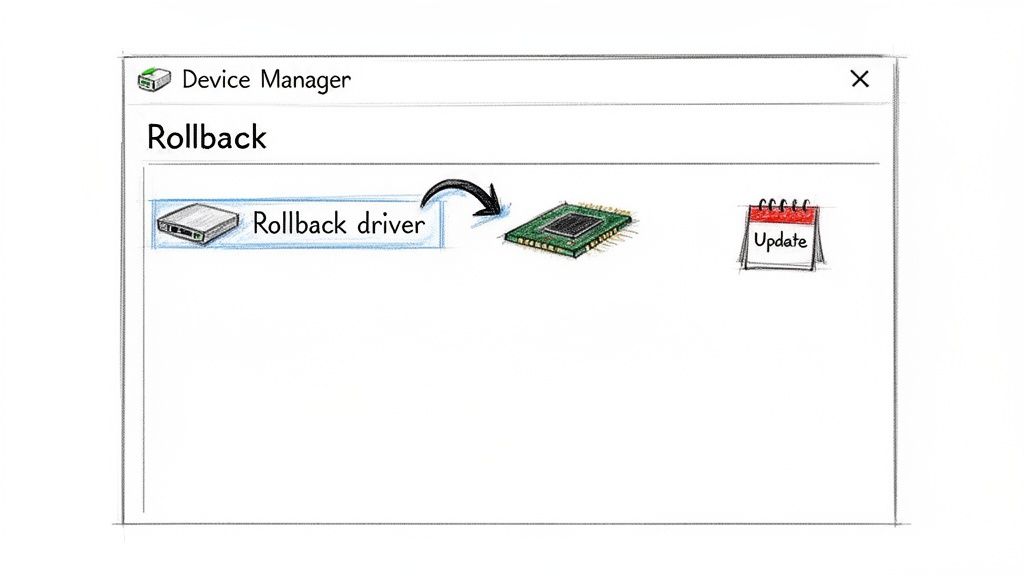
Rolling Back a Problematic Driver
Once you're in Safe Mode (or if the system is stable for a few minutes), you can force a troublesome driver to go back to its previous, happier self. This is a genuinely critical skill.
Here’s how you can wind back the clock:
- Right-click the Start button and choose Device Manager.
- Look for the category of hardware you suspect is misbehaving. The usual suspects are Display adapters, Network adapters, or Sound, video and game controllers.
- Expand that category, find the specific device, right-click it, and open its Properties.
- Head over to the Driver tab and hit the Roll Back Driver button.
If that button is grayed out, it means Windows doesn’t have an older driver on file. No worries. Your next move is to uninstall the device and its driver software completely. Then, just reboot. Windows will automatically find and install a stable, default driver for it.
This isn't just theory—we've seen this exact process save the day more times than I can count. A Johnson County logistics firm recently called us in a panic. Their entire dispatch fleet went down. The cause? A mandatory graphics driver update that was totally incompatible with their routing software. Rolling back that one driver had their whole operation back online in less than an hour, saving them from thousands in losses.
The Danger of Unvetted Software Updates
It’s not just drivers, either. Major Windows updates themselves can sometimes introduce system-breaking bugs. A massive real-world example hit in February 2026, when Microsoft admitted a Windows 11 update was causing KERNEL_SECURITY_CHECK_FAILURE blue screens on PCs with certain GPUs.
The bug was traced back to a corruption in a core graphics file, dxgmms2.sys. While there was an official fix involving command-line repairs, which you can read about in the details from the Windows 11 release notes, it highlights a bigger issue.
This is exactly where a proactive, managed approach makes all the difference. Instead of reacting to crashes, our team vets and stages patches before they ever get near a client’s machine. Using tools like Bitdefender GravityZone, we control precisely when and how updates are deployed, making sure a new patch won't start a fight with your critical software.
This level of control is non-negotiable for businesses that have to meet compliance standards like HIPAA for healthcare or CMMC for defense contractors. A stable, predictable IT environment isn't a luxury; it's a requirement. The hours spent troubleshooting a bad update are just lost revenue. A managed process, on the other hand, turns that unpredictable "wasted tech time" into a fixed, manageable monthly cost. You can learn more about why this is so important in our guide to the essentials of professional patch management.
Diagnosing Failing Hardware Before It’s Too Late
So, you’ve done the software dance. You rolled back the drivers, uninstalled that questionable new program, and yet the dreaded blue screens are still crashing the party. If your BSOD problem persists after all that, it’s time to stop looking at the code and start looking at the box itself.
More often than not, the culprit isn’t a bug in Windows—it’s a physical component quietly giving up the ghost. For our business clients here in Greenwood and up and down the I-65 corridor, this is where the real cost of downtime begins to sting. The two most common offenders? Your system’s memory (RAM) and its storage drive.
Is Your Memory Going Bad?
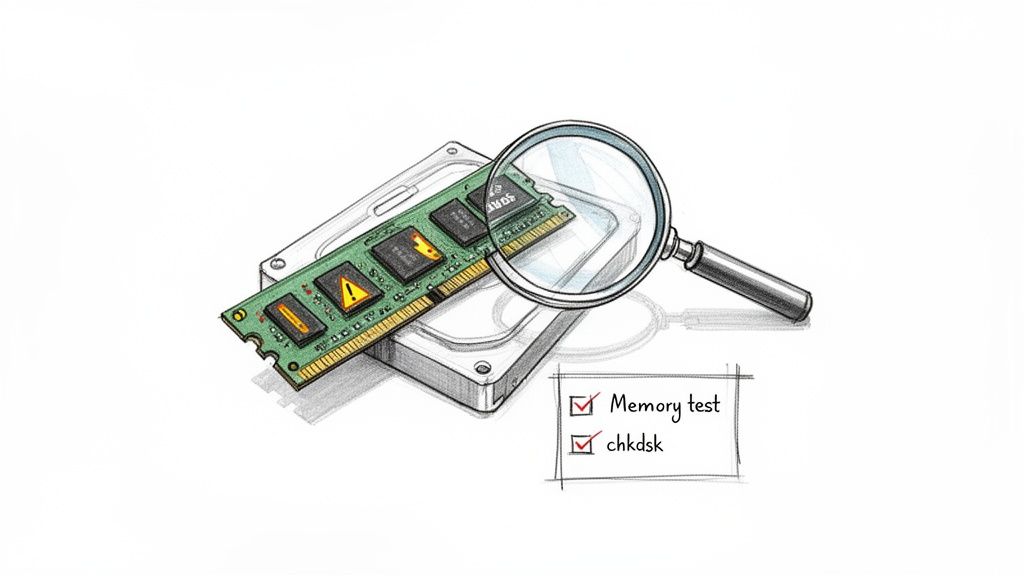
A faulty stick of RAM is the classic cause of those maddeningly random blue screens. If you’re seeing errors like MEMORY_MANAGEMENT or PAGE_FAULT_IN_NONPAGED_AREA, you should be highly suspicious. One bad memory module can corrupt data on the fly, leading to bizarre application crashes and total system instability.
Thankfully, Windows has a built-in tool for this very purpose.
- Run Windows Memory Diagnostic: Just search for it in the Start Menu and let it run. Your computer will need to restart for the test. It scans every part of your RAM for errors. The rule is simple: if it finds even one single error, that RAM stick is toast. It has to be replaced, no questions asked.
Keep in mind that hardware doesn't last forever. An older machine is far more prone to these kinds of failures. Taking a moment for understanding the age of your computer can help you decide if it’s worth repairing or if it’s time to retire the old workhorse.
Checking If Your Hard Drive Is on Its Way Out
Your hard drive or SSD holds the keys to the kingdom—all your business data, applications, and the operating system itself. If it starts to fail, you're not just looking at more blue screens; you're staring down the barrel of total data loss.
A blue screen with the error INACCESSIBLE_BOOT_DEVICE is a massive red flag. It’s screaming that Windows can’t even find its own files to start up, which usually points directly to a drive in distress.
You can perform a quick health check with a built-in command. Open the Command Prompt as an administrator and type chkdsk /f /r. This command will scan the drive for bad sectors and try to repair them. Be warned: if it reports a high number of bad sectors, that drive is living on borrowed time. It needs to be backed up and replaced immediately.
From the Field: The Phantom BSOD at the Greenwood Firm We once got a call from a Johnson County accounting firm ready to toss a high-end workstation out the window. It blue-screened randomly, and three other techs had already blamed Windows updates and software conflicts. Our software checks came up clean, so we moved on to hardware. But instead of the basic scan, we ran an extended, heavy-load memory diagnostic. The machine only crashed when its RAM was under maximum stress—something that only happened when their accountants were running massive, complex spreadsheets. The culprit? One bad RAM module failing under pressure.
That’s the hidden cost of chasing software ghosts. The firm wasted hours and paid other techs to troubleshoot the wrong problem. We found the hardware fault in under two hours, swapped the bad stick, and got them back to billable work.
When a drive is actively failing, running tools like chkdsk can be risky and even make things worse. This is where you need to call in the pros. At Finchum Fixes IT, our first step is to perform a safe, bit-level data recovery image of the dying drive. We clone every last recoverable byte before attempting any repairs. This approach is what separates a minor hardware swap from a business-ending data disaster.
If you suspect your drive is failing, don’t risk it. Our experts in professional data recovery can help safeguard your critical information.
When It's Time to Call in the Pros
So, you've done it all. You’ve wrestled with drivers, nuked suspicious software, and even swapped out hardware. Yet, that dreaded blue screen keeps crashing your party, grinding productivity to a halt. When you’ve exhausted your bag of tricks and the BSOD keeps coming back, that’s a sure sign the problem is bigger than one grumpy component.
This is a common bottleneck we see with businesses across the Indy metro area: an old brick building with spotty Wi-Fi or aging server hardware in a Greenwood business park can create a cascade of seemingly unrelated tech problems. A single, persistent BSOD is often just the most visible symptom. This is the point where the DIY manual gets slammed shut. You're no longer just fixing a PC; you're defending your entire business from a major outage, and that calls for rapid, professional backup.
When the Problem Is Bigger Than Your Building
Modern IT isn't a neat little box—it's a tangled web of services that all lean on each other. Even your most trusted cybersecurity shield can, in a flash, become the source of a system-wide meltdown. We all got a front-row seat to this reality with a name everyone in security knows.
The CrowdStrike outage of July 19, 2024, was one of the most widespread Blue Screen of Death events in history, taking down over 8.5 million Windows machines across the globe. The cause? A single bad update pushed to their Falcon security agent, triggering a kernel-level conflict that sent Windows into a tailspin. In an instant, countless machines—from workstations in downtown Indy tech hubs to servers out in Johnson County—were completely unbootable. It was a brutal lesson in how a single point of failure can bring even the most well-maintained networks to their knees.
That event is a stark reminder: when a global service you depend on goes down, you can’t afford to sit in a support queue with thousands of other businesses. You need a local partner who can be on-site, hands-on, and focused on getting your operations back online right here in the Indianapolis area.
Your Final Lines of Defense
When a nasty BSOD strikes and the usual fixes aren't cutting it, you have two last-ditch tools that can turn a full-blown disaster into a manageable hiccup: System Restore and, most importantly, your backups.
-
System Restore: Think of this Windows feature as a time machine for your operating system. It lets you rewind your computer's system files and settings to an earlier point in time, essentially undoing whatever change triggered the blue screen. It's perfect for reversing a bad driver or a problematic update without touching your personal files.
-
Immutable Off-Site Backups: This is your get-out-of-jail-free card. While System Restore can fix Windows, it won't save you from a hard drive that’s given up the ghost or a ransomware attack. An immutable backup is a read-only copy of your data that can't be changed or deleted. Storing these backups safely off-site means that even if your office hardware is toast, your critical business data is safe, sound, and ready to be restored.
When we get the call for a major system failure, our first move is always data preservation. Before we even think about a fix, we check the state of your backups. It’s the cornerstone of business continuity and a key part of our Zero Trust architecture—we never assume anything is safe until we've verified it.
Ah, the classic. This old-school Blue Screen of Death is a sight that's given PC users heartburn for decades.
The look has evolved, but the message is the same: the system hit a wall and had to stop everything to prevent more damage.
Our SOC-as-a-Service (Security Operations Center) monitoring often catches the subtle warnings before they escalate into a full-blown crash. But when disaster strikes anyway, having a local team ready to roll is priceless. For those stubborn, recurring issues, our experts have the advanced tools and the computer repair services you need to get back to business.
If you’re a business owner in the Greenwood or Indianapolis area, are you tired of wrestling with the same tech headaches that bleed time and money? It's time to stop the break-fix cycle and start converting that wasted tech time back into billable hours. Reach out to Finchum Fixes IT for a Free Network Assessment and let us show you how a proactive, managed IT strategy can put these problems in the rearview mirror for good.
Burning Questions About The Blue Screen Of Death
Even with a game plan, a Blue Screen of Death will leave you with questions. It’s a stressful situation, and we get it—especially when every minute of downtime is a minute you're not making money. After years of fielding calls from businesses across the Indianapolis area, we've heard them all.
Here are a few of the big ones.
Is The Blue Screen Actually Hurting My Computer?
Think of the Blue Screen of Death as your computer’s emergency brake. It’s not the crash itself that’s dangerous; it's a protective measure. When Windows senses a critical problem that could genuinely fry your processor or scramble your hard drive, it slams on the brakes to prevent any real damage.
The real villain is whatever caused the blue screen in the first place. A failing power supply sending chaotic voltage spikes? A dead cooling fan letting your machine cook itself? Those are the things that lead to hardware graveyards. Even the repeated, abrupt shutdowns put a ton of strain on your hard drive, which can cause it to fail much sooner than it should.
That’s why just rebooting and crossing your fingers is such a bad idea. It's like hitting snooze on a smoke alarm in your server room. Finding the root cause is the only way to stop a minor hiccup from turning into catastrophic hardware failure and a massive bill.
Blue Screen, Black Screen… What’s The Difference?
Honestly? Nothing but a paint job. When Microsoft rolled out Windows 11, they swapped the iconic, panic-inducing blue for a sleek, modern black. It was a purely aesthetic choice to match the new look and feel of the OS.
They both do the exact same thing: halt the system during a fatal error and flash a stop code you can use for troubleshooting. So, whether you’re seeing blue (Windows 10 and earlier) or black (Windows 11), the fix-it strategy is identical.
From a brand-new laptop in a Hamilton County office to an aging server in a Greenwood business park, we treat them both the same. That stop code is the clue we need to start digging.
My PC Is Stuck In A Blue Screen Loop. Now What?
Ah, the dreaded boot loop. If your computer crashes to a blue screen, reboots, and immediately crashes again, you've got a serious problem. This usually points to a corrupted core system file, a critical driver that’s failing on startup, or a dying boot drive. The system can’t even load far enough to stay stable.
Your first mission is to break the cycle and get into the Windows Recovery Environment (WinRE).
- Turn your computer on.
- The instant you see the Windows logo or the little spinning dots, press and hold the power button until it shuts off completely.
- Do this 2-3 times in a row.
This sequence is the universal signal for "I'm in serious trouble," and Windows will usually load the "Automatic Repair" screen. From there, click Advanced options to open your toolkit.
Here's your order of operations in WinRE:
- System Restore: This should always be your first move. It’s like a time machine for your PC, rolling back recent changes (like a bad update) to a point when things were working.
- Startup Repair: It’s the "let Windows try" button. It rarely fixes complex issues, but it's quick and worth a shot.
- Startup Settings: This is your gateway to Safe Mode. If you can get the computer to boot into Safe Mode, you have a fighting chance to uninstall problematic software or roll back a bad driver.
- Command Prompt: For the tech-savvy, this gives you access to powerful tools like SFC /scannow (to fix system files) and CHKDSK (to check the hard drive for errors).
If you’ve tried a System Restore and you can't even get into Safe Mode, it's time to stop. Forcing more restarts or running aggressive commands on a potentially failing drive can push it over the edge, turning a recoverable problem into permanent data loss. This is your sign to call in the cavalry.
This is where the value of professional IT support becomes undeniable. The cost of having an employee waste hours on a dead-end fix is almost always higher than the cost of a service call. We’ll protect your data, find the real problem, and get your team back to work.
Stop letting tech emergencies run your business. A persistent Blue Screen of Death isn't just an annoyance; it's a direct threat to your productivity and your bottom line. For businesses in Greenwood and the greater Indianapolis area, Finchum Fixes IT offers a better way forward. We don't just fix the crash—we build a strategy to make sure it doesn't happen again.
Take the first step toward reliable IT and an uninterrupted workflow. Schedule your Free Security Risk Audit with our team today and see how a proactive approach can turn your technology from a liability into your greatest asset. Learn more and book your assessment at https://finchumfixesit.com.