Computer Diagnostics and Repair: Indiana Business Guide 2026
A large-scale study of high-performance computing systems recorded failure rates from 20 to more than 1,000 failures per year, with average repair time close to six hours across failures (study of high-performance computing reliability). Computer diagnostics and repair is therefore a business continuity function, not just a hardware swap. The right workflow identifies whether the cause is a failing component, corrupted software, network instability, firmware, or a security control before a short incident becomes a prolonged outage.
In the I-65 corridor, the pattern is familiar. An aging server in a Greenwood business park, weak Wi-Fi in an old brick building, or a workstation with a failing SSD can interrupt payroll, dispatch, patient scheduling, or customer service. A structured approach combines hardware testing, Windows logs, networking checks, data recovery, cybersecurity, cloud computing, software development, and responsive IT support.
The True Cost of Downtime and Why Diagnostics Matter
Gartner's widely cited benchmark places the cost of downtime at $5,600 per minute, while Atlassian cites a Ponemon Institute estimate approaching $9,000 per minute (Atlassian's downtime cost overview). Those figures change the conversation with a Johnson County business owner. A repair invoice may look expensive, but the idle staff, missed transactions, delayed shipments, and interrupted client work can consume far more than the replacement part.
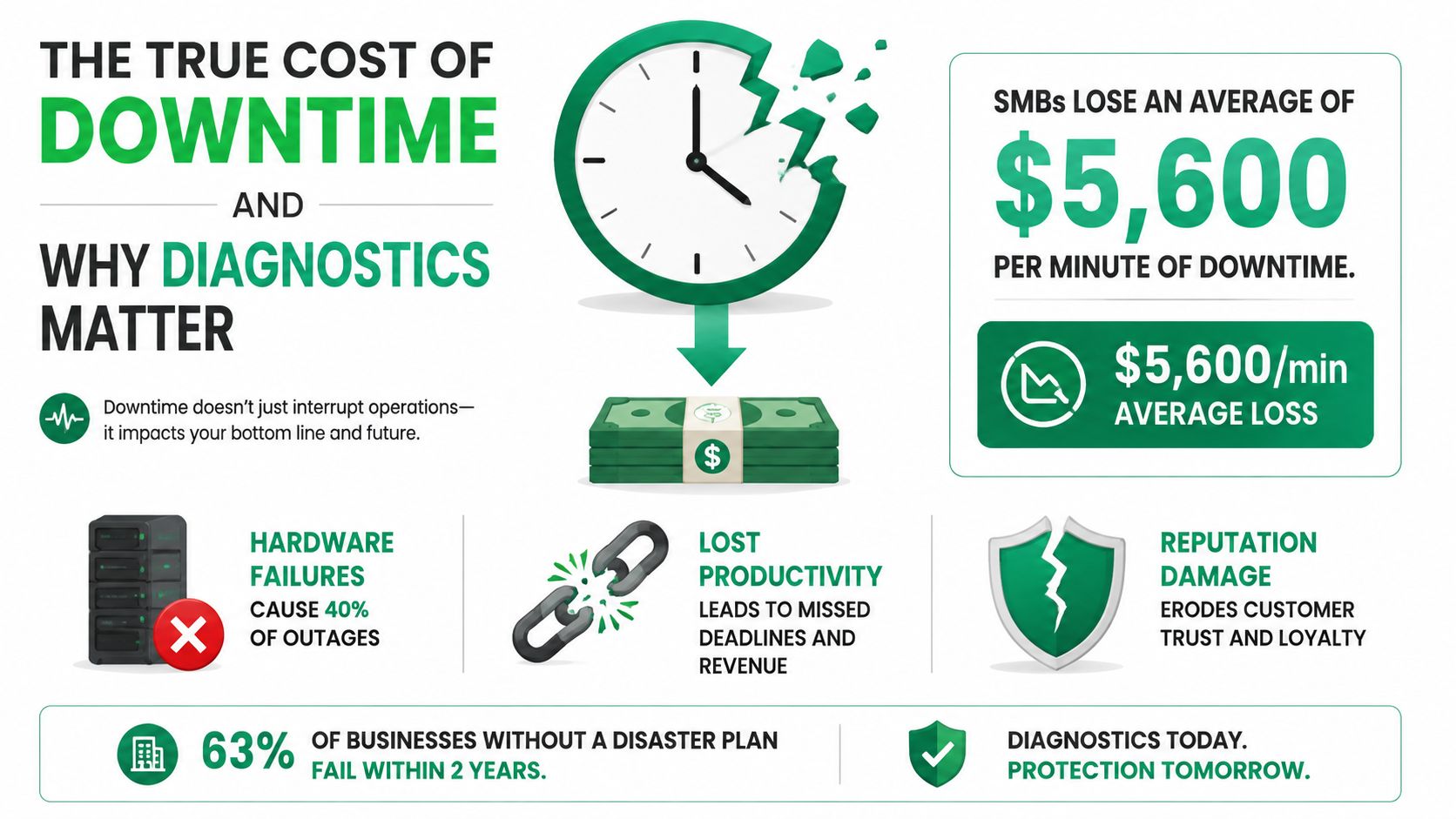
A break-fix model often extends the outage because the first technician starts with assumptions. They replace a drive when the fault is a controller. They reinstall Windows when corrupted system files came from failing memory. They blame a wireless access point when the issue is a switch port, cable, or authentication policy. Every wrong turn increases mean time to repair and creates another opportunity for data corruption.
Diagnostics protect more than the device
The first job is not to make a computer turn on. It's to establish what failed, what remains trustworthy, and what must be preserved. A good technician captures symptoms, checks recent changes, protects user data, and separates evidence from guesses. That process prevents unnecessary hardware purchases and gives the owner a defensible reason to repair, replace, restore, or isolate the system.
Research on more than one million machines found that a system crashing from a hardware fault can be up to two orders of magnitude more likely to crash again from the same type of problem (empirical hardware failure analysis). Repeated incidents deserve root-cause analysis, not repeated resets.
Practical rule: Treat every outage as a continuity event when the affected computer supports revenue, regulated data, or another operational dependency.
A business continuity plan defines how work continues while a system is unavailable. Disaster recovery focuses on restoring systems and data. The distinction matters for Indiana companies evaluating backups, alternate workstations, cloud applications, and recovery priorities. This business continuity and disaster recovery guide helps frame those decisions before a server failure forces them.
Quick Triage Steps for Common Computer Failures
Triage should be fast, controlled, and reversible. The objective isn't to perform a full repair at a conference-room desk. It's to determine whether the incident is local, shared, software-driven, hardware-related, or potentially malicious.
Start outside the operating system
-
Check power and connections. Confirm the power strip, adapter, device indicator, display cable, docking station, and peripherals. For a desktop, check whether the monitor is receiving power separately. A dead screen doesn't prove the computer is dead.
-
Verify network reachability. Check whether nearby users have the same problem. Inspect the switch port and access point, then test wired connectivity if Wi-Fi is unstable. In an older downtown Indy building, building materials and access-point placement can matter as much as the endpoint itself.
-
Record error evidence. Photograph blue-screen codes, beep patterns, firmware warnings, and unusual indicator lights. Don't repeatedly power-cycle a machine that contains important files or sounds like its storage device is struggling.
Move to software triage
-
Restart once, deliberately. If the system returns to normal, document what changed and check Reliability Monitor rather than declaring victory. Open Task Manager and review CPU, memory, disk, and startup activity. A runaway process can mimic failing hardware, while sustained disk activity may point to storage, indexing, updates, or malware.
-
Review recent changes. Check Windows Update history, recently installed drivers, endpoint security events, and application updates. For a blue screen, capture the stop code and inspect Event Viewer under Windows Logs and relevant application or system channels. For an application crash, test whether another user or workstation sees the same behavior.
Isolate a device from the network when it shows ransomware notes, unexplained encryption, suspicious account activity, a security alert, or behavior that suggests malware. Disconnecting the network cable or disabling Wi-Fi can limit lateral spread, but don't delete files or wipe the machine before evidence and recovery needs are assessed.
Escalation threshold: If basic triage runs beyond 15 minutes, involves inaccessible data, repeated crashes, or a possible security event, stop experimenting and hand it to professional support.
For a no-power symptom, this Indiana guide to a computer that won't turn on offers additional checks. A managed provider can also compare the endpoint with the wider environment instead of treating one screen as the entire incident.
Beyond the Basics and Advanced Diagnostic Workflows
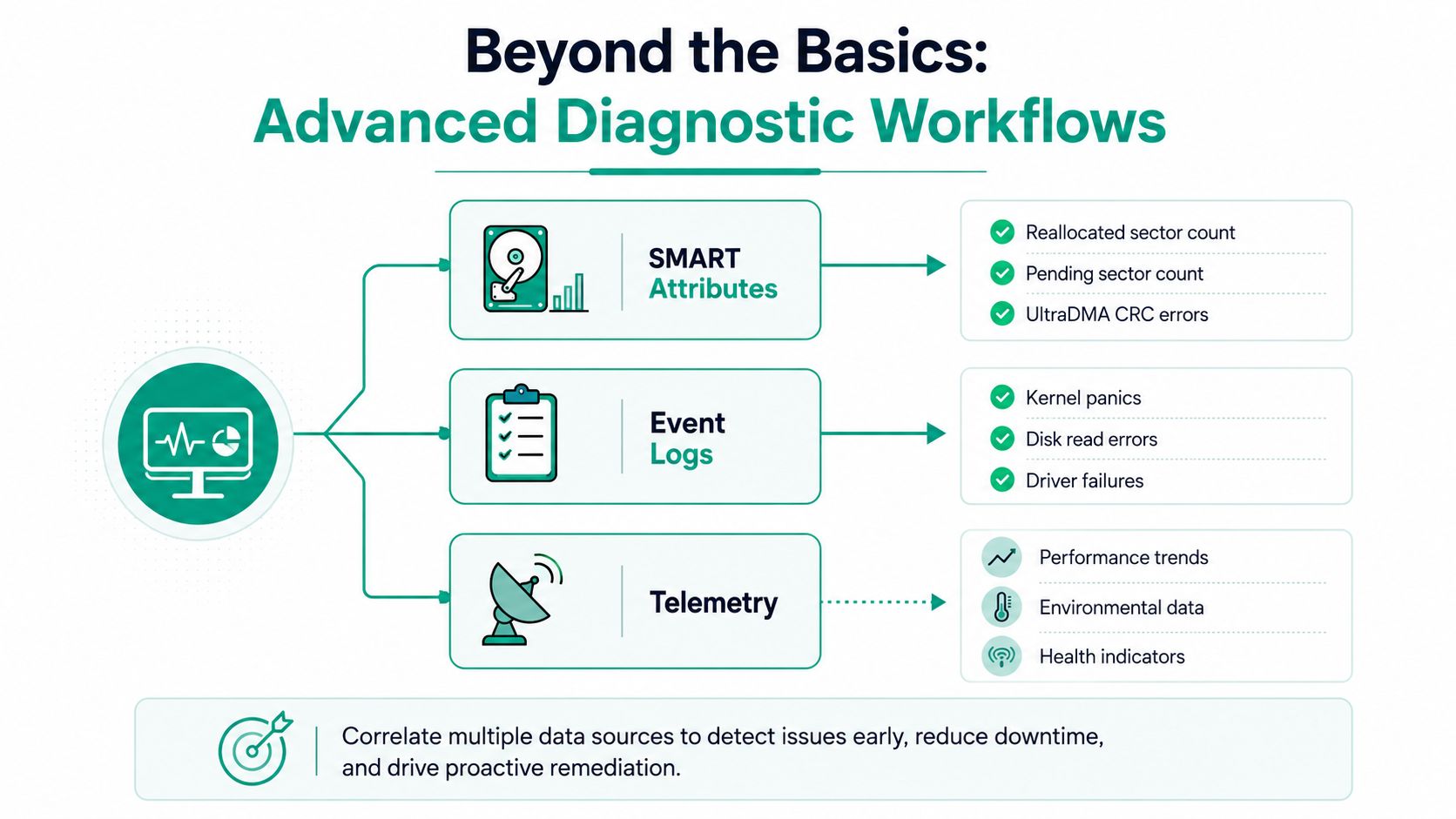
A basic self-test answers a narrow question. Business-grade diagnostics correlate several signals over time. Storage health, Windows events, memory behavior, temperature, firmware, network latency, and endpoint alerts can point to one root cause that none of those sources proves alone.
Storage needs trend analysis
SMART data can expose reallocated sectors, pending sectors, interface errors, and power-on history. It can't reliably tell you the exact moment a drive will fail. Attributes vary by vendor, some logs are incomplete or proprietary, and a drive can pass a basic test while performance deteriorates. A defense analysis found that 56% of HDD failures occurred without any of four strong SMART warnings, and 36% occurred with no SMART error (U.S. defense analysis of SMART limitations).
That's why a technician combines SMART polling with latency, reallocated-sector trends, event logs, backup verification, and user symptoms. Repeated time-series checks are more useful than a single green result. Advanced research found disk-failure models reaching about 0.95 F-measure and 0.95 Matthews correlation coefficient over a 10-day prediction horizon when SMART data were combined with performance and drive-location data (USENIX disk-failure prediction research).
Logs and memory fill the gaps
Windows Event Viewer can connect Kernel-Power events, disk read errors, controller resets, driver failures, and application crashes. A technician should export relevant logs, identify when the symptoms began, and compare the timing with updates, device changes, and backup activity. sfc /scannow and DISM /Online /Cleanup-Image /RestoreHealth can check and repair Windows component issues, but they shouldn't substitute for storage and memory testing.
MemTest86 is useful for intermittent RAM faults that produce random restarts, corrupted archives, and inconsistent application crashes. Thermal monitoring can reveal a blocked heatsink, failing fan, overheating CPU, or power supply instability. Stress tests should be controlled and supervised, especially on a system already showing storage errors or heat warnings.
An RMM platform adds fleet-level context. It can collect drive status, patch state, thermal alerts, battery condition, event patterns, and endpoint security signals across offices in Greenwood, Hamilton County, and downtown Indy tech hubs. The result is a shift from “this computer is slow” to “several systems share the same driver or update condition.”
For blue-screen incidents, this business owner's guide to blue-screen troubleshooting provides a practical starting point. A professional workflow then verifies the repair, documents the result, and checks that backups and security controls still function.
Repair vs. Replace and Making the Right Business Decision
Repair is sensible when the fault is isolated, the platform remains supported, the data is protected, and the repair restores useful service without creating another weak point. Replacement makes more sense when failures repeat, firmware is unsupported, the role is operationally critical, or the device can't meet current security requirements.
The familiar 50% rule can be a useful prompt, but it isn't a complete business decision. A lower repair invoice may still be a poor choice if the workstation uses unsupported firmware, lacks TPM 2.0 for Windows 11, consumes more energy, or takes staff away from billable work. A new device may carry deployment effort, but warranty coverage and a clean security baseline can reduce future uncertainty.
| Factor | Favor Repair | Favor Replace |
|---|---|---|
| Machine age | The platform is relatively recent and supported | The device is near the end of its useful support life |
| Failure pattern | One documented, isolated component has failed | Multiple parts show symptoms or failures recur |
| Security | Firmware, encryption, endpoint protection, and required controls remain supported | The system can't meet current policies, TPM 2.0 requirements, or secure configuration standards |
| Business role | A spare or noncritical workstation can tolerate planned service | The device supports dispatch, clinical work, payroll, production, or customer transactions |
| Data condition | Verified backups exist and storage is stable | Data recovery is uncertain or the drive shows degrading behavior |
| Deployment impact | Repair returns the user to work quickly | A replacement materially improves reliability and standardization |
For healthcare organizations, HIPAA obligations affect how technicians handle protected health information. Defense contractors may need CMMC-aligned practices, while general businesses can map security and support workflows to NIST CSF 2.0, released by NIST on February 26, 2024 (NIST Cybersecurity Framework 2.0).
A repair estimate should include parts, labor, data handling, downtime, temporary equipment, warranty, and the risk of recurrence. This guide to business computer repair costs can help owners compare the invoice with the full lifecycle cost.
Real-World Scenarios from the I-65 Corridor
A logistics firm near Lafayette entered peak shipping season with one workstation showing intermittent blue screens and slow boot times. The symptoms looked local, but the workstation accessed a shared file environment connected to a RAID system. A structured response treated the incident as a possible storage and dependency problem rather than a defective desktop alone.
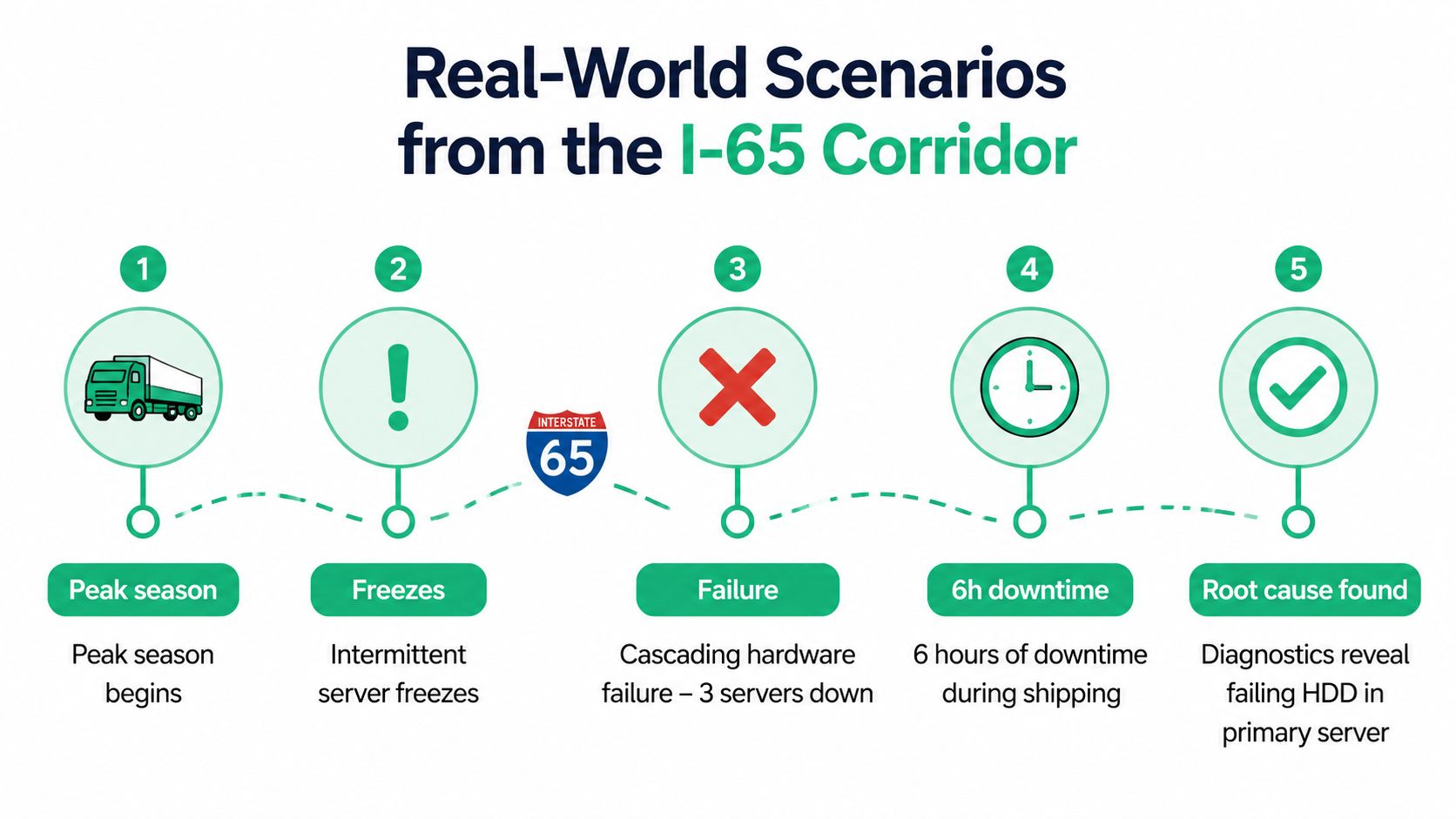
The first hour focused on preserving evidence and keeping shipping work moving. Technicians pulled SMART data from the drives, reviewed Windows Event Viewer for disk I/O errors, and ran memory diagnostics. The results showed a failing storage path and a faulty DIMM that was compounding the instability. That combination explained why replacing only the workstation would have left the shared environment exposed.
The workaround came before the full repair
The team moved active work to a controlled temporary path, restricted risky write activity, confirmed the latest usable backup, and kept shipping staff on an operational system while the repair plan was prepared. They didn't rebuild the RAID array casually, and they didn't treat a passing self-test as proof that the drives were healthy.
The permanent fix was phased over a weekend. Technicians replaced the affected hardware, repaired the memory fault, validated the file share, tested restores, and reviewed monitoring thresholds before weekday shipping resumed. The incident was contained to four hours, with zero data loss, and the post-incident review led to proactive monitoring that prevented two subsequent failures.
That scenario reflects the difference between component swapping and computer diagnostics and repair. In our 17 years of local service, the most expensive incidents usually begin with a symptom that gets dismissed because the device still turns on. A clean record of logs, storage trends, memory tests, and recovery steps gives the owner options before the next failure follows the I-65 corridor into the business.
The Case for Managed IT and Proactive Support
Reactive repair charges arrive at the worst time. Emergency labor, expedited parts, temporary equipment, and interrupted staff work create an unpredictable bill. Managed IT changes the operating model by putting monitoring, patching, backup checks, endpoint protection, and documented support into a planned budget.
A useful service watches drive health, thermal thresholds, battery condition, update status, backup results, and security alerts. It can flag a deteriorating storage trend while the user still has access to files, then schedule replacement around production rather than waiting for a hard failure. That approach also helps distinguish a recurring driver conflict from a failing component.
For an Indiana SMB, the return isn't limited to fewer repair tickets. Employees stop spending productive time troubleshooting printers, application crashes, and network drops. Managers get a support history instead of paying a new technician to rediscover the environment during every emergency. With UniFi networking, latency-optimized mesh nodes, Bitdefender GravityZone, immutable off-site backups, and SOC-as-a-Service monitoring, the design can cover connectivity, endpoints, recovery, and security together.
The market is also moving beyond hardware-only service. Software states, firmware, logs, recovery workflows, and security controls increasingly determine whether a device is safe to return to work. AI-supported diagnostics and remote troubleshooting can help organized repair operations standardize intake and identify patterns across locations, but a technician still needs to validate the evidence and make the business decision.
Finchum Fixes IT provides computer repair, cybersecurity, networking, data recovery, custom software development, and technical support for Indiana organizations. Owners evaluating providers can use this guide to choosing a managed service provider to compare response practices, documentation, security coverage, and continuity planning.
Security Risks of Ad-Hoc Repairs and Data Safety
A cheap repair can create a costly security problem when nobody records who accessed the drive, whether encryption was enabled, or how failed media was handled. A workstation containing PHI, financial records, or client PII needs controlled intake, documented authorization, encryption verification, and secure disposal.
HIPAA-covered organizations need safeguards for protected health information. Defense contractors may need CMMC-aligned handling, and general businesses can use NIST CSF 2.0 as a practical structure for identifying, protecting, detecting, responding, and recovering. A technician who removes a drive without preserving chain of custody can turn a hardware incident into a compliance and notification problem.
Data recovery also requires restraint. Bit-level data recovery, forensic imaging, and immutable off-site backups are safer than repeated attempts to boot a failing drive. Professional repair workflows should document the device condition, actions taken, parts replaced, test results, and return or destruction status.
Finchum Fixes IT helps Greenwood and Indianapolis businesses with structured computer diagnostics and repair, secure data recovery, cybersecurity, networking, and managed IT support. Visit Finchum Fixes IT to schedule a Free Network Assessment or Security Risk Audit before the next outage turns into lost revenue.