Computer Won't Turn on: Expert Fixes for Indiana IT 2026

It's 8:03 a.m. in Greenwood. Staff are filing in, coffee is hot, phones are already ringing, and one key workstation is dead silent. No fans. No lights. No startup chime. Just a black screen and a rising sense that the whole morning is about to slide sideways.
That's not just annoying. It's a business continuity problem. For small and medium-sized businesses in the United States, downtime averages $9,000 per minute according to IBM's data breach and downtime reporting. If that machine handles scheduling, billing, inventory, claims, CAD files, or customer communication, every minute spent guessing is money walking out the door.
Practical rule: Treat a computer that won't turn on like a workflow outage first, and a hardware problem second.
TL;DR
- Start at the wall. Most no-power problems come from the external power path, not the motherboard.
- Check the full chain. Outlet, surge protector, UPS, charger, power cable, and the PSU switch on desktops.
- Open the case only if you're comfortable. Loose RAM and partial cable connections are common causes.
- Use minimal boot logic. CPU, one RAM stick, and only the essentials.
- Watch for warning signs. Burning smell, repeat failures after moving the case, or unclear debug lights usually mean it's time to stop DIY.
- Think past the restart. Good backups, UniFi networking, endpoint security, and managed IT turn wasted tech time into predictable monthly costs.
- For regulated businesses, power failure can become a compliance issue fast if data access and recovery aren't handled correctly.
That Sinking Feeling When Your Computer Stays Dark
A dead computer has a way of making smart people do dumb things. They start yanking cables, holding the power button over and over, swapping random parts, or blaming Windows before they've even confirmed the outlet has power.
Around the I-65 corridor, the pattern is familiar. A Johnson County office in an older building has a workstation on a cheap surge strip, a printer sharing the same circuit, and a user who swears “it was fine yesterday.” Sometimes they're right. Sometimes the machine was one nudge away from failure and opening the office that morning finished the job.
Why this hits harder than it should
One dead computer can jam up much more than one desk. Healthcare offices stall on patient forms. Contractors lose access to estimates. Law offices can't retrieve documents. Small manufacturers can't print labels or view inventory. The technical fault may be tiny, but the operational ripple is not.
That's why the best first move is calm, methodical isolation. Not speed. Not panic. Not replacing parts because a forum post said “probably PSU.”
When a computer won't turn on, the fastest path is usually the least dramatic one.
What works and what usually wastes time
A good technician thinks in layers. Power source first. Delivery path second. Internal hardware third. Data protection and long-term prevention after the system is stable.
What doesn't work is skipping straight to the expensive stuff. Motherboards get blamed constantly. In practice, external power issues, loose RAM, and marginal connections eat up a lot more mornings than catastrophic board failure.
A second mistake is treating every dead computer like a one-off. In Greenwood business parks and older brick buildings around Indy, recurring power trouble often points to a bigger infrastructure problem. Spotty power, bad ventilation, overheated networking gear, and no backup strategy tend to travel as a group. That's where plain old IT support meets cybersecurity, networking, cloud computing, and data recovery in practice. One “won't power on” ticket can expose a wider weakness in uptime planning.
The Power Path Check From Wall to Machine
If the computer won't turn on, don't touch the internals yet. Follow the power path from the building to the device, as this process often resolves the majority of such issues. According to CompTIA IT Fundamentals+, approximately 65% of no-power incidents are caused by external factors such as unplugged cables, faulty outlets, or failed power bricks, and verifying the power outlet and cables resolves the issue in over two-thirds of cases.
In our 17 years of local service, this is the part many people rush through. They “checked the cord” with a quick glance. That's not the same as testing the chain.
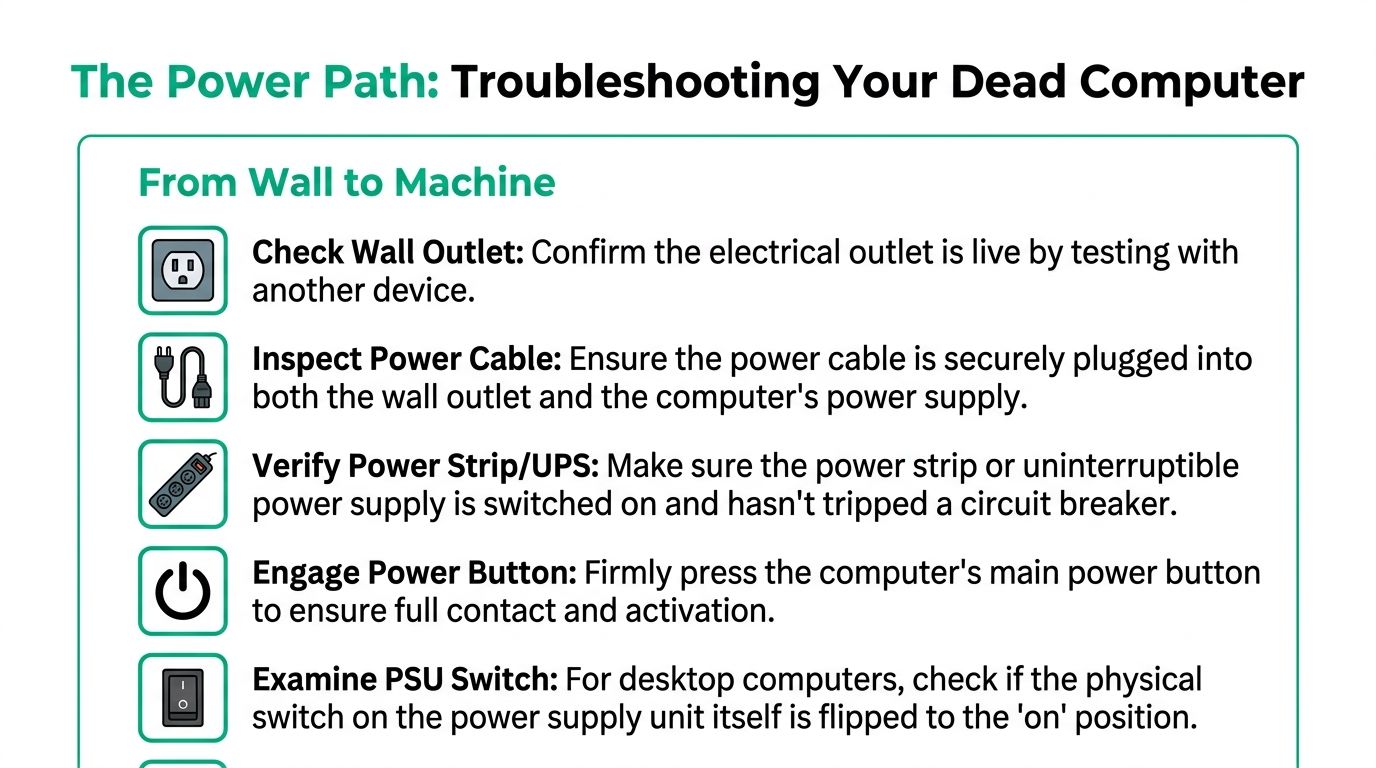
Start with the building power
Use a lamp, phone charger, or another known-good device on the same outlet.
- Test the outlet directly. Don't trust a surge strip indicator light by itself.
- Check for switched outlets. Some offices still have wall switches tied to receptacles.
- Look at the breaker situation. If half the room is dead, the issue may be electrical, not IT. For offices dealing with recurring outlet or breaker trouble, a licensed electrician's guide to electrical troubleshooting is useful context before anyone starts replacing computer parts.
Move down the chain
Now check everything between the outlet and the machine.
-
Surge protector or UPS
Make sure it's on. Some battery backups trip after a brownout. Plug the computer directly into a known-good outlet for a quick test. -
Power cable
Remove it fully, then reseat it firmly at both ends. “Almost plugged in” is a real category of failure, especially after desks get moved or cleaned. -
Laptop charger or power brick
If there's an indicator light, verify it behaves normally. If you have a known-good compatible charger, test with that. Don't guess. -
Desktop PSU switch
Check the small rocker switch on the back of the power supply. It gets bumped more often than people think. -
Front power button
Press it once, firmly. Don't rapid-fire it. If the button feels mushy or physically stuck, note that. A bad switch can mimic a dead machine.
The part business owners often miss
If the machine only failed after someone moved the desk, opened the case, or slid the tower back under the counter, pay attention. That can point to a loose cable, a grounding issue, or a mechanical short inside the case. Those are not rare in cramped offices where towers get kicked, tilted, or shoved against furniture.
For a straight repair path after these checks, a local computer repair service is often the next step if the device still shows no sign of life.
Field note: If testing another outlet brings the machine back immediately, stop celebrating for a second and ask why that first outlet failed. Otherwise, you'll see the same problem again.
Inside the Box Basic Internal Diagnostics
If the external power path checks out and the machine is still dead, it's time for internal isolation. Only do this if you're comfortable opening the case and can work carefully. Shut the machine down fully, disconnect power, and ground yourself before touching components.
The first thing I look for is evidence of partial connection, not dramatic failure. Loose RAM, a connector that backed out slightly, or a front-panel cable that got tugged are much more common than a board that suddenly gave up overnight.
Use a minimal boot test
Strip the system down to essentials. Disconnect noncritical peripherals and internal extras. Leave the CPU, one RAM stick, storage only if needed for testing, and GPU only if the system lacks onboard video.
Dead-looking systems often aren't dead; they're blocked from startup by one faulty part or one bad connection.
According to CompTIA A+, 25% of no-power cases stem from RAM misalignment or faulty modules, and 80% of these internal power failures are resolved by reseating RAM or replacing a single faulty module, while only 10% require motherboard replacement.
What to check first inside the case
-
RAM seating
Pull the RAM stick, inspect the slot, then reseat it until both latches click properly. Test one stick at a time if you have more than one module. -
Motherboard power leads
Confirm the main power connector and CPU power connector are fully seated. A tiny gap can stop startup completely. -
Front-panel wiring
If the case was moved or opened recently, inspect the power switch header. A loose front-panel lead can make the machine look dead. -
Signs of a short
If the computer only powers on after being tilted, moved, or having a panel removed, suspect a standoff issue, pinched cable, or case-pressure problem. That “jiggle fix” is not a fix.
A computer that starts only when the case is in a certain position usually has a mechanical-electrical fault, not a mystery.
Debug lights help, until they don't
Modern boards often include CPU, DRAM, VGA, and BOOT indicators. They're useful, but they're not always as clear as the manual suggests. On some newer boards, especially after firmware changes, the light pattern can be vague enough to send people in circles.
That's one reason random swapping gets expensive. The right move is to observe, document, and isolate, not shotgun parts. If a DRAM light appears, test memory and slots methodically before blaming the board. If there are no lights and no fans, go back to power delivery logic.
For a clean explanation of troubleshooting behavior when the issue turns out to be software or app instability after startup, Chronoid support for app issues is a decent example of how structured elimination beats random guessing.
A related decision often comes up after a machine finally posts again. If the drive is old, noisy, or sluggish, replacing it may save you from repeating this whole episode. This comparison of solid-state drive vs hard drive choices for Indy businesses is worth reviewing before you put a fragile old disk back into production.
Here's a solid walkthrough before you touch anything fragile inside the chassis:
Preventing the Next Outage Before It Happens
A computer that comes back to life is good news. It's not the end of the story.
Southside offices, especially in older Greenwood buildings, often have a stack of conditions that make repeat failures likely. Aging server hardware in a warm back room. Spotty Wi-Fi in thick brick walls. A consumer-grade router trying to cover a warehouse. No battery backup. No documented recovery plan. The dead workstation is just the symptom that finally got attention.
The Greenwood bottleneck
According to Gartner's information technology research, aging server hardware, common in older commercial buildings like those in Indy metro business parks, often suffers from 30-40% higher power failure rates, and upgrading to modern UniFi networking and cloud-based infrastructure can reduce this downtime by 60%.
That tracks with what we see around Johnson County business owners trying to stretch old gear one more year. Old hardware in a marginal environment creates hidden labor costs. Staff wait on files. Wi-Fi drops in back offices. Reboots become part of the routine. That's wasted tech time eating billable hours.

What a permanent fix usually looks like
A stable environment is built, not wished into existence.
-
Quality power protection
Use a proper UPS for critical workstations and network gear, not just a bargain surge strip. -
Modern networking
UniFi networking gives businesses better visibility, cleaner wireless coverage, and room to scale. In old buildings, latency-optimized mesh nodes can solve dead zones without turning the office into a cable maze. -
Cloud and backup planning
If a machine dies for real, data should still be recoverable. Immutable off-site backups matter because they support both hardware failure recovery and ransomware resilience under a NIST CSF mindset. -
Endpoint and identity controls
Bitdefender GravityZone, Zero Trust architecture, and SOC-as-a-Service monitoring don't power a machine on by themselves, but they keep one dead device from becoming a bigger security incident.
Don't ignore the data side
When we disassembled a similar client's failing RAID array, the hardware repair was only half the job. The primary concern was preserving line-of-business data without corrupting anything during recovery. That's where bit-level data recovery, verified backup integrity, and cloud failover planning separate business IT from hobby repair.
If your backup plan still depends on “the files are probably on that PC,” it isn't a plan. A practical starting point is reviewing cloud backup options for small business before the next power event decides the schedule for you.
Knowing When to Call for Backup
There's a line between sensible troubleshooting and expensive improvisation. Business owners cross it when they keep poking at a dead machine while payroll, scheduling, quoting, intake, or compliance work sits frozen.
The key question isn't “Can I eventually get this running?” It's “What is this hour costing the business?”
Stop immediately when these signs show up
Some symptoms change the risk level.
-
Burning smell or visible damage
Don't keep testing. Disconnect power. -
Power after physical movement only
That points to a likely short, grounding issue, or strained connection. -
Critical machine with no verified backup
Every restart attempt can raise the stakes if storage is unstable. -
Regulated data on the system
HIPAA and CMMC environments don't give much room for casual repair decisions.
For Indiana businesses in healthcare, defense-related manufacturing, and other regulated sectors, recovery has to fit a security and documentation process. According to HHS HIPAA compliance and enforcement guidance, compliance standards like HIPAA and CMMC mandate specific data recovery protocols, and proactive managed IT services using tools like immutable off-site backups and Bitdefender GravityZone can reduce breach risk by 45%.
If the dead computer contains protected data, a sloppy fix can create a bigger incident than the original outage.
DIY versus professional response
The trade-off isn't only technical skill. It's speed, risk control, and whether the business can keep operating while the problem is isolated.
| Factor | DIY Troubleshooting | Finchum Fixes IT Support |
|---|---|---|
| Initial response | Depends on who in the office has time to stop working | Structured triage by a technician used to no-power failures |
| Diagnosis path | Often starts with guesses or part swapping | Follows external power, minimal boot, and component isolation logic |
| Data safety | Easy to overlook if the focus is “make it start” | Includes data protection thinking, bit-level data recovery when needed |
| Compliance handling | Usually undocumented | Better fit for HIPAA, CMMC, and NIST CSF-aligned recovery expectations |
| Network impact | Focus stays on one PC, wider issues may be missed | Can identify upstream problems in Wi-Fi, switching, backup, and endpoint security |
| Budget effect | Unpredictable. Labor is hidden in lost work time | Easier to move from break-fix surprises to predictable monthly planning |
In our 17 years of local service, the costliest jobs are rarely the hardest failures. They're the ones where a business spent half a day doing trial-and-error while staff sat idle, then called after the machine had been opened, cables mixed up, and the original symptoms blurred.
There's also a practical difference between a home PC and a business endpoint. On a business machine, the answer may involve email continuity, secure remote access, cloud application failover, software development tools, or access to line-of-business databases. A proper fix has to account for the whole workflow.
One useful checkpoint is this: if you've already confirmed power, tried a clean minimal boot, reseated RAM carefully, and you still have no reliable startup behavior, your next hour is probably more expensive than a professional call. If you're weighing that cost, this breakdown of business computer repair costs in 2026 helps frame the decision in plain terms.
The right support also looks beyond the dead device. If the root issue is bad power quality, weak backup discipline, undocumented Wi-Fi sprawl, or poor endpoint hardening, fixing the box alone won't protect ROI. That's where managed IT, cloud recovery design, and Zero Trust policy start paying for themselves.
Turn Wasted Tech Time into Business Growth
A computer won't turn on. Fair enough. But the bigger problem is that someone in your office had to become the emergency IT department instead of doing the work you bill for.
That's the pattern worth fixing. Reactive support burns attention. Proactive support protects hours. For businesses across Greenwood, downtown Indy tech hubs, and the wider Indianapolis market, the best outcome isn't getting through the next outage. It's building an environment where outages are rarer, shorter, and less disruptive when they do happen.
What better looks like
It usually includes a few steady habits working together.
- Managed upkeep keeps aging hardware from surprising you at the worst moment.
- Security controls like Zero Trust architecture and SOC-as-a-Service monitoring reduce the chance that a power event turns into a security event.
- Reliable backups and recovery make hardware failure survivable.
- Automation removes manual bottlenecks elsewhere in the business. If you're looking at process cleanup beyond IT, these examples of HR, sales, and finance automation show where repetitive office work often gets tightened up.
A dead workstation is a warning light. Listen to it. The same review that catches flaky power can uncover weak Wi-Fi, poor backup coverage, outdated endpoints, and software workflows that need cleanup.
If your business is growing in Greenwood, serving clients along the I-65 corridor, or expanding into Hamilton County growth areas, now's the time to replace wasted tech time with a support model that gives you predictable monthly budgets and steadier uptime. A good next step is looking at how businesses grow with managed IT services for small business.
If your team is in Greenwood or the greater Indianapolis area and you're tired of losing mornings to dead workstations, unstable Wi-Fi, or backup uncertainty, schedule a Free Network Assessment or Security Risk Audit with Finchum Fixes IT. We'll identify the weak spots, map the business risk clearly, and give you a practical path to more uptime, stronger security, and fewer surprises.