Expert Tips: How to Improve Computer Performance

TL;DR
- A “slow computer” at work often isn’t just the PC. In Greenwood and across the Indy metro, old switches, weak Wi-Fi, overloaded startup apps, and heavy security setups commonly create the slowdown employees blame on their desktop.
- Start with cleanup. Disable junk at startup, remove unused apps, clean temp files, and run a business-grade malware scan.
- The two hardware upgrades that matter most are SSD storage and more RAM. They change day-to-day responsiveness far more than cosmetic tweaks.
- Check the network before buying replacement PCs. Old networking gear can choke cloud apps, file shares, and VoIP.
- Keep performance with a maintenance schedule tied to patching, backups, and security.
- If problems keep coming back, get a professional audit. A systematic approach beats random fixes.
Slow business computers create a specific kind of frustration. Staff click. They wait. They click again. Then somebody decides the machine is “just old,” even when it was purchased recently.
That happens all over Greenwood, the I-65 corridor, and the older office pockets around Indianapolis. A company upgrades a few workstations, expects the complaints to stop, and instead hears that QuickBooks drags, SharePoint hangs, files take forever to open, and video meetings stutter at the worst possible time.
For a business owner, that is not a minor annoyance. It is lost throughput, delayed customer work, and avoidable downtime. The author brief for this piece calls out a familiar business reality: downtime can be very costly. I’m not treating that like abstract boardroom math. In small and midsize companies, wasted tech time steals from estimating, billing, dispatching, patient scheduling, quoting, and every other task that generates revenue.
If you want to know how to improve computer performance in a business setting, skip the consumer fluff. Animated wallpaper settings and one-click “PC booster” tools are not the answer. You need to look at the machine, the storage, the memory, the network path, the security stack, and the maintenance routine as one system.
The Southside Slowdown Why Your Fast PC Feels Sluggish
A Johnson County owner calls after replacing several office computers. On paper, the upgrade should have solved the issue. Newer machines. Fresh Windows install. Better specs than the systems they replaced.
The complaints keep coming anyway.
Staff say the computers freeze when opening files from the server. Cloud apps hesitate. Email attachments take too long to save. Video calls break up. Everyone points at the PCs because that is the part they can see.
The problem is often the environment around the PC.
New hardware does not fix a bad path
A fast workstation still feels slow if it waits on an old switch, weak Wi-Fi in a brick building, or bloated startup software. I see this a lot in Southside offices where the building has been remodeled three times but the tech stack never got a clean redesign.
One employee blames Windows. Another blames Microsoft 365. Someone else says the antivirus is ruining everything. Sometimes one of them is partly right. More often, each person is seeing one symptom from a larger bottleneck.
A business computer can stall in a few different ways:
- Local slowdown: The PC itself is choking on a hard drive, low memory, overheating, or too many background apps.
- Network slowdown: The computer is fine, but file shares, cloud platforms, printers, or VoIP traffic are delayed.
- Security drag: Endpoint protection, scans, or badly layered tools are fighting for resources.
- Maintenance neglect: Updates failed, temp files piled up, and old software agents never got removed.
What owners miss first
The mistake is buying replacements before proving where the delay lives. That is how businesses burn budget and still keep the same problem.
Tip: If a user says “my whole computer is slow,” test one local task and one network task. Open a local app, then open a cloud file or line-of-business app. That simple split tells you a lot.
If the machine boots fine but shared folders crawl, that points one direction. If everything lags, including local apps, that points another. If the user sees crashes or blue screens, the path changes again. For those cases, this guide on business owner blue screen troubleshooting is a good next step.
Billable time disappears in tiny chunks
A slow office rarely fails all at once. It leaks productivity in small chunks all day long.
A few seconds to open every PDF. A lag before each CRM search. A delay saving CAD files. A pause joining every Teams meeting. Multiply that by a staff member’s workday, then by the whole office, and the cost shows up fast in missed calls, slower service, and overtime nobody planned to pay.
That is why performance work matters for business continuity. In healthcare, it affects scheduling and HIPAA-sensitive workflows. In defense manufacturing, it can interfere with documentation processes tied to CMMC expectations. In general business security, it undermines the disciplined operations that fit a NIST CSF mindset.
Immediate Gains Cleaning Up Your Digital Workspace
A lot of slow office PCs in Greenwood are not failing. They are overloaded.
On business machines, the drag usually comes from clutter that built up over time. Too many startup items. Too many background services. Too little free space. Too many security tools fighting each other. In a small office, those issues get worse when every PC also depends on shared folders, cloud apps, printers, and line-of-business software all day.
Shut down startup bloat
Open Task Manager and check the Startup tab. This is one of the fastest ways to find waste on a Windows workstation.
Focus on programs that do not need to start with every login. Common offenders include chat apps users rarely open, vendor update agents, printer helper tools, browser preloaders, webcam utilities, and old remote support agents left behind from past IT work.
Use a simple filter:
- Leave business-critical tools alone. Keep endpoint protection, backup software, VPN clients, and anything tied to login or device management.
- Disable obvious extras. Media apps, game launchers, OEM utilities, and random updaters do not belong on a business PC.
- Look for overlap. Printer and webcam packages often install multiple helper processes for one device.
- Restart and test. If a user loses a needed function, turn that item back on and document it.
I see this often on front-desk and accounting machines. Nobody notices the buildup for months, then the computer starts every morning with a pile of junk already competing for memory, disk activity, and network access.
Clean the drive without creating new problems
Skip registry cleaners and tune-up apps. They cause more tickets than they solve.
Use the Windows tools already on the machine. Remove temporary files, stale downloads, leftover installers, and oversized desktop folders. Archive business files that need to be kept, then move them to the right location instead of letting one user profile become the company filing cabinet.
Free space matters for day-to-day responsiveness, but it also affects business operations in less obvious ways. Patch installs need working room. Security scans run smoother. Outlook data files, browser caches, and sync clients behave better when the drive is not packed tight. On a busy office PC, poor storage hygiene can look like a hardware issue even when the hardware is still serviceable.
For office habits, the advice to ditch the digital clutter is worth sharing with staff. It is a useful reminder that messy desktops, duplicate files, and bad save habits slow down more than the computer. They slow down the person using it.
Remove software nobody uses
Unused software keeps doing work in the background. That is the part many business owners miss.
Old programs leave behind services, scheduled tasks, shell extensions, context-menu hooks, browser add-ons, and auto-updaters. One or two do not matter much. Twenty of them do.
Check installed programs and remove the usual leftovers:
- Expired trials
- Old remote support tools
- Legacy printer suites
- OEM control panels nobody uses
- Duplicate PDF or media apps
- Browser extensions tied to abandoned software
Shared office computers are the worst for this. A workstation used by three employees across four years usually carries software from all three, plus whatever the copier vendor, shipping software vendor, and previous IT company installed along the way.
Run a real malware scan
If a PC feels off, treat security as part of performance work.
Malware, adware, browser hijackers, and bad extensions often show up as vague slowness, browser hangs, search redirects, or random spikes in CPU and network use. In an SMB environment, one infected workstation can also create noise on the network, trigger extra security alerts, and slow access to shared resources.
Use one properly managed endpoint security product. Do not stack multiple antivirus tools on the same machine. That creates conflicts, duplicate scans, and wasted resources.
If you are comparing options, this roundup of malware removal tools for businesses gives a practical business-side view.
A few habits help:
- Run scans during planned windows when possible
- Review what was detected, not just whether the scan finished
- Check browsers for unwanted extensions and changed search settings
- Confirm the machine is still patching correctly after cleanup
Clean desktops help networks too
This section is about the local workstation, but office performance is rarely only local.
I have seen users blame their PC when an underlying problem was a sync client trying to process a bloated desktop against SharePoint or OneDrive all day. I have also seen oversized Outlook files, broken printer mappings, and stale VPN software create slowdowns that looked like hardware trouble. Good cleanup reduces that background chatter and makes the next troubleshooting step much clearer.
That matters in small businesses because perceived computer speed is tied to the whole environment. The cleaner the endpoint, the easier it is to tell whether the delay is coming from the PC, the security stack, or the office network.
The Hardware Upgrades That Matter
Business owners waste a lot of money replacing whole PCs when the slowdown comes from two parts that are easy to verify. In Greenwood and across the south side, I see the same pattern. A three- or four-year-old office computer feels worn out, but the processor is still fine. The storage is slow, the memory is tight, or both.
Start with storage and memory.
Why SSDs change the feel of a computer
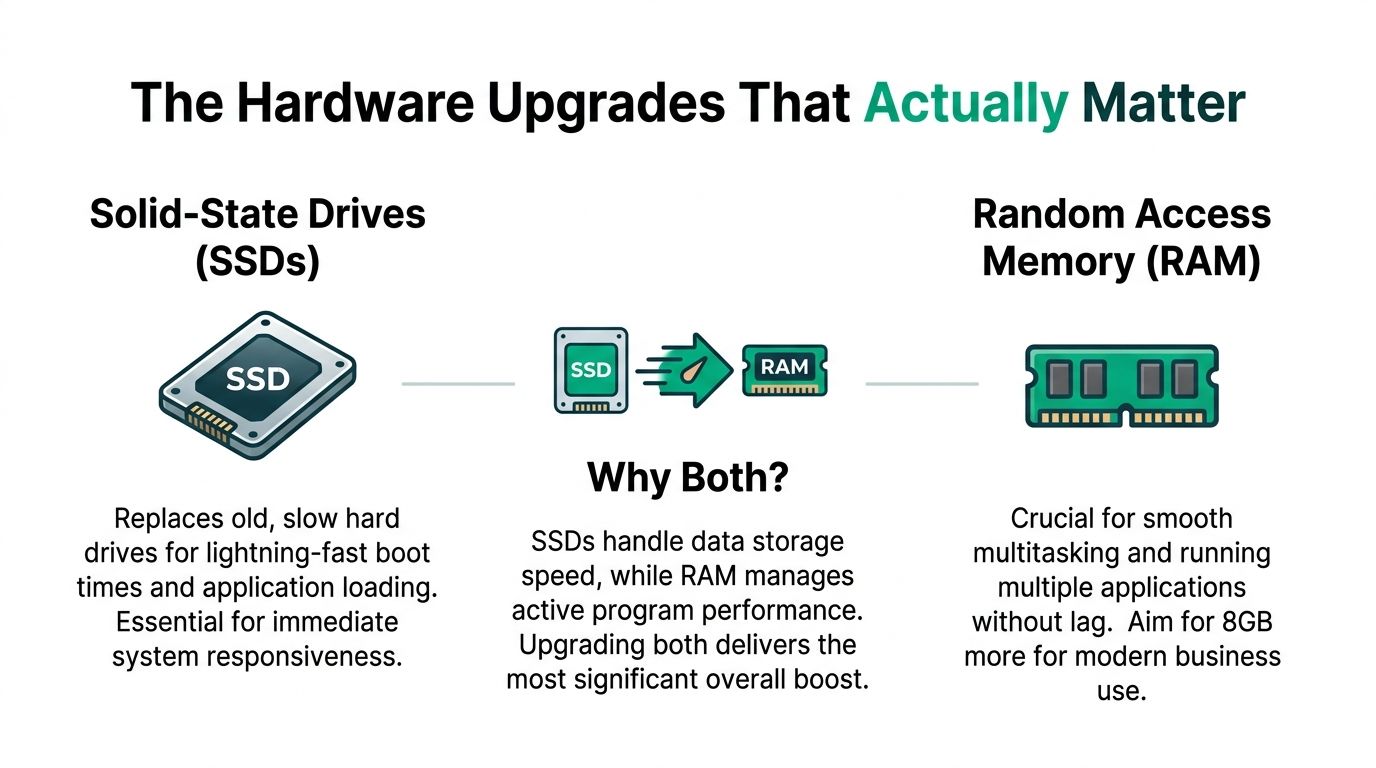
If a business PC still uses a hard disk drive, that is usually the first upgrade worth pricing. Old spinning drives drag down boot time, logins, app launches, updates, and file access. Staff experience that as “this computer is slow,” even when the rest of the machine is still serviceable.
As noted earlier, SSD upgrades usually produce the biggest day-to-day improvement because they remove storage delay from basic work. Outlook opens faster. QuickBooks responds sooner. Windows updates finish with less disruption. Security tools also run more smoothly because the system is not waiting on a slow disk every time it reads and writes files.
There is a practical business angle here. Faster storage does not just help one user. It shortens the little delays that multiply across a team all week.
Trade-offs with SSD rollouts
An SSD project succeeds or fails on the migration plan.
Cloning the old drive can preserve user settings and business apps, which is helpful if the machine is stable and the software stack is clean. A fresh install is often the better choice if the PC has years of leftovers, profile issues, startup bloat, or signs of corruption. I do not treat those as equal options. I pick the one that gives the business the lowest risk of repeat problems a month later.
A few checks matter before the swap:
- Match the drive type to the hardware. Many office PCs can use a SATA SSD. Newer systems may support NVMe, which is faster, but only if the board and slot support it.
- Confirm free space and data integrity before migration.
- Check BIOS and firmware status while the machine is open.
- Verify backup status before any clone or reinstall.
- Test line-of-business apps after the upgrade, not just Windows login.
For fixed desks, internal SSDs make the most sense. For field staff, temporary workstations, or older systems with limited upgrade paths, external solid-state storage can help in specific cases, though it is still a compromise compared with a proper internal upgrade.
I have seen Indianapolis offices get more value from a planned weekend SSD rollout than from replacing every desktop on the floor. A repair-first path often makes sense. If you need that kind of service, computer repair and upgrade work is one of the more sensible ways to extend useful life without overbuying.
RAM is about breathing room
Storage affects how quickly the machine starts tasks. RAM affects how well it keeps up once the user is working.
Low memory shows up in familiar ways. Browsers hesitate with many tabs open. Teams calls stutter while a spreadsheet is running. QuickBooks, Adobe, or industry software pauses when users switch windows. Windows starts using the drive as overflow memory, and performance drops fast.
That is why 8GB often feels acceptable at first and frustrating by mid-morning in a real office.
Choosing between 16GB and 32GB
The right RAM target depends on the workload, not the sticker on the laptop.
| User profile | Practical RAM target | Why |
|---|---|---|
| Basic office admin | 16GB | Handles email, browser work, Office apps, and video calls with less memory pressure |
| Heavy multitasker | 16GB or 32GB | Better for large spreadsheets, many tabs, and multiple business apps open at once |
| Design, development, analytics | 32GB | Gives demanding software room to run without constant slowdowns |
For most SMB office users, 16GB is the floor I recommend now. For accounting teams, design staff, engineers, data-heavy users, and anyone living in browser-based platforms all day, 32GB is often the safer call. The price difference is usually small compared with the labor cost of an employee waiting on a machine that keeps stalling.
Before approving parts, check actual memory usage during the workday. If you already track workstation and network behavior together, this guide on monitoring network traffic and workstation slowdowns before downtime hits helps separate a true hardware shortage from a cloud app or traffic issue.
Here is a useful visual before you budget the upgrade.
Why SSD and RAM together work best
SSD and RAM upgrades solve different problems. One reduces storage wait time. The other gives active programs room to run. That combination usually produces the most noticeable improvement without replacing the whole device.
For small businesses, there is another layer people miss. A faster PC still feels slow if it is fighting weak wireless, bad switching, or constant sync traffic across the office. Hardware upgrades work best when the machine is part of a stable business environment with clean networking, sane security settings, and scheduled maintenance. If your staff relies on wireless connections in older buildings, it also helps to improve WiFi signal strength before blaming every delay on the workstation.
Unmasking the Bottleneck Your Office Network
Many “slow computer” complaints are network complaints wearing a computer costume.
That is especially true in older buildings around Greenwood and Indianapolis where thick walls, improvised cabling, and hand-me-down switches create weird performance problems no one notices until the staff starts using more cloud apps.
Why the PC gets blamed
When a file takes too long to open from SharePoint, users see the spinning icon on their screen. They do not see the tired old switch in the closet, the overloaded consumer router, or the office Wi-Fi dead zone near accounting.
Microsoft’s performance guidance is often read as PC-only advice, but the neglected infrastructure angle is critical. Aging switches and older Ethernet standards can reduce data flow by up to 50% compared to modern Gigabit networks, while over 70% of SMBs still use pre-Wi-Fi 6 routers, creating bottlenecks that get misdiagnosed as a slow PC (Microsoft support).
That tracks with what we have seen for years along the I-65 corridor. A business buys newer desktops, keeps the same old network core, and then wonders why cloud sync and file shares still drag.
How to tell if the network is the issue
Ask a few plain questions:
- Do local apps run fine, but cloud apps lag?
- Does the problem hit multiple users at the same time?
- Are delays worse in one area of the building?
- Do file saves crawl only on shared resources?
- Do video calls stutter while the PC itself stays responsive?
If the answer is yes to several of those, stop shopping for replacement workstations and start looking at the network path.
Tip: Test the same task on wired Ethernet and Wi-Fi. If wired suddenly feels normal, the computer is not your main problem.
There is also a practical side for offices trying to improve WiFi signal strength. Placement, interference, and building materials matter. In older brick structures, Wi-Fi problems can look random until somebody maps the space properly.
What fixes it permanently
Business networking often beats consumer advice.
A proper office design usually includes:
- Managed switching so traffic is stable and visible.
- Modern cabling and NIC checks so endpoints can utilize available bandwidth.
- Business-grade wireless with planned access point placement.
- Latency-aware design for cloud apps, VoIP, and shared files.
- Segmentation and security policy so guest traffic does not interfere with business operations.
A UniFi networking setup is one common fit for small and midsize offices because it gives centralized visibility and cleaner management than a pile of consumer gear. In larger or higher-compliance settings, the exact platform may change, but the principle does not.
If you want to go deeper on proving where the bottleneck sits, this guide on monitoring network traffic to prevent downtime and boost ROI is worth reviewing.
Wired still matters
Wi-Fi is convenient. Wired is still king for consistency.
For responsive business apps, file shares, and workstations that do production work, Ethernet remains the standard I trust most. Wired Ethernet can also offer better latency than Wi-Fi in the right conditions, which matters for responsiveness in day-to-day business use.
That does not mean every desk needs a cable. It means your critical desks probably do.
Building a Proactive Maintenance & Security Plan
A fast computer stays fast when somebody owns the routine. Without that, every fix is temporary.
Many Indiana businesses drift into reactive mode. They call when a machine locks up, when updates fail, or when the endpoint tool starts chewing resources. Then they repeat the cycle six months later.
Security can help performance or hurt it
Security software is necessary. Poorly chosen or badly configured security software can slow a machine down.
The answer is not “turn off protection.” The answer is a managed approach that matches the workload. A Zero Trust architecture helps here because it shifts the focus from blind trust to controlled access, device posture, and policy-based enforcement. Done correctly, that is stronger security without the chaos of random overlapping tools.
For regulated environments, that discipline matters beyond speed:
- HIPAA expects protected systems and reliable handling of sensitive healthcare data.
- CMMC pushes defense contractors toward controlled, documented security practices.
- NIST CSF gives general businesses a practical structure for identifying, protecting, detecting, responding, and recovering.
A messy endpoint stack undermines all three.
The maintenance checklist that keeps machines usable
The best maintenance schedule is boring. That is a compliment.
| Task | Frequency | Why It Matters |
|---|---|---|
| Review startup apps and background agents | Monthly | Prevents unnecessary resource drain and catches software creep |
| Install Windows and application updates | Monthly, with urgent exceptions as needed | Closes security gaps and resolves stability problems before they turn into performance tickets |
| Run scheduled malware and endpoint health scans | Monthly and after suspicious activity | Detects threats and unwanted software that can slow systems or create risk |
| Check drive health and free space | Monthly | Helps avoid storage-related slowdown and failed updates |
| Verify backup status, including immutable off-site backups | Monthly | Protects continuity and supports recovery if a system fails or is encrypted by ransomware |
| Review hardware aging and user complaints | Quarterly | Catches patterns before they become downtime events |
That checklist is basic by design. It works because someone follows it.
Patching is performance work too
Owners often think of patching as a security chore. It is also performance work. Broken update cycles create instability, compatibility issues, and software that behaves worse over time.
If your patching process is loose, tighten it. If you need a plain-English explanation of why patch discipline matters, this piece on patch management for business protection covers the basics well.
Key takeaway: Consistent maintenance turns IT from a surprise expense into a predictable operating process.
Backups and continuity belong in the same conversation
Performance and continuity are linked. A machine that degrades unnoticed is a machine more likely to fail badly later.
That is why I tie maintenance to backup verification, not just patching and scans. Immutable off-site backups matter because they give you a recovery path that ransomware cannot rewrite. They also support a cleaner incident response process if a slowdown turns out to be something more serious than clutter or aging hardware.
Managed support earns its keep. Instead of waiting for a crisis, the business gets a routine, documentation, and accountability.
When to Call a Pro for Your Indianapolis Business
A common Indianapolis office scenario looks like this. One employee says QuickBooks is hanging. Another says shared files take forever to open after lunch. A third blames their PC, but the machine itself checks out fine. At that point, the problem usually is not one slow computer. It is a business systems problem.
Basic cleanup still has value. But if the slowdown keeps showing up after you have handled the obvious workstation fixes, stop treating it like a one-off desktop issue. Repeated lag, random freezing, cloud app delays, and file access problems often point to a network fault, storage trouble, security overhead, or a maintenance gap that has been building for months.
The point where random fixes get expensive
Bring in outside help when the pattern affects operations, not just one device.
Common signs include:
- Several users report the same slowdown
- Performance drops at the same time each day
- Shared files, line-of-business apps, or cloud platforms behave inconsistently
- Systems slow down hard under normal workload
- Security tools keep flagging the same machine or account
- A server, RAID, NAS, or shared storage system may be involved
- Your team cannot afford hours of trial-and-error troubleshooting
That last point matters more than many owners expect. In a business setting, lost time is usually more expensive than the repair itself.
A real IT provider should be able to tell you whether the slowdown starts at the workstation, the switch, the firewall, the wireless layout, the storage layer, or the application. That method beats guesswork. BCG notes that teams get better results when specialists measure baseline performance, document bottlenecks, and fix the highest-impact issues first, with many problems clustering around a small number of root causes. The same research also found stronger outcomes when the work is handled by people with the right mix of technical and product skills (BCG).
What a real diagnostic process looks like
A proper assessment goes beyond checking Task Manager and rebooting a machine.
For a Greenwood or Indianapolis business, I would expect the process to include baseline measurements, tests during actual working hours, and a review of how users interact with shared systems. That means checking CPU, memory pressure, disk latency, application response time, network path quality, DNS behavior, wireless performance, and any security controls that may be slowing traffic inspection or logins.
It should also include context. A PC can look healthy on the bench and still perform badly in the office because the wireless signal drops in one corner, a firewall rule is inspecting traffic too aggressively, a sync tool is hammering bandwidth, or a failing storage array is delaying every file request.
Problems that usually need higher-level help
Some issues are not good use of your office manager's time or your internal staff's spare minutes.
Examples include:
- RAID or NAS degradation that shows up as slow workstations
- Unstable drives where data recovery matters more than saving the hardware
- Firewall, VLAN, or switch problems that affect several users at once
- Wireless redesign for offices with dead spots, roaming issues, or overloaded access points
- Recurring endpoint alerts that suggest malware, bad policy settings, or excessive security scanning
- Access control and identity policy work where security settings are hurting usability or login speed
- Monitoring and maintenance gaps that let small issues grow into downtime events
These are infrastructure and continuity problems. They affect billing, scheduling, customer response time, and staff productivity.
That is why many small and midsize businesses in central Indiana do better with scheduled support than break-fix repair alone. Routine checks catch failing drives, bad backups, noisy security events, patch drift, and network congestion before users start saying, "the computers are slow again."
For local companies, that is the key decision point. If one machine is slow, internal cleanup may be enough. If the office slows down as a group, if symptoms follow the network, or if the issue keeps coming back, get someone involved who can test the whole environment and document the root cause.
If your office computers still feel slow after the obvious cleanup, get a second opinion before you buy more hardware. Finchum Fixes IT works with businesses in Greenwood and the greater Indianapolis area on computer repair, network diagnostics, security hardening, and ongoing support. Schedule a Free Network Assessment or Security Risk Audit to identify the bottleneck and get a practical plan to fix it.