How to Troubleshoot Network Issues: The SMB Playbook

Monday morning in Greenwood. Staff are logged in, phones are ringing, and somebody says the Wi-Fi dropped again. Your accounting app stalls. VoIP gets choppy. A few people can still browse, but nobody can reach the shared files. In an older brick building along the south side, that kind of network trouble isn’t just annoying. It burns billable time, delays client work, and drags everyone into a guessing game.
That’s usually when bad troubleshooting starts. Someone reboots random gear. Somebody else swaps a cable with no notes. The office manager calls the ISP before anyone has confirmed whether the issue is internet, Wi-Fi, switching, DHCP, DNS, or a security rule. An hour later, the problem is still there and now you’ve added confusion to the outage.
There’s a better way to handle it. How to troubleshoot network issues is less about magic commands and more about discipline. In our 17 years of local service, the businesses that recover fastest are the ones that treat network problems like a controlled diagnostic process, not a panic event. If you want a useful companion piece on visibility and prevention, this network traffic monitoring guide for preventing downtime and boosting ROI is worth reading too.
Your Network Is Down Again Now What
TL;DR
- Don’t guess: Define the problem before rebooting anything.
- Scope first: Find out who’s affected, what app or service is failing, and when it started.
- Work bottom-up: Check power, cabling, Wi-Fi links, IP assignment, DNS, then application access.
- Use real data: Commands like
ipconfig,ping,tracert, andnslookupturn vague complaints into evidence.- Watch for local SMB problems: Old buildings, bad cabling, UniFi misconfigurations, DHCP exhaustion, and firewall rules cause a lot of repeat outages.
- Prevention pays: Monitoring, firmware updates, documentation, segmentation, and scheduled reviews reduce downtime and keep IT spending predictable.
A lot of Johnson County business owners know this pattern by heart. The network works fine until the office gets busy. Then around peak hours, the same complaints roll in. Zoom calls break up, cloud apps crawl, printers vanish, and the conference room TV can’t connect when a client is waiting.
One common setup around the I-65 corridor is a growing firm in an older building with thick walls, patched-together cabling, and Wi-Fi added in stages as the business expanded. The owner assumes “the internet is bad.” Sometimes that’s true. A lot of times, it isn’t. The trouble is sitting inside the building in the form of poor access point placement, stale switch configs, overloaded DHCP pools, bad patch cables, or one security policy blocking the exact traffic the team needs.
Business continuity is the fundamental issue. Every outage steals time from people who should be serving clients, processing orders, or closing work. That’s why network troubleshooting has to be repeatable. If your response changes based on whoever happens to be nearest the server closet, you don’t have a troubleshooting process. You have a ritual.
What works when the office is under pressure
The right response is calm, boring, and methodical.
- Capture the blast radius: Is this one laptop, one room, the whole office, or your remote users too?
- Identify the failed service: Internet, shared files, line-of-business software, VoIP, Wi-Fi, VPN, or all of the above.
- Preserve clues: Don’t reboot everything at once. You’ll wipe out logs and hide the cause.
- Check dependencies: Cloud software can appear “down” when the actual problem is DNS, firewall filtering, or a dead uplink.
The fastest fix usually starts with the least dramatic action.
That approach isn’t glamorous, but it’s how you stop wasting half a day on a problem that could’ve been isolated in minutes.
Start Here Your Systematic First Response
When a network issue hits, the first job is scoping. Before touching equipment, get a clean description of the symptom. “The internet is down” usually means something narrower, like one website won’t load, one VLAN can’t reach a printer, or Wi-Fi users are failing while wired desktops still work.
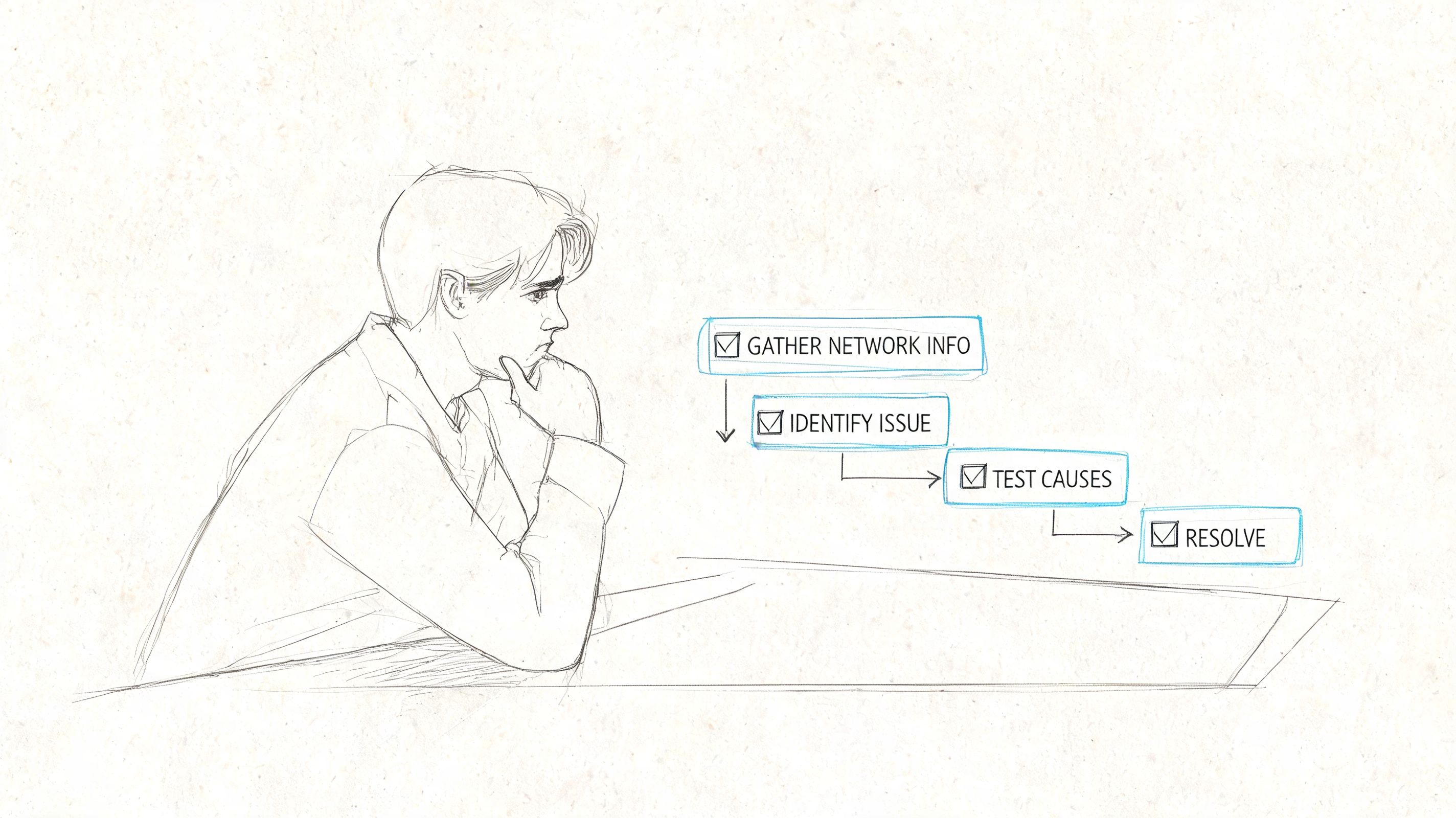
Ask these questions first
Start with plain-English questions your staff can answer quickly.
- Who is affected: One person, one department, one floor, or everyone?
- What exactly fails: Browsing, email, VoIP, ERP access, file shares, Wi-Fi sign-in, or a single app?
- When did it start: Right after a storm, power flicker, firmware update, desk move, or new device install?
- How does it fail: Slow, intermittent, totally disconnected, login loop, or “connected with no internet”?
- Where is it happening: Wired desks, guest Wi-Fi, warehouse scanners, conference room, or remote VPN?
That last question matters more than is often realized. In SMB environments, a significant portion of unresolved issues are intermittent faults, and industry reports show they can account for 20 to 30% of unresolved tickets according to TREND Networks on troubleshooting network connectivity. Intermittent problems don’t always show up during a quick reboot and they often hide behind things like marginal cabling or unstable PoE delivery.
Do the non-disruptive checks
Once you know the scope, start with checks that won’t make the outage worse.
- Confirm power and link status. Is the modem, firewall, switch, and access point powered on? Are link lights behaving normally?
- Look for the obvious. Loose patch cord, unplugged uplink, access point with no PoE, bent cable, or a switch that got bumped during cleaning.
- Check one known-good device. Use a desktop or laptop that normally works and test from there.
- Compare wired to wireless. If wired is stable and Wi-Fi is failing, the hunt gets narrower fast.
- Document every change. If you restart something, note the time and what changed after.
A clean first pass saves a lot of backtracking. It also helps if the problem escalates to your ISP, hardware vendor, or outside support. That’s the same logic behind a structured Tier 1 helpdesk process for Indy businesses. Good support starts with good intake.
Power cycle the right way
A power cycle can help, but random rebooting is sloppy. If you decide to do it, do it in order and with a reason. Restart edge devices thoughtfully, wait for them to come back fully, and don’t bounce core switches or firewalls in the middle of active troubleshooting unless you’ve ruled out easier causes.
Practical rule: If you haven’t written down the symptom before the reboot, you’re probably about to erase useful evidence.
That’s especially true in offices with UniFi gear, managed switches, Bitdefender GravityZone policies, or VLAN-based segmentation. A reboot might make the symptom disappear for an hour while the underlying fault remains.
A Layer-by-Layer Hunt for the Problem
Most business owners don’t need a certification-level OSI lecture. They need a practical way to stop jumping around. The cleanest method is a layer-by-layer hunt. Start low, prove each layer is healthy, then move up.
According to the Uptime Institute’s 2024 survey, networking and connectivity issues are the single leading cause of IT service outages, responsible for 31% of incidents, as summarized by Network World’s coverage of the Uptime Institute findings. That’s why disciplined troubleshooting matters. It addresses the most common source of business downtime.
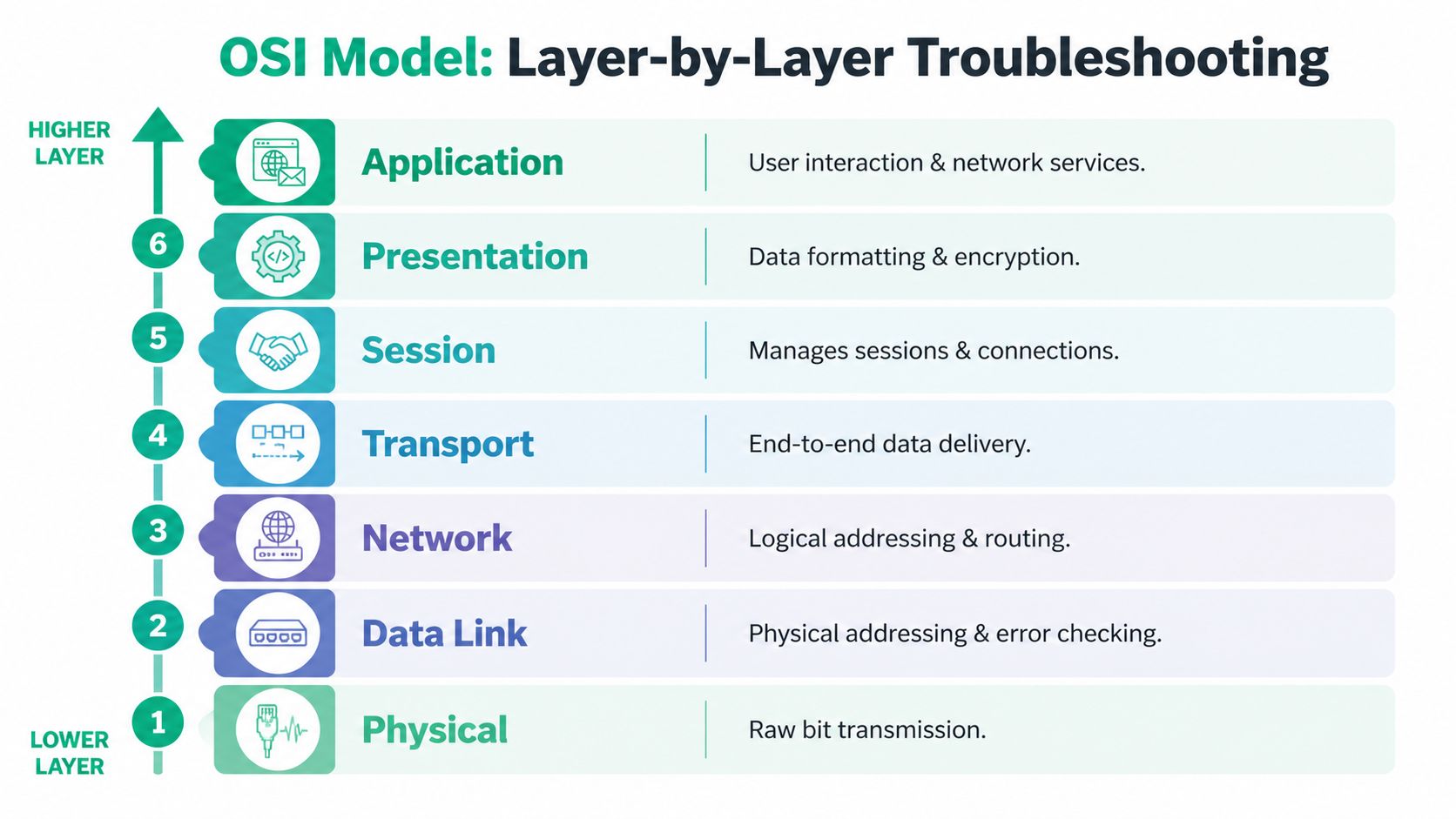
Physical first
This is Layer 1 in plain clothes. Before checking software, verify that the hardware path exists.
Look at switch port lights. Check whether the access point is online. Swap a suspect patch cable with a known-good one. If the trouble follows the cable, you’ve learned something. If it stays with the wall jack, patch panel, or device, you’ve narrowed the fault.
In older Greenwood and south Indy buildings, physical problems show up more often than people expect. Cabling gets rerouted over the years. Contractors move furniture and pinch lines. Cheap unmanaged switches get added under desks. None of that appears on a neat network diagram, but it absolutely affects uptime.
Link and access checks
Once the wire and radio path look healthy, check the connection between the device and the network. For wired users, is the switch port active and assigned where it should be? For wireless users, did the device join the right SSID and stay associated, or is it bouncing between access points?
A lot of Wi-Fi complaints are really roaming problems, channel overlap, power mismatch, or dead spots caused by building materials. Thick brick, old plaster, metal shelving, and long hallways can all make a decent access point layout perform badly.
If one corner office drops constantly and the rest of the floor is fine, don’t blame the ISP. Blame physics first.
Network layer checks
Now look at addressing and routing. Did the device get a valid IP configuration from DHCP? Can it reach the local gateway? Can it talk to other internal resources on the same network segment?
At this point, a lot of “mystery” outages become ordinary misconfiguration. A device may be connected perfectly but sitting on the wrong VLAN, using the wrong gateway, or failing to get a lease at all. Basic tests at this stage tell you whether the traffic can move inside your network before it ever tries to leave the building.
Here’s a simple business-friendly checklist:
| Check | What you’re asking | What failure suggests |
|---|---|---|
| Link light or Wi-Fi association | Is the device attached to the network? | Cable, port, AP, or radio issue |
| Local gateway reachability | Can it reach the router or firewall? | DHCP, VLAN, switch, or local path problem |
| Internal resource access | Can it reach file shares or printers? | Routing, ACL, segmentation, or host issue |
| External reachability | Can it get past the edge? | ISP, firewall, DNS, or WAN issue |
If external access fails but internal resources still work, your WAN edge, DNS path, or filtering policy deserves attention. If DNS is the suspect, this plain-English DNS guide helps explain why users can have “internet” but still fail to reach the sites and apps they need.
Application layer reality check
Business owners often start here, but it should come last. If email won’t sync or your cloud accounting platform won’t load, first prove the lower layers are healthy. If they are, then the app itself, its authentication flow, certificate handling, or security controls may be the problem.
For example, if users can browse most websites but one business application times out, that points away from a total network failure. It may be DNS resolution, a blocked port, a Zero Trust access rule, or an upstream provider issue.
The sequence matters. Skip it, and you waste time chasing symptoms.
Your Troubleshooting Toolkit Commands and Gear
You don’t need a full NOC to collect useful evidence. A small business can do a lot with a laptop, a few built-in commands, and visibility into the firewall, switch, and access point dashboards.
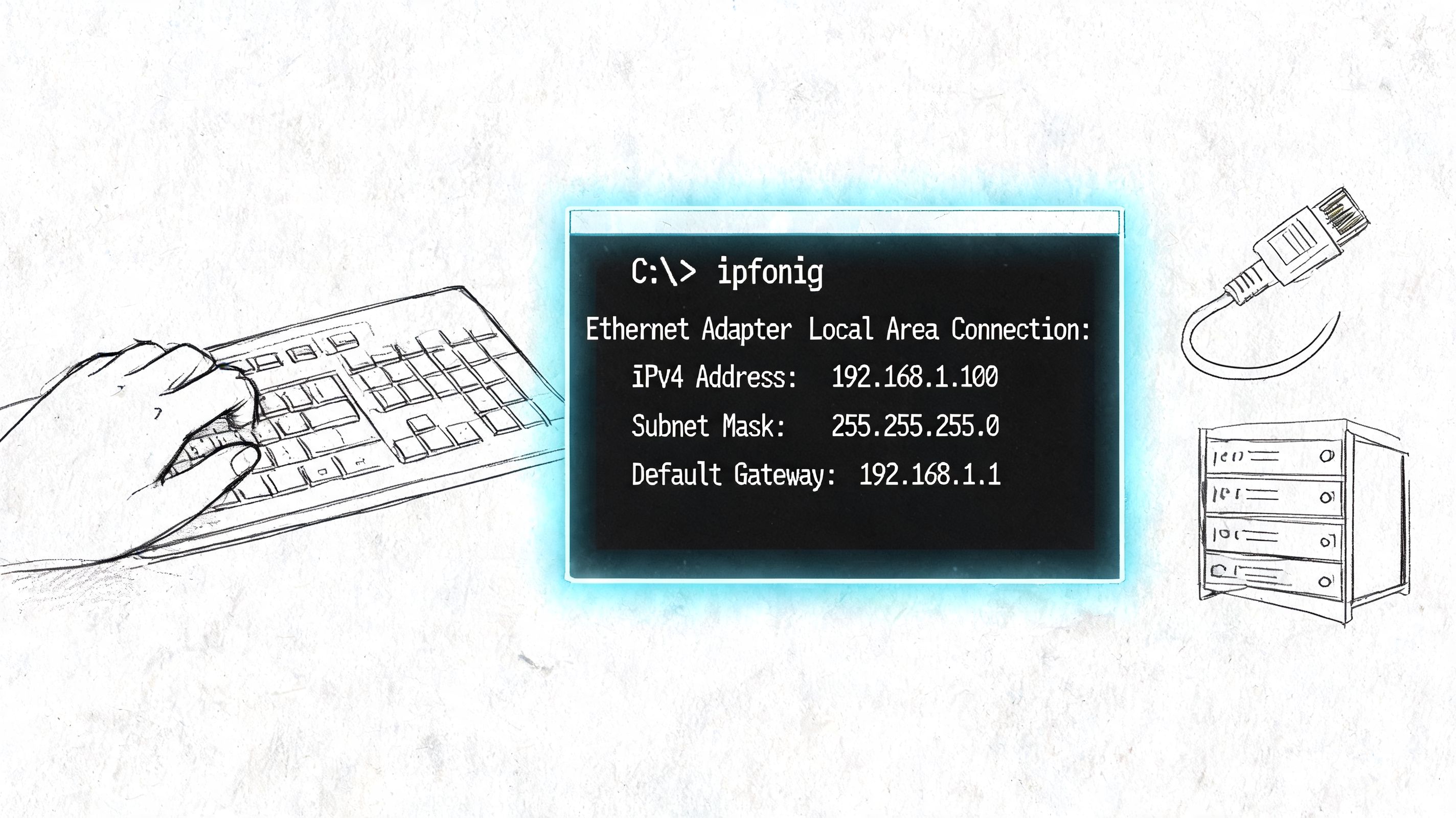
The four commands that solve most first-pass questions
These aren’t fancy, but they’re useful because each one answers a different question.
ipconfigtells you what network settings the device has. If the adapter looks wrong, disconnected, or missing expected gateway details, you’re not dealing with an application problem yet.pingtells you whether the device can reach another target and whether the path is stable enough to answer basic requests.tracertshows where traffic starts to break down as it moves toward a destination.nslookuptells you whether name resolution is working when a website or cloud service won’t open.
The value isn’t just running the command. It’s reading the result in context. “Request timed out” to one cloud app means something different from “Request timed out” to your local gateway. One points outward. The other points inward.
Read the dashboard, not just the complaint
If you’re using UniFi networking, Meraki, SonicWall, Fortinet, or another managed platform, check the controller before touching hardware. The dashboard often tells you whether an access point is flapping, a switch port is erroring out, a client is failing to authenticate, or a WAN uplink is unstable.
For SMBs, that’s where repeated Wi-Fi pain usually becomes visible. You’ll often spot overloaded radios, bad client distribution, rogue devices, or uplink mismatch long before a user can describe the issue clearly.
A good monitoring stack matters because teams that use measurable performance metrics like latency percentiles and retransmission rates can pinpoint root causes in minutes, and a 30-minute detection delay can easily lead to a 4-hour outage, according to Selector’s guide to network troubleshooting metrics and MTTR. That’s also why continuous visibility beats “call us when it breaks.”
If you’re building that visibility, this list of free network monitoring tools for 2026 is a practical place to start.
When cloud traffic muddies the picture
A lot of modern traffic doesn’t stay inside your office. It goes to Microsoft 365, line-of-business apps, hosted databases, and cloud infrastructure. When that happens, office-side tools still matter, but you may also need visibility into what your cloud network is doing. If your business runs workloads in AWS, this expert guide to VPC Flow Logs is useful for understanding how cloud-side traffic records can help isolate blocked or misrouted connections.
Here’s a quick way to think about tools by symptom:
| Symptom | First tool | Why |
|---|---|---|
| One PC can’t connect | ipconfig | Check whether it has sane network settings |
| Server or gateway won’t answer | ping | Test basic reachability |
| Cloud app is slow or unreachable | tracert | See where the path starts failing |
| Site opens by IP but not by name | nslookup | Confirm DNS trouble |
| Wi-Fi complaints by area | Controller dashboard | Find AP, signal, channel, or roaming issues |
| Random slowness at busy times | Monitoring platform | Compare peaks, latency, and retransmits |
A short walkthrough helps if you want to see some of these basics in action:
Gear that earns its keep
A few tools save a lot of wasted labor.
- Cable tester: Good for quick patch verification.
- Managed switch logs: Helpful for port errors, VLAN mismatch, or storm events.
- Wireshark: Useful when packets matter and the issue keeps dodging simple checks.
- Labeling and documentation: Not exciting, but they prevent “mystery uplink” outages.
A command tells you what one device sees. Monitoring tells you what the network has been doing all day.
That difference is huge when the complaint is intermittent and the office only calls after the problem has passed.
Solving Stubborn Network Issues in Central Indiana
Generic advice falls apart fast in local buildings with local constraints. Central Indiana has plenty of offices in older construction, business parks with crowded wireless environments, and growing SMBs that outgrew the router they bought when they had half as many devices.
In our 17 years of local service, the ugly network problems are rarely exotic. They’re usually normal issues that stuck around too long because nobody traced them all the way to the root.
Old buildings and bad Wi-Fi geometry
A brick office in Greenwood or an older suite near downtown Indy can ruin a clean Wi-Fi design. You can buy good hardware and still get poor results if the access points are mounted where the signal can’t travel well through the space.
We’ve seen offices add extenders to fix dead zones, then create a second problem with sticky clients and inconsistent roaming. The permanent fix is usually a proper wireless design with better AP placement, cleaner channel planning, and sometimes latency-optimized mesh nodes only where a cable run isn’t practical. More radios doesn’t automatically mean better coverage. Sometimes it means more contention.
For businesses planning a cleanup, a dedicated networking and Wi-Fi service page can help you compare what a proper redesign includes.
Growing offices and DHCP headaches
One of the most overlooked SMB failures is simple address management. For growing Indiana SMBs, IP address exhaustion and DHCP conflicts are a common but overlooked cause of outages, accounting for 15 to 25% of connectivity issues, and a standard router’s default DHCP pool can be exhausted in under 24 hours in a modern office with IoT devices, according to CBT Nuggets on common network issues.
That sounds technical, but the symptom is simple. New devices connect and then act weird. A printer disappears. A camera comes online and something else drops. Staff see “Address Already in Use” or they connect without getting stable access.
Here’s where it shows up most often:
- Fast-growing offices: More laptops, phones, tablets, scanners, TVs, and cameras than the original network plan expected.
- Hybrid work setups: Employees return on some days with multiple devices each.
- ISP modem plus local router both handing out addresses: That creates conflict fast.
- No reserved space for critical gear: Printers, servers, phones, and specialty hardware drift into the same pool as guest devices.
Security that looks like a network problem
Some outages are self-inflicted by security controls. A firewall rule gets tightened. Endpoint protection blocks a traffic pattern the business app needs. VPN changes break a route to a file server. Staff report “the network is down,” but the switching and Wi-Fi are fine.
Bitdefender GravityZone, Microsoft security controls, and modern firewalls are doing their job when they block suspicious traffic. The problem comes when nobody connects that change back to the outage report. If a new deny rule went in Friday night and the warehouse software stops talking Monday morning, that isn’t a cable issue. It’s a policy issue.
Security logs often answer questions that a cable tester never will.
This is also where Zero Trust architecture helps. It forces cleaner segmentation, tighter access rules, and better visibility into who can reach what. It won’t remove troubleshooting. It will make the blast radius smaller when something goes wrong.
Compliance problems hiding in plain sight
Healthcare clinics, legal offices, and defense-adjacent manufacturers around Johnson County don’t just need connectivity. They need controlled connectivity. A VLAN mistake can turn a routine outage into a HIPAA, CMMC, or NIST CSF problem if traffic starts crossing boundaries it shouldn’t.
A few examples matter:
| Environment | Hidden risk | What to check |
|---|---|---|
| Healthcare office | Clinical devices and guest devices share paths | VLAN assignment, ACLs, wireless SSIDs |
| Defense contractor | Controlled systems reachable from general office network | Segmentation, firewall policy, logging |
| Multi-site business | Site-to-site traffic bypasses intended controls | Route tables, VPN policy, DNS behavior |
When a compliance-minded business has a “network” issue, don’t stop at whether the app works. Confirm that it works from the right place, over the right path, with the right controls intact.
Intermittent faults that keep coming back
The hardest tickets are the ones someone “fixed” last week. Those are often caused by marginal cabling, PoE instability, bad switch ports, or a radio environment that collapses under load. They vanish during a quiet afternoon and return the minute the office fills up.
That’s why stress and pattern matter. If a problem only appears during the morning rush, after a conference room fills up, or when security cameras and voice traffic are both active, the network needs to be tested under real conditions. This is one reason a simple reboot rarely closes the case for good.
For businesses that need a deeper bench, tools and services vary. Some issues call for packet capture. Others call for wireless heat mapping, cabling certification, SOC-as-a-Service monitoring, or a review of switch logs and firewall events. In that category, Finchum Fixes IT is one local option that provides networking, Wi-Fi troubleshooting, and support for businesses that need structured diagnosis rather than one-off break-fix guesses.
From Reactive Fixes to Proactive Uptime Your Prevention Plan
The most expensive network issue is the one that keeps coming back. If your business treats every outage like a surprise, you’ll keep paying emergency rates in lost labor, delayed work, and distracted staff. A prevention plan changes the economics.
The big shift is simple. Stop paying for chaos. Start paying for predictable uptime.
Build a small-business network standard
Most SMBs don’t need enterprise bureaucracy. They do need consistency.
- Document the core path: ISP handoff, firewall, switches, access points, critical servers, cloud dependencies, and VLANs.
- Standardize hardware where possible: Mixed bargain-bin gear creates weird behavior and harder support.
- Schedule firmware reviews: Not random updates in the middle of the week. Planned updates with rollback thinking.
- Label ports and cables: This sounds basic because it is. It also saves time every single time.
- Back up configurations: Firewalls, switches, wireless controllers, and key appliances should be recoverable.
A documented network recovers faster because whoever touches it next isn’t starting from folklore.
Monitor what matters
Don’t stare at vanity dashboards. Track the handful of signals that point to user pain and business risk. For most SMBs that means link status, WAN health, client failures, AP load, gateway reachability, and event logs from firewalls and switches.
If your environment includes remote users, hosted systems, or sensitive data, go further. Add alerting, centralized logs, and security monitoring that can separate a real outage from a blocked threat. That’s where SOC-as-a-Service monitoring, sane firewall policy, and immutable off-site backups start supporting continuity instead of sitting in separate silos.
Good prevention isn’t “more tools.” It’s fewer blind spots.
Match the network to the business
A front desk at a medical office doesn’t need the same design as a shop floor, legal firm, or defense subcontractor. The network should reflect the way your team works and the compliance standard you answer to.
If you handle protected health information, your network design has to respect HIPAA boundaries. If you work in the defense supply chain, CMMC expectations change how you segment systems and log access. If you just want a sane baseline, NIST CSF gives you a practical way to think about identification, protection, detection, response, and recovery.
That planning also protects ROI. When systems are stable, your staff spends less time waiting, reconnecting, repeating work, or submitting tickets for the same issue. IT costs become easier to budget because you’re not lurching from emergency to emergency.
What a healthy operating rhythm looks like
A workable monthly rhythm for many Indiana SMBs includes:
- Review alerts and recurring incidents
- Check firmware and security updates
- Test backups and restore paths
- Review Wi-Fi performance and client complaints
- Confirm documentation matches reality
- Retire risky shortcuts that got added during growth
This is the managed services argument in plain terms. You can spend money after downtime, or you can spend money reducing the odds and duration of downtime in the first place. The second option is usually cheaper, calmer, and easier on your team.
Frequently Asked Questions
Should I reboot the router first?
Not automatically. First confirm whether the issue affects one user, one area, or the whole office. Rebooting too early can hide the cause.
Why does Wi-Fi fail only in part of the building?
Usually building materials, poor access point placement, roaming problems, or channel congestion. Thick walls and older construction are common culprits in Central Indiana offices.
Why do some devices work while others don’t?
That often points to DHCP, VLAN assignment, DNS, or a policy issue rather than a full internet outage.
When should I call for help?
Call when the problem is intermittent, recurring, tied to compliance, or affecting business operations beyond a quick local fix.
If your business in Greenwood, Indianapolis, or the surrounding south side keeps fighting the same network problems, Finchum Fixes IT can help you sort out the root cause with a Free Network Assessment. It’s a straightforward way to find weak spots in your Wi-Fi, switching, security controls, and network design before the next outage eats another workday.