Laptop Camera Not Working for Zoom: A Practical Fix Guide

You're about to join a client call, Zoom opens, and the preview shows a black screen, a crossed-out camera, or the wrong device. The fastest fix is usually not reinstalling Zoom. Close apps that may be using the webcam, check the laptop's privacy switch and operating-system permissions, select the correct camera in Zoom, then investigate drivers and hardware.
Why Your Laptop Camera Stops Working in Zoom
Most laptop camera failures in Zoom start outside Zoom itself. The operating system may have revoked camera access, a privacy shutter or function key may have disabled the webcam, or another application may already hold the camera open. Driver conflicts and physical failures come later in the troubleshooting order.
That distinction matters. Zoom requests access, but Windows or macOS decides whether the request is allowed. During the rapid expansion of remote meetings, Zoom reported 10 million daily meeting participants in December 2019, 200 million in March 2020, and about 300 million in April 2020, before reaching 350 million by December 2020. That was a 30x increase in roughly three months, according to Zoom usage data summarized by Business of Apps. Built-in webcams, browser permissions, and device drivers suddenly became part of everyday work, education, and telehealth.
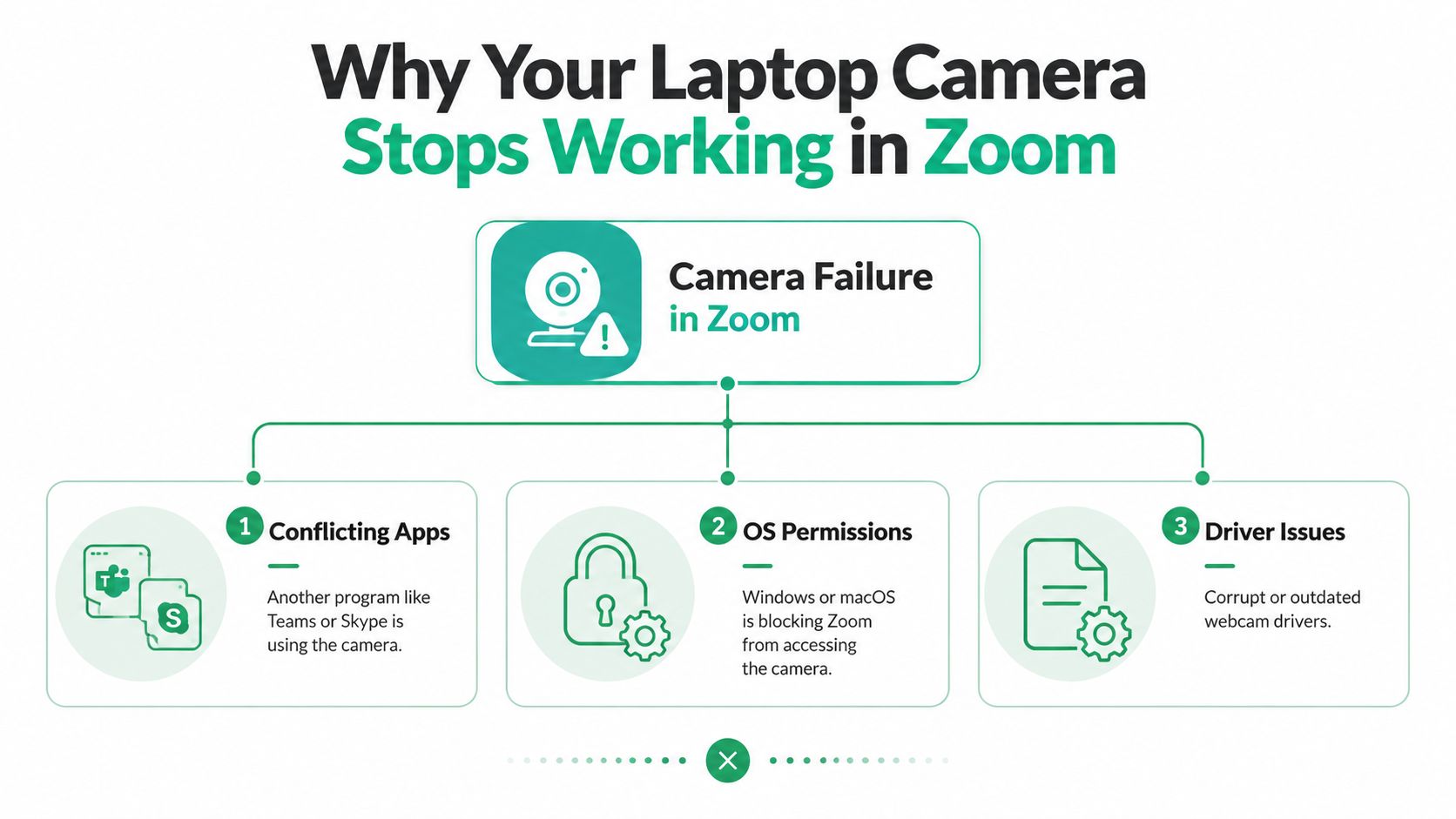
The three failure groups
A useful phone-support workflow separates the problem into three branches:
- Permissions and privacy locks: Windows Camera access, macOS Camera permissions, a physical shutter, or a camera function key can block the device before Zoom gets a usable feed.
- Software conflicts: Microsoft Teams, Skype, Discord, OBS, browser video tools, and virtual-camera utilities can retain control of the webcam.
- Drivers and hardware: A failed Windows update, an incompatible OEM driver, a loose internal connection, or a defective webcam can leave Zoom with no valid video source.
Zoom's own guidance recommends closing other programs using the camera and selecting the correct camera from Settings, Video. That makes the order practical: verify the easy access path first, then move toward drivers and physical diagnostics. Most ordinary software-related cases can be worked through in a short, orderly session before escalation.
For another practical explanation of webcam diagnosis, Nerds 2 You Edmonton's webcam fix guide is useful because it keeps the basic checks separate from deeper hardware work. Businesses can also use this Indiana computer diagnostics and repair guide when a camera issue is part of a wider endpoint problem.
Quick Checks Before You Change Any Settings
Start with the camera's ownership. A minimized application can still keep the webcam open, so close Microsoft Teams, Skype, Discord, OBS, browser tabs running video tools, and any virtual-camera software such as ManyCam or Snap Camera. On Windows, check the notification area and Task Manager if an application refuses to close. On macOS, quit the application normally, then use Command + Option + Escape if it's frozen.
Zoom's support guidance specifically recommends closing competing programs before changing drivers. The reason is simple: two applications can't always negotiate access to the same camera cleanly. If Teams opened the webcam first, Zoom may display a black preview or report that no camera is available even though the hardware works.
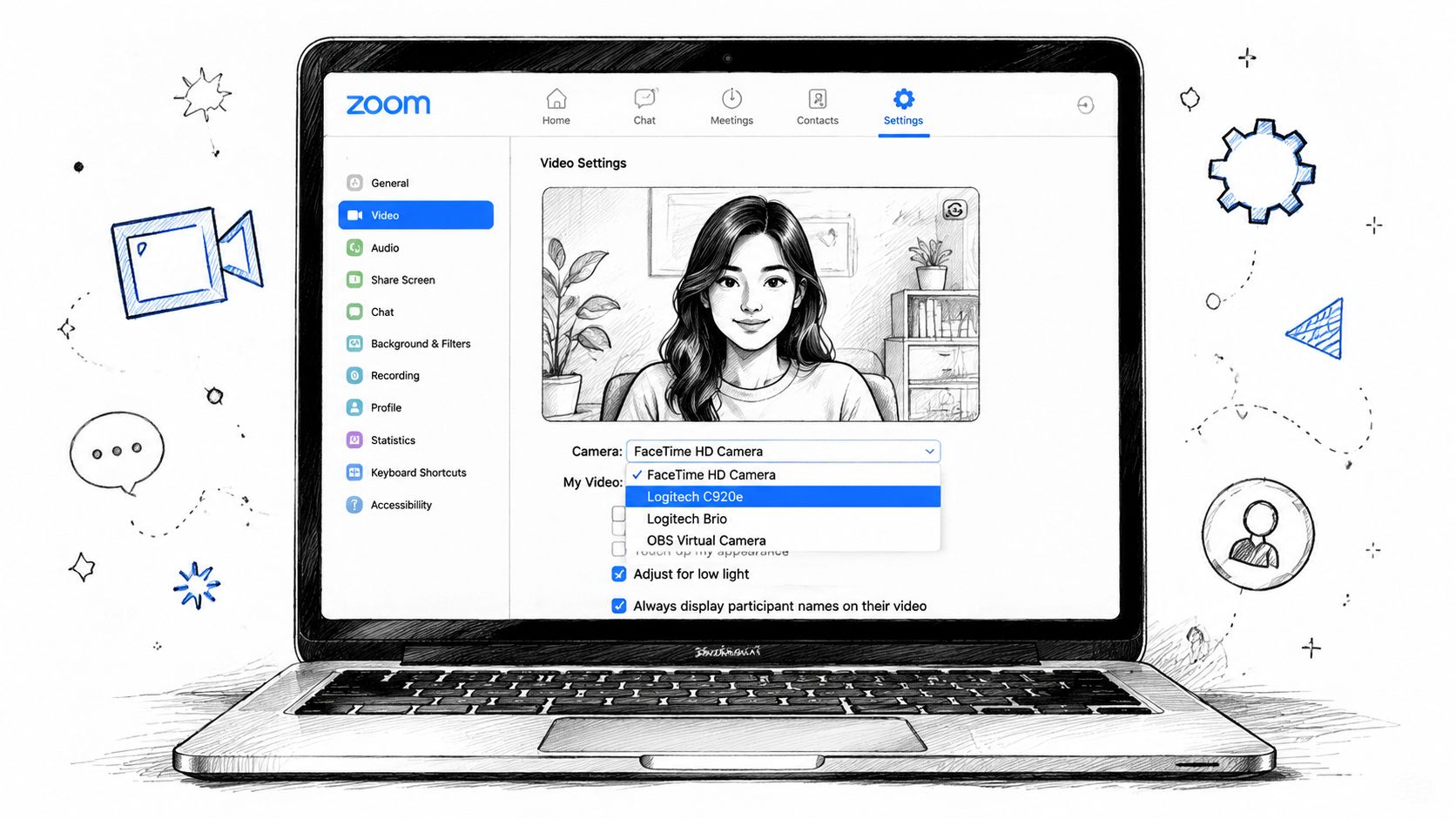
Select the real camera in Zoom
Open Zoom and follow this path:
- Select your profile picture.
- Choose Settings.
- Open Video.
- Expand the camera selection menu.
- Choose the built-in laptop camera, often labeled Integrated Camera, HD Webcam, or by the manufacturer's device name.
- Confirm that the preview displays a live image.
Don't assume the first listed device is correct. A USB webcam, docking station camera, or virtual camera may appear before the internal camera. If the built-in device is missing entirely, note that result. It points toward permissions, detection, drivers, or hardware rather than a simple Zoom selection error.
Check the laptop's camera lock
Many Windows laptops use a function key with a camera icon. Look across F8 through F12, hold Fn, and press the key once if it shows a camera symbol or crossed-out webcam. Some keyboards use a dedicated privacy key instead.
On a Mac, open Control Center from the menu bar and review the camera controls shown for active applications. Quit video applications, reopen Zoom, and test the preview again. If the image returns, you've found an access conflict rather than a failed webcam.
Before changing permissions or reinstalling anything, start a test meeting or use Zoom's video preview. This short check confirms whether the first intervention worked and avoids unnecessary system changes. For broader endpoint concerns, this Indiana SMB malware guide explains why unexpected camera behavior deserves attention alongside other security symptoms.
Fixing Camera Permissions on Windows and macOS
A laptop camera can appear in the system and still be blocked from Zoom. Detection, application authorization, and hardware privacy controls operate separately. A white or green camera indicator confirms power, not that Zoom is receiving video. For a small business, checking those controls first can restore a meeting without spending time on driver work that will not address the block.
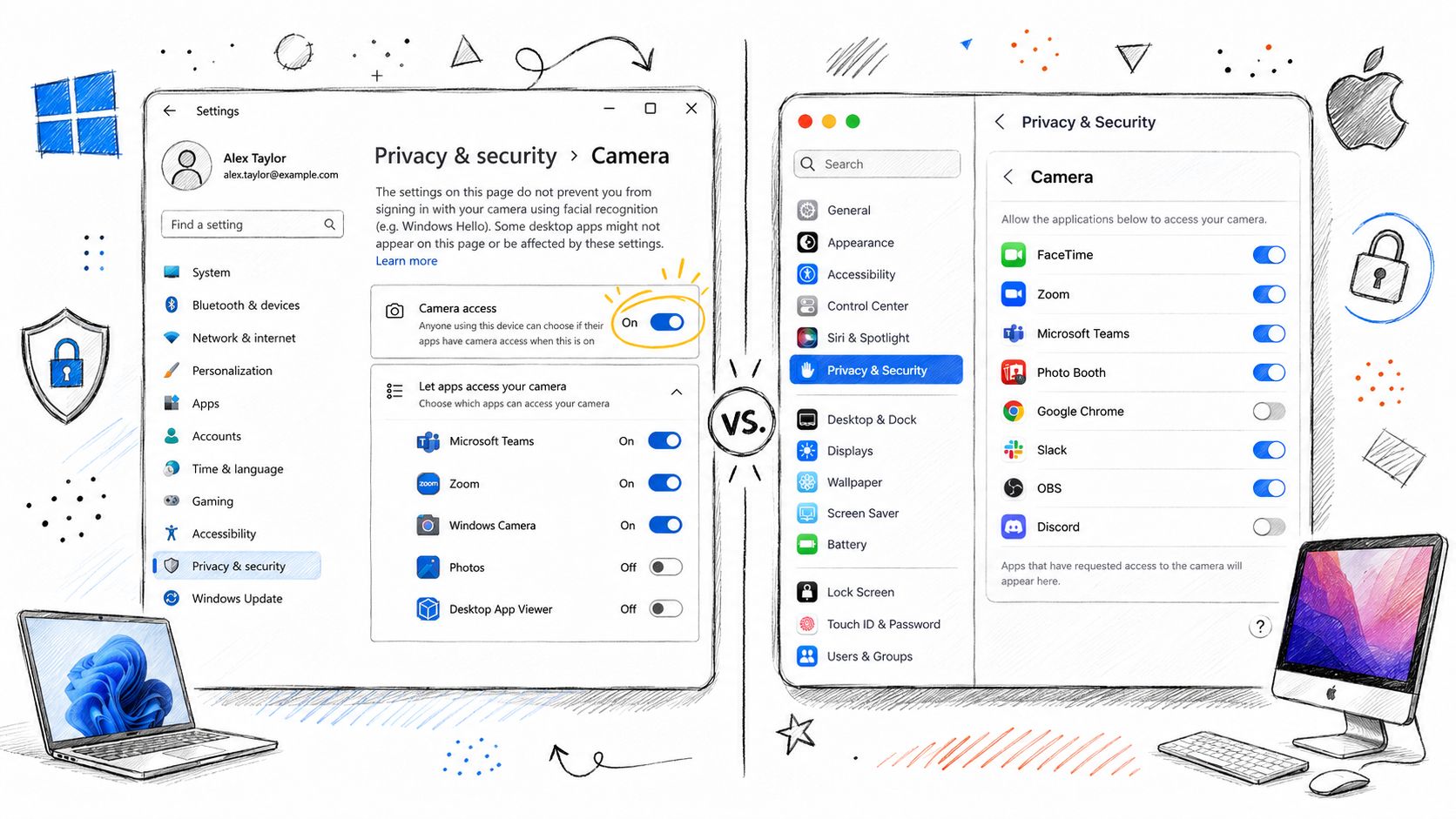
Windows 10 and Windows 11
Open Settings, choose Privacy and Security, then Camera. Verify that Camera access, Let apps access your camera, desktop-app camera access, and Zoom's application permission are enabled where shown.
A managed business laptop may prevent these changes through organizational policy. In that case, the restriction is not a local Zoom setting, and repeated attempts in the app will not restore video. Check the camera entry in Device Manager and close other applications that may be holding the camera before testing again.
Inspect the bezel above the screen as well. A privacy slider, keyboard toggle, dedicated hardware switch, or firmware-level control can disable the webcam. A lens sticker produces a dark or obstructed image rather than a missing camera, but the result still looks like a Zoom failure during a rushed meeting.
macOS Ventura and later
Open System Settings, select Privacy and Security, then Camera. Turn on Zoom's permission. If Zoom is absent, open the app, request video access, and approve the macOS prompt. Quit and reopen Zoom after changing the setting so the client requests the camera again.
The same rule applies to browsers. Zoom's web app needs explicit browser permission for camera access, and its microphone, camera, and screen-sharing permissions may be managed separately. Test the desktop client and browser independently when a team uses both, because browser policy and platform restrictions can affect which meeting features work.
Permissions can look correct while another process still owns the camera. Close video applications, restart Zoom, and test once. If the camera works in Apple's camera-related applications but not Zoom, authorization or Zoom configuration remains the stronger suspect. If it fails in every application, stop repeating permission changes and arrange broader diagnosis. A same-day Mac software repair resource can provide context for macOS repair options before device-level work begins.
Camera access should also appear in endpoint standards, particularly for organizations handling regulated information. Documented controls can support HIPAA workflows, CMMC expectations, and the access-control practices described by the NIST CSF. Review this laptop security guide for Indiana SMBs when camera permissions must be considered alongside encryption, account controls, and patching.
Updating and Reinstalling Webcam Drivers the Right Way
If permissions and Zoom's camera selection are already correct, treat the failure as a driver or hardware-state problem before blaming Zoom. This matters after a Windows update, a manufacturer firmware change, or a Zoom update that exposes an existing compatibility issue. Avoid random driver utilities. Start with the device Windows already recognizes.
Check the Windows device before reinstalling
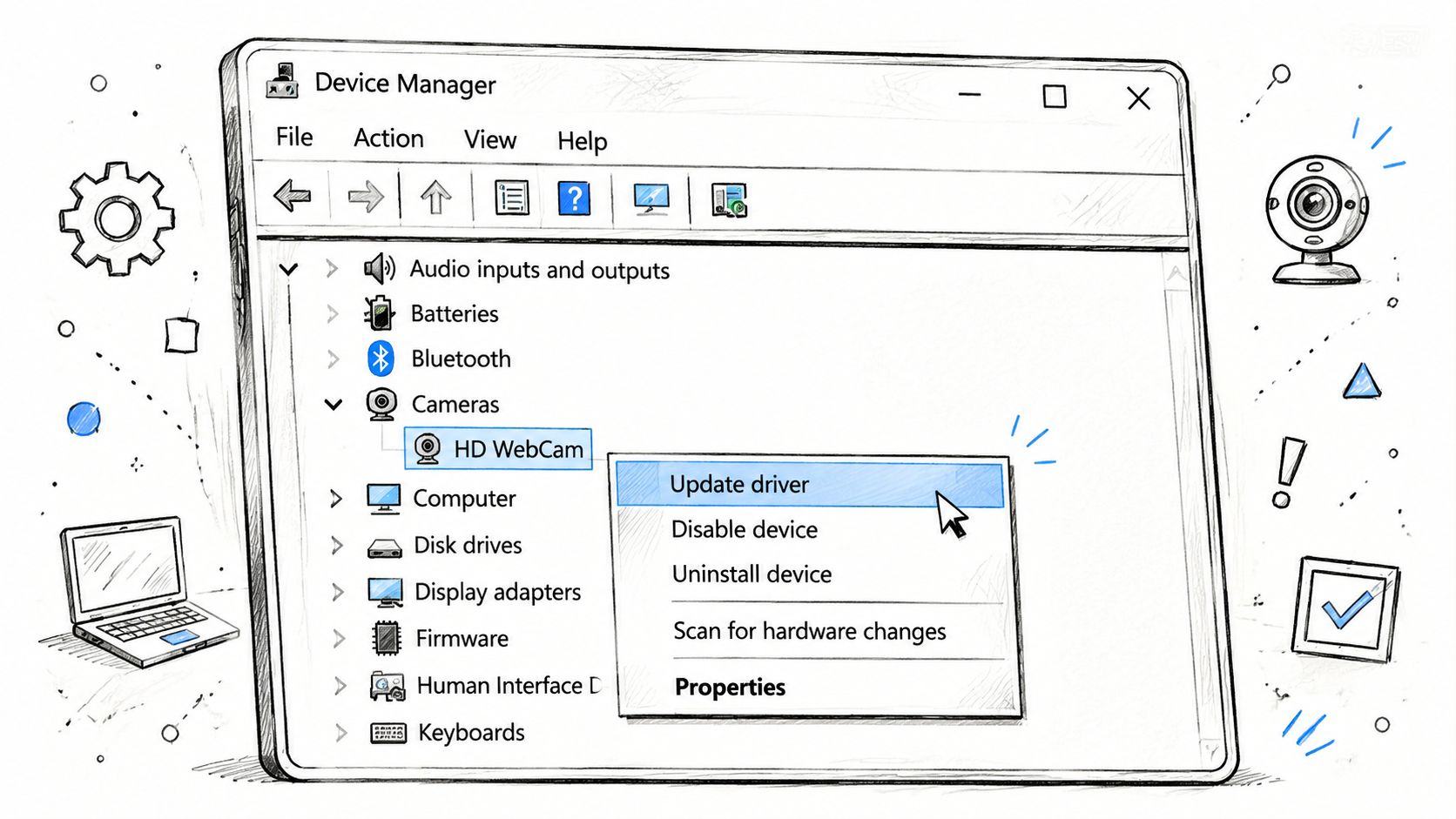
Press Windows + X, open Device Manager, and expand Cameras or Imaging devices. Locate the built-in webcam, open its context menu, choose Update driver, then select Search automatically for drivers.
A warning icon, error message, or disabled device changes the diagnosis. Re-enable a disabled camera from the same menu. If the device remains unreliable, reinstall its driver in a controlled order:
- Right-click the webcam in Device Manager.
- Select Uninstall device.
- Select Delete the driver software for this device if Windows offers that option.
- Restart the laptop.
- Allow Windows to detect and reinstall the webcam.
Reinstallation can clear a damaged driver package, but it may remove a manufacturer-specific camera feature. Record the exact model of a Dell, Lenovo, HP, or other business laptop before removing anything. That model information prevents a longer recovery if Windows does not restore the correct package.
Use the manufacturer package when Windows is not enough
A major update can replace an original equipment manufacturer driver with a generic Microsoft version. Device Manager may then report a healthy camera while Zoom receives no usable image. Visit the laptop manufacturer's support page, enter the exact make and model, and install the webcam, chipset, or camera package intended for that device.
Do not mix packages from another model. If the manufacturer supplies a firmware utility or BIOS update that addresses camera detection, follow its instructions and keep the laptop connected to power. A failed firmware process creates more downtime than a camera setting usually does.
macOS normally includes camera support within the operating system rather than as a separate driver. Open System Settings, General, Software Update and apply available macOS updates. On Intel Macs, clearing PRAM may resolve a hardware-state problem that survives a standard restart. Apple silicon Macs use a different startup architecture, so Intel-only reset steps do not apply.
Reinstall Zoom only after the operating-system path has been checked. If the webcam works in another application but not Zoom, remove Zoom, restart the computer, download its current installer, and reinstall it. Zoom troubleshooting guidance also points to checking multiple cameras and reviewing the video capture method, but application repair is a later step, not the starting point.
Heavy system load can cause freezing or a stuttering preview. Use these computer performance improvement tips when the laptop is under pressure. The deciding test remains simple: determine whether the camera fails everywhere or only inside Zoom.
Quick Fixes vs When to Call Onsite IT Support
A client call is already in progress when the Zoom preview turns black. For a small Indiana business, the first response should separate a permission or hardware lock from a Zoom fault. That order usually restores service faster and avoids changing settings that were working.
Start with the shortest safe test. Close Teams, Skype, Discord, OBS, browser video tools, and virtual-camera software, then reopen Zoom. In Settings, Video, select the laptop's integrated webcam instead of a virtual or disconnected device. Check the operating system's camera permission and the laptop's physical privacy shutter or camera switch. After changing access, quit Zoom completely and launch it again. Restart the laptop if another process may still hold the camera.
Make one meaningful change at a time and test the preview. Once video returns, stop. Extra adjustments can hide the original cause and make a later support handoff slower.
The failure pattern determines the next decision. If the camera works in the operating system's camera application but not in Zoom, application-specific repair may be appropriate. If it fails there too, or disappears repeatedly, the problem belongs to the device, permission policy, or operating system. Persistent Device Manager errors, recurring blue screens after driver changes, or the same failure across several employees justify remote or onsite IT support. A fleet-wide pattern points toward an update, device image, policy, or management issue rather than one user's mistake.
Zoom guidance supports closing other camera-using programs and selecting the correct device. Microsoft troubleshooting also covers Device Manager, privacy settings, hardware toggles, and driver replacement. A technician can run those checks consistently, record the results, and compare the cost of replacement hardware with repeated repair attempts.
Downtime affects more than the meeting itself. It can consume billable staff time, delay client work, and force a second call. Industry summaries cite roughly $9,000 per minute for many organizations, with the figure varying by company size and sector, as described in Outage Cost's cost-per-minute resource. For a smaller company, the exact figure may differ, but the trade-off remains: a short support response can cost less than repeated failed meetings.
Use this emergency IT support guide to set a practical threshold for handing the issue to a local technician.
Keeping Your Team Camera-Ready and Your Budget Predictable
A laptop camera that fails in Zoom is often a visible symptom of an unmanaged endpoint environment. The same missing ownership can show up in delayed patches, inconsistent security settings, weak onboarding checklists, unreliable Wi-Fi, and backups nobody has tested. In a Greenwood business park, that may sit alongside aging hardware. In a downtown Indy tech hub, it may appear as a fleet of mixed laptop models with different privacy controls. Hamilton County growth and traffic along the I-65 corridor only increase the pressure to keep distributed teams operational.
A preventive routine doesn't need to be complicated. Assign responsibility and make the checks repeatable:
- Review updates: Include operating-system, firmware, Zoom, and webcam-driver reviews in routine maintenance.
- Standardize onboarding: Test camera, microphone, permissions, encryption, endpoint protection, and meeting software before a new hire's first client call.
- Name the primary device: Configure Zoom with a documented built-in or approved USB camera instead of leaving users to guess among virtual devices.
- Document escalation: Give staff a short path for reporting the failure, including whether the camera works in another application and whether the device appears in Device Manager.
- Protect continuity: Pair endpoint management with Bitdefender GravityZone, immutable off-site backups, and access controls appropriate to the business.
For regulated organizations, the routine can support HIPAA safeguards or CMMC preparation. For general business, it can be mapped to the NIST CSF. A broader managed approach may also include Zero Trust architecture, latency-optimized mesh nodes for difficult office layouts, SOC-as-a-Service monitoring, networking such as UniFi, and data recovery that reaches the bit-level when a storage failure threatens business records.
The local problem-solving model is straightforward. A technician checks the endpoint, the network, the policies, and the recovery plan instead of treating every failed Zoom camera as an isolated application bug. That turns wasted tech time into billable hours and replaces surprise interruptions with a predictable monthly IT budget. Predictable IT is built one small fix at a time.
For businesses in Greenwood and Indianapolis, Finchum Fixes IT can troubleshoot laptop cameras, repair PCs and Macs, review endpoint security, and identify network issues that interrupt meetings. Visit Finchum Fixes IT to request a Free Network Assessment or Security Risk Audit and put a documented response plan behind your team's daily calls.