Wifi Repeater Not Working? a Step-by-Step Fix
A WiFi repeater not working usually comes down to a weak link back to the router, interference, a firmware or setup mismatch, the built-in half-duplex speed penalty, or poor placement. The catch is that the repeater has two links: one from your phone to the repeater and one from the repeater back to the router. Full bars can make the first look perfect while the second is barely hanging on.
Say you're in an older brick office off the I-65 corridor in Greenwood. Your phone shows full bars in the back room. The point-of-sale tablet still spins, a Teams call freezes mid-sentence, and that little repeater light blinks like everything's fine. It isn't lying about the connection. It's reporting that the repeater can see the router, not that the link has enough signal or clean airtime to carry calls and transactions.
A blinking repeater light can make a connection look healthy even when the repeater cannot carry real work, so the link back to the router matters as much as the bars on your phone. Judge that upstream link before blaming the laptop, tablet, or phone. Otherwise, you can replace the wrong box and leave the same dead zone exactly where it was.
Match Your Symptom to the Likely Cause
Start with what you can see, then run one check before you change settings. Changing the password, channel, and location at once leaves you with three new variables and no answer.
Read the symptom before you touch the box
| Symptom | Likely cause | First check |
|---|---|---|
| Full bars beside the repeater, slow pages elsewhere | Half-duplex speed loss and weak backhaul | Speed test beside the router, beside the repeater and in the dead zone |
| Connected, but no internet on any device | DHCP or DNS problem, or repeater running a second network | Ping the default gateway, then ping an outside address |
| Works in one room, fails near the kitchen or a cordless phone | 2.4 GHz interference from appliances | Switch to channel 1, 6 or 11 and retest |
| Drops after a router firmware update | Firmware or channel mismatch | Check repeater firmware version and channel plan |
| Works on one band only | Band steering or shared SSID conflict | Test 2.4 GHz and 5 GHz separately |
| Light blinks but the phone will not join | Wrong password or failed pairing | Re-pair with WPS or a temporary Ethernet link |
| Still a dead zone after moving the repeater | Placed where the router signal is too weak | Measure signal at the mounting point and move toward the router |
Say a small accounting office in a Greenwood business park has full bars but QuickBooks crawls every afternoon. That's row one until proven otherwise. Don't buy a new laptop. Run the three-spot speed test first.
Say the break room works at 9 a.m. and dies when someone heats lunch. That's not a password problem. That's interference, and moving the repeater six feet can matter more than a reset.
The router-facing link decides more than the bars on your phone.
Your phone only reports how well it hears the repeater. It says nothing about how well the repeater hears the router through brick, metal shelving, or a crowded 2.4 GHz band. Treat every symptom above as a two-link problem and your first check gets a lot sharper.
Why a Connected Repeater Still Feels Slow
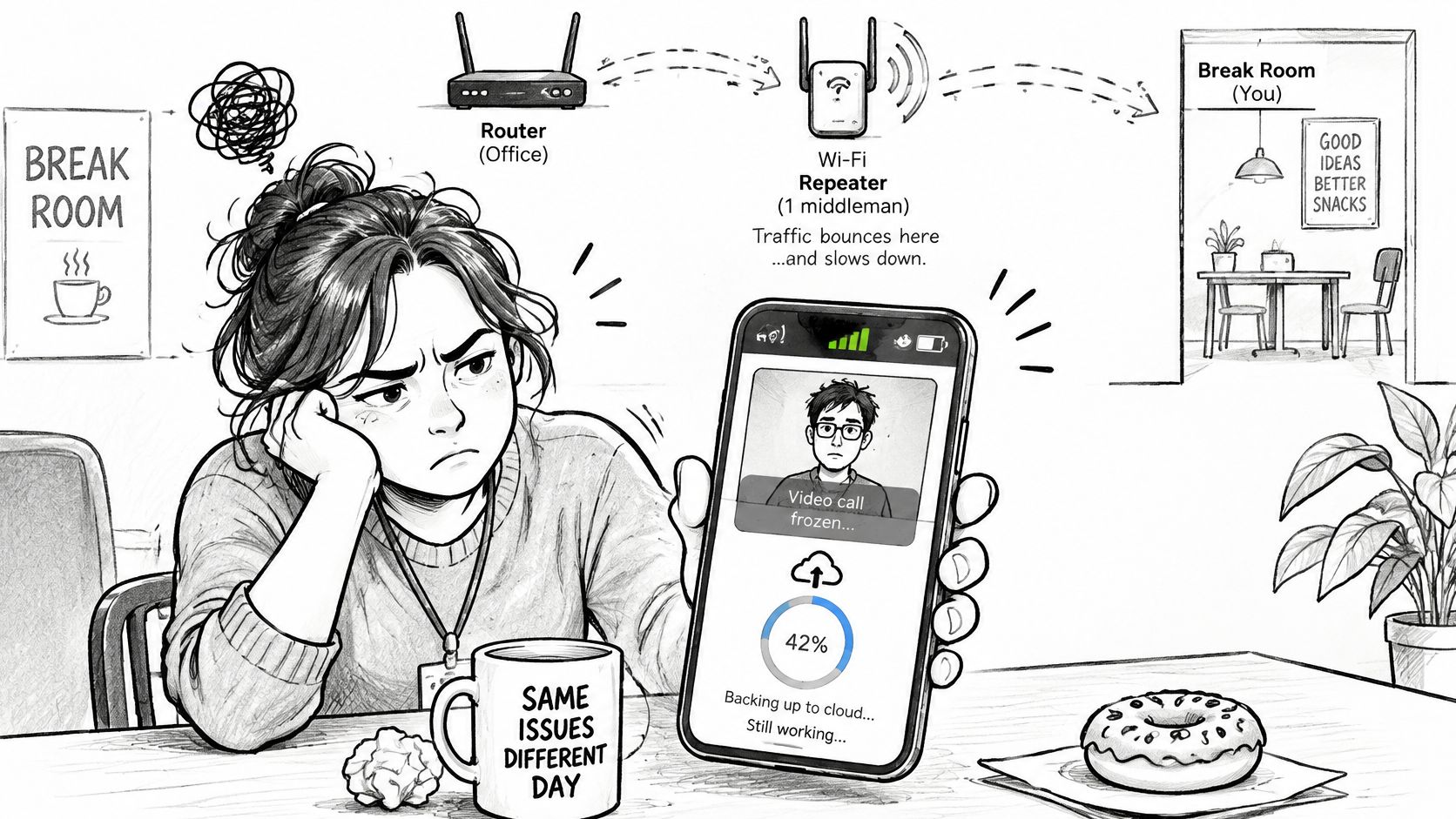
A repeater's status light will glow green through an entire afternoon of robotic voices and stalled screen shares. Say a Greenwood brick office adds one to cover the back rooms: every phone shows full bars, and the first video call of the day still collapses. The light reports that the repeater is powered and paired. It says nothing about what the link is carrying.
That gap, connected on paper and stuck in practice, is the moment captured here.
One radio doing two jobs
A conventional single-radio repeater has to receive traffic from the router, then stop and retransmit it to your device on the same channel. It cannot do both at once. The technical thesis on wireless repeater operation states that theoretical throughput is reduced by approximately 50%, and the practical reduction can exceed half because access points share airtime and retransmissions add overhead.
Those measurements make the penalty concrete. One configuration produced 3.59 Mbps, while another reached 6.08 Mbps after changing the operating arrangement. Same idea, different setup, nearly double the usable speed.
Add more devices and the math gets uglier. Every packet burns airtime twice, once from router to repeater and once from repeater to client. The more devices sharing that single radio, the heavier the congestion, which is why five staff on calls can break a setup that felt fine for one person browsing.
Practical rule Full bars do not prove a healthy network. They only prove you're close to the repeater.
Brick walls and metal shelving can leave a repeater looking perfect on every phone while the link back to the router starves. In those cases the laptops are rarely the problem, and a dedicated backhaul often restores call quality without replacing a single client device.
This short video walks through that bottleneck visually before you test your own link.
Run a speed test beside the router, then the same test through the repeater. If the second number collapses, check whether your unit has one radio or a dedicated backhaul. Our guide to optimizing network performance for SMBs in 2026 covers how that choice affects latency-optimized mesh nodes and wired access points.
How to Isolate the Fault in Five Steps
Don't factory reset first. A reset wipes the evidence and can introduce a second variable with a new SSID, security mode, or channel. Work in layers, as Cisco's small business access point guidance describes a repeater that should relay traffic toward the upstream access point rather than create a competing LAN.
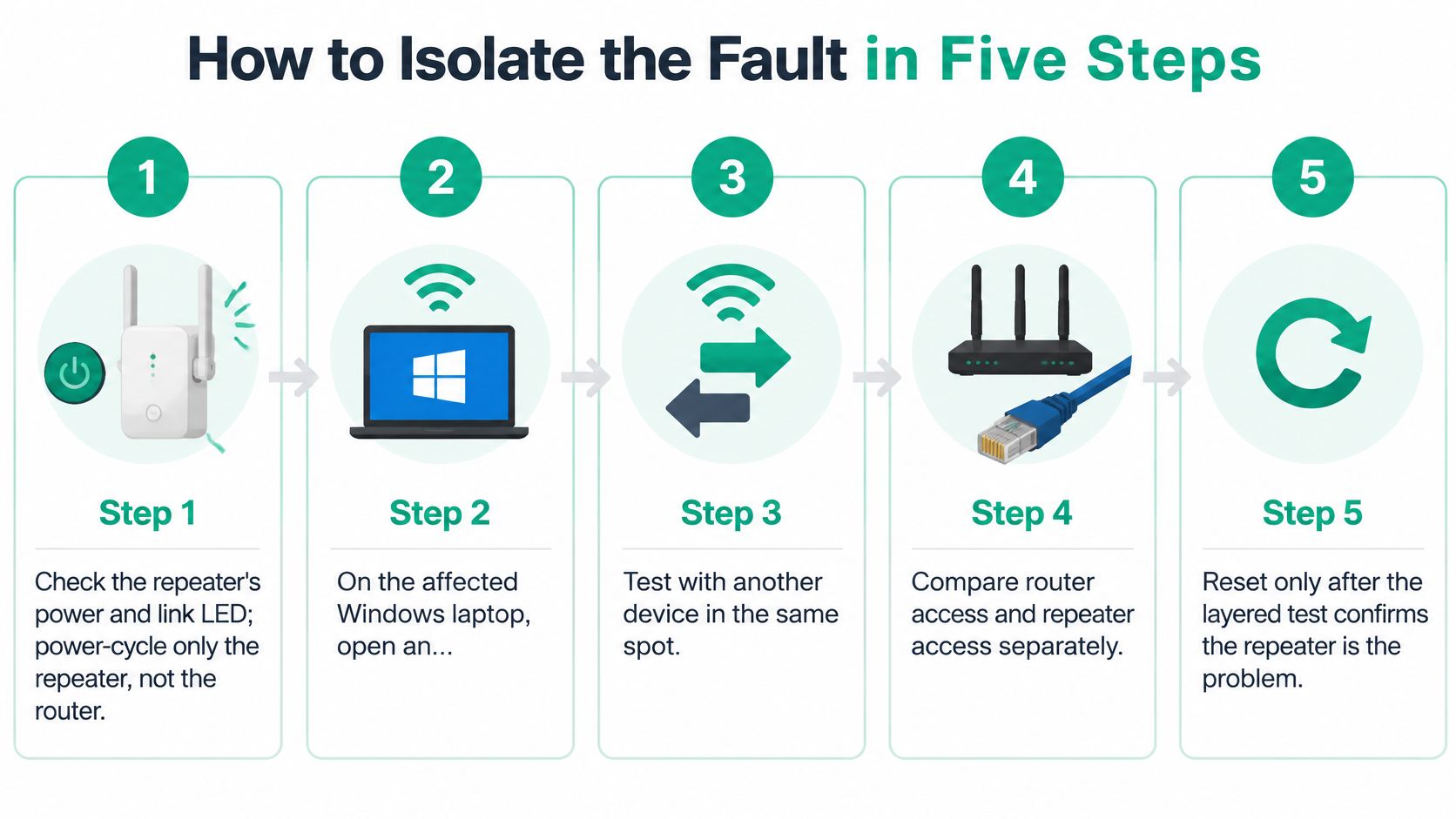
The five steps in order
- Check power and link status first. Confirm the repeater has power and a link light, then power-cycle only the repeater, not the router. That tells you whether the fault follows the repeater.
- Reset the Windows network stack. On the affected Windows laptop, open an elevated Command Prompt and run the sequence in Microsoft's Wi-Fi connection fix,
netsh winsock reset,netsh int ip reset,ipconfig /release,ipconfig /renew, andipconfig /flushdns, then restart. Those commands reset Winsock, rebuild TCP/IP settings, obtain a fresh DHCP lease, and clear the DNS resolver cache. - Ping the gateway. Run
ipconfig, note the Default Gateway, then runping -n 20against that gateway address. Packet loss here points to the local Wi-Fi hop, not your internet provider. - Generate the wireless report. Run
netsh wlan show wlanreportfrom an administrator Command Prompt, because Microsoft's wireless network report guide notes the report contains connection events, IP configuration, DHCP status, and DNS servers. Compare a failed repeater session with a clean direct-router session and look for repeated disconnects during authentication. - Retest in three places under load. Run speed tests beside the router, beside the repeater, and in the dead zone. Watch whether throughput holds for several minutes, not just for one quick test.
What the results actually mean
A clean gateway ping with a failed speed test points to airtime or backhaul trouble. No address at all points to DHCP. If clients join the repeater but get no address, check whether the extender is running its own DHCP and NAT domain instead of passing traffic upstream.
- Association fails: Think password, security mode, or pairing.
- Address fails: Think DHCP, a second NAT domain, or a broken upstream link.
- Gateway pings but pages fail: Think DNS or internet reachability past the router.
- Everything passes for one minute then drops: Think retries, missed beacons, and interference on the relay link.
The netsh and ipconfig steps are Windows-only. Mac and Linux users can skip those commands and still run the ping and three-location speed tests, which work on any operating system.
Your acceptance test is stricter than one lucky ping. You want sustained connectivity from the coverage area, a successful DHCP renewal, and throughput that stays steady during several minutes of traffic. Our walkthrough of network troubleshooting steps for Indiana SMBs in 2026 uses that same layered approach for UniFi networking and other business gear.
Fix Placement, Channels and Interference
Say your repeater works in the front office and fails every time the Greenwood shop microwave fires up at lunch. That's measurable radio trouble, and it can hit the repeater's backhaul while your phone still shows full bars. A repeater lives on two links: client to repeater, and repeater to router. Placement, channel, and interference fixes only hold when you've checked the second link, the one that often goes unchecked.
Placement and channel fixes that move the needle
- Start midway, clear of hard surfaces. Put the repeater roughly halfway between the router and the dead zone, away from masonry, metal, and glass. If it can't hear the router well, it can't help anyone downstream.
- Use only channels 1, 6, and 11 on 2.4 GHz. The non-Wi-Fi interference testing in a 2.4 GHz network measured Wi-Fi channels at 20 or 22 MHz wide while spaced only 5 MHz apart, leaving 1, 6, and 11 as the primary non-overlapping choices. The same testing recorded the losses below.
- Move away from appliances. Keep the unit clear of microwave ovens, Bluetooth devices, baby monitors, and cordless phone bases. Interference can wreck the router-facing link while your client still reports strong signal.
- Test at the coverage edge. Standing beside the repeater proves nothing. Test where staff sit.
- Narrow the channel if utilization is high. Wider channels chase theoretical speed but need cleaner air. In a noisy Hamilton County office, a narrower channel often stays up longer.
The measured effects on a 2.4 GHz link look like this:
| Source | Measured effect | Range |
|---|---|---|
| Bluetooth activity near a Wi-Fi client | 26.5% average throughput loss | Near the client |
| Microwave oven | About 75% degradation | Close range |
| Non-Wi-Fi interference in general | Degraded repeater backhaul and client links | Measurable up to 30 meters |
An analog cordless phone or a wireless camera sharing that same 2.4 GHz space can be just as disruptive, so treat any unexplained device near the unit as a suspect until proven innocent.
For a quick health check, Cisco's wireless connectivity guidance treats client conditions at or below 20 dB SNR as a poor-signal indicator, and interference occupying more than 30% of channel time as a severe impact. If you're near those lines, change one variable, then compare retries, latency, and throughput on both links, not just the client's.
In a brick Greenwood building, 5 GHz may not punch through walls reliably, so test each band before you commit to a spot. Mapping that is a measurement job, not a guess from the hallway, and our wireless network site survey guide for 2026 walks through the process.
Replace, Reposition or Upgrade to Mesh
Say a Greenwood accounting office calls in March. The repeater's light glows steady green, every phone in the building shows full bars, and the file share still crawls. Before you blame dead hardware, ask the compatibility question. Did it start at setup, after a router update, on one band only, or only when someone walks between rooms? Band steering, WPA modes, hidden SSIDs, and identical network names can all make a healthy repeater look broken.
Mixed networks are normal now. Light Reading's Wi-Fi 7 adoption coverage reports Wi-Fi 6 accounted for 44.2% of U.S. fixed Speedtest samples through Q1 2025, while Wi-Fi 5 accounted for 33%. A new router and an older repeater can disagree on how to hand off a roaming laptop, and the blinking light will not tell you which side is wrong.
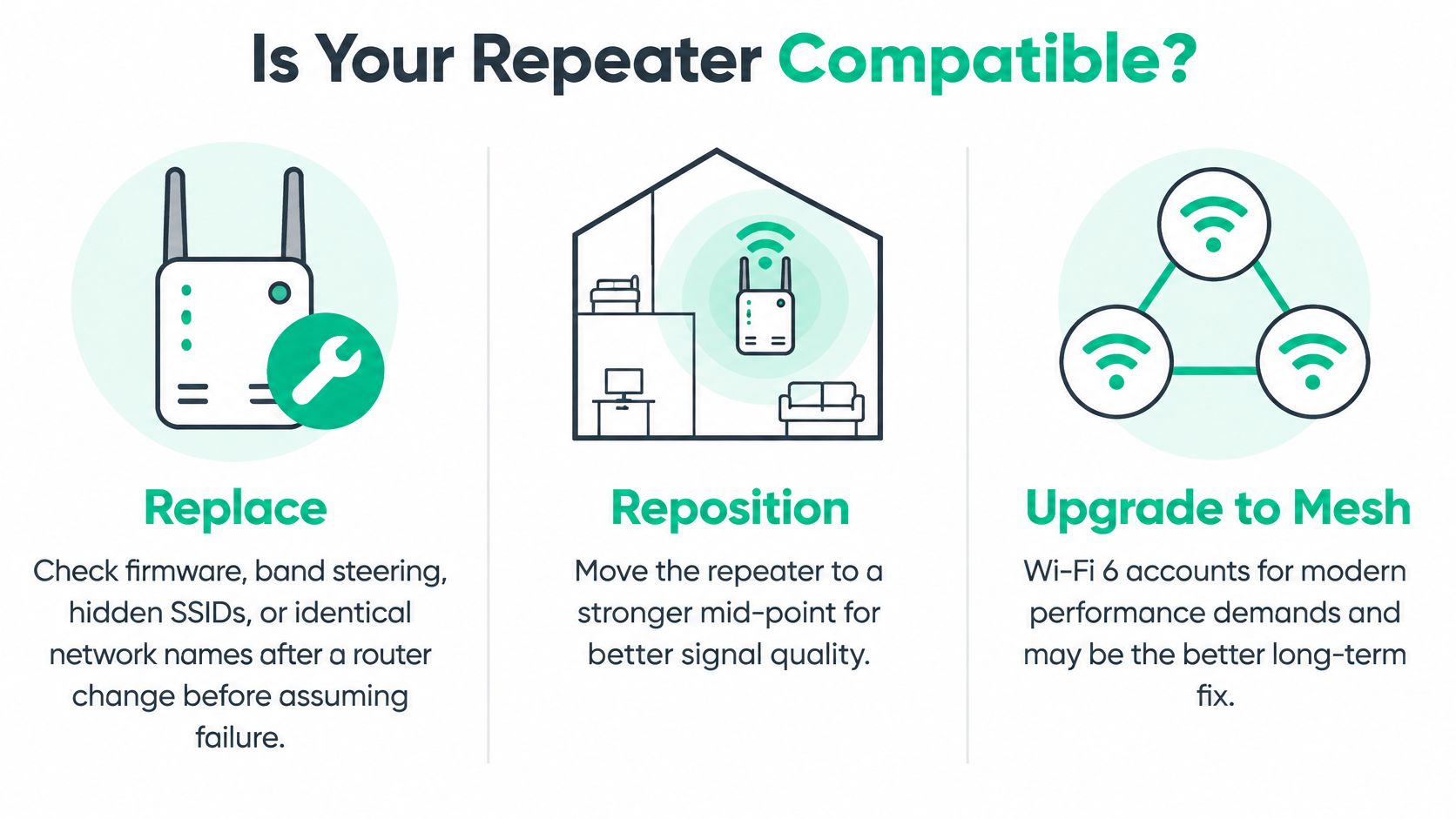
Ask where the weak link sits
A repeater is really two links wearing one name: router to repeater, then repeater to client. Full bars beside the unit only prove the second link is healthy. The FCC-hosted extender installation guidance recommends placing the extender midway between the router and the dead zone, with at least 50% source signal during setup, and it warns against masonry, metal, glass, microwaves, Bluetooth devices, and baby monitors near the unit.
So measure the router-facing link before you blame the client device. If that upstream hop is weak, move the repeater toward the router, not toward the frustrated person in the back room.
| Situation | Best move | Why it fits |
|---|---|---|
| Small space where the repeater mostly works | Keep the repeater and reposition it | Costs nothing but time and avoids new hardware |
| Dead zone with a clean wired run to a closet | Add a wired access point | Wired backhaul avoids the half-duplex speed loss |
| Multi-floor brick building with many devices | Upgrade to a mesh system | Nodes stay connected and clients roam without dropping |
| 25 or more devices running voice, POS, cameras or guest Wi-Fi | Business access point with central management | One interface to monitor and control the whole network |
Say that Greenwood office keeps growing: scanners, cameras, guest Wi-Fi, and voice all hanging off one consumer box. That stopped being a repeater job a while ago. The fix there is a business wireless network with a centralized management interface to monitor and control the whole network, WPA3 encryption, and WiFi 6 hardware rated up to 9.6 Gbps. Guest networks start at $399.
The math is blunt. Extended downtime costs more than a proper access point, and every hour spent babysitting a repeater is an hour that never gets billed. Picking the right tool once converts that lost time into a predictable line item. Our no-nonsense guide to improving WiFi coverage for Indiana businesses walks through that decision before you buy another consumer box.
Book a Free Network Assessment Before the Next Outage
Say a Greenwood practice loses the back office every time the schedule fills up. The repeater shows full bars, the front desk keeps checking people in, and two billing staff stand around a dead screen for an hour. The blinking light says everything is fine. Payroll says otherwise.
That is why Wi-Fi troubleshooting belongs in the same pile as your other business controls, not in the junk drawer with the spare cables. The NIST ransomware risk management guidance calls for backing up data, securing and isolating backups, and testing restoration, and it specifically recommends immutable storage so older database copies are not automatically overwritten. The same discipline applies to the wireless side: a documented routine means a failed repeater costs you an afternoon, not a week of guessing.
A monthly routine that takes minutes
- Write down the plan: Record SSID, security mode, country setting, and channel plan in a shared document anyone on call can find.
- Update together: Check router and repeater firmware on the same day each month, so one device never runs a version the other cannot handle.
- Retest after changes: Rerun the wireless report and three-location speed test after every change, and compare against the numbers you wrote down.
When the routine tells you the problem is bigger than a repeater, bring in someone who will measure the router-facing link before blaming the client device. Finchum Fixes IT reviews the wireless network and leaves you with a written recommendation covering repositioning, mesh, or wired access points. Connectivity repair covers internet connection problems, WiFi issues, network adapter failures, and peripheral device connectivity, and Small Business Networks support up to 25 devices with basic firewall protection, WiFi setup, remote support, and email setup.
If your repeater shows full bars while calls drop and registers stall, start with Finchum Fixes IT's networking and WiFi services, or reach out through Finchum Fixes IT to get a written plan before the next outage eats another workday.