Laptop Not Showing Wifi Networks

A laptop that isn't showing Wi-Fi networks is usually dealing with a disabled adapter, an outdated driver, or a stopped WLAN AutoConfig service, not a broken router. A systematic check can often resolve the issue in under 10 minutes.
The problem usually appears at the worst possible time. An employee in a Greenwood business park opens a laptop before a client call, sees no wireless networks, and starts rebooting the router. In an old brick office near the I-65 corridor, that instinct can waste more time than the repair itself.
In our 17 years of local service, the pattern is familiar. A physical switch was bumped during transport, Windows stopped managing the wireless adapter, or a newer router began broadcasting on a band the laptop couldn't detect. The practical answer is to test the laptop in a fixed order instead of changing several settings at once.
Why Your Laptop Won't Show Wi-Fi Networks
When Windows lists no available networks, start with three possible states: hardware state, software state, and compatibility state. Hardware state covers a physical Wi-Fi switch, the internal radio, or a BIOS setting. Software state includes the adapter driver, Windows settings, and WLAN AutoConfig. Compatibility state involves the wireless band, channel, or mode used by the router and supported by the laptop. Microsoft identifies a turned-off Wi-Fi switch, disabled Wi-Fi, and unsupported frequency or band as key checks in its Windows Wi-Fi troubleshooting guidance.
That model separates a 30-second toggle from a deeper repair. If airplane mode is active, restoring Wi-Fi may solve the problem immediately. If Device Manager shows a warning icon or WLAN AutoConfig is stopped, restarting the router won't repair the laptop's control plane.
The three states that matter
Hardware state answers a basic question: can the computer's radio operate? Some laptops have a dedicated switch or function-key combination. A BIOS wireless option can also suppress the internal adapter before Windows gets a chance to scan.
Software state asks whether Windows can see and manage that radio. A corrupted or removed driver can make the adapter disappear. A stopped WLAN AutoConfig service can prevent network discovery even when the hardware still works.
Compatibility state explains why one network appears while another doesn't. An adapter may support 2.4 GHz but not a 5 GHz-only network, or it may lack support for a newer wireless mode. Microsoft specifically advises checking the adapter's Wireless Mode or Band setting when networks are missing.
A useful diagnostic distinction is whether all networks are absent or only one office SSID. Complete absence points toward hardware state or Windows management. Partial visibility points more strongly toward band, channel, security, or broadcast settings. Our broader network troubleshooting guide for Indiana SMBs uses the same disciplined approach for business networks.
Practical rule: Don't change the router until you know whether Windows can see the wireless adapter.
Checking Hardware Switches and Basic Settings First
The fastest checks happen before Device Manager. A laptop can lose Wi-Fi because someone pressed a function key while cleaning the keyboard, switched airplane mode on during travel, or moved a physical slider while carrying the computer between conference rooms.
Start at the laptop
Look along the front, side, and keyboard row for a wireless symbol. If the laptop has a physical Wi-Fi switch, turn it off and on once. On models that use a function key, try the key marked with an antenna or wireless icon, sometimes combined with the Fn key.
Next, open Windows settings and confirm that Wi-Fi is enabled:
- Select the network icon on the taskbar.
- Make sure Airplane mode is off.
- Select the Wi-Fi control and turn it on.
- Open Settings, then Network & internet, then Wi-Fi.
- Confirm that Windows shows the wireless control rather than only Ethernet or airplane mode.
The notification area can show a misleading state. A laptop may display an Ethernet or disconnected icon while the wireless radio is disabled, so don't assume the router is at fault based on that icon alone.
Check the simple office causes
In a Greenwood office, a laptop may have been docked, transported, or cleaned while powered down. A function key can be pressed accidentally, and Windows can retain airplane mode after a flight or a hardware event. These are easy fixes, but they're also easy to overlook when a meeting is already starting.
If the Wi-Fi control is completely missing, stop repeating the toggle. That symptom suggests Windows isn't exposing the adapter correctly, so the next useful checkpoint is Device Manager rather than another router reboot. For additional local repair context, see this Indiana business computer diagnostics guide.
A second laptop or phone can help establish whether the access point is broadcasting, but don't treat another device's result as proof that the affected laptop is healthy. One device may support the router's band while another doesn't.
Fixing Driver and Adapter Issues in Windows
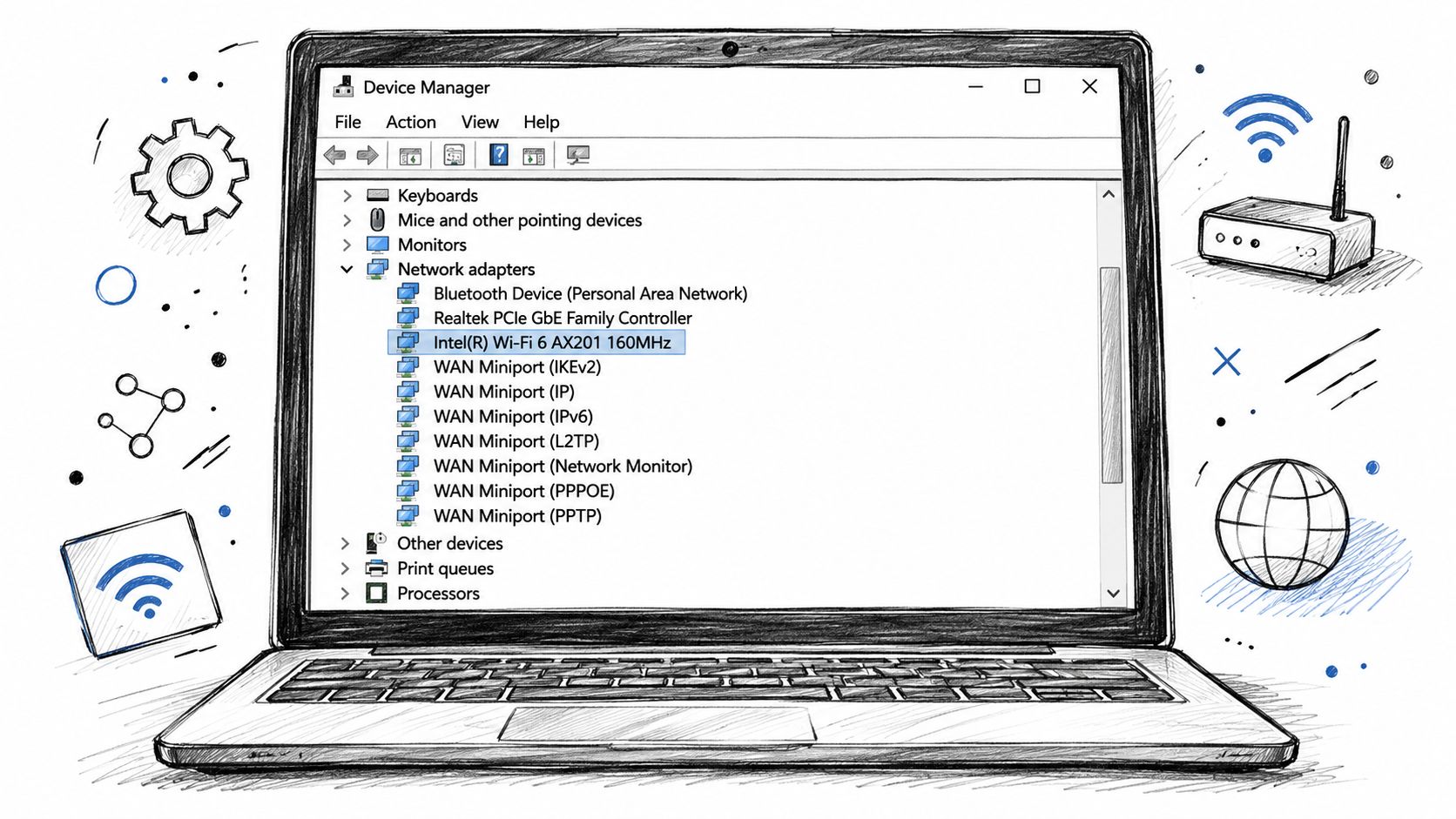
Device Manager tells you whether Windows can identify the wireless hardware. Right-click the Start button, select Device Manager, expand Network adapters, and look for an entry containing terms such as Wireless, Wi-Fi, Intel, Realtek, or Qualcomm.
Read what Device Manager is telling you
If the adapter appears with a downward arrow, right-click it and choose Enable device. If it has a yellow warning icon, open Properties and read the message under Device status. The code can point toward a failed start, a missing driver, or a device Windows can't initialize.
If the wireless adapter isn't listed, select View, then Show hidden devices. A faded entry can indicate that Windows remembers the adapter but isn't currently detecting it. Also check Other devices for an unknown network controller, which commonly means the correct driver isn't installed.
Use this decision path:
- The adapter is disabled: Enable it, then open the available network list again.
- The adapter has a warning: Use Properties to identify the failure, then install the approved driver from the laptop manufacturer.
- The adapter disappeared after an update: Try Properties, Driver, then Roll Back Driver, if that option is available.
- The adapter appears healthy but sees no networks: Open Properties, select Advanced, and inspect Wireless Mode or Band settings.
Driver source matters. Windows Update may provide a functional driver, but a business laptop vendor's support page can contain a model-specific package that handles the radio correctly. Intel also maintains adapter-specific guidance for band and channel detection, which can matter when a newer access point is introduced.
Separate corruption from failing hardware
A driver reinstall or rollback is more likely to help when the adapter appears and disappears, shows a warning, or stopped working after an update. Hardware becomes more suspicious when the adapter remains absent after the correct driver and BIOS settings are confirmed, or when the laptop repeatedly loses the radio after waking from sleep.
Don't remove a driver casually on a production laptop without having the replacement package available. If the computer has no Ethernet port, download the driver on another machine and transfer it with approved removable media. Businesses that need hands-on diagnosis can review Finchum Fixes IT's computer repair service before replacing a laptop that may only have a software fault.
Resetting Wi-Fi Services and the Network Stack
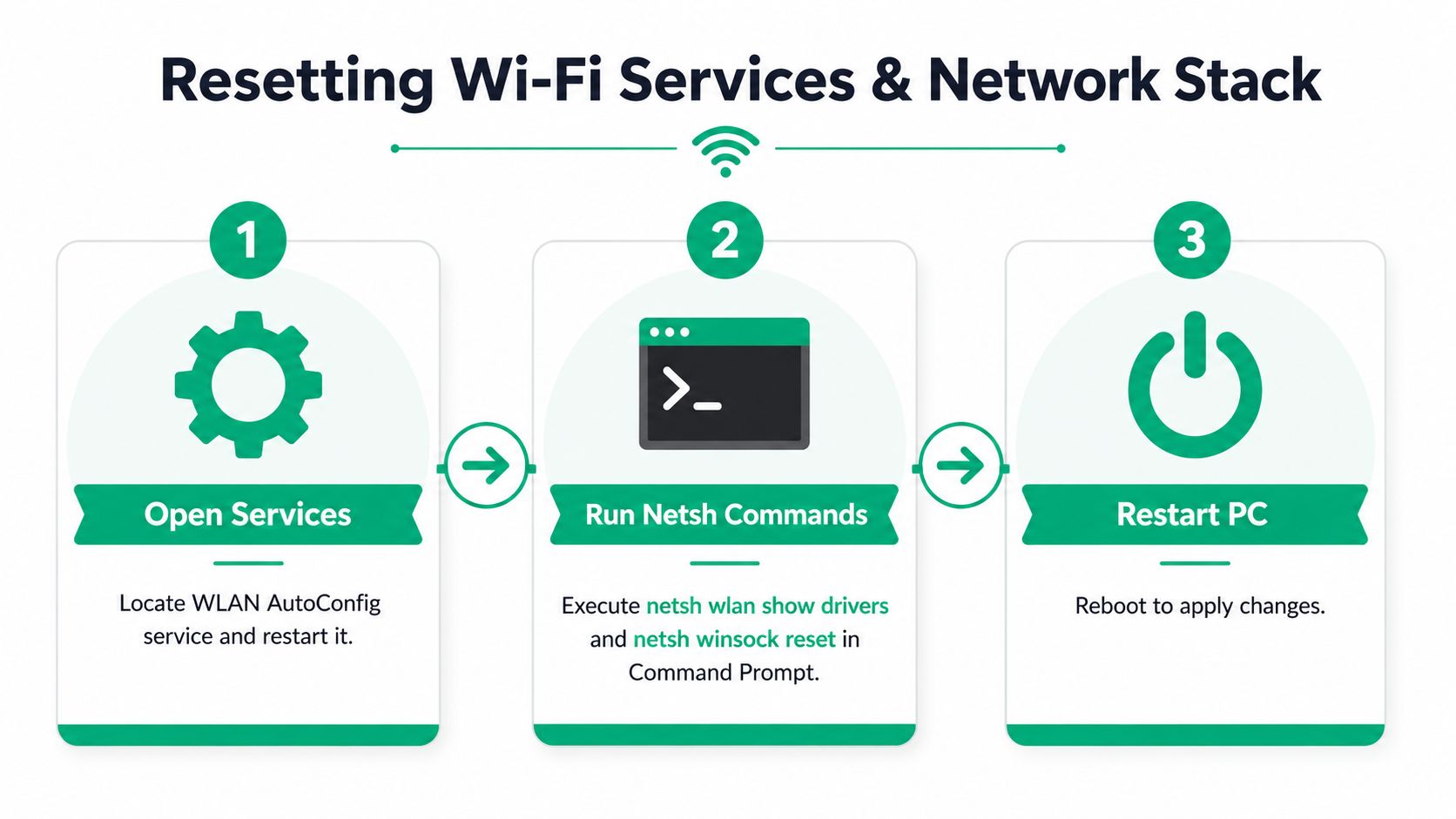
Windows relies on WLAN AutoConfig to manage wireless adapters and discover nearby networks. When that service is stopped, restarting it can restore scanning without changing the laptop's hardware. Check it before performing a full network reset, because resets remove saved wireless profiles and can create avoidable setup work.
Open the Services console by pressing Win + R, entering services.msc, and selecting OK. Find WLAN AutoConfig, confirm its status, and set Startup type to Automatic if appropriate. If it isn't running, right-click it and choose Start. If it is already running, choose Restart.
Gather evidence from Command Prompt
Open Command Prompt as administrator and run:
netsh wlan show interfaces
Microsoft documents this command as a way to display detected wireless LAN interface information. If Windows returns interface details, the operating system can see the adapter. If it reports that no wireless interface exists, return to Device Manager, the BIOS wireless setting, and the laptop's hardware switch.
For a broader record, run:
netsh wlan show wlanreport
Windows creates a wireless network report that can help identify adapter events, service failures, and connection history. Save the report before making additional changes if another technician or managed IT team may need to review it. Microsoft documents both commands in its netsh wireless networking reference.
Reset only after the earlier checks
If WLAN AutoConfig and the adapter look healthy, use the built-in Network troubleshooter from Settings, Network & internet, and Advanced network settings. If the issue remains, open Network reset, review the warning, and select Reset now. Windows will remove and reinstall network adapters and return networking components to their defaults.
A command-line reset can also help with a damaged Winsock catalog:
netsh winsock reset
Restart the computer after the command. Don't run multiple reset commands repeatedly. A reset can fix a broken software stack, but it won't make an unsupported 6 GHz radio detect a 6 GHz SSID, and it won't repair a failed adapter.
For background on how name resolution fits into broader connectivity, see this DNS explanation for business networks. If the report shows repeated adapter failures, preserve the evidence and escalate rather than wiping the machine.
Router Compatibility and Band Mismatch Problems
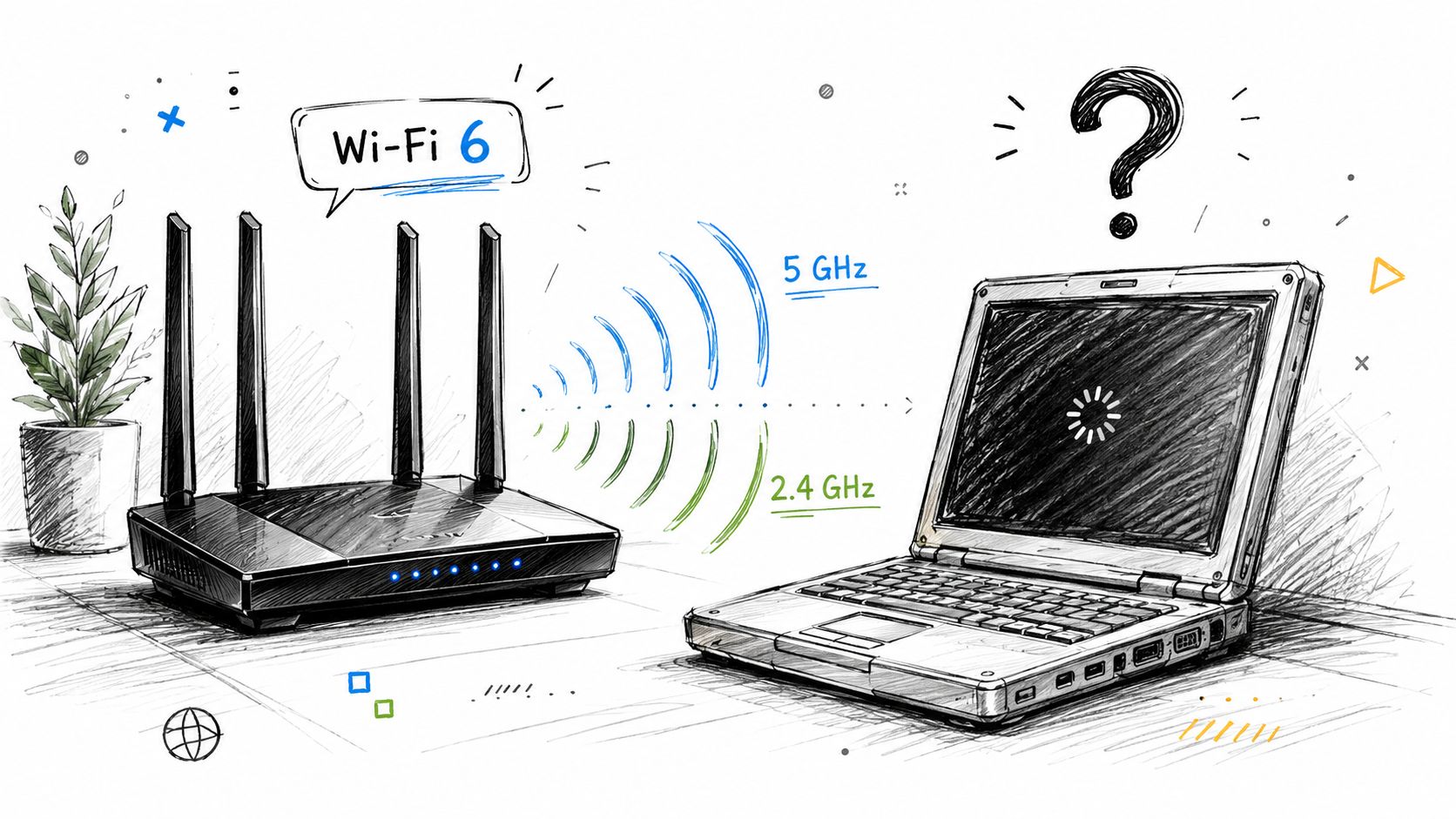
A laptop can be functioning correctly while missing the network it needs. That happens when the access point broadcasts on a frequency, channel, or wireless mode the adapter can't use. Microsoft notes that some adapters support 2.4 GHz but not a 5 GHz-only network, so a laptop that sees an older network but not the office SSID may have a compatibility mismatch rather than a dead radio.
The pattern matters. If no networks appear anywhere, investigate the laptop's switch, adapter, driver, service, and BIOS state. If nearby networks appear but the office network doesn't, inspect the router's band configuration, SSID broadcast status, and channel selection.
Newer bands create selective blind spots
Wi-Fi 6, Wi-Fi 6E, and Wi-Fi 7 deployments can expose differences between laptops on the same floor. A laptop may see 2.4 GHz and 5 GHz networks but miss a 6 GHz SSID because its adapter lacks 6 GHz support, its driver is outdated, or local channel and region rules limit detection. TP-Link's Wi-Fi network visibility guidance identifies outdated Intel wireless drivers as a likely cause when Windows devices fail to see newer Wi-Fi networks.
Intel documents another specific edge case. Some access points in Europe use channels 12 or 13 on 2.4 GHz, and certain adapters won't detect those networks unless the hardware or driver supports the channels. That example shows why changing a router's channel can solve one laptop's visibility problem while creating a different compatibility issue for another device.
Test before replacing equipment
Temporarily enable a compatible 2.4 GHz or 5 GHz network, if the business configuration allows it, and check whether the laptop appears. Don't weaken a production network permanently just to accommodate an old adapter. A driver update may be cleaner, while a supported USB adapter or internal card replacement may make more sense for aging hardware.
A proper site survey can expose channel overlap, physical obstructions, and coverage gaps before a business buys more access points. This site survey and IT disposal guide is useful background when an organization is also retiring obsolete wireless equipment. For Central Indiana offices adding UniFi networking across an old brick building, a documented wireless network site survey guide helps connect laptop symptoms to the wider design.
When It's Time to Call in Professional Help
DIY troubleshooting is appropriate when a single laptop lost Wi-Fi after travel or an update. It becomes a business continuity problem when several employees lose access, the adapter repeatedly vanishes, or staff keep working around the issue with phone hotspots. In those cases, the question isn't only whether one laptop can reconnect. It's whether the network design, endpoint management, and support process can prevent the same interruption across the office.
A widely cited Ponemon Institute and Emerson benchmark reports average data-center downtime at $8,851 per minute, or about $531,000 per hour. The figures come from the data-center downtime cost benchmark. A laptop Wi-Fi failure isn't automatically a data-center outage, but the business lesson is still clear. Lost connectivity consumes employee time, delays transactions, interrupts cloud applications, and turns technical confusion into unplanned labor.
The real cost of network downtime
| Time Lost | Estimated Cost | Operational Impact |
|---|---|---|
| One minute | $8,851 | Immediate interruption to active work, calls, or transactions |
| One hour | About $531,000 | Extended service disruption and delayed operations |
Those benchmark amounts shouldn't be applied mechanically to every Greenwood office. They illustrate why rapid diagnosis matters, especially for organizations that depend on cloud accounting, electronic health records, customer portals, or production systems. A healthcare practice must also consider HIPAA obligations, a defense contractor may operate under CMMC requirements, and general business security programs often map controls to the NIST CSF.
Escalate when the symptoms point beyond a toggle
Call for professional help when:
- The adapter is missing: Device Manager and
netsh wlan show interfacescan't identify the wireless interface. - The fault returns: Wi-Fi disappears after sleep, docking, or routine updates.
- Multiple devices fail: Several laptops lose the same SSID, suggesting an access point, band, channel, or service issue.
- The building is difficult: Thick brick walls, multiple floors, and crowded radio space require measured placement rather than guesswork.
- The business handles sensitive data: A quick hotspot workaround may bypass normal logging, segmentation, and endpoint controls.
A managed approach should document the adapter model, driver version, access-point configuration, WLAN AutoConfig state, and network report. It can then standardize drivers, monitor wireless infrastructure, and plan replacements instead of waiting for each laptop to fail. Depending on the environment, that plan may include Zero Trust architecture, Bitdefender GravityZone for endpoint protection, immutable off-site backups, latency-optimized mesh nodes, and SOC-as-a-Service monitoring.
That work converts wasted tech time into predictable support. Employees return to billable tasks, owners get a defined monthly budget, and IT can address recurring causes instead of repeating the same reboot routine. Finchum Fixes IT provides computer repair, networking and Wi-Fi design, cybersecurity, data recovery, secure migration, custom software development, and technical support for Indiana organizations. For a company along the I-65 corridor, in Johnson County, or in one of Hamilton County's growing business areas, the right assessment should produce a prioritized fix list, not a pile of disconnected recommendations.
For a Greenwood or Indianapolis business dealing with a laptop not showing Wi-Fi networks, Finchum Fixes IT can inspect the endpoint, WLAN AutoConfig, drivers, adapter compatibility, and wireless coverage through a Free Network Assessment. Visit Finchum Fixes IT to schedule the assessment and replace recurring connectivity interruptions with a documented, supportable network plan.