Microsoft 365 Migration Services Guide
A server closet in a Greenwood business park starts making the familiar grinding noise, or employees in an old downtown Indy brick building lose Wi-Fi during a client call. Those problems point to a larger issue: the business is depending on aging infrastructure for email, files, identity, and daily work.
Microsoft 365 migration services move email, files, and supported applications into Microsoft's cloud while replacing fragile local dependencies with measurable synchronization, stronger identity controls, and a more predictable operating model. Done properly, the project protects continuity, supports compliance, and turns wasted troubleshooting time into productive, billable work.
The Real Cost of Aging On-Premises Infrastructure
The warning signs usually appear before a server fails. A Greenwood office hears a storage array click during backups. A Johnson County manufacturer waits for an old file server to open a shared drawing. A downtown Indy tech hub adds remote employees, but its aging firewall and wireless equipment can't keep up.
That infrastructure doesn't just create repair tickets. It ties business operations to hardware that must be patched, cooled, backed up, monitored, and eventually replaced. A failed disk can interrupt email access, shared files, scheduling, and line-of-business applications at the same time. A migration plan can remove several of those dependencies, but only after the team inventories what the business uses.
Microsoft 365 migration services provide the cloud destination for supported workloads, including Exchange email and SharePoint or OneDrive files. Microsoft's migration overview for Microsoft 365 workloads distinguishes between individual workload migrations and the Microsoft 365 Orchestrator approach, which gives administrators a practical way to plan the move instead of treating every workload as identical.
Downtime is a business expense
For larger operations, downtime can cost up to $9,000 per minute, a figure that should be treated as a risk-planning input rather than a promise that every local business faces the same exposure. Even a smaller company loses staff time when employees wait for a mailbox, shared folder, or application to return.
That lost time has an opportunity cost. Staff who spend an afternoon restarting services, reconnecting mapped drives, or searching for missing mail aren't serving customers or producing billable work. A well-designed cloud architecture won't eliminate every incident, but it can reduce the number of failures that depend on one aging server in one locked closet.
Practical rule: Treat migration as a continuity project first and a technology project second.
In our 17 years of local service, we've seen why reactive IT becomes expensive. When we disassembled a similar client's failing RAID array, the recovery work focused on preserving critical data under pressure, not improving the company's operating model. Bit-level data recovery can retrieve information from damaged media, but it's an emergency measure. It isn't a substitute for tested backups, documented recovery procedures, and a cloud plan.
Businesses evaluating legacy modernization can also review this legacy system modernization guide. The useful question isn't whether the server still runs. It's whether the company can keep working when that server doesn't.
Choosing the Right Migration Architecture
The right migration path depends on the source system, mailbox and file inventory, coexistence requirements, and compliance obligations. A downtown Indy technology firm with a small, standardized environment may tolerate a tightly managed cutover. A Johnson County manufacturer with shared mailboxes, production schedules, and remote sites usually needs staged waves and a coexistence period.
Microsoft describes tenant-to-tenant migration as a phased, architecture-driven process and warns administrators to plan around throughput limits. Its guidance recommends 150 mailboxes as the recommended batch size, while published benchmarks for cross-tenant moves show 50 to 100 GB mailboxes at a P50 of 2 days and a P90 of 5 days, and 100 to 200 GB mailboxes at a P50 of 3 days and a P90 of 6 days. Mailboxes over 200 GB aren't supported in that benchmark table. These figures come from Microsoft's tenant-to-tenant migration guidance, and they reinforce one point: inventory comes before scheduling.
Migration Path Decision Matrix
| Migration Type | Best For | Downtime Risk | Complexity |
|---|---|---|---|
| Cutover | Smaller, consistent environments with limited coexistence needs | Concentrated around one cutover window | Lower planning complexity, higher scheduling pressure |
| Staged | Organizations that need department-by-department waves | Spread across controlled batches | Moderate |
| Hybrid | Businesses that must operate on-premises and in Microsoft 365 during transition | Lower disruption, but depends on stable coexistence | High |
| IMAP or PST | Email-only moves from compatible legacy systems | Data and user experience gaps can appear after import | Moderate, with limited workload coverage |
| Tenant-to-tenant | Mergers, acquisitions, divestitures, or tenant consolidation | Managed through phased execution | High, especially for identity, permissions, and governance |
A cutover is simple only when the environment is simple. IMAP and PST approaches can move messages, but they don't automatically preserve every calendar relationship, permission, Teams dependency, or governance control. Hybrid designs reduce abrupt change, yet they require careful identity, mail-flow, and support planning.
For a broader explanation of discovery, dependency mapping, and cloud readiness, the on-premises to cloud migration guide from IT Cloud Global, LLC is a useful companion resource. It helps frame the move as an architecture decision rather than a vendor selection exercise.
Teams should also document which content is portable and which items require remediation. Microsoft 365 adoption tooling presents migration as part of a larger journey that includes organizational engagement, user training, and a secure environment. A practical Indiana cloud migration playbook can help local decision-makers turn that principle into a sequence of tasks, owners, and approvals.
Executing the Move with Technical Precision
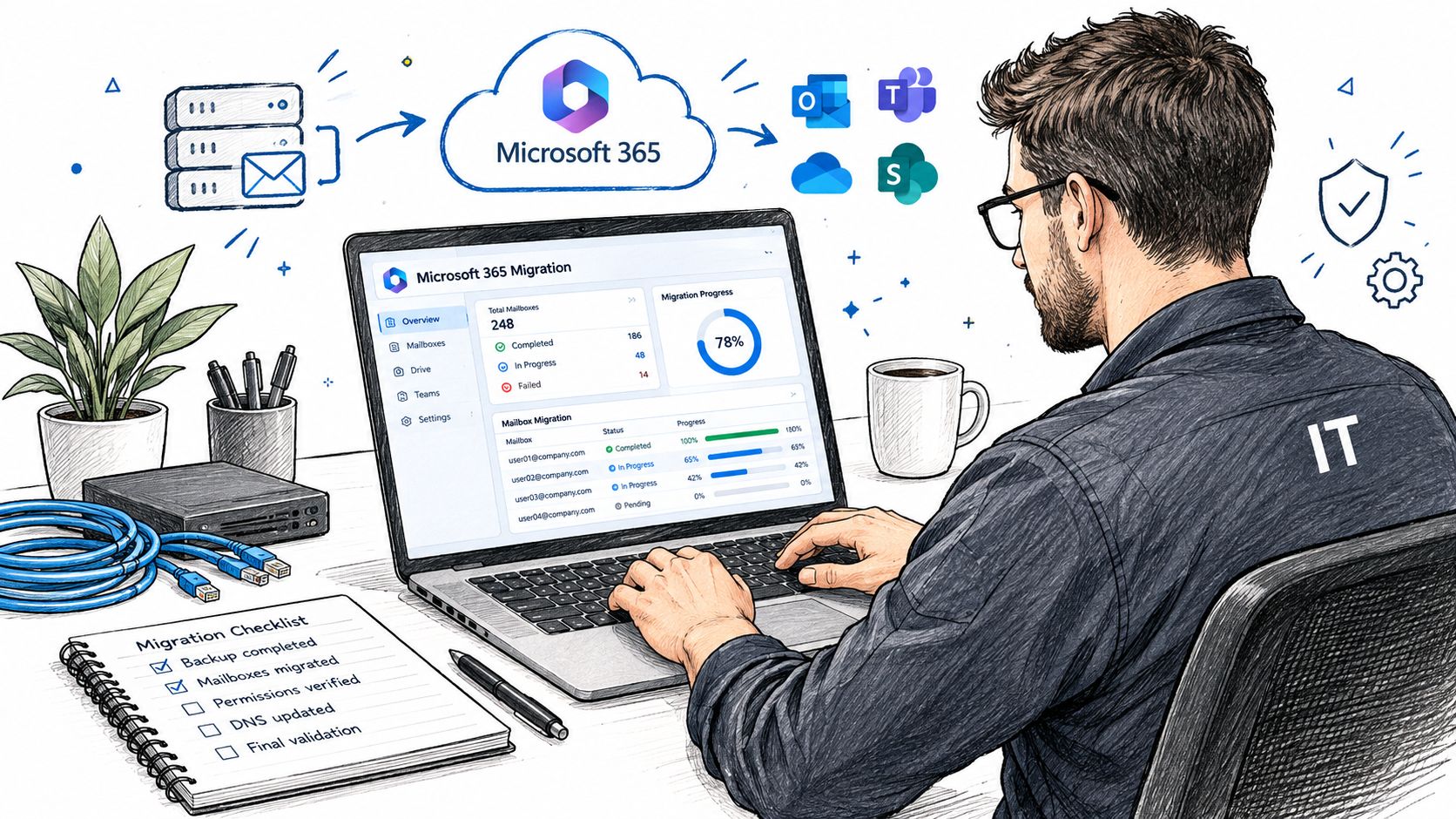
A migration earns its keep through measurement. Microsoft documents user-level status reporting through the Exchange Admin Center and PowerShell, including items synchronized, skipped items, migrated data in bytes or megabytes, and migration rate in bytes or megabytes per minute. Those fields reveal whether a batch is moving normally, whether one mailbox is stalled, and whether the team should investigate before cutover.
A practical diagnostic sequence
Start with a pilot that represents the difficult parts of the environment, not just the easiest users. Include a mailbox with delegated access, a shared mailbox dependency, a larger data set, and users who rely on mobile or remote access. Record the baseline, run the synchronization, and compare the results against the expected workload.
Microsoft's documented diagnostic command is:
Get-MigrationUser -Identity user@domain.com | Select-Object BatchId, Status, DataConsistencyScore
That output identifies the batch, current state, and consistency signal for the selected user. If the DataConsistencyScore is Investigate, Microsoft's FAQ provides this approval command:
Set-MigrationUser -Identity user@domain.com -ApproveSkippedItems
Don't use that command automatically. Microsoft warns not to approve skipped items when the score is Poor. Instead, capture the batch ID and contact Microsoft Support. This migration orchestrator FAQ provides the diagnostic workflow and the caution behind it.
A green status isn't enough. You need to know what synchronized, what was skipped, and why.
Microsoft's orchestrator rules mark a user migration failed when more than 20% of attempted messages fail to import or more than 10% of attempted threads fail. A migration is considered completed when both failure rates remain below those thresholds. Unsupported content sits outside those thresholds, so the project team must track it separately rather than assuming “completed” means “nothing needs attention.”
Microsoft also states that details remain available for migration batches that are running, stopped, or complete. That supports an operational model built around checkpoints, escalation, and evidence. For more field-ready safeguards, teams can consult these data migration best practices.
The video below adds a visual view of the planning and monitoring mindset that keeps a migration controlled.
Security Re-Platforming and Compliance Standards
Moving a mailbox without preserving its controls creates a new problem in a cleaner interface. The business may have data in Microsoft 365, but users could lose access to encrypted content, sensitivity labels might not behave as expected, and retention policies may fail to match the old environment.
For organizations along the I-65 corridor, migration planning should map technical controls to business obligations. A healthcare provider needs to evaluate HIPAA safeguards. A defense contractor needs to consider CMMC requirements. A general business can use the NIST CSF as a practical structure for identifying, protecting, detecting, responding to, and recovering from risk.
Identity comes before convenience
A security re-platforming plan should verify Entra ID identities, MFA enrollment, conditional access policies, administrative roles, and device trust. Zero Trust architecture assumes that access must be evaluated rather than granted because a user is inside an office network. That matters for hybrid work, contractors, traveling staff, and remote users connecting from unfamiliar locations.
The data layer needs equal attention. Review retention policies, sensitivity labels, DLP rules, shared links, encrypted mail, and permission inheritance before moving content. Microsoft's discussion of encrypted Microsoft 365 content highlights the risk of a technically successful cutover that leaves users unable to read protected messages or files.
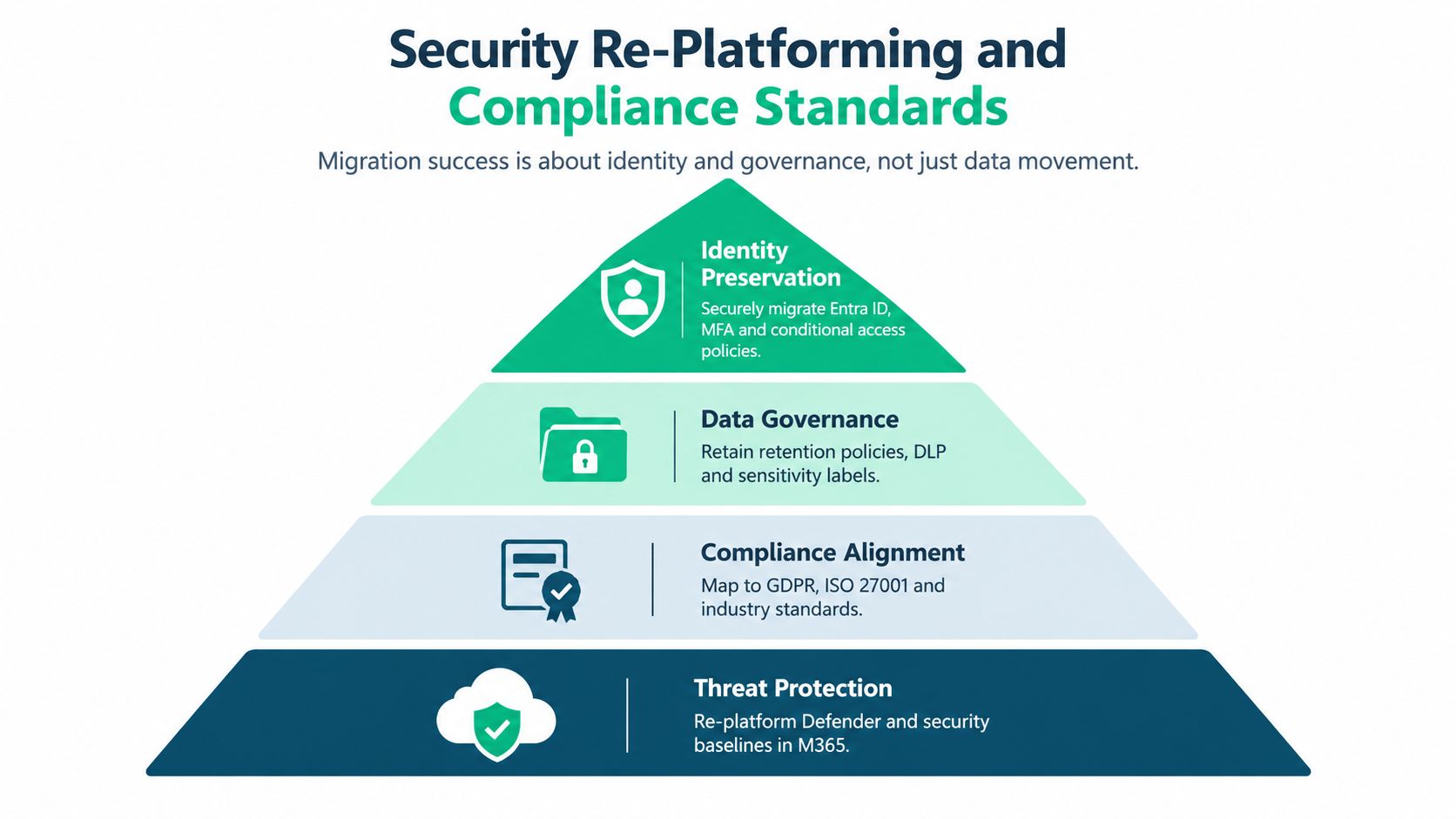
Endpoint security and recovery controls complete the design. Bitdefender GravityZone can be part of an endpoint protection strategy, while immutable off-site backups give the business a recovery option if an account is compromised or a destructive event spreads through synchronized data. Cloud storage isn't the same thing as an independent backup.
Security checkpoint: Validate identity, policy, readability, and recovery before declaring the move successful.
Conditional access deserves its own review because a policy that worked against the old access pattern may block legitimate users after the move, or leave a gap that wasn't present before. This conditional access guide offers a practical reference for reviewing those controls. The objective isn't to add friction everywhere. It's to make access predictable, auditable, and appropriate to the risk.
Managing Timelines and Protecting the Bottom Line
A migration timeline fails when it measures only data movement. It also needs to account for user readiness, Teams chat history, long SharePoint and OneDrive file paths, licensing transitions, hybrid gaps, and authentication changes. Those edge cases often create more post-cutover work than the mailbox transfer itself.
Independent migration calculators model 2 to 8 hours of cutover downtime per batch. One model shows a 100-user batch with 4 hours of downtime, a $75 hourly cost, and a 0.6 productivity factor producing an $18,000 cost. Those figures are scenario inputs from the Office 365 migration cost calculator, not a universal forecast, but they show why a short outage can damage the budget quickly.
A safer sequence
Start with discovery and a pilot. Microsoft's planning guidance for the new Outlook for Windows calls for a minimum 45-day pilot, a phased upgrade, a defined baseline, and a documented risk-and-mitigation plan. That discipline is useful beyond Outlook because it gives the team time to test line-of-business applications, mobile clients, shared resources, and support procedures before a broad change.
A workable sequence looks like this:
- Inventory first: Record users, mailbox sizes, shared resources, files, applications, permissions, and compliance dependencies.
- Pilot with difficult users: Test the cases most likely to expose permission, compatibility, or adoption problems.
- Run controlled waves: Group users by business function and criticality, not just alphabetical order.
- Validate each wave: Review synchronization metrics, skipped content, access, search, calendars, mobile connectivity, and file permissions.
- Train before cutover: Give users clear instructions for Outlook, Teams, OneDrive, SharePoint, MFA, and support escalation.
- Keep a rollback decision: Define who can pause the next wave and what evidence triggers that decision.
User adoption protects ROI. If employees don't know where files moved or how MFA works, they create tickets, lose productive time, and work around the new controls. Microsoft's FastTrack positioning as a no-additional-cost migration aid, along with its adoption phases for organizational engagement, training, and security, supports treating communication as part of the migration rather than a final email.
Teams chat history remains a difficult preservation issue, and long file paths can require cleanup before SharePoint or OneDrive accepts content. Basic-auth deprecation timing and licensing changes can also delay a cutover. A cost plan that includes these tasks is more honest than a low project quote that excludes them. Businesses comparing recurring support and cloud expenses can use this cloud cost optimization playbook to keep the operating model visible after go-live.
Post-Migration Validation and Local Support
The migration isn't finished when users can open Outlook. The support team still needs to validate mail flow, calendars, shared mailboxes, permissions, Teams behavior, SharePoint paths, OneDrive synchronization, mobile access, licensing, retention, conditional access, and recovery procedures.
Monitoring should continue after the final wave. SOC-as-a-Service monitoring can review identity and endpoint signals, while latency-optimized mesh nodes can improve wireless consistency for remote workers and branch offices across Hamilton County. The underlying goal is simple: detect abnormal behavior and connectivity problems before users turn them into business interruptions.
Local response matters during that period. A distant call center may follow a script while a Greenwood business needs someone who understands its network, users, applications, and physical layout. Finchum Fixes IT states that its urgent response averages under two hours, a service model that can matter when a post-migration permission issue blocks a sales team or a conditional access rule affects a remote site.
The right partner also keeps the documentation current. That includes the migration runbook, exception list, licensing record, security baseline, backup verification, and escalation path. Enterprise-grade tools only produce business value when someone owns the decisions around them.
Finchum Fixes IT provides Microsoft 365 data migration, cybersecurity, networking, recovery, and ongoing IT support for businesses in Greenwood and Indianapolis. Visit Finchum Fixes IT to schedule a Free Network Assessment or Security Risk Audit before an aging server, weak identity control, or poorly planned cutover puts your operations at risk.