Microsoft 365 Setup for Small Business: A Real-World Guide
A dental group in Greenwood finishes the Microsoft 365 welcome wizard, everyone signs in, and the project gets marked complete. Six months later, billing mailboxes are full, Teams has become a maze, former administrators still have access, and nobody can explain which files guests can see. That's the Microsoft 365 setup problem: what breaks after provisioning.
Microsoft 365 setup for a small business should produce a controlled tenant, correctly matched licenses, secure identities, measured migration waves, governed collaboration, recoverable data, and a tested go-live plan. The welcome wizard is only the starting point. Good planning prevents downtime, protects billable work, and turns wasted technology time into predictable monthly operating costs.
Planning the Microsoft 365 Setup Before You Click Anything
A dental group near Greenwood bought Business Premium licenses, moved forward quickly, and discovered six months later that billing shared mailboxes were approaching the 50 GB Exchange Online mailbox limit associated with their plan. Business Premium doesn't include Exchange Online Plan 2, so the original license decision had become an operational problem rather than a purchasing detail.
That pattern appears across the I-65 corridor. A company chooses licenses by headcount, then discovers that frontline staff, executives, clinicians, finance users, shared mailboxes, compliance investigators, and remote workers have different requirements. The same mistake affects migration design, device management, security controls, and audit visibility.
Make three decisions first
Match licenses to workloads. Compare Frontline plans, Business Premium, E3, and E5 against mailbox requirements, endpoint protection, Intune, compliance, analytics, and user behavior. Business Premium can suit many Indiana SMBs because it combines productivity services with security and device management, while E3 or E5 may fit organizations that need broader enterprise capabilities or investigation features. Don't assume every employee needs the same SKU.
Choose the identity model. A cloud-only tenant is simpler for a business without meaningful on-premises directory dependencies. A hybrid model may make sense when local Active Directory controls line-of-business applications, file servers, printers, or legacy authentication. Document the synchronization path, source of authority, password workflow, and recovery process before creating accounts.
Set the migration order. For most small and medium-sized businesses, Exchange comes first, OneDrive and SharePoint follow, and Teams comes last. Teams depends on the identity, SharePoint, OneDrive, external sharing, meeting, and naming decisions made earlier. Moving Teams before those controls are ready creates cleanup work.
Microsoft's own analytics model reinforces this operational view. Admin adoption insights cover the previous 12 months, user-specific information covers the last full calendar month, and activation reporting compares downloaded and activated productivity apps with assigned licenses. Adoption Score updates daily and reflects actions completed during the last 28 days, so setup should include measurement after deployment, not just a launch date. Microsoft's usage analytics documentation explains those reporting windows.
License decisions need a written record
| License Tier | Mailbox Size | Teams Audio Conferencing | Defender for Business | Intune Plan 1 | Typical Indiana SMB Use |
|---|---|---|---|---|---|
| Frontline | Confirm against the selected SKU | Confirm against the selected SKU | Confirm against the selected SKU | Confirm against the selected SKU | Deskless, shared-device, or task-focused workers |
| Business Premium | Confirm against the selected SKU | Confirm against the selected SKU | Included | Included | SMB users needing productivity, endpoint security, and device management |
| E3 | Confirm against the selected SKU | Confirm against the selected SKU | Confirm against the selected SKU | Confirm against the selected SKU | Larger workloads, broader enterprise administration, or hybrid environments |
| E5 | Confirm against the selected SKU | Confirm against the selected SKU | Confirm against the selected SKU | Confirm against the selected SKU | Advanced security, compliance, audit, and investigation requirements |
Before an administrator signs in, confirm license counts by user type, verified ownership of the business domain, staff-approved downtime windows, and a named executive sponsor. Include shared mailboxes, service accounts, conference rooms, contractors, and temporary workers in the count.
Practical rule: A missing decision on paper becomes a missing task during cutover. That costs a migration window, not just a few minutes of administration.
The plan should produce a license matrix, identity diagram, migration sequence, DNS change plan, permissions register, rollback contact list, communications schedule, and acceptance tests. For Indiana companies also evaluating HR workflows, a resource such as Power Platform HR system can help frame how employee lifecycle data connects to Microsoft 365 provisioning. A broader SaaS implementation guide for Indiana SMBs is useful when the rollout includes other cloud systems.
Creating the Tenant and Connecting Your Domain
Tenant creation should follow a controlled sequence, not a series of browser tabs opened by whoever received the reseller email. Reserve the tenant name, claim the onmicrosoft.com domain, and record the initial global administrator details in the project register. That temporary domain remains useful for administration even after the company's public domain is connected.
Verify ownership before changing mail flow
Add the custom domain in the Microsoft 365 admin center, then create the TXT verification record at the registrar. GoDaddy, Network Solutions, and Cloudflare DNS are common control points for businesses served by Hoosier-area internet providers. Verification proves ownership. It doesn't yet move mail.
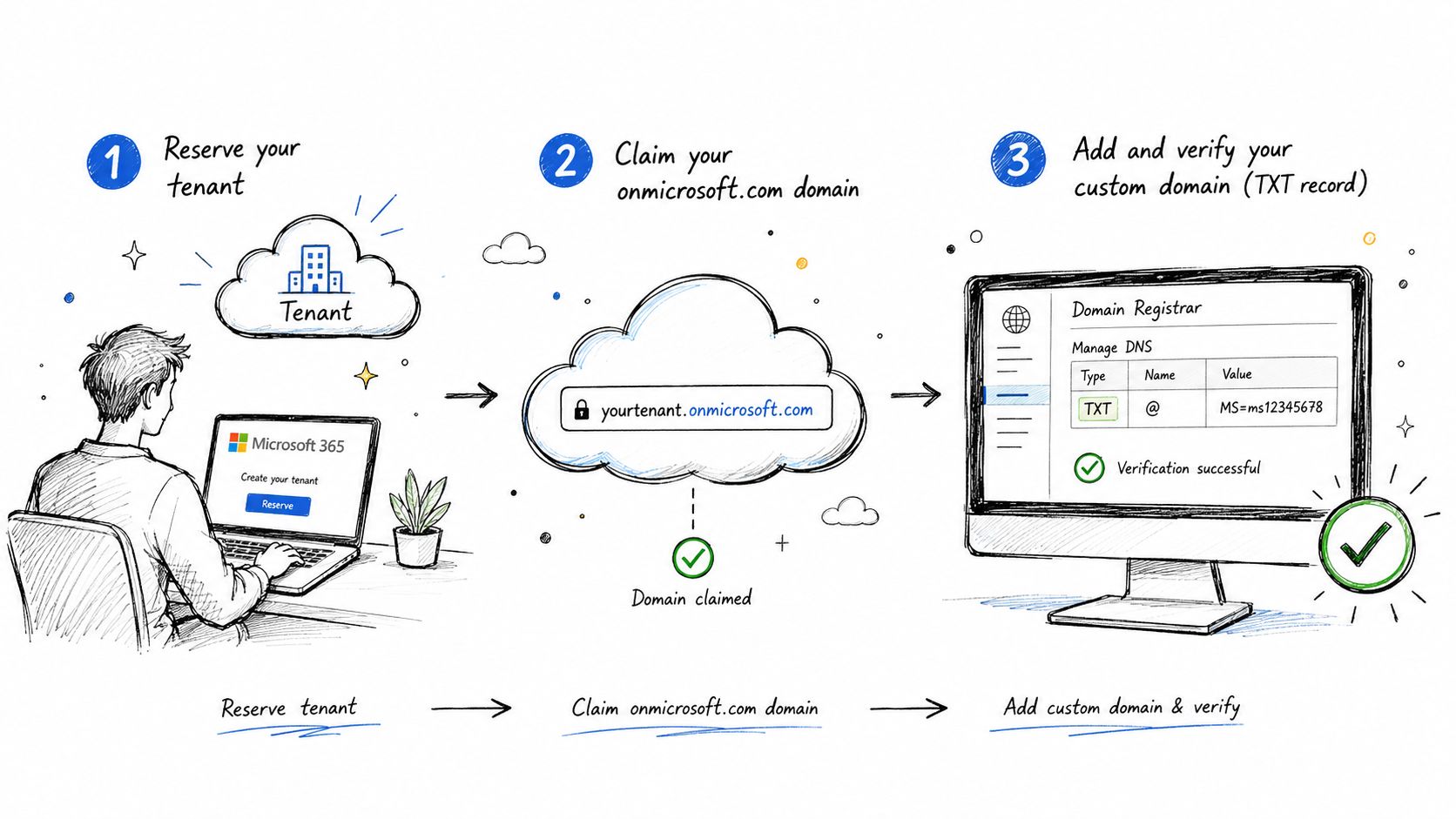
After verification, document the records required for the intended services:
- Mail routing: The MX record determines where new messages go.
- Autodiscover: The CNAME supports Outlook configuration.
- Sender protection: SPF should include
spf.protection.outlook.comas appropriate for the organization's sending design. - Voice services: Skype or Teams SRV records may matter when telephony is in scope.
DNS propagation can take 24 to 72 hours, so don't schedule a Friday afternoon cutover and hope every resolver behaves immediately. Lower the relevant DNS TTL before migration, especially when moving from Google Workspace or hosted Exchange. The practical purpose is rollback flexibility, not faster marketing copy. For readers who need the underlying mechanics, this DNS explanation for Indy SMBs covers how resolvers, records, and caching interact.
Keep authentication from blocking setup
Security controls can interfere with scripted verification if an administrator turns them on without planning emergency access. Microsoft enforces security defaults for paid or trial Microsoft 365 and Office 365 subscriptions created after October 21, 2019. When enabled, security defaults require users to use MFA with Microsoft Authenticator and block legacy authentication. Microsoft's MFA guidance documents the behavior.
Create a named emergency access, or break-glass, account before enforcing policies. Exclude it only where the documented emergency design requires exclusion, protect it with strong credentials and monitoring, and store its recovery details securely. Then enroll the normal administrative accounts in MFA before the next phase.
Microsoft's documented workflow places security defaults under Entra ID > Overview > Properties, where an authorized administrator selects Manage security defaults, enables the setting, and saves. If the organization plans to use Conditional Access, Microsoft says to turn security defaults off first and rebuild the baseline through Conditional Access policies. The security defaults workflow should be followed rather than improvised.
Provisioning Users, Groups, and Admin Roles
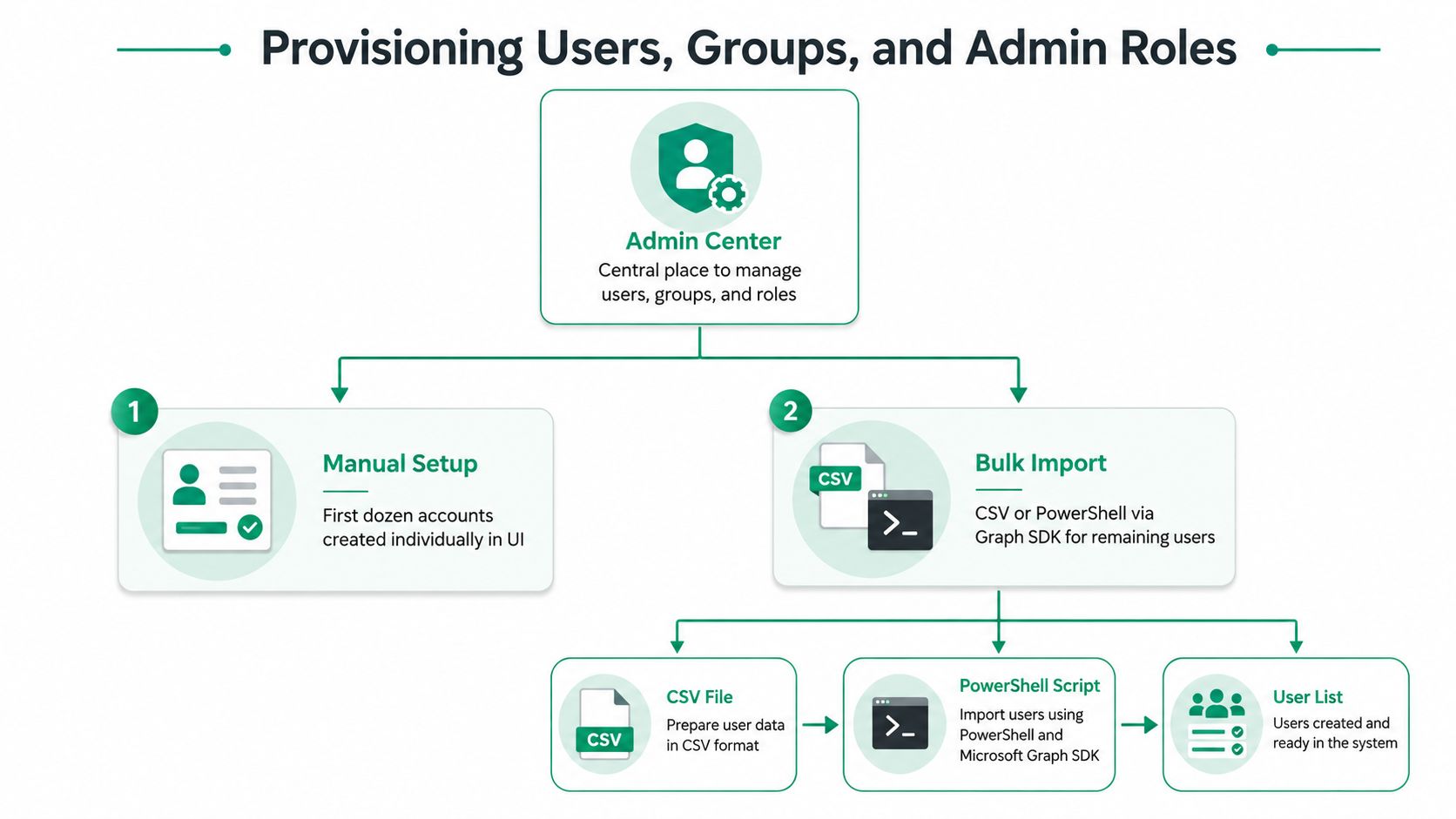
Create the first dozen users manually through the admin center. That small batch lets you validate naming conventions, licensing, sign-in behavior, mailbox creation, and department attributes before automation multiplies a bad decision.
For the remaining users, use a controlled CSV import or Microsoft Graph PowerShell. Install the Microsoft Graph SDK, connect with only the permissions required for the task, and test with a small file before processing the full employee list.
Connect-MgGraph -Scopes "User.ReadWrite.All","Directory.Read.All"

$params = @{
    AccountEnabled = $true
    DisplayName = "Jordan Miller"
    MailNickname = "jordan.miller"
    UserPrincipalName = "jordan.miller@contoso.com"
    PasswordProfile = @{
        ForceChangePasswordNextSignIn = $true
        Password = "TemporaryPasswordValue"
    }
}
New-MgUser -BodyParameter $params
Don't place a real production password in a script or shared ticket. Use a secure secret workflow and remove temporary credentials after validation.
Build groups around ownership
A tiered group model limits sprawl without preventing useful collaboration:
- Department groups: Finance, operations, sales, clinical staff, and leadership receive predictable access patterns.
- Location groups: Use one group per Indiana office, such as Greenwood, Indianapolis, or a Hamilton County location.
- Dynamic groups: Drive membership from stable attributes such as
jobTitleordepartment, then review the rules when HR changes its data. - Access groups: Separate licensing, application access, and privileged administration rather than placing every purpose into one group.
The same discipline helps when comparing identity and access platforms. A practical Purple versus JumpCloud comparison can help an SMB evaluate whether its current directory and device model still fits its operating needs.
Remove inherited privilege
The common failure is leaving five Global Administrators from a reseller, former MSP, and original owner. Export the current role assignments, identify every human and service identity, and replace broad roles with scoped administration.
Connect-MgGraph -Scopes "RoleManagement.Read.Directory","Directory.Read.All"

$roles = Get-MgRoleManagementDirectoryRoleAssignment -All
$report = foreach ($role in $roles) {
    [pscustomobject]@{
        RoleId = $role.RoleDefinitionId
        PrincipalId = $role.PrincipalId
        DirectoryScopeId = $role.DirectoryScopeId
    }
}

$report | Export-Csv ".\m365-admin-role-audit.csv" -NoTypeInformation
Assign Exchange Administrator, SharePoint Administrator, or Helpdesk Administrator where those roles meet the job. Microsoft Entra role design should follow least privilege, with separate licensed admin accounts and phishing-resistant MFA before migration begins. Businesses that still depend on local directory services can review this Active Directory management guide for Indy SMBs before choosing cloud-only administration.
Migrating Email, OneDrive, and SharePoint
Migration is a capacity operation. A wizard can accept a source connection while the underlying move still waits in a queue, competes with source-system load, or overruns the approved cutover window.
Start with an inventory that includes mailbox size, item count, last-access date, journal dependencies, public folders, shared mailboxes, delegates, aliases, and application senders. Microsoft's mailbox migration guidance recommends measuring throughput, accounting for queue time, running a test move several hours before cutover, reducing source-system load, and using large .pst samples to benchmark realistic upload speed. The migration throughput guidance should shape the runbook.
Choose the migration path by source condition
A cutover works when the source environment is straightforward and the business can accept a concentrated change window. Hybrid migration suits organizations that need coexistence, staged mailbox movement, or continued on-premises integration. Third-party IMAP migration can move mail from Gmail or another hosted service, but calendar free/busy data may not survive a basic mail-only transfer.
| Source platform | Best method | Typical downtime | Caveat |
|---|---|---|---|
| Hosted Exchange | Cutover or hybrid, based on directory and coexistence needs | Planned mail-flow transition | Shared mailboxes, delegates, and applications require separate validation |
| Exchange Server | Hybrid for staged movement, cutover for simpler environments | Limited for staged moves | Source capacity and directory synchronization affect timing |
| Google Workspace | Microsoft migration tools or a specialist migration platform | Mail-flow transition | IMAP-style movement may lose calendar free/busy relationships |
| IMAP provider | IMAP migration | Mail-flow transition | Mail moves, but calendars, contacts, permissions, and archives need separate treatment |
Stage the work as a pilot, an initial wave, and the full population. The plan may use 5% for the pilot and 25% for the first wave when those percentages fit the organization's size and risk tolerance, but each wave must be measured rather than treated as a promise. Microsoft's official mailbox guidance emphasizes capacity testing and queue awareness, so don't claim a universal mailbox-per-endpoint rate from an informal guide.
Record the measured MB-per-minute rate for each wave before changing mail routing. Keep the MX TTL at 300 seconds for at least 48 hours before cutover, as specified in the migration plan, so rollback remains practical. Confirm that the source has enough capacity, test external send and receive, and keep the old service available until acceptance criteria are met.
Treat files as permissions, not just bytes
For OneDrive and SharePoint, inventory site ownership, external sharing links, broken permission inheritance, orphaned sites, and file paths that may create sync problems. A file that arrives in the right library but loses its owner or guest restriction is not a successful migration.
Teams deserves its own governance decision. Configure external access, federation versus guest access, meeting recording and transcription policies, and the Teams update ring before users begin creating teams. Set naming patterns for teams, channels, and SharePoint sites, and restrict site creation to designated owners so the tenant doesn't fill with sites nobody can administer.
Create a guest lifecycle with approval, expiration, and periodic access reviews scoped to Entra ID groups. For unused teams, define a policy in advance: 90 days inactive triggers an owner notification, and 180 days inactive triggers archival and site deletion. Document exceptions for legal, operational, and regulatory needs.
For a deeper migration checklist, use these data migration practices for Indiana businesses. The best cutovers I've seen treat mail, files, identities, and collaboration as separate workloads with one coordinated change plan.
Building the Security and Device Management Baseline
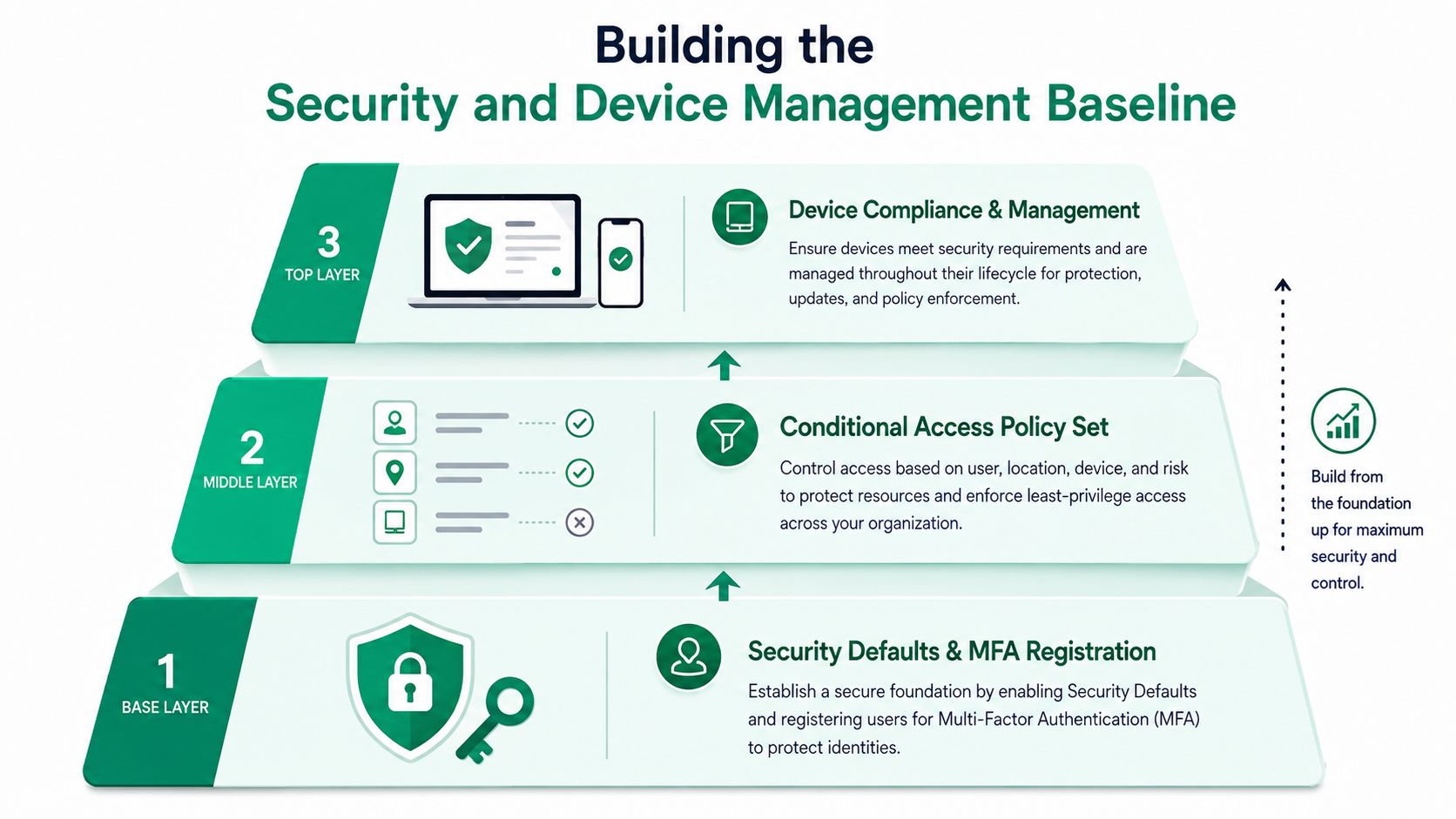
Start with security defaults and MFA registration, then introduce Conditional Access. Reversing that order creates confusing sign-in prompts and can lock out administrators before the emergency path is proven.
Microsoft's recommended workflow begins with security defaults. After the organization understands that baseline, build Conditional Access around four signals:
- Known location: Apply different controls to trusted office networks and unfamiliar sign-in locations.
- Device state: Require a compliant or hybrid Microsoft Entra joined device for sensitive applications.
- MFA strength: Require stronger authentication for administrators and high-risk workflows.
- Application sensitivity: Protect finance, HR, executive, and regulated data more aggressively than low-risk services.
That's the foundation of a Zero Trust architecture. The network location doesn't automatically establish trust, and a valid password doesn't prove that the device or session is safe.
Protect the user and the endpoint
Business Premium includes Defender for Business. Configure attack surface reduction rules, Safe Links, and Safe Attachments for Outlook, Teams, and OneDrive, then test how those controls affect legitimate business documents and external senders.
Use Intune Plan 1 with Windows Autopilot for zero-touch device deployment where the hardware and enrollment process support it. Require compliance reporting for BitLocker, Windows Update, and Defender real-time protection. A device that can access SharePoint but has no encryption or update evidence should fail the access policy.
Conditional Access policies explained for secure business use provides useful implementation context for organizations moving from password-based access to policy-based controls.
Security practice: Every exception needs an owner, an expiration date, and a compensating control. Otherwise, the exception becomes permanent infrastructure.
Use the Microsoft 365 admin center's SMB baseline as a starting point, not a finished audit. Review policies quarterly, test emergency access, examine sign-in logs, and confirm that unmanaged devices aren't bypassing the intended controls. For a Greenwood manufacturer or a healthcare office handling HIPAA obligations, the policy register should also map controls to NIST CSF, HIPAA safeguards, or CMMC requirements where applicable.
A local managed model can add SOC-as-a-Service monitoring, Bitdefender GravityZone for environments that need a separate endpoint platform, and latency-optimized mesh nodes when an old brick building produces unreliable wireless coverage. The technology choice matters, but the operating process matters more.
Backup, Retention, and Audit Readiness
Retention and backup solve different problems. Microsoft-native retention can preserve information for compliance and discovery, but retention alone isn't a complete defense against ransomware deletion, an insider purge, or a tenant-level compromise.
Exchange Online archiving, OneDrive version history, SharePoint recycle bins, Litigation Hold, and Microsoft Purview retention policies each have a defined role. None should be accepted as proof that the business can restore an entire operational workload after a destructive event.
Compare controls by recovery need
| Option | Protection Scope | Immutability | Recovery Granularity | Indiana Compliance Fit |
|---|---|---|---|---|
| Exchange Online archiving | Mailbox content and archive workflows | Retention controls, not a complete backup design | Mail and archive items | Useful for records management when configured and governed |
| OneDrive version history | User files and prior file versions | Version protection, subject to service and policy behavior | Individual files and versions | Helpful for operational recovery, not a standalone regulated-data strategy |
| SharePoint recycle bins | Deleted SharePoint content within retention windows | Deletion recovery, not independent immutable storage | Files, folders, and site content | Useful for routine recovery, with policy validation required |
| Litigation Hold | Preserved mailbox content for legal needs | Preservation control | Mailbox items | Relevant to legal and investigative workflows |
| Purview retention policies | Selected Microsoft 365 workloads and records | Policy-based preservation | Workload-dependent | Supports HIPAA, FTC Safeguards, and state breach-notification preparation when mapped correctly |
| Third-party immutable backup | Microsoft 365 data selected by the backup design | Immutable storage available through the service architecture | Item, mailbox, site, or workload dependent | Stronger recovery posture for healthcare, legal, financial, and manufacturing organizations |
Microsoft publishes retention cmdlets such as Get-AppRetentionCompliancePolicy, New-AppRetentionCompliancePolicy, Remove-AppRetentionCompliancePolicy, and Set-AppRetentionCompliancePolicy, along with corresponding rule cmdlets. Those commands support auditable administration for workloads including Teams chats, Teams call logs, Viva Engage messages, and AI app data. Microsoft's retention cmdlet reference is the right place to validate syntax and permissions.
Recovery planning can also use explicit command-based configuration. Microsoft documents Get-AzRecoveryServicesBackupRetentionPolicyObject with parameters including -WorkloadType AzureFiles, -BackupManagementType AzureStorage, and -ScheduleRunFrequency Hourly, illustrating why command-line workflows can be more auditable than undocumented GUI changes. The Recovery Services retention reference provides the exact command details.
For an Indiana healthcare, legal, financial, or manufacturing business, pair Purview retention with an immutable third-party backup on at least a daily cadence. Veeam for Microsoft 365, Acronis, and Datto are examples to evaluate, but the deciding evidence should be a documented restore drill performed monthly, not a vendor logo on a proposal. That process supports continuity when a compromised tenant or damaged storage system would otherwise stop work.
Testing, Go-Live Checklist, and Local Support
A migration isn't ready because the admin center shows green check marks. It's ready when an employee can send mail, open a file, join a meeting, and authenticate from a realistic device while the support team knows exactly what to do when a test fails.
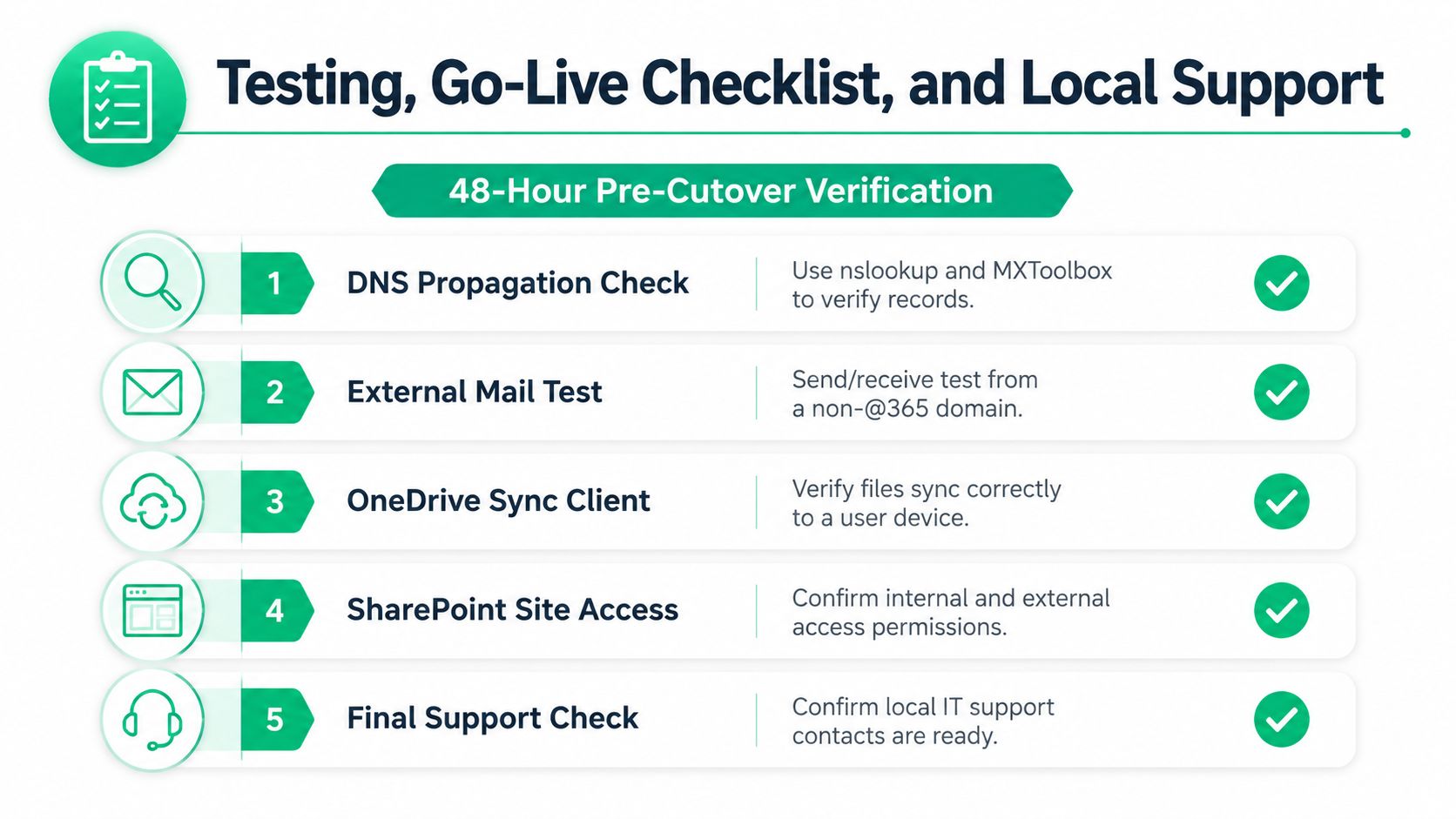
Run the verification sequence 48 hours before cutover. Use nslookup and MXToolbox to verify DNS propagation, send and receive test messages from an external domain, sign into the OneDrive sync client from a clean Windows profile, and join a Teams meeting as a guest. Test SharePoint internal and external permissions separately because a successful internal test can hide an oversharing problem.
Test the controls that can stop work
Use a non-compliant device to attempt a Conditional Access sign-in. Confirm that the block or remediation prompt matches the written policy and that the approved emergency account remains available. Test a normal employee, an administrator, a guest, a shared mailbox workflow, and any line-of-business application that sends mail.
The go-live checklist should include:
- Cutover window: Confirm the start time, expected tasks, business owner, and communication schedule.
- Rollback contact: Name the person authorized to reverse routing or pause the migration.
- Escalation path: Record the after-hours contact for identity, DNS, endpoint, and application failures.
- License assignment: Confirm every active user has the intended license and that administrators use separate licensed accounts.
- Monitoring plan: Watch sync errors, sign-in failures, mail flow, Teams access, and device enrollment for the first 72 hours.
Make support part of the design
A managed partner should handle co-managed Microsoft 365 administration, after-hours go-live coverage, and quarterly security reviews. The Microsoft 365 admin center is a control surface, not a substitute for ownership, documentation, or an escalation process.
For a business in Greenwood, Johnson County, downtown Indy tech hubs, or the growing Hamilton County market, the financial argument is straightforward. Preventing a mail outage, ransomware shutdown, or failed cutover protects billable hours and keeps technology spending predictable. Downtime can cost up to $9,000 per minute, so a measured migration plan is a business continuity control, not administrative polish.
In our 17 years of local service, the projects that hold up best are the ones with a rollback contact, a tested restore, a current role register, and someone watching the tenant after users go home. Good support also covers adjacent infrastructure, from UniFi networking and wireless surveys to immutable off-site backups and bit-level data recovery when a failing storage device threatens the source data.
Businesses in the Greenwood and Indianapolis area can schedule a Free Network Assessment or Security Risk Audit with Finchum Fixes IT. We can review your Microsoft 365 tenant, identity controls, migration readiness, endpoint baseline, Wi-Fi, backup design, and go-live support plan, then give you a practical path to reduce downtime and manage the environment with confidence.