Optimizing Network Performance for SMBs in 2026

TL;DR
- A slow network is a business problem first. Lost time, frozen shipping screens, dropped calls, and repeated help desk tickets all chip away at continuity and margin.
- Start with a baseline. Track latency, jitter, packet loss, throughput, and stability over time so you can fix the real bottleneck instead of guessing.
- Most SMB wins come from fundamentals. Better Wi-Fi design, cleaner switch layouts, QoS, segmentation, and targeted hardware refreshes usually beat random bandwidth upgrades.
- Historical data matters. It turns network work from break-fix into planning and helps you size upgrades for growth.
- Security and performance are connected. Good segmentation and Zero Trust design can reduce noise and contain problems.
- If the issue is intermittent or compliance-heavy, stop burning staff time. Get an expert assessment and a real remediation plan.
A lot of Indiana businesses are living with bad network performance longer than they should.
The pattern is familiar. A warehouse office in a Greenwood business park hums along all morning. Then after lunch, the shipping platform starts dragging. Labels stall. A cloud dashboard takes forever to load. The phones sound choppy. Somebody blames the ISP. Somebody else reboots the router. Nothing really gets fixed.
That's not an “IT annoyance.” It's a business continuity problem. Every minute your staff spends waiting on screens, retrying uploads, or calling support is time they're not billing, shipping, scheduling, or serving customers.
The Hidden Tax of a Slow Network
I've seen this all over the south side. An office in an older Fountain Square building has brick walls thick enough to make Wi-Fi miserable. A medical practice near the I-65 corridor has decent internet service on paper, but one overloaded access point turns chart access and VoIP into a daily argument. A small manufacturer adds cloud apps, cameras, and more wireless devices, then wonders why everything feels sticky by midafternoon.
The cost isn't just frustration. The average cost of unplanned IT downtime can reach thousands of dollars per minute for mid-market firms, according to NordLayer's discussion of network performance and downtime costs. Even when you're not fully down, slow networks create a smaller but constant drain. Staff lose focus. Tickets pile up. Managers start making workarounds that become permanent.
Practical rule: If your team talks about “the network being weird again,” you already have an operations issue, not a one-off glitch.
That matters even more for businesses with distributed staff. If you support remote workers, internet quality isn't just a local office issue. Teams spread across regions run into the same stability problem in different forms. For companies with staff overseas, this guide on reliable internet for expats in China is a useful reminder that connectivity planning has real productivity consequences, especially when people depend on cloud apps and video meetings to get paid.
Here's the part many network articles skip. Owners don't care about optimizing network performance because they want prettier dashboards. They care because wasted tech time steals from payroll, customer experience, and revenue. That's why a proper review should tie network issues back to operational risk, much like a business impact analysis template for Indiana companies ties technical failures to real business disruption.
What poor performance usually looks like in the wild
- Afternoon slowdown: Shared internet and weak internal switching collide during peak usage.
- Random Wi-Fi complaints: One room works great. Another room drops calls all day.
- Cloud app lag: The ISP gets blamed, but local packet loss or bad roaming is the underlying issue.
- Support fatigue: The same complaints come back because nobody measured the root cause.
That hidden tax adds up fast, even when nobody calls it downtime.
Your Network Report Card Baselining and Monitoring
If you want to stop guessing, build a report card for the network you already have.
Most small businesses only test one thing: “What speed do I get if I run a quick internet test right now?” That's like judging traffic on I-65 by looking out the window once at 10:15 a.m. It tells you almost nothing about rush hour, accidents, or the choke points near your exit.
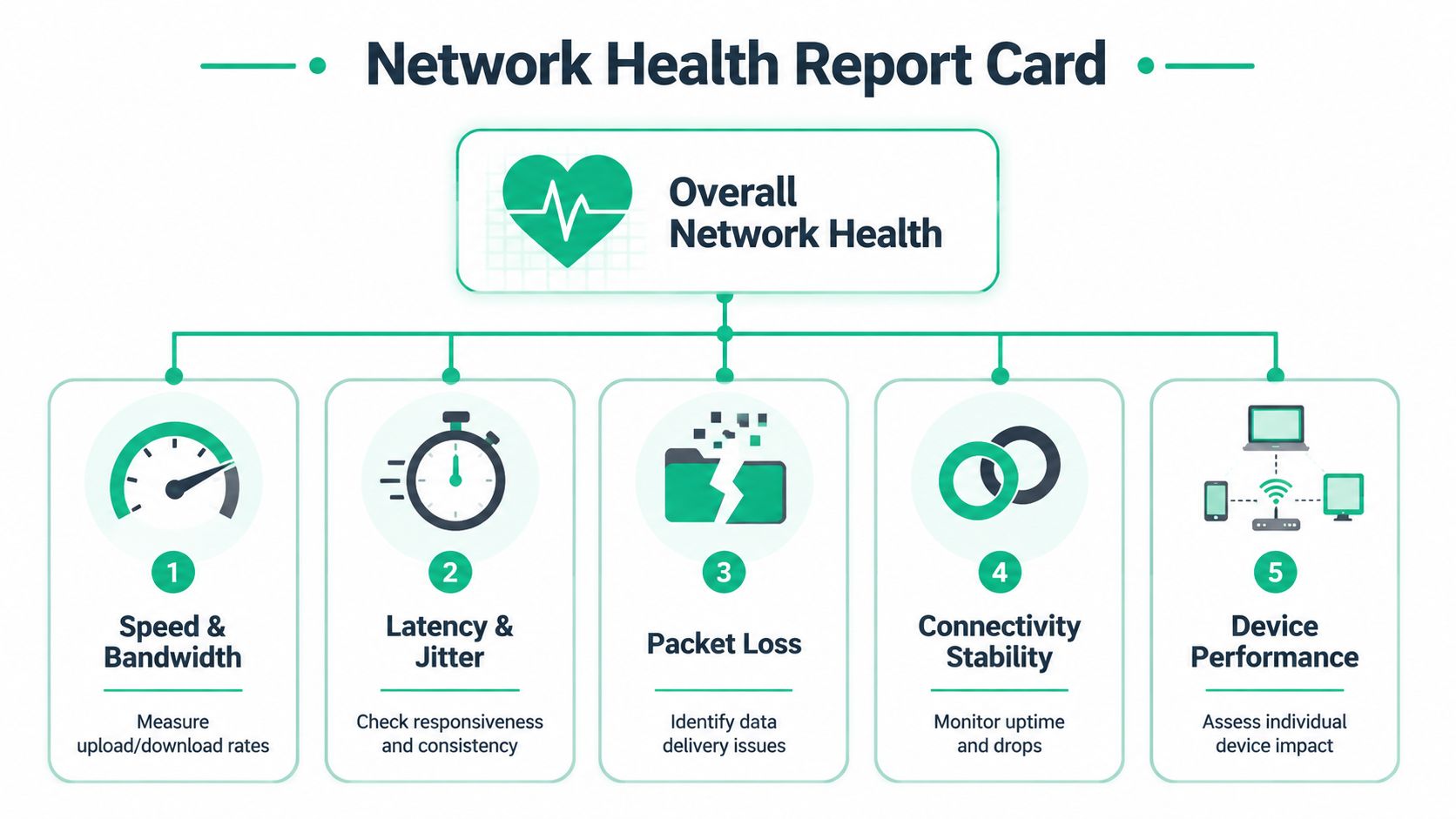
The five numbers that matter
Latency is delay. It's how long it takes for data to make the trip and come back. Low latency feels snappy. High latency feels like every click has to think about it first.
Jitter is inconsistency in that delay. This is why a video call can sound fine one second and robotic the next. The average speed can look okay while the experience is still awful.
Packet loss is missing data. When packets don't arrive, systems have to resend them. That creates slow response times and weird, hard-to-explain issues.
Throughput is the amount of actual traffic moving successfully. This is different from the internet plan you bought. Plenty of offices pay for good service and still get poor real-world throughput because the problem is inside the building.
Stability is what users care about most. Does the connection stay up? Do devices roam cleanly? Do calls drop at the same time every day?
According to LiveAction's explanation of network performance monitoring, effective monitoring hinges on tracking key indicators like bandwidth, latency, packet loss, and jitter. It also notes that analyzing traffic patterns helps uncover congestion and misconfigurations, and that retaining historical data is essential for comparing performance over time and estimating future resource needs.
Retained history is what separates “we think it was bad yesterday” from “the switch uplink saturates every weekday after lunch.”
How to build a baseline without making it a science project
You don't need to start with enterprise tooling. You do need consistency.
Use a mix of simple checks and regular observation:
-
Test at different times of day
Morning, lunch, and late afternoon tell very different stories in a busy office. -
Compare wired and wireless
If wired devices are clean and Wi-Fi is ugly, you've narrowed the search fast. -
Check repeat offenders
The conference room, front desk, shipping station, and far corner office usually reveal design flaws first. -
Log symptoms next to measurements
“Phones garbled at 2 p.m.” is useful. “Phones garbled at 2 p.m. while packet loss spiked on Wi-Fi” is useful and actionable. -
Keep the data
A screenshot from one bad afternoon helps. A month of trend data helps you make budget decisions.
What to use
Here's a practical view of the tool stack.
| Tool type | Good for | Limitation |
|---|---|---|
| Ping and traceroute | Quick checks for delay and path oddities | Too shallow for intermittent office-wide issues |
| Wi-Fi analyzer apps | Spotting channel overlap and loud neighbors | Only shows part of the RF picture |
| Controller dashboards like UniFi | Client counts, AP health, roaming clues, retries | Easy to misread if you don't compare across time |
| Managed monitoring platforms | Retention, alerting, trend analysis, broader visibility | Better, but only if someone reviews the data |
If you want a more complete operating rhythm for monitoring, this guide on network monitoring best practices for Indiana businesses is worth a read.
What the baseline tells you
A baseline helps answer questions owners ask in plain English.
- Is the network slow, or just crowded at certain times?
- Is this a Wi-Fi design issue or a switching issue?
- Did the new phones, cameras, or guest devices change behavior?
- Are we dealing with congestion, packet loss, or a bad appliance in the middle?
That's the start of optimizing network performance the right way. Not by replacing random gear, but by finding the exact point where user experience falls apart.
Tuning the Airwaves and Wires for Peak Performance
Bad Wi-Fi gets all the attention because people can feel it immediately. The call drops. The laptop clings to the wrong access point. The barcode scanner refuses to sync in the back room. But in a lot of SMB offices around downtown Indy and Greenwood, wireless problems start with design mistakes, not bad luck.

I've walked into old brick buildings where the owner bought more access points because “more bars should help.” Instead, they created a shouting match. Devices hung onto a weak signal too long, overlap got messy, and users bounced between APs at the worst possible times.
Fix Wi-Fi like a radio system, not like a magic cloud
Start with a basic site survey. That doesn't have to mean a giant consulting engagement. It means walking the space, checking where users work, and identifying what the building is doing to the signal.
In an old Fountain Square property, thick masonry, metal shelving, plaster, and neighboring tenant Wi-Fi all matter. In a modern Johnson County office park, open ceilings, glass conference rooms, and camera systems create a different set of problems.
A good Wi-Fi tune-up usually includes:
- Channel cleanup: On both 2.4 GHz and 5 GHz, neighboring networks can stomp on each other. Auto settings are fine until they aren't.
- Power adjustment: Access points set too hot can create sticky client behavior. Devices see a strong AP from too far away and refuse to roam when they should.
- Band steering: This nudges capable devices toward the faster 5 GHz band instead of letting them camp on crowded 2.4 GHz.
- Cell overlap planning: You want coverage to overlap enough for roaming, but not so much that APs compete constantly.
If you run UniFi gear, the platform proves useful. You can see client distribution, retry behavior, channel use, and whether one AP is carrying too much of the office. The mistake is assuming the default profile is tuned for your building. It isn't.
For a practical walkthrough, this guide on wireless network site surveys for Indiana businesses covers the field process in more detail.
A strong signal is not the same thing as a healthy Wi-Fi design. Plenty of offices have full bars and terrible user experience.
Common UniFi fixes that actually help
UniFi is popular for a reason. It gives SMBs a clean controller, decent visibility, and flexible deployment. But it still needs hands-on tuning.
Here's what tends to work:
- Lowering transmit power on overcrowded floors so devices stop hanging onto distant APs.
- Splitting SSIDs by purpose when guest traffic, IoT devices, and business systems shouldn't all share the same lane.
- Cleaning up legacy settings left behind from prior installs, especially after office expansions.
- Reviewing minimum data rates and roaming behavior if voice calls and handheld devices move around the building.
One odd but real issue I see is businesses using giant image files over shaky Wi-Fi in shared workflows. Marketing teams, real estate offices, and print shops push oversized assets around all day. If staff just need a quick way to shrink files before sending them across the network, a simple batch image resizing tool can reduce unnecessary transfer load without changing the whole workflow.
Don't ignore the cable and switch side
Wireless complaints often start at the switch closet.
A flaky switch can cause intermittent packet loss that makes the whole office feel haunted. One desk is fine. Another drops. Printers disappear. Calls stutter. The ISP gets blamed because that's the easiest target.
The wired side deserves the same scrutiny:
| Area | What to check | Why it matters |
|---|---|---|
| Cabling | Old runs, damage, poor terminations | Bad physical links create errors and unstable performance |
| Switch health | Port errors, overheating, random reboots | One failing switch can spread packet loss everywhere |
| Uplinks | Oversubscribed trunks between switches | Core congestion can choke an otherwise decent design |
| Topology | Daisy chains and mystery loops | Messy layouts create hard-to-trace instability |
Cat5e can still be fine in some environments, but age, installation quality, and termination quality matter. Cat6 and Cat6a give you more headroom and cleaner installs for newer switching plans, cameras, access points, and future growth. The right answer depends on the workload and the physical plant, not on internet marketing slogans.
Later in the process, it helps to see a short visual walkthrough before changing live gear:
What works and what wastes money
Park Place Technologies notes that packet loss is a primary cause of slow response times and reduced bandwidth, and that effective optimization involves detecting bottlenecks first, then applying measures such as QoS, load balancing, segmentation, and hardware refreshes, rather than throwing bandwidth at the problem. Their overview of network optimization performance techniques matches what field techs see every week.
What usually works:
- Replacing the failing switch, not the whole stack
- Moving APs to smarter locations
- Cleaning up channel overlap
- Refreshing bad patching and messy uplinks
- Separating guest, IoT, and business traffic
What usually wastes money:
- Buying more internet because Wi-Fi is bad
- Adding APs without surveying the space
- Leaving everyone on one flat network
- Ignoring packet loss because speed tests look “good enough”
That's the difference between optimizing network performance and just spending on network stuff.
Directing Traffic and Securing the Perimeter
A lot of Central Indiana SMBs hit the same wall. The cabling is cleaned up, the APs are in better spots, the switch ports are behaving, and people still complain that calls get choppy at 10:30 a.m. or cloud apps drag every afternoon.
At that point, the problem is usually traffic control.
QoS decides which traffic gets through first when the line is full. That matters in real offices, not lab diagrams. In a Fountain Square building with thick walls and a mixed bag of old printers, newer laptops, security cameras, and guest devices, bandwidth contention shows up fast. In a medical office, dropped VoIP calls cost front-desk time. In a small law firm, lag during a client video meeting burns confidence and billable hours. In a machine shop, slow ERP sync turns into delays on the floor.
QoS should match the way the business makes money
Good QoS policy starts with one question. What traffic protects revenue and keeps staff productive?
For most SMBs, the answer is pretty consistent:
-
Real-time traffic first
VoIP, Teams or Zoom calls, and other latency-sensitive traffic need priority. -
Business systems next
EHR platforms, ERP, cloud accounting, dispatch software, remote desktop sessions, and line-of-business apps should have reserved breathing room. -
Bulk and low-priority traffic last
Guest Wi-Fi, large file uploads, OS updates, backups, and background sync can wait during busy periods.
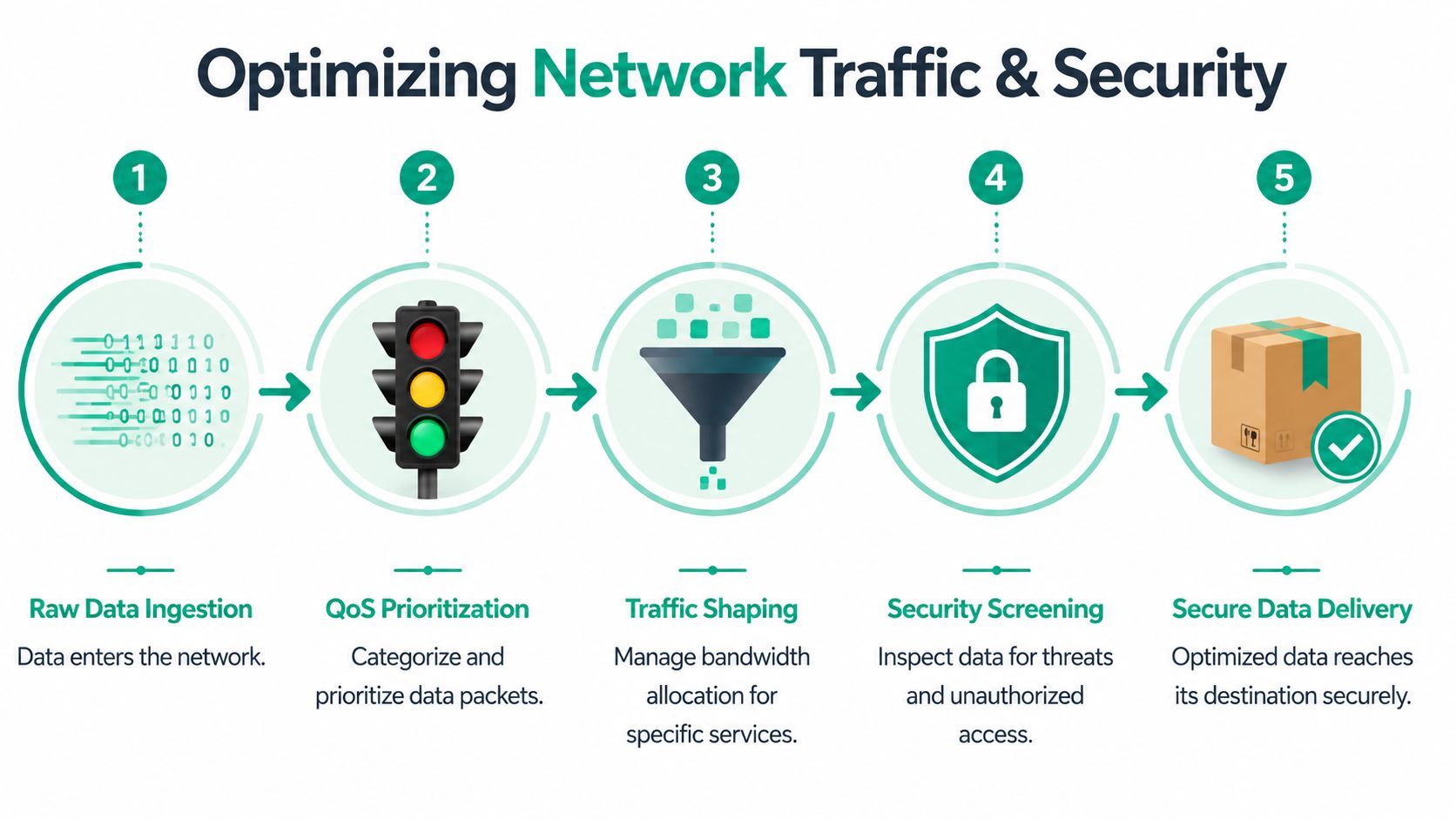
The mistake I see most often is overcomplicating the policy set. If every app gets marked high priority, QoS stops doing useful work. A small UniFi deployment with a few clear traffic classes is usually easier to maintain than an elaborate rule set nobody wants to touch six months later.
That simplicity has a payoff. Fewer call-quality tickets. Fewer mystery slowdowns during peak hours. Less staff time wasted proving that "the internet" is not down.
For teams comparing routing and policy options, this guide to choosing a small business firewall in Indiana lays out the trade-offs.
Security design affects speed more than owners expect
Security and performance are tied together. A flat network with weak access controls usually feels noisy because everything can talk to everything else. Cameras, guest phones, printers, office PCs, and sensitive systems all share the same space. That adds unnecessary broadcast traffic, wider failure domains, and more paths for trouble.
A better design keeps those roles separate.
- Segmentation puts guest Wi-Fi, IoT, cameras, printers, workstations, and sensitive systems on their own lanes.
- Zero Trust policies limit lateral movement and reduce broad access that serves no business purpose.
- Policy-based access allows users and devices to reach only the services they need.
- Smaller failure domains keep one infected laptop or noisy device from dragging down the whole office.
That helps performance, but it also helps compliance work. A healthcare practice dealing with HIPAA, a manufacturer aligning with NIST CSF, or a defense-adjacent firm working toward CMMC all benefit from tighter boundaries and cleaner access rules.
The perimeter still needs the right horsepower
Security tools can slow a network if the hardware is undersized or the inspection settings are turned on without checking throughput limits. That is a sizing problem. It is common in SMB environments where a firewall looked fine on a spec sheet but falls over once SSL inspection, content filtering, VPN users, and cloud traffic all hit at once.
The fix is practical. Match the firewall to the workload, then build policies that support the business instead of getting in its way. In many offices, that means balancing threat inspection with usable throughput, setting up VLANs that make sense, and making sure guest access never competes with core operations.
Finchum Fixes IT sees this regularly in growing businesses around Greenwood and Indianapolis. The pattern is familiar. A company adds cloud apps, cameras, hybrid staff, and a few remote access tools, but the security stack still reflects a much smaller office.
When traffic steering and perimeter security are configured well, the result is measurable in day-to-day operations. Staff lose less time to dropped calls and laggy apps. Help desk noise drops. Owners get more productive hours from the same team without paying for internet they did not need.
Upgrading Your Engine and Planning for Growth
Networks age subtly.
A router can stay online for years while doing a worse and worse job with modern traffic patterns. A switch can look fine until packet errors start surfacing under load. An access point that was perfect for a small office can become a choke point once you add cloud apps, cameras, guest devices, and hybrid staff coming in with three devices each.
Firmware isn't glamorous, but it matters
Keeping firmware current on routers, switches, and access points is one of the least exciting jobs in IT. It's also one of the cheapest ways to avoid weird behavior.
Firmware updates often address security problems, performance bugs, compatibility issues, and stability quirks that look like “network randomness” to end users. The caveat is obvious. Don't patch core gear in the middle of a workday and hope for the best. Stage it, schedule it, and have rollback plans.
A quick refresh checklist helps:
- Review vendor support status so you know whether the device is still getting fixes.
- Check for recurring issues like lockups, failed roaming, unstable uplinks, or throughput inconsistency.
- Schedule updates during low-impact windows with someone accountable for validation afterward.
When replacement makes more sense than another workaround
A lot of SMBs squeeze old hardware because it still powers on. That's understandable. It's also expensive when the business keeps paying the hidden cost in labor and interruptions.
Replacement usually makes sense when one or more of these are true:
| Sign | What it usually means |
|---|---|
| Recurring instability | You're patching around hardware limits or failure |
| Support has ended | Security and reliability risk go up |
| New workloads feel heavy | The gear was sized for an older business |
| The network design has changed | More users, cloud apps, cameras, and remote access need a different architecture |
The right move is often targeted. Replace the saturated switch stack. Upgrade the firewall that can't inspect traffic fast enough. Move from scattered consumer Wi-Fi to business-grade APs with controller visibility. You don't always need a full rip-and-replace.
Historical traffic trends tell you whether you need more capacity, better topology, or simply cleaner policy. Without that history, every buying decision turns into a guess.
Growth planning starts with history, not hope
Historical data proves its worth. Splunk explains that effective network optimization relies on using historical traffic data to predict future demand. By analyzing trends in throughput, latency, and utilization, engineers can make informed decisions about capacity planning, hardware upgrades, and network topology. Their overview of network optimization and historical demand planning gets to the heart of it. Good network management moves from break-fix to proactive planning.
That matters in fast-growing parts of Central Indiana. A Hamilton County firm adding staff, opening another suite, or moving more systems into the cloud should plan for the network that business will need, not the one it had last year.
A practical planning rhythm for SMBs
The businesses that avoid ugly surprises usually follow a simple rhythm:
-
Review trends regularly
Not just outages. Look at usage, recurring congestion windows, and where latency starts climbing. -
Map business changes to technical load
New phones, cameras, software platforms, and remote workers all change traffic behavior. -
Refresh on purpose
Planned replacements are cheaper and calmer than emergency failures. -
Design for segmentation and growth
If the business adds locations, compliance controls, or more cloud dependence, the network should already have room to adapt.
That's how optimizing network performance becomes a business decision instead of a rescue mission.
When DIY Hits a Wall The Finchum Fixes IT Checklist
Some network problems are easy. You move an access point. Replace a bad patch cable. Clean up one loud channel. Done.
Others will eat half your week and still leave the office miserable.
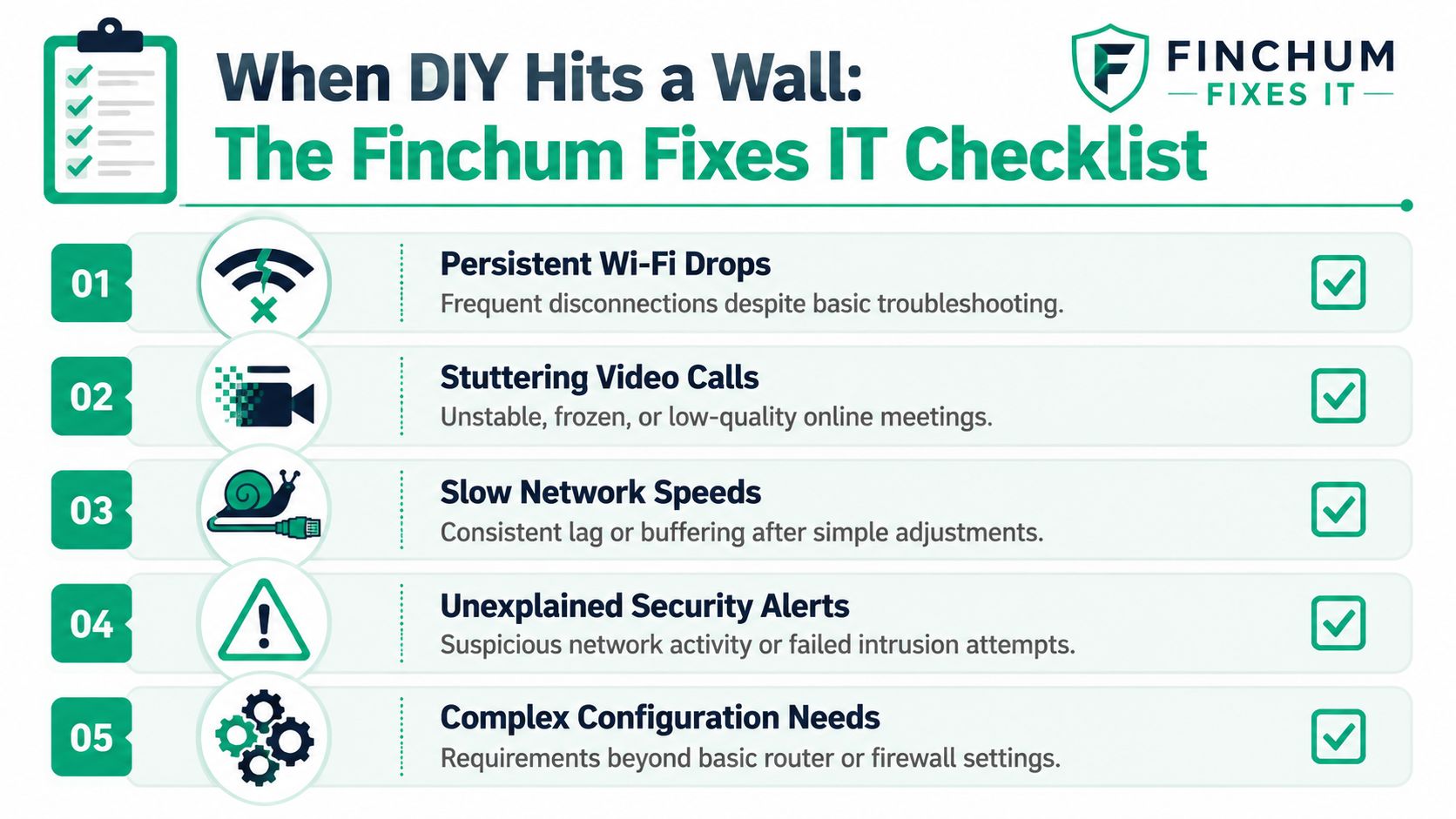
The moments when DIY stops paying off
If any of these sound familiar, it's time to get outside help.
-
The issue is intermittent
It only happens on Tuesdays, or only when the conference room is full, or only when three unrelated things happen at once. Those are the hardest failures to catch without proper telemetry and retained history. -
Basic fixes changed nothing
You rebooted gear, updated what you could, moved people around, and complaints stayed the same. -
The environment has compliance pressure
HIPAA, CMMC, and NIST CSF requirements change the stakes. Now the fix has to be stable, secure, and documented. -
You're crossing tool boundaries
When the root cause may involve Wi-Fi, switching, firewall policy, remote access, and endpoint behavior all at once, one person poking at settings in spare time usually won't solve it.
The checklist I'd use over coffee
Ask these questions plainly:
-
Can you reproduce the problem on demand?
If not, you need better monitoring and probably packet-level or controller-level analysis. -
Do users report the same issue from different locations or device types?
If yes, the problem may be deeper than one laptop or one AP. -
Have you tied complaints to a metric yet?
If the answer is no, you're still in guess mode. -
Would another failed experiment interrupt operations?
If changing firewall, VLAN, or AP settings blindly could break phones, scheduling, or production, stop improvising. -
Is leadership asking for predictability now, not later?
That means you need a plan, not another round of “let's try this.”
The expensive part of DIY isn't pride. It's the payroll spent on repeated troubleshooting without a durable fix.
For businesses that have reached that point, a managed partner can take over baseline collection, remediation, documentation, and ongoing monitoring. If you want to compare that model to in-house trial and error, this article on managed IT services for small business growth lays out the operational side.
What professional help should include
Don't settle for a mystery-box recommendation. You want a provider who can explain the why behind the fix.
That usually means:
- Advanced diagnostics using controller data, switch health, wireless analysis, and historical monitoring
- Clear remediation steps instead of vague advice to “upgrade everything”
- Security-aware design including segmentation, Zero Trust thinking, and firewall review
- Ongoing visibility so the next complaint gets caught before users start a revolt
If the issue extends beyond networking into storage or damaged systems, the same discipline applies. The right team should understand not just Wi-Fi and switching, but also things like immutable off-site backups, SOC-as-a-Service monitoring, and even bit-level data recovery when a failure chain reaches deeper into the stack.
If your office in Greenwood, downtown Indy, or anywhere along the I-65 corridor is losing time to flaky Wi-Fi, packet loss, or constant “the internet is acting up” complaints, it's time for a real plan. Finchum Fixes IT offers a Free Network Assessment for businesses in the Greenwood and Indianapolis area so you can see where the bottlenecks are, what needs tuning, and what can wait.