Solid State Drive vs Hard Drive Comparison for Indy
A lot of Johnson County owners are dealing with the same problem right now. The staff gets in, turns on the PC, opens QuickBooks, pulls a file from the server, then waits. And waits. In older offices along the I-65 corridor, that slow grind often gets blamed on “old computers” when the primary bottleneck is the storage drive.
That’s why a solid state drive vs hard drive comparison matters more than many realize. This isn’t nerd trivia. It affects payroll waste, ticket volume, staff frustration, cybersecurity scan time, backup windows, and how quickly you can recover when something breaks. If downtime hits a critical system, it can result in significant financial losses each minute. Even before you get anywhere near a major outage, slow storage burns billable time every day.
A slow drive doesn’t just delay a machine. It delays the person trying to do revenue-producing work on it.
- SSDs win on speed: They boot faster, open apps faster, and handle random business workloads far better than HDDs.
- HDDs still have a role: They’re good for bulk archives, backups, and long-term storage where speed isn’t the priority.
- Reliability favors SSDs: Fewer physical failure points means better business continuity for active systems.
- Recovery is the twist: Failed SSDs are often harder and more expensive to recover than failed HDDs.
- Best fit for most SMBs: Use SSDs for Windows, apps, and active files. Use HDDs for archives and backup tiers.
- ROI comes from downtime prevention: Faster systems cut wasted staff time and support more predictable monthly IT planning.
Your Greenwood Business Is Slow Is Your Hard Drive the Culprit
A Greenwood office doesn’t need to be falling apart for storage to become the problem. I see this in professional offices, medical practices, small manufacturers, and field-service shops. The computers still turn on. The users still get work done. But every task has drag.
What slow storage looks like in real life
It rarely starts with a total failure. It starts with complaints like these:
- Morning logins crawl: The team powers on at 8:00, but nobody is working until much later because machines are still loading.
- Basic apps feel heavy: Outlook, Adobe, QuickBooks, browser tabs, and line-of-business software all open with a pause.
- Saving files becomes a habit of waiting: Staff click save, then stop and stare at a screen instead of moving to the next task.
- Remote work feels worse than it should: VPNs and cloud apps get blamed, but old local storage often adds the first layer of lag.
That’s usually where the solid state drive vs hard drive comparison stops being theoretical. A hard disk drive, or HDD, stores data on spinning magnetic platters and has moving heads that physically read and write. A solid-state drive, or SSD, uses flash memory and accesses data electronically. No spinning disks. No seek delay from moving parts.
Why this gets missed by owners
Most owners don’t shop for storage. They shop for “a computer.” So when a workstation gets old, the assumption is that the whole machine is obsolete. Sometimes that’s true. Often it isn’t.
A business can have enough processor and memory for daily work, but a sluggish HDD makes everything feel broken. If your team is spending chunks of the day waiting on load screens, the storage layer is a prime suspect. That’s one reason business owners often start by searching for fixes to sluggish systems, and this guide on how to fix a slow computer for business owners lines up with what we run into locally all the time.
The business issue is bigger than annoyance
Slow storage causes two kinds of cost.
First, there’s the visible cost. Employees lose time. Support tickets pile up. Projects move slower.
Second, there’s the hidden cost. Staff start delaying updates, avoiding larger files, and working around systems instead of using them properly. In regulated environments, that bad habit can drift into compliance trouble. A healthcare office thinking about HIPAA or a defense subcontractor watching CMMC requirements doesn’t need more friction around patching, backups, and secure file handling.
Here’s the practical rule. If a machine is used for active work, the drive matters more than most owners realize. If it’s only used for cold storage, that answer changes. The rest of this comparison comes down to knowing which role each drive should play.
| Category | SSD | HDD | Best fit |
|---|---|---|---|
| Daily speed | Very fast | Noticeably slower | SSD |
| Boot and app load | Strong | Weak on aging systems | SSD |
| Bulk storage | More expensive per GB | Cheaper per GB | HDD |
| Shock resistance | Better | Worse | SSD |
| Data recovery after failure | Harder | Often easier | HDD |
| Best business use | OS, apps, active work | Archives, backups, retention | Hybrid |
Performance That Transforms Your Workday
The easiest way to explain SSD performance is this. An SSD removes the waiting that employees have normalized. That wait might be a boot screen, a file search, an accounting report, or a cybersecurity scan. It all adds up.
What the numbers mean
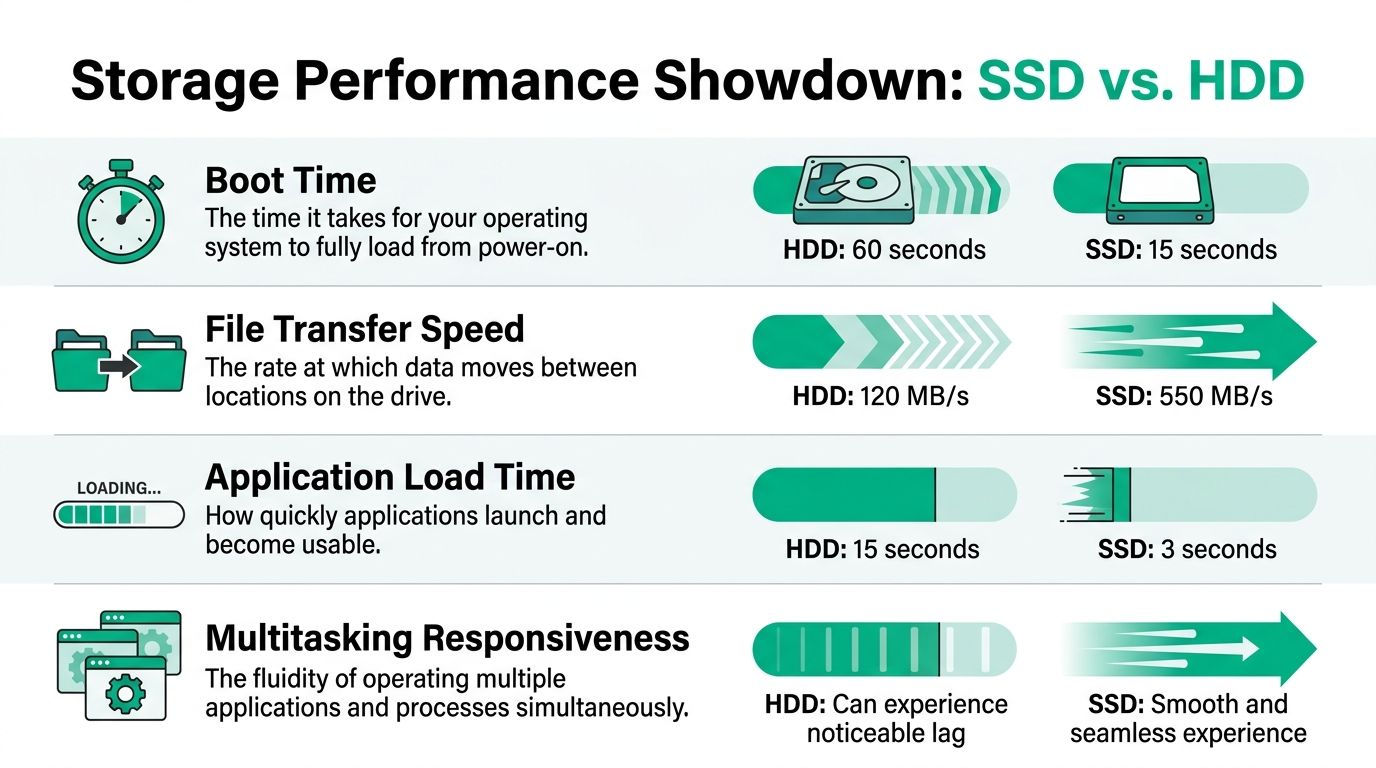
Benchmark data shows SATA SSDs at 540/330 MB/s sequential read/write and 98,000/70,000 random read/write IOPS, while SATA HDDs sit at 160/60 MB/s and 450/400 IOPS. That works out to 3 to 6 times faster sequential performance and over 175 times faster random performance, according to this SSD vs HDD comparison benchmark summary.
For a business owner, the important word there is random.
Office workloads are random. Users don’t read one giant file from beginning to end all day. They open Outlook, switch to Chrome, search a PDF, save to a network folder, open Excel, scan a receipt, and then jump into a line-of-business app. That pattern pounds storage with small, scattered requests. SSDs handle that kind of work far better.
Boot times and load times affect payroll
Boot time sounds minor until you multiply it across a staff. Verified benchmark ranges put SSD boot times at 10 to 15 seconds versus 45 to 90 seconds for HDDs in one source, and 8 to 13 seconds versus 30 to 40 seconds in another benchmark set from HD Sentinel’s performance comparison. The exact result depends on the hardware and software stack, but the direction is crystal clear. SSDs get people to work faster.
That same pattern shows up in application load time. Verified data also notes complex software loads can drop from 30 to 40 seconds on HDDs to 10 to 15 seconds on SSDs, which matters in accounting, CAD-adjacent workflows, browser-heavy admin work, and security tooling.
Practical rule: If the machine runs Windows and someone earns money on it, it should not be booting from a hard drive.
Why latency is a significant productivity killer
Owners often ask about “speed,” but what users feel is latency. Verified data puts SSD access time around 0.1 ms or 0.15 ms, compared with HDD figures of 4.2 ms or 10 to 12 ms, depending on the benchmark set. That difference is why SSD systems feel snappy instead of sticky.
This matters for:
- Accounting systems: Report generation and database lookups respond faster.
- Security tools: Endpoint scans and forensics work move more cleanly.
- File-heavy offices: PDFs, photos, and job folders open with less lag.
- Multitasking desks: Front office staff can keep several apps open without the machine feeling bogged down.
If you’re trying to squeeze more life out of aging workstations, this article on expert tips to improve computer performance covers some of the same practical fixes from the workstation side.
NVMe raises the ceiling even higher
SATA SSDs already change the workday. NVMe goes further. Verified data shows NVMe PCIe 4.0 and 5.0 SSDs reaching 5,000 to 7,400 MB/s read and 4,800 to 7,000 MB/s write, while HDD baselines sit around 120/110 MB/s in that same benchmark family. That’s overkill for some desks, but it’s a great fit for engineering, large datasets, software development, heavy local virtualization, and media work.
Most SMBs don’t need the fastest drive on the market. They need to stop running active work from the slowest one.
Durability Lifespan and Business Continuity
A drive choice is also a continuity choice. When a machine holds scheduling data, patient forms, quoting systems, financial records, or production documents, the question isn’t just “How fast is it?” The better question is “How likely is this thing to fail at the worst possible time?”
Why HDDs break differently
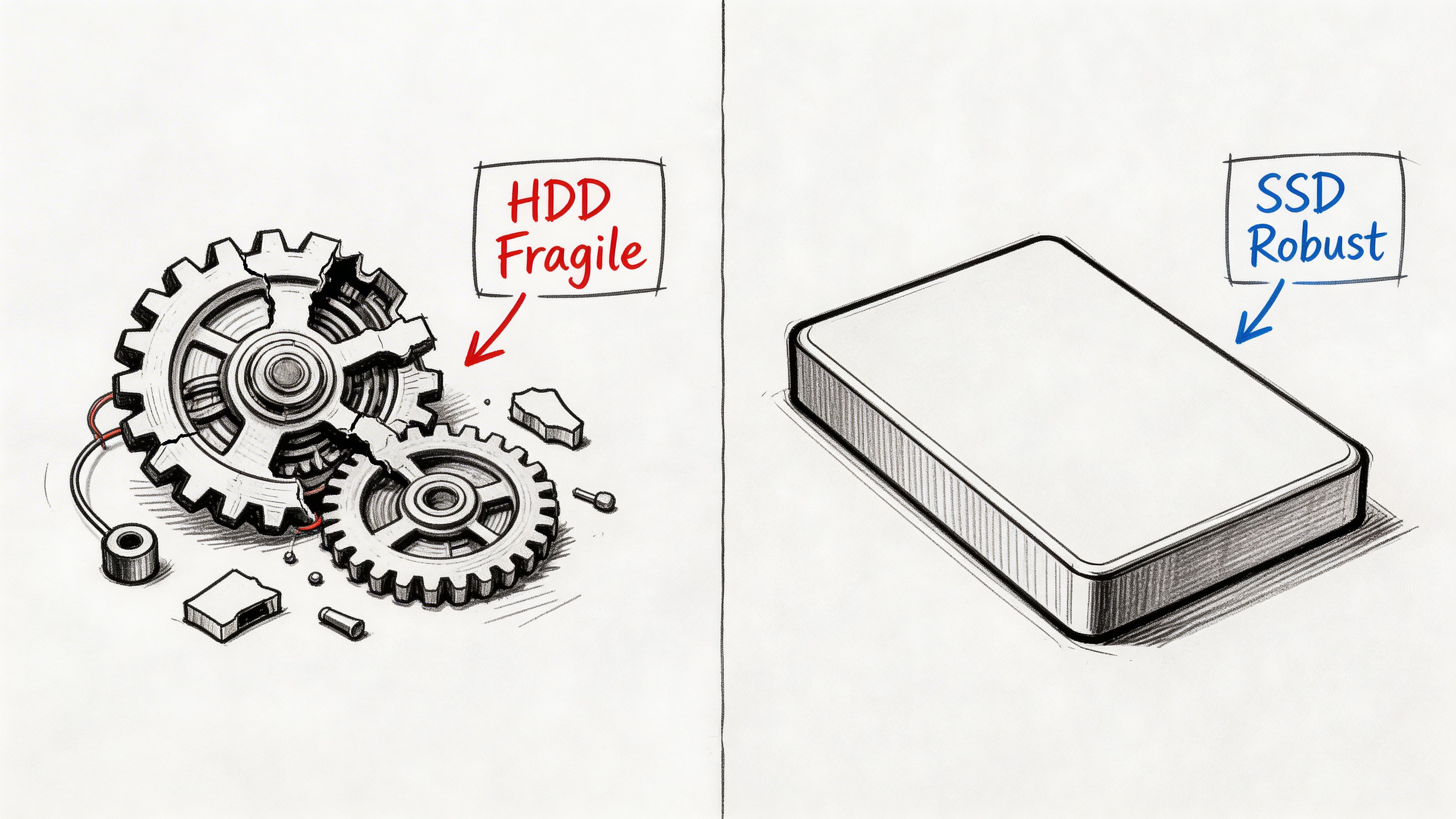
Hard drives are mechanical devices. They spin platters, move heads, and rely on precise physical alignment. That means they hate shock, vibration, heat, and age.
In a quiet office, that risk can stay hidden for years. Then one day the drive starts clicking, disappears from BIOS, or slows to a crawl while users stare at frozen screens. In field laptops, delivery vehicles, and busy front desks, a small bump that wouldn’t bother an SSD can be enough to push an HDD toward failure.
What reliability data says
Verified reliability data reports annual failure rates of 0.58% for SSDs versus 1.4% to 2.3% for HDDs, based on a summary citing Backblaze’s 2024 report in this SSD reliability overview. The same verified source notes a typical SSD lifespan of 5 to 10 years, compared with 3 to 5 years for HDDs.
That lines up with what matters on the ground. SSDs have no moving parts, so they eliminate an entire class of mechanical failure. They also run with less noise and lower power draw, which helps in laptops, cramped desktops, and small server closets.
Business continuity provides significant payoff
A lot of owners see reliability as an IT issue. It’s not. It’s an operations issue.
If the front office can’t access the scheduling system, work stops. If the estimator can’t open project files, proposals stall. If a HIPAA-regulated practice loses access to a workstation holding active records, the pressure rises immediately. The same goes for contractors tracking CMMC requirements or businesses aligning to NIST CSF controls. Storage reliability supports patching, endpoint performance, logging, backup cadence, and response time during incidents.
A durable boot drive is a small insurance policy against a large operational mess.
Where hands-on experience changes the advice
When we’ve pulled apart failing RAID sets or isolated bad drives in a small business server, the pattern is familiar. Mechanical disks often give warning signs. Noise. Slowness. Read errors. Retry delays. Sometimes you get lucky and catch it early enough to clone around damage.
That’s one reason this guide on failed hard drive data recovery for Indiana businesses is worth a read if you suspect an aging HDD. Waiting usually makes the outcome worse.
Best use of that durability
Use SSD durability where downtime hurts most:
- Primary workstations
- Executive laptops
- Front desk and dispatch systems
- Line-of-business app servers
- Machines used for cybersecurity tooling or remote support
Save HDDs for roles where capacity matters more than resilience under active daily use. That split keeps the fast, fragile-to-downtime workloads on better hardware and the slower, lower-cost storage in the right lane.
Analyzing the True Cost of Storage
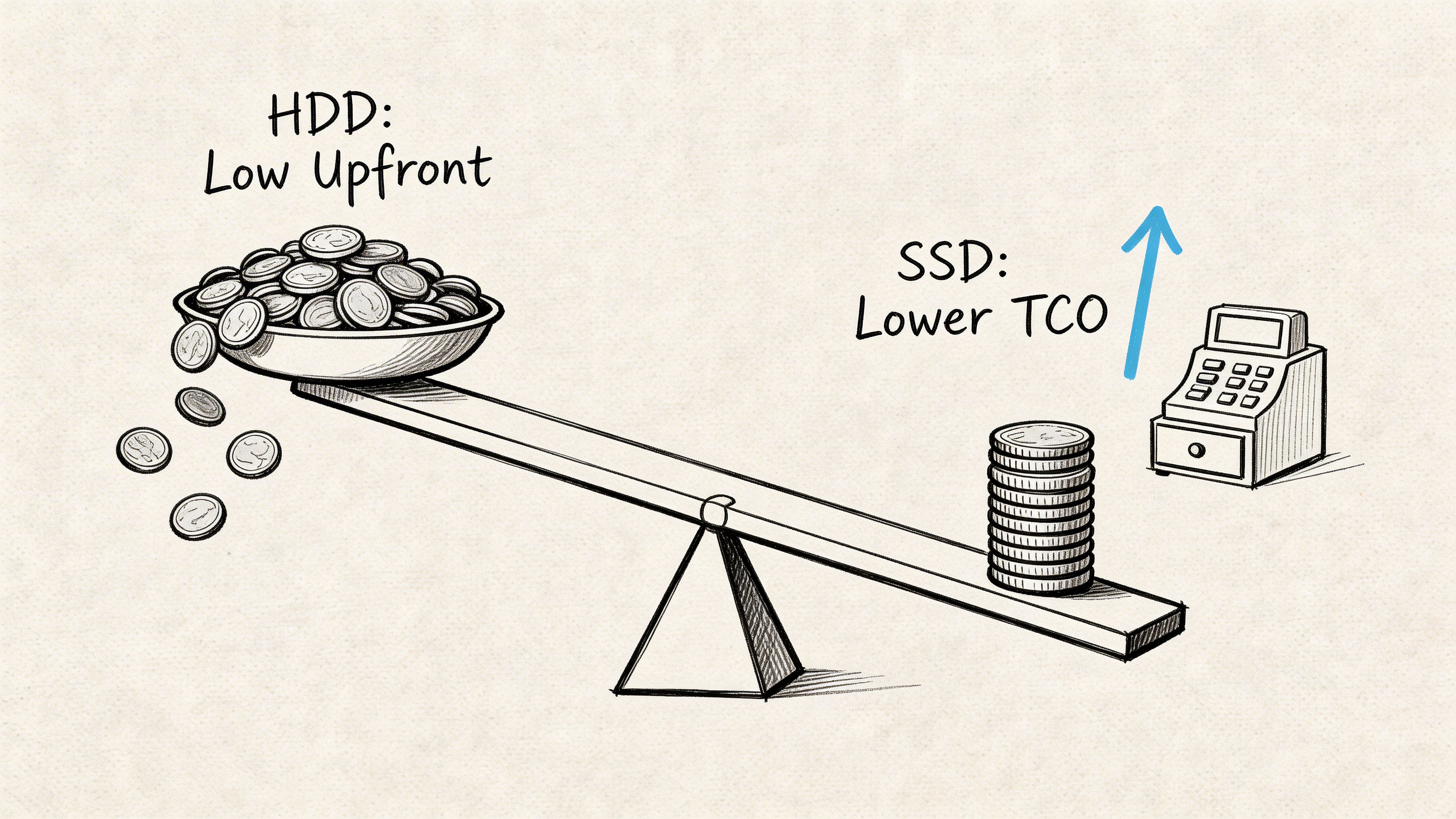
Most owners first notice the purchase price. That’s fair. HDDs still look attractive when you compare raw capacity.
Verified data notes HDDs can offer up to 10 to 12TB at a lower dollar per GB, while SSDs cost more upfront. It also notes application load times can drop from 30 to 40 seconds on HDDs to 10 to 15 seconds on SSDs, and that SSDs are more power-efficient and generate minimal heat, according to StorageReview’s SSD vs HDD analysis.
Sticker price is only one layer
If you buy storage like a consumer, HDD often wins. If you buy storage like a business, the equation changes.
An owner should think about four buckets of cost:
| Cost type | SSD impact | HDD impact |
|---|---|---|
| Upfront hardware | Higher | Lower |
| Employee waiting time | Lower | Higher |
| Heat and power overhead | Lower | Higher |
| Downtime risk on active systems | Lower | Higher |
That middle section, waiting time, is where the math turns fast. Even if nobody tracks it on a spreadsheet, every login delay, save delay, and app delay is paid time. For shops that bill by the hour or depend on fast internal throughput, slow storage converts labor into overhead.
Heat and power matter more than people think
In Central Indiana, small server closets get hot in summer. Not data-center hot. Annoying-office hot. I’ve seen network gear, battery backups, and older storage all crammed into utility rooms with poor airflow. HDDs add more heat and consume more power than SSDs. That doesn’t just affect the utility bill. It affects reliability and fan noise, and it can force you into replacing equipment sooner because the environment stays harsher than it should.
TCO is a budget conversation
Owners who want predictable monthly budgets usually do better when they stop treating hardware as one-time shopping and start treating it as part of an operating plan. If active systems are built on SSDs, support gets easier. Machines stay usable longer. Staff complain less. Tickets related to “slowness” fall off.
That’s where managed IT planning beats reactive spending. You replace the parts that create drag before they create outages.
Cheap hardware is expensive when it slows down paid staff.
A quick primer on the consumer side of the debate can be useful too, especially if you’re replacing a mix of desktops, laptops, and external drives:
Where HDDs still make financial sense
This isn’t an anti-HDD rant. HDDs are still a strong value in the right job.
Use them when you need:
- Long-term archives
- Large backup repositories
- Video retention
- Cold storage with infrequent access
Verified data also notes HDDs can deliver storage at roughly 1/6th the cost per GB in some high-capacity scenarios. That’s a big deal for retention-heavy businesses. A shop saving years of documents, surveillance footage, or closed project files doesn’t need all of that sitting on premium flash storage.
The ROI answer most owners need
If the drive supports a person who works all day in front of it, favor SSD.
If the drive stores a mountain of data that people rarely touch, favor HDD.
If you need both, use both.
That’s the cleanest way to keep storage spending tied to business value instead of hardware specs.
Security Backups and Data Recovery Realities
A lot of business owners assume the tougher drive is the safer drive. That’s only half true.
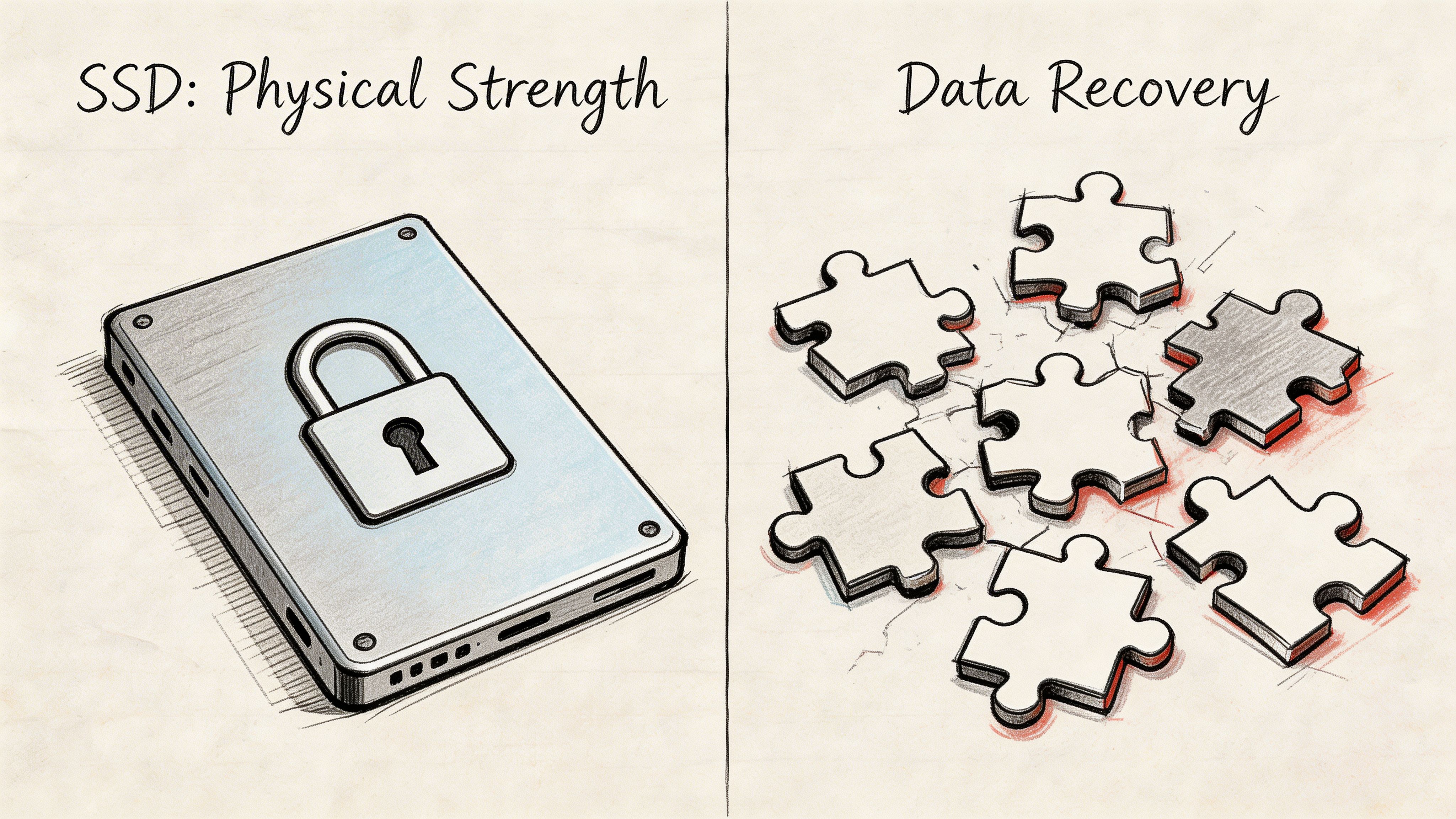
SSDs are physically more durable. They handle bumps, movement, and normal abuse better than HDDs. But when an SSD fails, recovering data can be far uglier.
Why failed SSDs are harder to recover
A hard drive usually fails in mechanical ways. Heads, motors, platters, firmware, board issues. Recovery labs have spent years building workflows around those failures.
An SSD stores data in flash cells managed by a controller. If the controller fails, wear reaches a bad point, or encryption and firmware complications collide, the job can move from difficult to nearly impossible. Bit-level data recovery then becomes very challenging. You’re not just replacing a part and pulling sectors in a clean room. You may be dealing with worn cells, controller translation layers, or encrypted data structures that don’t present cleanly.
Verified data notes that SSD recovery can cost 2 to 3 times more per GB, with success rates below 30% for encrypted or worn-out drives, compared with 70% to 90% for many HDD failures, based on this data recovery complexity summary.
That changes your backup strategy
The takeaway isn’t “don’t use SSDs.” The takeaway is “don’t trust recoverability to save you.”
For businesses working under HIPAA, CMMC, or NIST CSF-aligned controls, recoverability has to be designed in. That means backups aren’t optional and they can’t be casual. A USB drive in a drawer is not a continuity plan. Neither is hoping OneDrive happened to catch the latest version of a critical file.
A sound setup usually includes:
- Immutable off-site backups so ransomware can’t rewrite your recovery points
- Local recovery speed for common restores
- Retention planning for compliance and legal hold needs
- Recovery testing so you know the backup boots, opens, and restores
If you want the backup side explained in more detail, this piece on enterprise data backup solutions that guarantee business uptime is the right next read.
Security and recovery work together
Storage choice also touches security operations. Faster drives help with endpoint scanning, log handling, forensic exports, and incident response workflows. But speed doesn’t replace a backup architecture.
The best SSD in the building won’t save a business that can’t restore clean data.
The practical decision
For active systems, SSDs still make sense because uptime, speed, and day-to-day reliability matter. But every business using SSDs for critical workloads should assume this: if the drive fails hard, the recovery path may be expensive, slow, or unsuccessful.
That’s why the mature answer isn’t “Which drive is safest?” It’s “Which drive is right for this role, and what’s our restore plan when it fails anyway?”
The Smart Strategy Hybrid Solutions and Migration
For most small and midsize businesses, the winner isn’t SSD or HDD. The winner is a planned mix of both.
That’s the best answer in a real solid state drive vs hard drive comparison, because businesses don’t have just one kind of data. They have live data, stale data, regulated data, archived data, backup data, and “we haven’t touched this in three years but legal says keep it” data.
The hybrid model works because roles are different
Verified guidance notes that using SSDs for the OS and applications results in boot times under 15 seconds, while high-capacity HDDs for archives and backups can cut overall storage costs by 50% to 70%, according to this Dell storage support guidance on hybrid strategy.
That model fits local SMBs well.
A few examples:
-
Law firm in downtown Indy
Put Windows, case management, Outlook, and document drafting tools on SSD. Keep closed case archives and long-term document retention on HDD-backed storage. -
Healthcare clinic in Johnson County
Run EHR access points, secure workstations, and active patient file workflows on SSD. Store older exports, compliance retention sets, and layered backups on HDD tiers with immutable off-site copies. -
Light manufacturing shop near the I-65 corridor
Keep production terminals, quoting systems, and active design documents on SSD. Move historical job records, camera footage, and backup repositories to HDD. -
Defense-adjacent contractor watching CMMC requirements
Put active secure workloads on SSD for speed and reliability. Keep controlled archival datasets and backup retention on properly segmented HDD storage.
What should live on SSD
SSD earns its keep here:
| Put on SSD | Why |
|---|---|
| Windows and core system files | Faster boot and less user downtime |
| Daily business apps | Better responsiveness |
| Active project folders | Faster open, save, and search behavior |
| Security tooling | Quicker scans and incident handling |
| Line-of-business databases in active use | Better random access performance |
What should live on HDD
This is the right home for HDD:
- Archives that must be retained
- Backup repositories
- Closed project folders
- Surveillance or large historical media sets
- Cold data that’s rarely opened
That split keeps you from overspending on premium storage for data nobody touches, while still protecting daily operations from the drag of mechanical disks.
Migration doesn’t have to wreck the workday
Owners sometimes avoid this upgrade because they picture a rebuild, a mess of cables, and half a day of downtime per employee. That’s not how a proper migration goes.
A clean migration plan usually includes:
-
Drive health review
You don’t clone a dying source drive blindly. You check for read errors and instability first. -
Capacity mapping
Active data gets prioritized. Junk, duplicate files, and bloated temp space don’t need a free ride to the new system. -
Image or profile migration
Depending on the machine and the goal, you either clone intelligently or perform a cleaner rebuild. -
Post-migration validation
Apps launch, profiles load, line-of-business tools authenticate, BitLocker behaves, and backup agents resume correctly. -
Retirement or repurposing of old storage
Drives holding old business data need secure wipe procedures, not a casual toss into an e-waste pile.
Hybrid doesn’t stop at local hardware
Some businesses are also good candidates for pushing archive data out of the office entirely. Not everything needs to live on a local spinning disk if cloud retention and secure access make more sense. If that’s part of your roadmap, this guide on cloud migration solutions for Indianapolis businesses is useful for sorting out what should stay local and what shouldn’t.
The smartest ROI move
Hybrid storage gives owners three things they care about:
- Better employee speed
- Lower storage cost for non-critical data
- Cleaner continuity planning
That’s why it keeps winning. Pure HDD is too slow for modern active work. Pure SSD can be wasteful for giant archives and introduces harder recovery concerns if you’re sloppy with backups. Hybrid is the practical middle ground.
Upgrade Your Business with a Local IT Partner
Storage is one of those decisions that looks small on paper and turns into a daily operational issue in real life. The right drive setup affects speed, reliability, recovery, security operations, and compliance posture.
For active systems, SSDs are the right call far more often than not. For bulk retention, backups, and archives, HDDs still have a clear job. For most SMBs around Greenwood, Southport, Franklin, and the wider Indianapolis area, the best result comes from matching each drive type to the right workload instead of forcing one answer everywhere.
In our 17 years of local service, we’ve seen the same pattern over and over. Businesses waste money when they keep mission-critical users on slow storage too long. They also create risk when they move everything to flash without thinking through backup design, restore testing, or recovery complexity.
A solid storage strategy should fit into the bigger IT picture. That includes Zero Trust architecture, endpoint protection such as Bitdefender GravityZone, reliable UniFi networking, SOC-as-a-Service monitoring, and immutable off-site backups. Storage doesn’t stand alone. It supports the whole environment.
If your office has aging PCs, a slow file server, or a backup plan you don’t fully trust, it’s time to look at the storage layer before the next outage forces the decision.
If you’re in Greenwood, Indianapolis, or anywhere in the surrounding metro, Finchum Fixes IT can help you sort out the right mix of SSDs, HDDs, backups, and security controls for your environment. Schedule a Free Network Assessment or Security Risk Audit to find the performance bottlenecks, continuity gaps, and compliance risks that are costing your business time.