How to Tell If Your Computer Has Malware: An Indy SMB Guide
TL;DR Key Takeaways
- Watch for the obvious: sudden slowness, crashes, browser redirects, new toolbars, fake alerts, and emails sent without your approval are common warning signs.
- Check what’s running: Task Manager on Windows or Activity Monitor on Mac can expose unfamiliar processes chewing through CPU, memory, disk, or network activity.
- Don’t assume every weird process is malware: many unfamiliar entries are normal system components. The main concern is unusual behavior plus suspicious process activity.
- For businesses, isolate first: disconnect the device from Wi-Fi or unplug Ethernet before you start clicking around.
- DIY has limits: complete malware removal is harder than spotting symptoms. Miss one backdoor and the problem comes back.
- A managed security plan protects uptime: it turns random tech emergencies into a predictable monthly cost and helps keep your team billable instead of stuck waiting on broken systems.
That front desk PC in Greenwood was fine on Friday. Monday morning, it feels off. The cursor hesitates. Excel takes too long to open. Your browser launches to a page nobody picked. Someone on your team says, “It’s probably just slow.”
Maybe. Maybe not.
For a Johnson County business owner, that distinction matters because a sluggish workstation can be an annoyance, or it can be the first sign that somebody is already inside the machine. I’ve spent 17+ years working with businesses around Greenwood, Franklin, Whiteland, and up the I-65 corridor, and one pattern keeps repeating. Owners lose time trying to decide whether they’re looking at normal computer nonsense or the start of a real security incident.
That hesitation is expensive. The machine in question might just need cleanup, patching, or a drive check. It might also be beaconing out to an attacker, scraping credentials, or waiting to spread across shared folders.
The threat volume alone should tell you this isn’t a fringe problem. The AV-TEST Institute registers over 450,000 new malicious programs and potentially unwanted applications every day according to AV-TEST malware statistics. That’s why “how to tell if your computer has malware” isn’t just a home-user question anymore. It’s an operations question, a compliance question, and often a revenue question.
Is It Broken or Is It Infected?
Aging hardware and malware can look similar at first. That’s what trips people up.
A computer with a failing SSD might freeze, display errors, and slow down significantly during startup. A machine infected with malware often exhibits the same symptoms. In an older Southside office with patchy Wi-Fi, users might blame the building, the internet provider, or “Windows being Windows” when the actual problem is a compromised endpoint flooding the network in the background.
That’s where a little discipline helps.
If the issue appeared gradually over months, I usually start by suspecting wear, software bloat, poor patch habits, too many startup items, or user behavior. If the problem showed up fast, especially with odd pop-ups, browser changes, disabled security tools, or unexplained network chatter, my suspicion shifts hard toward infection.
A good first comparison is this:
| Situation | More likely cause |
|---|---|
| Slow for months, especially on an older machine | Routine performance degradation |
| Sudden slowness plus redirects or fake alerts | Malware or browser hijacker |
| One app is slow, everything else is fine | Application issue |
| Whole system is noisy at idle | Background process, possibly malicious |
Business owners also need to remember that a “slow PC” isn’t always a single-PC problem. One infected endpoint can drag down a file share, hammer bandwidth, trigger account lockouts, and waste half a day of payroll while everybody waits.
If your symptoms look more like general sluggishness than compromise, this guide on fixing a slow business computer is a smart next stop. But if the machine changed behavior suddenly, treat it like a security event until proven otherwise.
Practical rule: If a computer acts different overnight, assume there’s a reason. Don’t default to “it’s just old” until you’ve checked the basics.
The Obvious Clues Malware Leaves Behind
Most malware doesn’t start with a movie-style hacker screen. It starts with small weirdness. A homepage changes. A toolbar appears. Fans spin up while nobody’s doing anything. Outlook sends messages a user swears they never wrote.
That’s the stuff worth noticing.
What you can spot from your chair
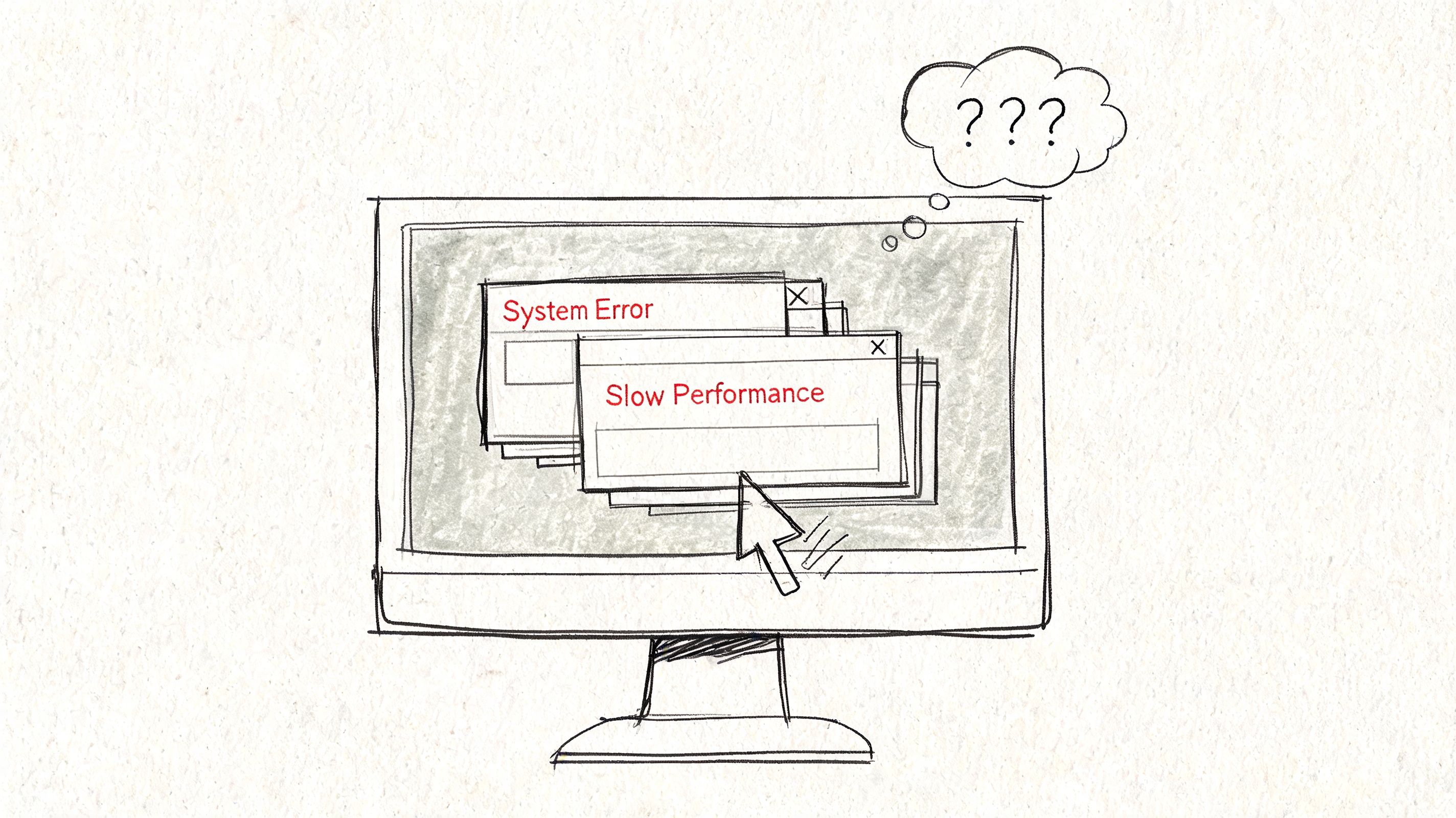
The Federal Trade Commission’s malware guidance, summarized in the verified data provided for this article, lines up with what we see in the field. Common visible symptoms include:
- Sudden slowdowns: the machine drags even when the user isn’t doing much.
- Frequent crashes or freezing: especially when paired with other strange behavior.
- Browser redirects: searches or homepage settings jump somewhere unfamiliar.
- New toolbars or extensions: users swear they didn’t install them.
- Excessive pop-ups or fake virus warnings: often designed to scare someone into clicking.
- Security settings disabled: antivirus, Task Manager, or browser protections stop working.
- Unauthorized email activity: messages go out from a mailbox without approval.
None of those signs prove malware on their own. Together, they’re a pattern.
Normal slowness versus suspicious slowness
A lot of people ask the wrong question. They ask, “Is my computer slow?” The better question is, “Why is it slow right now?”
If someone has fifty browser tabs open, two PDF editors running, and a cloud sync app chewing on a giant folder, that machine may feel awful without being infected. If the same computer is sitting idle and still running hot, maxing resources, or flickering with network activity, that’s a different story.
Here’s the coffee-shop version I give local owners:
- Normal business slowness usually has an explanation you can point to.
- Malware slowness often feels disconnected from what the user is doing.
That distinction matters because it keeps you from chasing ghosts.
The Task Manager trap
Mainstream advice often falls short for business users. People open Task Manager, see a bunch of unfamiliar names, and assume the worst.
That’s not a reliable method.
As noted in this discussion of malware warning signs and process confusion, most resources conflate legitimate system processes with infections. That’s a real gap. A process can look strange and still be a normal Windows service, a driver component, a printer utility, a browser helper, or an endpoint security agent.
What matters is the combination of factors:
| Signal | What it means |
|---|---|
| Unfamiliar process name only | Usually not enough to call it malware |
| Unfamiliar process plus high CPU at idle | Worth investigating |
| Unfamiliar process plus browser changes | More suspicious |
| Unfamiliar process plus outbound traffic | Escalate quickly |
A weird process name is noise. A weird process name tied to abnormal behavior is signal.
I’ve seen businesses in downtown Indy’s older brick buildings blame poor Wi-Fi for laggy systems, when the underlying issue was a handful of infected workstations chewing up local network traffic. The user experience looked like “bad internet.” The root cause was compromised endpoints.
That’s why symptom spotting matters. It won’t give you a verdict by itself, but it tells you whether you’re dealing with routine friction or something that can spill into payroll, scheduling, billing, and compliance.
Your Hands-On Malware Detection Toolkit
If the clues point toward infection, stop guessing and inspect the machine properly. You don’t need a digital forensics lab to do a first-pass check, but you do need a process.
Start with built-in tools
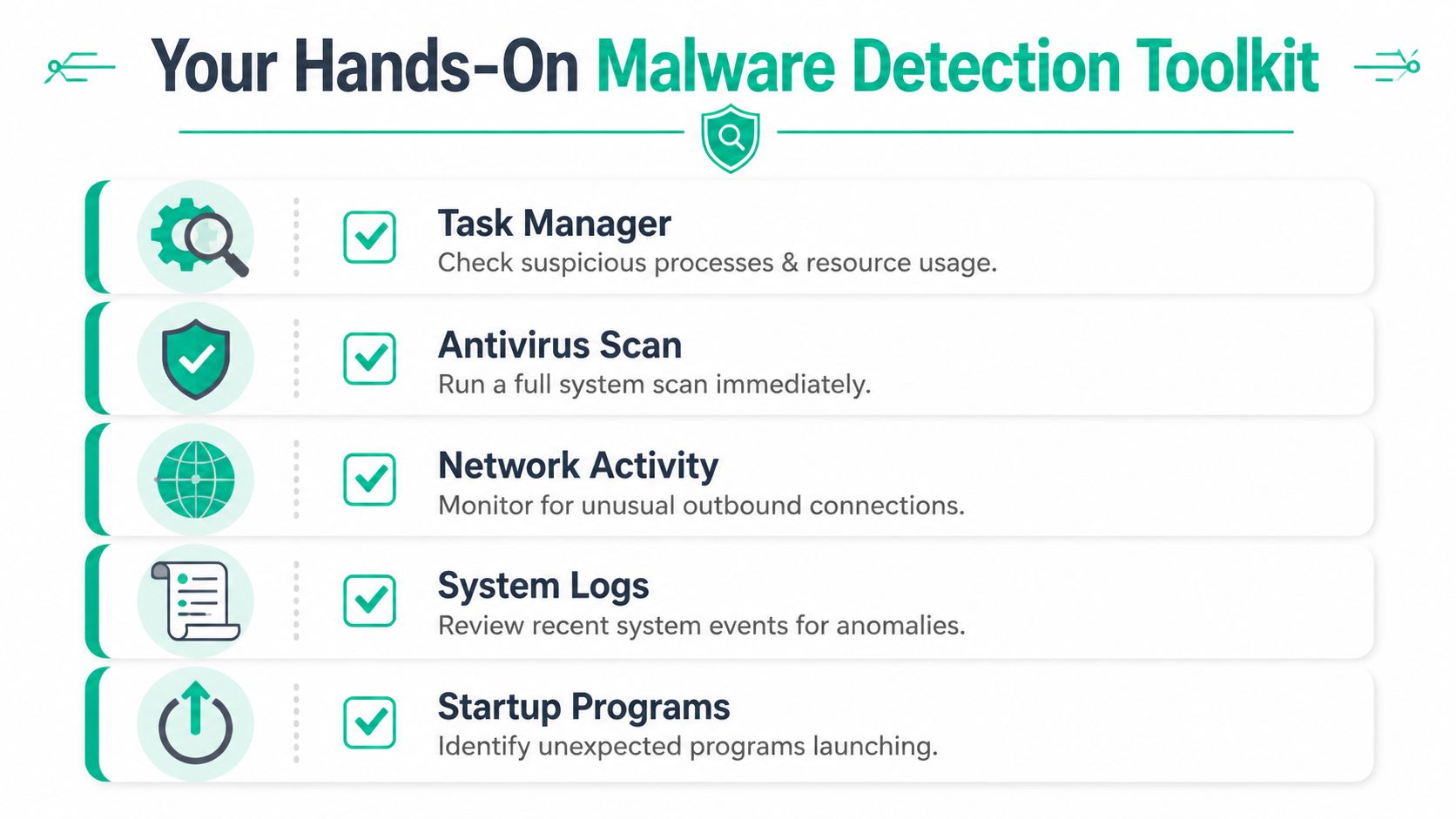
On Windows, open Task Manager. On Mac, open Activity Monitor.
You’re looking for behavior, not just strange names.
Check these first:
-
CPU usage at idle
If the machine is doing almost nothing but one process is working hard, that’s suspicious. -
Memory pressure Malware can sit in memory and insidiously drag performance down.
-
Disk activity
Heavy disk use when nobody is opening large files can indicate background tampering, scanning, or encryption. -
Network usage
This one matters most for business risk. If the device is idle but still talking out constantly, ask why.
The verified AV-TEST and FTC guidance behind this article specifically points to unusual resource consumption in Task Manager or Activity Monitor as a core way to tell if your computer has malware. Unknown processes hogging CPU, memory, disk, or network resources, especially when the system should be calm, deserve attention.
What to look for on a real business PC
I tell clients to think in categories:
- Processes that don’t match user activity
- Apps launching that nobody approved
- Network traffic with no business reason
- Changed settings such as DNS, proxy, homepage, or browser extensions
- Startup items that appeared recently
That last one gets missed constantly.
Malware likes persistence. If it can survive a reboot, it gets more time to steal, spread, or wait. Check startup programs in Windows and login items on Mac. If the machine boots into a bunch of junk the user never installed, don’t shrug that off.
Run a full antivirus scan, not a quick one
Quick scans are fine for routine hygiene. They’re not enough when you suspect an active problem.
Run a full system scan with current definitions. Windows Defender is built in and perfectly reasonable as a first pass. If your business uses a managed endpoint platform, run the full scan from that console and review the alerts centrally.
A few practical notes:
- Don’t trust stale signatures. Update first.
- Don’t stop at one clean result if the symptoms remain.
- Don’t assume “it scanned fine” means the system is fine.
Security software helps, but it doesn’t make judgment calls for you.
Use Process Explorer when Task Manager isn’t enough
For deeper Windows triage, I like Sysinternals Process Explorer. It gives you far more context than Task Manager, and for SMB diagnostics it’s one of the best free tools available.
The high-value move is to enable VirusTotal integration.
According to the verified expert data from CSO’s malware detection guidance, Sysinternals Process Explorer can be integrated with VirusTotal’s 67+ antivirus engines, and a detection score of 3/67 or higher flags confirmed malware with near-zero false positive rates. That same methodology delivers 95%+ efficacy for live incidents versus 80% for signature scans alone.
That’s not theory. That’s a practical SMB triage method.
A simple Process Explorer workflow
- Run Process Explorer as administrator
- Turn on the VirusTotal column
- Sort by CPU or memory
- Review processes with unusual behavior
- Investigate anything with a strong multi-engine detection result
- Note the file path before killing anything
- Check whether the process returns after termination
One caution. Low VirusTotal ratios can be noisy. A niche admin tool or uncommon utility might trigger one or two detections without being malicious. That’s why context still matters.
Don’t kill a process just because it looks ugly. Verify path, publisher, behavior, and persistence first.
For businesses that want a broader software stack, this roundup of malware removal tools for businesses is useful for comparing options beyond the built-in basics.
Check settings malware loves to hijack
Not every infection screams. Some just reroute.
Review these areas:
| Area to inspect | Why it matters |
|---|---|
| Browser homepage and search engine | Hijackers often change both |
| Extensions and add-ons | Adware and stealers hide here |
| DNS and proxy settings | Redirects can happen below the browser |
| Startup apps | Persistence after reboot |
| Security tool status | Malware often disables protection first |
If a user reports “Google looks weird,” don’t laugh it off. I’ve traced that exact complaint back to DNS changes, rogue extensions, and fake update malware more times than I can count.
Mac users are not exempt
Macs get the same treatment here. Activity Monitor can reveal CPU spikes, memory pressure, and odd network activity. Browser hijackers, fake updates, rogue profiles, and unwanted agents show up on Macs too.
The big mistake I see is confidence. A user assumes the platform protects them automatically, so they ignore small warnings longer than they should.
That delay gives the malware more room to work.
Beyond Slowdowns The Business-Ending Threats You Can't See
The worst infections often don’t act broken. They act quiet.
That is where many small and midsize businesses get blindsided. They focus on whether a machine is popping up ads, when the primary problem is a silent foothold sitting on a workstation in accounting, scheduling, or a shared medical front desk.
The damage that happens before anyone notices
The most important business risk isn’t annoyance. It’s delay.
As reflected in the verified FTC-based data for this article, the most critical risk for SMBs is the operational cost of delayed detection. Consumer-style advice often skips the threats that hurt a business: silent data exfiltration, credential theft that enables lateral movement, and compliance liability from undetected breaches. In plain English, the FTC’s malware guidance supports the idea that professional diagnostics are far cheaper than the downstream cost of an undiscovered compromise.
That’s the right way to think about ROI.
A machine can look “mostly okay” while it:
- Sends files out of the business
- Captures passwords and session tokens
- Uses one employee account to reach shared systems
- Plants a backdoor for later ransomware deployment
Why compliance raises the stakes
If you’re in healthcare, this isn’t only an IT problem. It’s a HIPAA problem.
If you support defense manufacturing or work with controlled data anywhere near the Indy industrial and logistics corridors, it’s a CMMC problem.
If you’re trying to run a mature security program at all, it’s a NIST CSF problem because detection, response, containment, and recovery all depend on recognizing abnormal behavior early.
That’s why I push owners away from the old mindset of “the antivirus didn’t alert, so we’re fine.” Signature tools matter. But silent compromise usually shows up first in behavior, not branding.
What professionals watch for
Higher-level monitoring comes into play.
A business-grade security stack watches for signs like:
- Unexpected outbound connections
- Unauthorized access to files or registry areas
- Strange process injection behavior
- New persistence mechanisms
- A user account behaving differently from its baseline
That’s the thinking behind Zero Trust architecture and SOC-as-a-Service monitoring. You don’t give a device or user blanket trust because they’re already inside the network. You assume compromise is possible and validate behavior continuously.
For ransomware planning specifically, this guide on preventing ransomware attacks for Indiana businesses is worth reading because ransomware rarely arrives as a surprise. It usually follows weak controls, delayed detection, and too much trust between systems.
If your only test for malware is “the computer still works,” you’re testing the wrong thing.
I’ve watched local companies spend hours troubleshooting one workstation while the actual issue was already bigger than that machine. The endpoint was just the symptom. The business risk was inside the accounts, file shares, and email environment connected to it.
Containment and Cleanup The First 60 Minutes
A Greenwood office manager clicks a fake invoice at 9:12. By 9:25, the PC is still open, email is still syncing, and someone is trying three free scanners they found in search results. That is how a single infected workstation turns into lost billable time, exposed client data, and a much larger recovery bill.
The first hour decides whether this stays a device problem or becomes a business interruption problem.
Minute one through fifteen
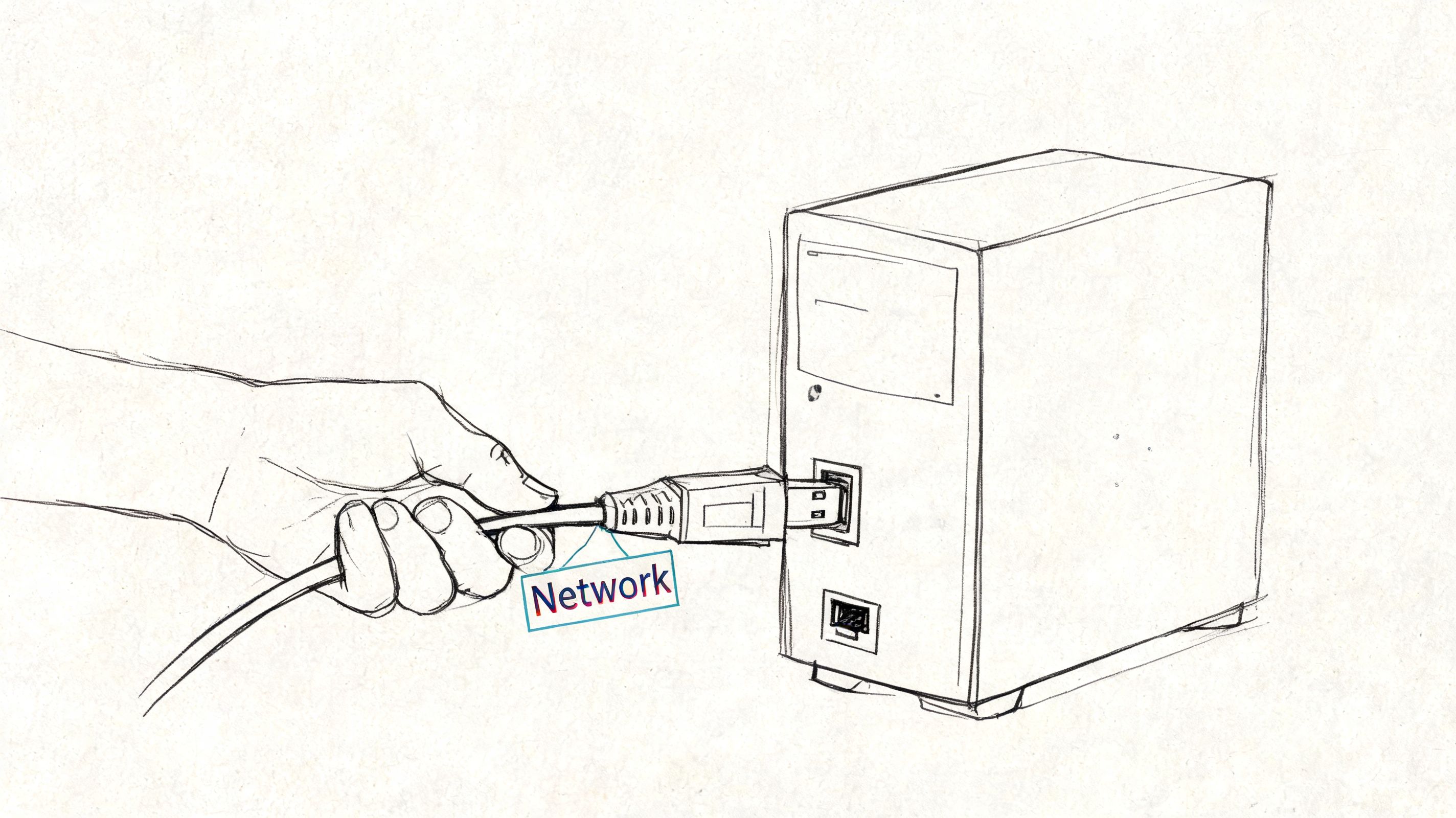
Start with isolation. Pull the Ethernet cable. Turn off Wi-Fi. If the user is docked, disconnect the dock and remove access to shared resources right away.
Speed matters here because modern malware rarely stays confined to one machine. It may keep reaching out, download additional tools, reuse saved credentials, or continue syncing stolen data while your team is still deciding what to do.
Use this first-pass checklist:
- Isolate the computer from the network
- Tell the user to stop logging into email, Microsoft 365, banking, or line-of-business apps from any other device
- Record what the user saw before the problem started
- Photograph or note any ransom note, login prompt, browser redirect, or error message
- Escalate at once if the system had access to patient data, cardholder data, defense-related files, payroll, or shared drives
For Indiana businesses in healthcare, manufacturing, legal, and professional services, that fifth step has real financial weight. A bad DIY call can create HIPAA reporting problems, contract issues, or CMMC headaches that cost far more than a proper diagnostic review.
What not to do
I see good intentions cause expensive damage.
Avoid these mistakes:
- Don’t reboot over and over unless you have a clear reason
- Don’t delete files just because they look suspicious
- Don’t install multiple cleanup tools from search results
- Don’t reconnect the machine to test whether the problem is gone
- Don’t let the user keep working while the system is under suspicion
Those actions can erase evidence, trigger more malicious activity, and make it harder to determine whether accounts, shares, or backups were touched.
Why DIY cleanup often costs more than it saves
For a home PC, trial-and-error cleanup is inconvenient. For a business in Johnson County, it is often the more expensive option.
A partial cleanup may remove the visible symptom and miss the scheduled task, startup item, token theft, mailbox rule, or remote access foothold that put the attacker there in the first place. The machine looks usable again, so everyone goes back to work. Then the same credentials get abused, the same inbox starts sending fraud, or the same file share gets hit later in the week.
That is the key ROI question. You are not comparing a free scan to a paid service. You are comparing the cost of expert diagnostics against staff downtime, interrupted operations, potential disclosure obligations, insurance complications, and the labor required to clean up a second incident.
Analysts examining navigating future digital security make the same broader point. Threats are getting harder to verify with casual tools, which raises the value of fast containment and disciplined response.
A computer that starts behaving normally again can still be unsafe to trust.
A smarter first-hour playbook
Use this decision guide:
| Situation | Best next move |
|---|---|
| One PC, nuisance pop-ups, no shared access | Isolate and run controlled scans |
| Suspicious activity on a user with broad file access | Escalate immediately and review account activity |
| Security tools disabled or missing | Treat it as a higher-risk compromise |
| Ransom note or encrypted files | Shift to incident response and preserve evidence |
| HIPAA, legal, finance, manufacturing IP, or defense data involved | Assume business and compliance impact, then bring in professional review |
If your business does not already have one, keep an incident response plan template for small businesses available before an employee has to improvise under pressure.
A quick visual walkthrough can also help your team understand the basics of isolation and response:
What professional cleanup includes
Professional malware response is about certainty, scope, and business continuity.
A proper business-grade response may include:
- Offline scanning to reduce interference from the malware
- Persistence checks across startup items, scheduled tasks, services, browser extensions, and autoruns
- Credential review for the affected user and related systems
- Microsoft 365 and email review for suspicious sign-ins, mailbox rules, and token abuse
- Network review to see whether the threat spread or communicated out
- Policy and control review to identify why it got through
- Backup verification to confirm that restoration is safer than cleaning, if needed
Sometimes the right call is a wipe and rebuild. That is faster and safer than spending four technician hours trying to rescue a shaky Windows install that still cannot be trusted. In other cases, preserving local data, removing the threat in a controlled way, rotating credentials, and validating the endpoint for return to service gives the business the best outcome.
That is the role Finchum Fixes IT serves for local companies. The value is practical. Certified diagnostics shorten downtime, reduce guesswork, and help business owners avoid the far higher cost of a machine that appears fixed but still puts the company at risk.
For Indiana SMBs, the first-hour decision is rarely about one computer. It is about whether you protect revenue, keep operations running, and avoid turning a contained incident into a reportable one.
Hardening Your Defenses A Proactive Plan for Indiana Businesses
Cleaning one infected machine is a repair job. Preventing the next one is a business strategy.
That’s the shift I want more Johnson County owners to make. If your security plan begins only after someone clicks a fake update or opens the wrong attachment, you’re already spending money the expensive way.
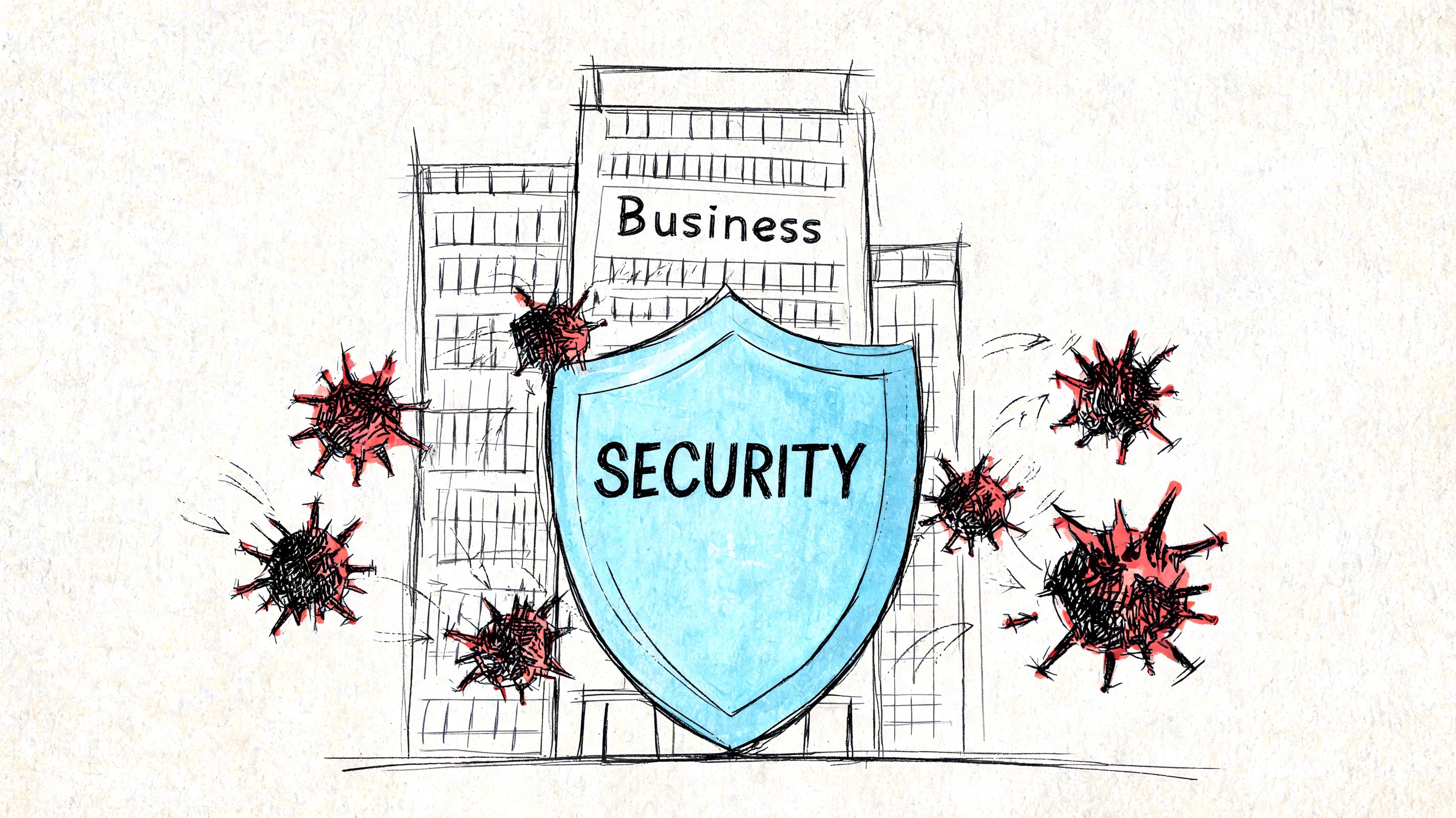
The stack that keeps one bad click from becoming downtime
A solid defense plan for businesses around Greenwood, Indy, and the surrounding counties usually includes a few essential elements.
-
Managed endpoint protection
Tools like Bitdefender GravityZone do more than signature matching. They add behavior monitoring and centralized policy control, which is critical when users are spread across offices, home setups, and job sites. -
Segmentation on the network
With UniFi networking, properly designed VLANs and access policies can keep one compromised workstation from talking freely to everything else. That’s a basic business continuity move, not a luxury. -
Backups that ransomware can’t rewrite
Immutable off-site backups matter because a backup you can alter casually is a backup malware may also be able to alter. -
Identity controls
Limit admin rights, enforce modern authentication, and review stale accounts. Credential misuse is one of the fastest ways a small incident becomes a large one.
Tie the plan to NIST CSF, not gut instinct
Good security programs aren’t random collections of apps. They line up with an operating model.
For most SMBs, NIST CSF gives a sensible structure:
| NIST CSF area | Practical malware defense example |
|---|---|
| Identify | Know what devices, users, and data you actually have |
| Protect | Endpoint security, patching, least privilege, filtering |
| Detect | Alert on unusual behavior, not just known signatures |
| Respond | Isolate, investigate, recover with a playbook |
| Recover | Restore from tested backups and document lessons learned |
That structure also helps when you’re answering questions from insurers, auditors, partners, or prime contractors.
Train users without making them hate IT
Most malware still gets in through people. Not because people are foolish. Because they’re busy.
A rushed employee in a healthcare office, manufacturing shop, or downtown Indy professional firm can click a fake invoice, fake document share, or fake browser update in seconds. That’s why awareness training has to be short, frequent, and tied to the tools people already use.
I’m also a fan of process libraries for common business confusion. Users should have a quick way to answer, “Is this normal?” because uncertainty leads to delayed reporting.
If you want a broader read on where security thinking is heading, this piece on navigating future digital security adds useful context around the threat direction businesses need to plan for.
Security maturity isn’t buying one product. It’s building layers that keep a user mistake from becoming company-wide downtime.
For businesses evaluating software choices, this guide to endpoint protection software for Indiana businesses can help compare what belongs in a managed stack versus what just adds dashboard clutter.
The payoff is simple. Fewer emergency calls. Fewer surprise outages. Less wasted tech time. More hours your staff can spend on actual customer work instead of waiting on broken devices and improvised fixes.
Stop Guessing and Get Certainty
If you’ve made it this far, you already know the answer usually isn’t obvious from one symptom.
A slow machine might just be overloaded. It might also be the first visible sign of browser hijacking, credential theft, or data leaving your network. That’s why learning how to tell if your computer has malware is useful, but it’s only half the job. The other half is knowing when the risk has crossed the line from “annoying” to “business threat.”
For Indiana SMBs, that line comes fast. A front desk PC can touch scheduling, billing, shared drives, email, and customer records. One bad endpoint can waste hours of labor, derail operations, and create ugly questions if you’re under HIPAA, CMMC, or contractual security obligations.
After 17 years of local service, my view is simple. If you see suspicious symptoms, isolate first. Check the machine carefully. And if there’s any chance the issue involves shared systems, sensitive data, or disabled security tools, don’t gamble on a half-fix.
Trade uncertainty for a clear answer and a stable plan.
Businesses in Greenwood, Indianapolis, and across Central Indiana can schedule a Free Network Assessment or Security Risk Audit with Finchum Fixes IT. If your team is dealing with suspicious slowdowns, possible malware, or recurring security headaches, we’ll help you determine what is happening and map out the fastest path to a secure, predictable environment.