Network Troubleshooting Steps for Indiana SMBs in 2026
TL;DR: Your Quick-Action Summary
- Start with scope: Figure out whether the outage hits one user, one area, Wi-Fi only, or the whole office.
- Don't reboot blindly: Recent changes, power events, and exact error messages usually tell you more than panic-clicking ever will.
- Work bottom-up: Check cables, link lights, ports, switch status, then move to IP, routing, and DNS.
- Use basic commands:
ipconfig,ping,tracert, andnslookupare still the fastest way to isolate where traffic breaks. - Treat Wi-Fi and security separately: Weak coverage, firewall blocks, DNS problems, and ISP instability can look the same to users.
- Know when to escalate: Intermittent failures, config drift, and anything smelling like a breach need experienced hands.
- Prevention pays: Good monitoring, documented changes, and tested failover keep downtime from eating payroll and production.
It's 9:15 on a Tuesday in a Greenwood office park. Sales can't reach the CRM. Shipping can't print labels. Accounting can't get into the cloud system. Somebody says the Wi-Fi is dead. Somebody else says the server must be down. Ten people are standing around a front desk asking the same question: “How long is this going to take?”
That's the moment when bad troubleshooting gets expensive. People start unplugging things. Someone reboots the firewall without saving logs. The office manager calls the ISP before anyone checks whether the switch in the back closet even has power. An hour disappears, and nobody's any closer to the root cause.
This is why network troubleshooting steps matter. Not as a textbook exercise. As business continuity. A network outage doesn't just annoy staff. It stops billing, scheduling, payment processing, phones, file access, and customer response. In Indiana, that can mean a small team burning through half a day because one cable got knocked loose under a desk, or because an old brick building on the south side is turning Wi-Fi into guesswork.
Your Network Is Down And Business Has Stopped
A hard outage feels dramatic because it is. Business systems don't fail one at a time in neat order. They fail all at once from the user's point of view. Email won't load, Teams won't connect, the printer queue jams up, and someone decides the internet is “just broken.”
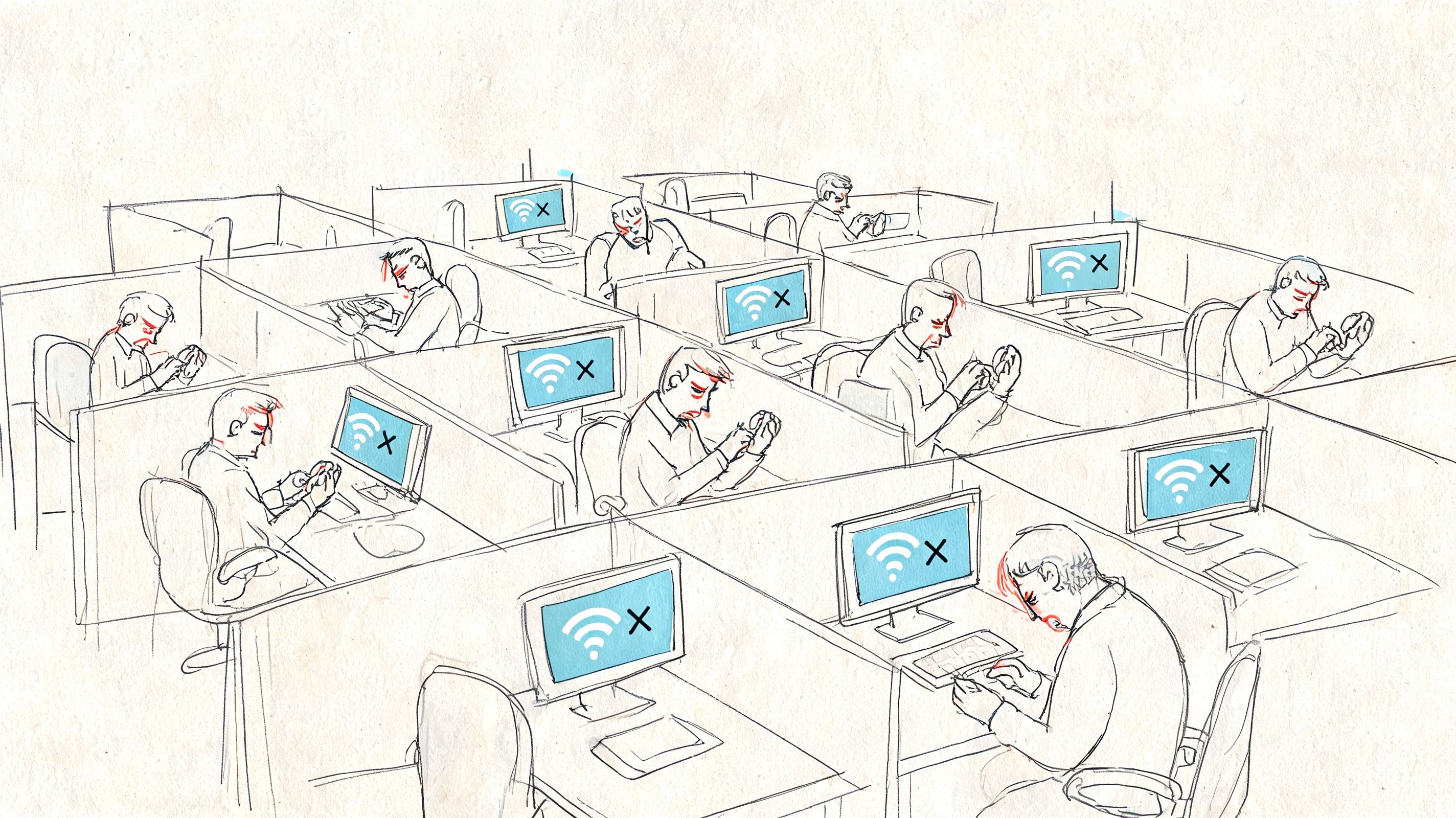
That's usually the first mistake. Calling everything “the internet” hides the actual problem. A dead access point, a DNS failure, a bad switch port, an expired firewall rule, and an ISP outage can all look identical to a stressed-out employee. They're not identical, and they don't get fixed the same way.
A systematic approach beats heroics every time. A 2023 Uptime Institute survey of 1,056 global data centers found that network troubleshooting failures contribute to 28% of unplanned outages, with 62% of incidents tied to configuration errors that are resolvable through a step-by-step process. That lines up with what seasoned admins already know. Random guessing drags outages out. Method narrows them down.
What a good first response looks like
When a network drops, the first job isn't fixing. It's containing confusion.
- Find the blast radius: Is one person down, one department down, or the whole office down?
- Separate internet from internal access: Can users still reach local printers, file shares, or line-of-business systems?
- Check whether it's wired, wireless, or both: That single distinction saves a lot of wasted motion.
- Ask what changed: New firewall rule, power flicker, ISP work, moved desks, firmware update, patch window. Recent changes matter.
Practical rule: The faster you define the scope, the faster you stop touching the wrong equipment.
If you've got a mixed environment with staff phones, tablets, and personal laptops, user-side issues can muddy the picture. A solid guide for resolving BYOD network problems can help separate device onboarding issues from a true network outage.
In Central Indiana, older buildings add their own fun. Thick walls, old cabling, patchwork remodels, and closets that were never designed for network gear turn simple outages into scavenger hunts. That's why the pros stick to a repeatable method. It turns panic into a checklist.
First Steps Before You Unplug Anything
The worst first move is usually the most tempting one. Reboot everything. Don't.
A reboot can wipe useful clues. Logs roll. interface states reset. Error counters clear. If the problem is intermittent, you may erase the only evidence that tells you what happened. Gather facts first.
Questions that narrow the problem fast
Write down the answers. Don't trust memory when phones are ringing.
- Who is affected: One user, one room, one VLAN, or the entire office?
- What still works: Local apps, printers, file shares, guest Wi-Fi, phones?
- When did it start: Right after opening, after lunch, after a storm, after a patch?
- What changed recently: Hardware moves, firmware updates, firewall changes, ISP notices, even furniture rearrangement near access points.
Specific symptoms matter more than dramatic descriptions. “Nothing works” tells you almost nothing. “Laptop connects to Wi-Fi but can't open websites” tells you much more. “Wired PCs in shipping are fine but front office wireless is down” is even better.
Save screenshots of any visible error messages before anyone starts clicking through fixes.
This is also where compliance-minded shops need discipline. If you're in healthcare, manufacturing, or defense-adjacent work around Greenwood, documenting the incident helps support HIPAA, CMMC, and broader NIST CSF practices. Good troubleshooting isn't just technical. It creates a clean record of what happened, what changed, and what was done.
The Professional's Map A Layered Diagnostic Workflow
Pros don't troubleshoot networks by vibes. They use a map.
That map is the layered model behind the network. You don't need a certification course to use it well. You just need to think in order. Start with what carries the signal. Then check how devices identify each other. Then confirm routing. Then look at the app that users are yelling about.
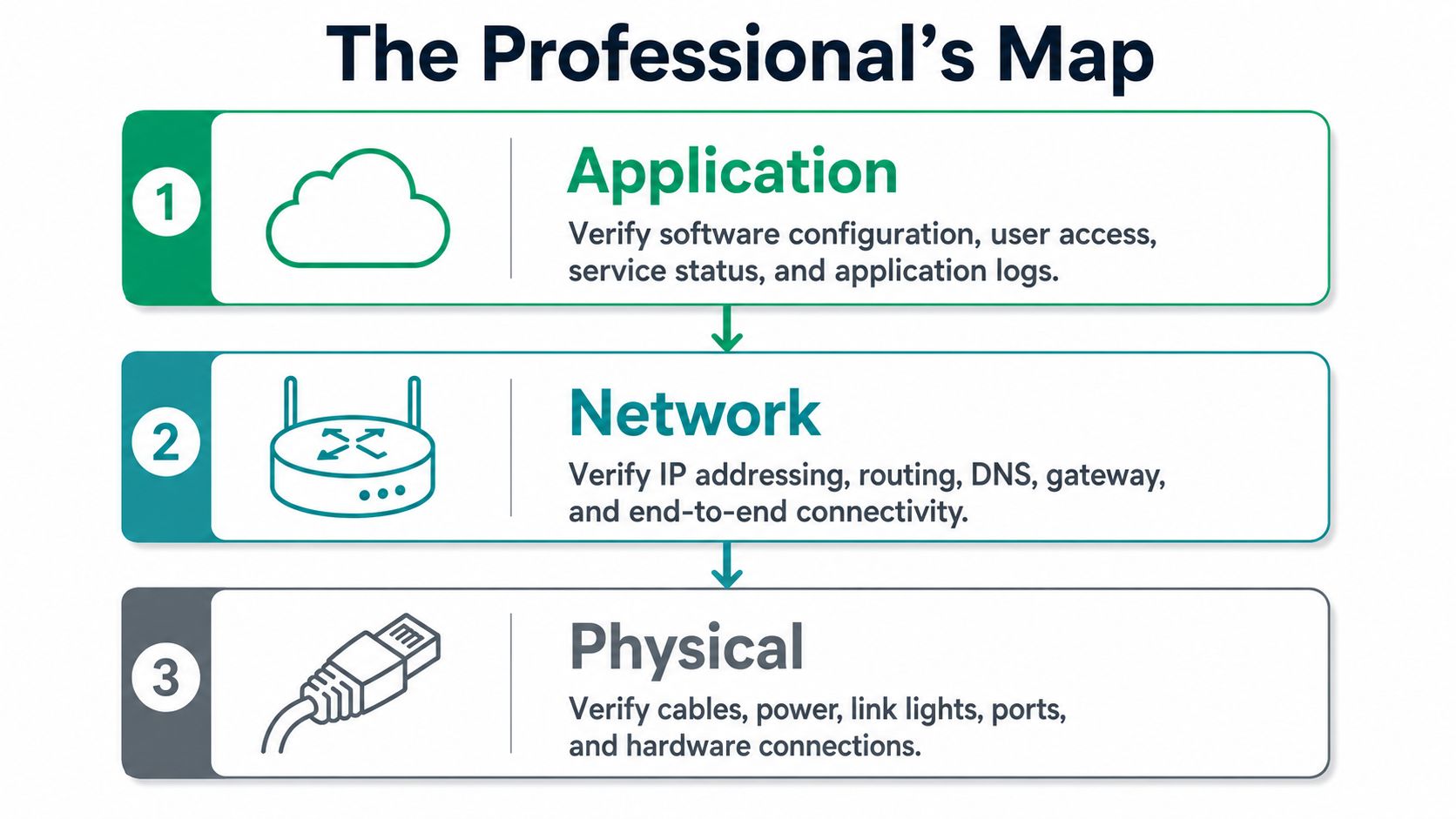
Cisco-style troubleshooting puts real weight on problem definition, logs, topology maps, and a bottom-up OSI approach. It also notes that human error causes 80% of outages, and that ignoring Layer 1 leads to a 30% misdiagnosis rate in this methodology summary from Study CCNA's breakdown of network troubleshooting techniques. That's why experienced engineers start low and move up.
The four layers that matter most in SMB work
| Layer | What you check | Typical failure |
|---|---|---|
| Physical | Power, cables, ports, link lights | Unplugged cable, failed power supply, bad patch cord |
| Data Link | Switch connectivity, VLAN membership, local segment behavior | Wrong port config, dead switch port, loop, AP disconnect |
| Network | IP addressing, gateway path, routing | DHCP failure, gateway issue, ISP edge problem |
| Application | DNS, SaaS access, firewall permissions, app reachability | Name resolution issue, blocked port, vendor-side outage |
A lot of small business troubleshooting gets better the minute somebody draws the network. Even a rough map helps. If your current setup lives in one person's head, fix that. A decent monitoring stack helps too. This roundup of free network monitoring tools for 2026 is a practical place to start if you need better visibility.
The point of the layered workflow isn't to sound technical. It's to stop wasting an hour on DNS when the switch lost power.
Checking the Physical and Data Link Layers
Most ugly outages start with something boring. A loose patch cable. A dead power brick. A switch port that finally gave up. A wall jack that got yanked when someone moved a desk.
That's good news, because boring problems are usually fixable fast.
Start with your eyes, not your keyboard
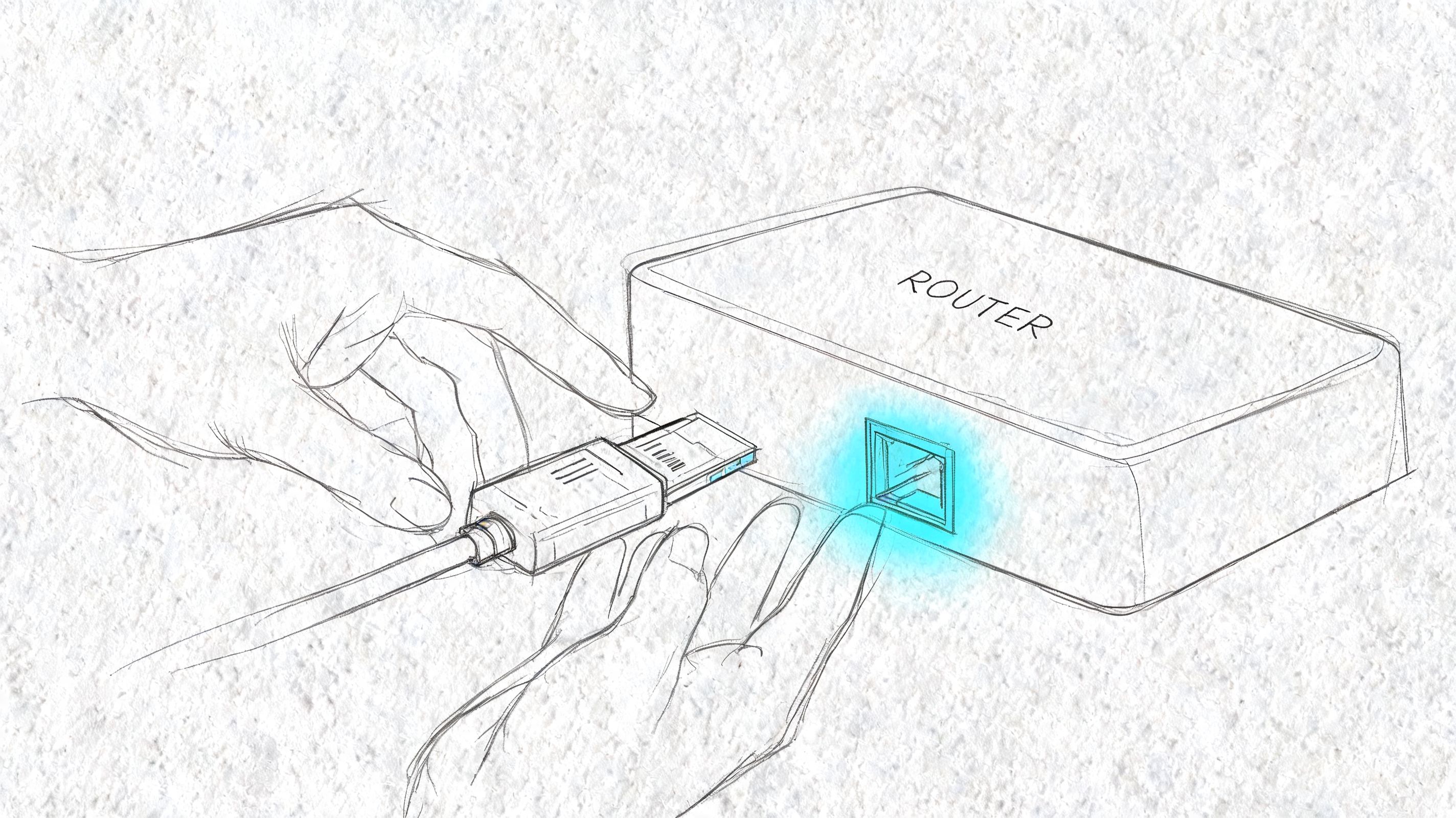
Look at the modem, firewall, switch, and access points before you open a laptop. Are they powered on? Do the link lights look normal? Did anything lose power after a flicker or breaker trip? In plenty of Johnson County offices, the network closet is also where somebody plugged in a space heater. That never ends well.
For a single down device, reseat the ethernet cable on both ends. Then try a known-good cable. Then try another switch port. If a user moved from one desk to another, confirm they're patched into the expected port and VLAN. On UniFi networking, the controller can usually tell you quickly whether an access point or switch has gone offline, dropped uplink, or started flapping.
Physical checks that solve more than people expect
- Cables first: Replace patch cords that look bent, pinched, or stretched.
- Check the uplink path: Make sure the modem feeds the WAN side of the firewall or router, not a LAN port by mistake.
- Test a neighboring port: A failed switch interface can mimic a workstation problem.
- Watch link lights during reseat: No activity often points to cable, NIC, or port trouble.
- Inspect the closet: Heat, dust, and overloaded power strips create all kinds of intermittent pain.
If you're dealing with damaged cabling instead of a simple loose connection, this guide to splicing network cable without downtime gives a solid field-level view of the trade-offs.
Power cycling has its place, but do it after basic checks. If you must restart hardware, do it in a controlled order and make note of what changed after each reboot. Don't bounce every box at once and hope the answer reveals itself.
A quick visual walkthrough helps here:
If the physical layer is wrong, every higher-layer symptom is just noise.
Using Commands to Test Connectivity and DNS
After confirming that cables, ports, and power are functional, stop checking physical connections and begin testing the path logically. Command-line tools prove their value during this phase of the process.
CompTIA's troubleshooting framework has influenced over 2.2 million certified IT pros, and its guidance notes that simple tools like ping and traceroute can resolve over 70% of initial connectivity diagnoses, while ping alone identifies Layer 3 status in over 40% of cases according to CompTIA's troubleshooting methodology overview.
The command flow that isolates the break
Run the commands in sequence. Each answer tells you where to look next.
| Command | What It Does | Example Use Case |
|---|---|---|
ipconfig | Shows local IP settings | Confirm whether the workstation received a valid address and gateway |
ping | Tests basic reachability | Check whether the device can reach its gateway or an outside destination |
tracert | Shows the route traffic takes | Identify where traffic stops between your office and the destination |
nslookup | Tests name resolution | Confirm whether DNS is translating names properly |
What the results usually mean
If ipconfig shows the machine didn't get a valid lease, you're likely dealing with DHCP, not “bad internet.” If the workstation can ping its gateway but can't reach an external destination, the issue may sit at the firewall edge, upstream path, or ISP handoff. If it can reach outside IPs but websites still fail, the problem usually points to DNS.
That's why DNS causes so much confusion in SMB environments. To users, name resolution failure looks exactly like a dead internet connection. It isn't. If you need a practical refresher, this plain-English explainer on what DNS is and how it works is worth keeping handy for your team.
For anyone who wants a more visual explanation of latency and ping behavior, especially when users compare office performance to home internet or gaming lag, this comprehensive ping test gaming guide does a good job of translating the basics into understandable terms.
Don't treat “can't reach the website” as a web problem until you've tested IP path and DNS separately.
Diagnosing Wi-Fi, Security, and Performance Issues
Some of the nastiest support calls happen when the network isn't fully down. It's half-working. Email loads on one laptop. VoIP sounds choppy in the conference room. The warehouse handhelds fall off Wi-Fi every afternoon. A cloud app works over mobile hotspot but not from the office.
That's when you move past basic connectivity and start checking wireless design, security policy, and performance bottlenecks.
Wi-Fi in older Indiana buildings
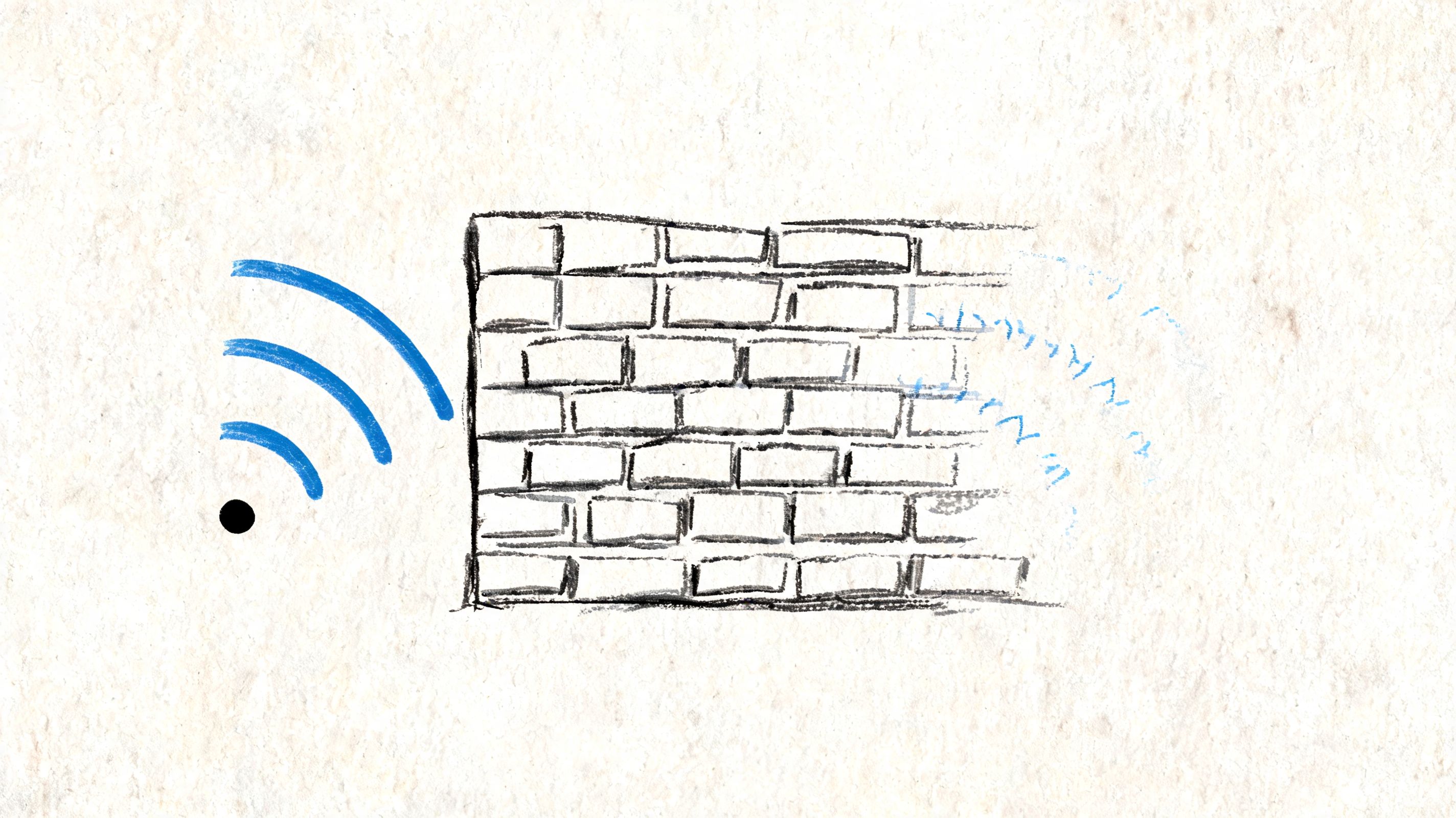
Downtown Indy brick, steel shelving, poured concrete, and remodeled office layouts are rough on wireless. A strong signal near the front desk doesn't mean the back office, exam room, or production floor has usable coverage. In those environments, guessing at access point placement wastes time. A proper site survey beats trial-and-error every time. This guide on fixing Wi-Fi with a wireless network site survey lays out what that process should look like.
Look for channel crowding, dead zones, sticky clients, and weak backhaul between mesh nodes. If you've got latency-sensitive apps, the fix may be repositioning APs, reducing overlap, or switching part of the environment back to wired connections where it matters most.
Security and policy can look like network failure
A good firewall blocks traffic on purpose. That means a new rule, content filter, endpoint policy, or VPN change can create a “network issue” that's really a security policy issue. Check firewall logs for blocked sessions. Check whether a recent endpoint security update changed behavior. On the client side, netstat -an can help show whether expected connections are opening at all.
This matters even more in regulated shops. HIPAA, CMMC, and NIST CSF controls often tighten segmentation and access rules. That's good for risk reduction, but it means troubleshooting has to include policy review, not just packets and cables. If you want a business-focused example of how firms discuss the overlap between operational uptime and protection, this overview of cyber security for South Wales businesses is a useful outside perspective.
When the ISP is the weak link
In rural or fringe-service areas outside the main Indy footprint, the problem may be upstream resilience, not your LAN. A Trend Networks-cited summary on SMB connectivity resilience notes that a 2025 Ookla report found 28% of Midwest SMBs face weekly outages, and that SD-WAN with LTE failover can reduce downtime by 85% for businesses dealing with spotty primary service. For Indiana firms with field teams, clinics, retail counters, or customer demos, that kind of failover is often the difference between a bad morning and a lost day.
When to Call for Backup Escalation and Prevention
There's a point where smart troubleshooting becomes expensive improvisation. If the outage is intermittent, crosses multiple systems, keeps returning after “fixes,” or has any security smell to it, stop poking at it.
That boundary matters. The biggest messes usually come from good people spending too long on the wrong kind of problem. If your office manager is comparing firewall rules, a line-of-business app is timing out randomly, and users report strange pop-ups or failed logins, you're no longer in simple network troubleshooting steps territory. You're in escalation territory.
Signs the issue needs a senior hand
- Intermittent failures: These often need logs, baselines, and packet-level review.
- Config drift: If nobody's fully sure what changed, guessing makes it worse.
- Security suspicion: Unusual outbound connections, blocked sign-ins, or policy anomalies need immediate containment.
- Multi-site weirdness: Branch offices, VPNs, and cloud apps add too many moving parts for seat-of-the-pants fixes.
A modern managed approach also changes the economics. According to this write-up on AI-driven network troubleshooting trends, tools such as Cisco's AI Network Analytics can foresee up to 92% of network failures 24-48 hours in advance, and SMBs using manual troubleshooting methods have a 3x higher MTTR. Whether or not you adopt that exact stack, the bigger point is solid. Prevention beats emergency labor.
What prevention actually looks like
Prevention is not “we bought a nicer firewall once.” It's disciplined operations.
- Configuration control: Changes are documented, approved, and reversible.
- Monitoring: Devices, uplinks, APs, and critical services are watched continuously.
- Baseline performance: You know what normal latency, uptime, and wireless health look like.
- Failover planning: Secondary connectivity, tested backups, and recovery procedures exist before the outage.
- Security alignment: Zero Trust architecture, endpoint control, and SOC-as-a-Service monitoring support both uptime and compliance.
That's how IT stops being wasted tech time and starts turning into predictable operating cost. It also matters for regulated industries around Greenwood and the I-65 corridor. Healthcare groups need protected availability under HIPAA. Defense-adjacent manufacturers need tighter process and access discipline for CMMC. Everybody benefits from cleaner controls under NIST CSF.
If your business has outgrown break-fix responses and needs a more durable foundation, a professionally managed networking and Wi-Fi environment is usually where the bleeding stops.
If your company in Greenwood, Indianapolis, or the surrounding Central Indiana market is tired of chasing repeat outages, Finchum Fixes IT offers a Free Network Assessment built for local businesses. We'll help you identify weak links in cabling, Wi-Fi, firewall policy, failover design, and overall resilience so your network supports billable work instead of interrupting it.