Prevent Downtime: Data Recovery from Corrupted Hard Drive
TL;DR
- Stop using the drive immediately. Reboots, scans, and installs can make recovery harder.
- Figure out whether the failure is logical or physical. A drive that shows up but has a corrupted file system is very different from one that clicks or disappears from BIOS.
- If you try DIY recovery, clone first. Work from a bit-level copy, not the original disk.
- Mail-in recovery can add dangerous delay for Indiana businesses. Local triage matters when operations are stalled.
- Professional recovery is often worth it when the drive has physical damage, sensitive business data, or failed DIY attempts.
- The real fix is business continuity. Recovery helps once. Backups, endpoint security, and tested disaster plans keep you from reliving the same outage.
A business owner in Greenwood usually knows something is wrong before the error message gets specific. The accounting share opens slowly. QuickBooks hangs. A CAD folder throws a read error. Then someone restarts the server, and the drive comes back as RAW, unallocated, or not accessible at all.
That’s when panic causes the second problem.
Data recovery from corrupted hard drive issues is rarely just a technical event. It’s an operations event. Staff stop billing. Phones still ring. Orders still need shipping. If the corrupted drive holds medical records, legal files, project documents, or line-of-business data, the clock starts burning money and goodwill at the same time.
For Johnson County business owners, the biggest mistake isn’t only clicking the wrong repair tool. It’s assuming every recovery situation should be boxed up and mailed across the country while the office sits idle.
The Cost of a Click You Can't Take Back
A familiar Southside scenario goes like this. A small office near the I-65 corridor has an aging server tucked into a back closet. It has file shares, a local database, maybe a legacy app nobody wants to touch because it still “works.” Then one morning, someone opens a folder and gets an error. Another user can’t save changes. A restart follows. Now the system boots, but the data volume won’t mount.
That first bad click often isn’t the fatal one. The fatal one is the repair attempt made under pressure.
Downtime gets expensive fast
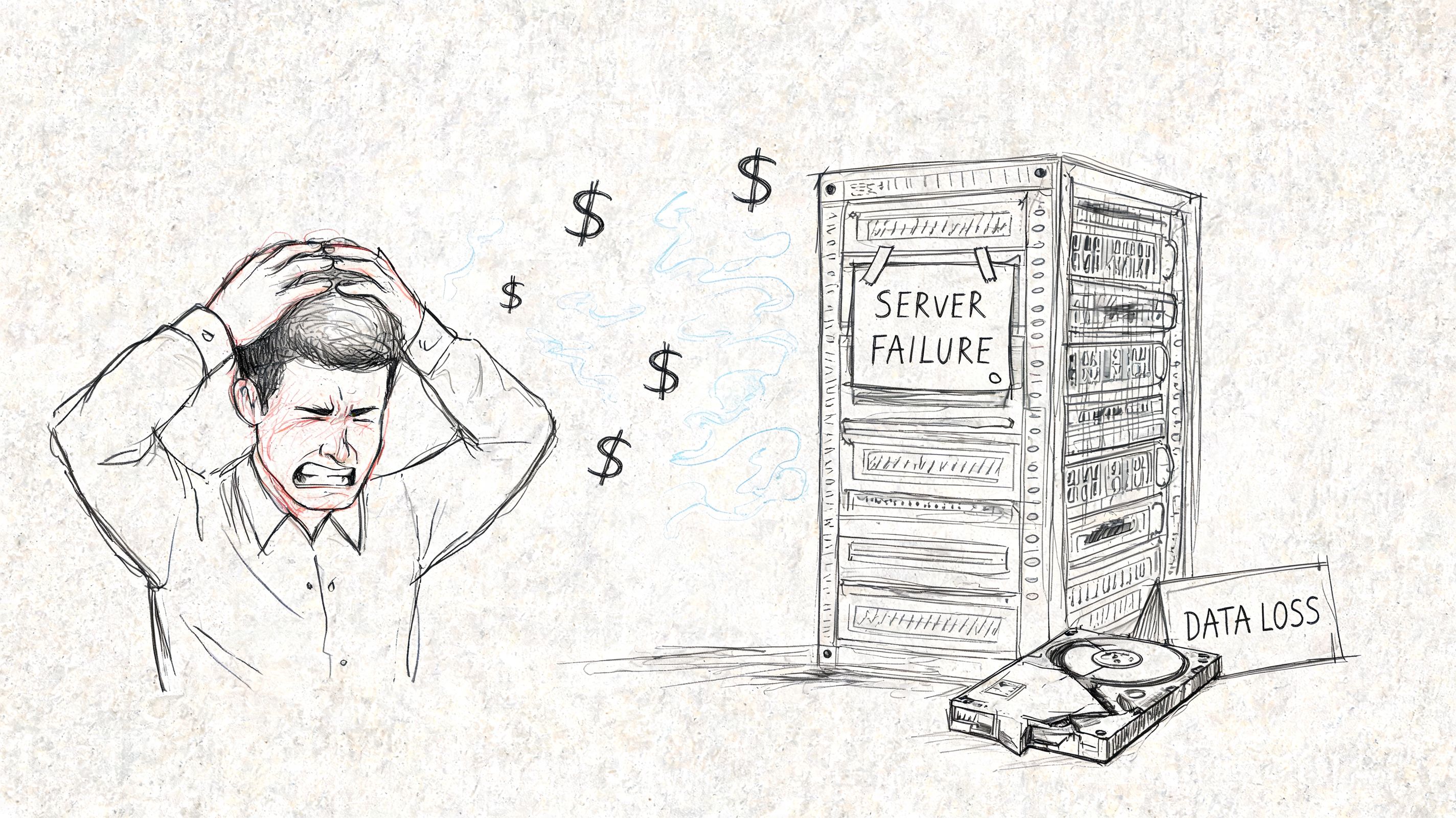
The reason business owners feel this in their chest is simple. Downtime has a way of spreading. One failed drive turns into stopped invoicing, delayed scheduling, missed production updates, and employees waiting for answers. The author brief for this article frames the upper end of downtime at up to $9,000 per minute, and even when your real number is lower, wasted tech time still turns into lost billable time and budget chaos.
A separate recovery industry analysis points out a specific Midwest problem. Many recovery options are built around national mail-in workflows, with shipping delays of 3 to 7 days, while business interruption has been cited at $5,600 per minute and 60% of SMB data losses lead to closure within 6 months. The same analysis notes that local providers in Greenwood can offer under-2-hour diagnostics for same-day triage in some cases (regional recovery delays and local-response context).
That’s the ROI argument in plain English. Speed matters before recovery even starts.
Why mail-in isn't always the smart first move
Mail-in labs absolutely have a place. If a drive needs controlled cleanroom work, specialty parts, or deep platter-level intervention, that route may be necessary. But for many Indiana businesses, the hidden cost is dead time. The box has to be packed. The chain of custody has to be trusted. The office waits. Nobody knows whether the issue was a recoverable logical corruption, a controller problem, or something that could have been stabilized locally the same day.
Business continuity rule: The first win is not “getting every file back.” The first win is stopping the situation from getting worse while you preserve the best path back to operations.
That matters even more if the affected machine holds regulated or sensitive information. Before any device leaves your building, review basic best practices for device data security. Chain of custody, access controls, and privacy handling shouldn’t be an afterthought after the box is already on a truck.
Recovery is only half the conversation
If you’ve never mapped the difference between immediate response and long-term resiliency, it helps to separate the two. A corrupted drive is the disaster event. The way your company keeps working is the continuity plan. This is why many SMBs benefit from understanding business continuity vs disaster recovery before they’re in the middle of a drive failure.
A corrupted hard drive can be a technical fault. The damage to your company usually comes from delay, guesswork, and repeated failed attempts. Those are fixable. The next move is what decides whether this stays a bad morning or becomes a business-threatening week.
First Response What To Do And Not Do Immediately
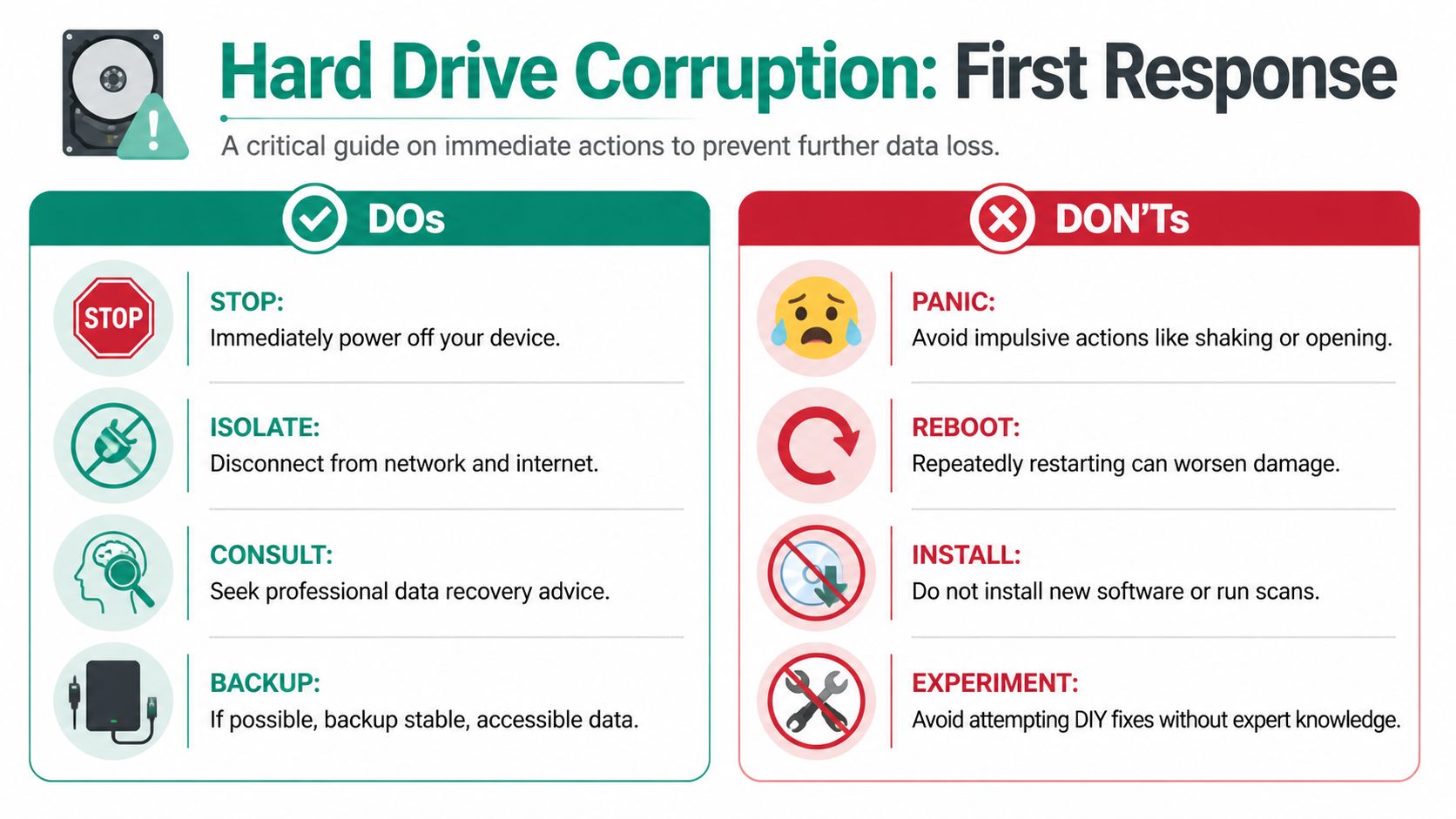
If the drive contains important business data, stop. Don’t browse folders to “see what’s still there.” Don’t run every utility Google throws at you. Don’t keep rebooting because it worked once before.
The goal in the first hour is preservation, not repair.
The mistakes that make recovery harder
Most damage after corruption comes from good intentions applied at the wrong time.
- Repeated reboots: Each startup can trigger background writes, file system checks, temp file creation, or failing hardware behavior that pushes a weak drive further downhill.
- Installing recovery software on the same drive: If you write new data to the affected disk, you can overwrite unallocated space that still contains recoverable fragments.
- Running repair tools blindly: Utilities can modify file system structures. If your diagnosis is wrong, they may “fix” the drive into a less recoverable state.
- Copying huge folders first: Pulling data from an unstable disk without a plan can stress weak sectors and stall the drive before you get the important files.
- Opening the drive casing: A standard office or workshop is not the place to expose platters or heads. Dust and mishandling can end the conversation permanently.
- Letting multiple people try: One person runs chkdsk, another tries a freeware scanner, someone else swaps cables and reboots again. That chain of random effort destroys evidence.
If your team is asking, “Should we just try one more tool?” the safest answer is usually no, not until you know what kind of failure you have.
What to do instead
Use a disciplined first-response checklist.
- Power the system down cleanly if possible. If the machine is frozen and the drive is actively failing, shut it off and stop the reads.
- Disconnect it from the network and internet. If malware or ransomware is part of the event, isolation matters.
- Label the drive and system. Note the machine, user, symptoms, time of failure, and any sounds or messages.
- Preserve what you know. Take photos of error screens. Write down whether the drive showed up in BIOS or Disk Management.
- If some data is still stably accessible, copy only the most critical items to a separate destination. Don’t write anything to the source.
- Move the drive to a healthy recovery workstation if needed. That system should have enough storage to receive a clone or image.
- Keep users off the device. Curiosity kills recoverability.
Why these steps matter at the file-system level
A corrupted hard drive often still contains intact data blocks. The problem is that the operating system can’t interpret them correctly, or the hardware is struggling to serve them reliably. When Windows mounts a damaged volume, it may attempt background corrections. When a user installs software on the same disk, the OS writes installers, logs, temp files, cache files, and registry changes. None of that feels dramatic in the moment. It’s still writing over space you may need.
That’s why I’d rather see a business owner do less than do more.
For file deletion on a healthy system, the process is different. If your issue is a missing file and the drive itself is stable, this practical guide to recover deleted files from a computer for Indianapolis businesses is the better path. Corruption is a different animal.
The first question to ask your team
Ask one thing before anyone touches the machine again.
- Did we hear clicking, grinding, or beeping?
- Does the drive still appear in BIOS or disk tools?
- Was there a power event, forced restart, or blue screen first?
- Did the issue begin after accidental formatting, malware, or software failure?
Those answers shape the next move. Data recovery from corrupted hard drive situations gets safer when the response is boring, methodical, and fast. The dramatic stuff belongs in movies, not in your server closet off County Line Road.
Diagnosis Is It Logical or Physical Failure
Before you pick a tool, you need a diagnosis. Most recovery attempts fail because the user treats every bad drive like a software problem. It isn’t.
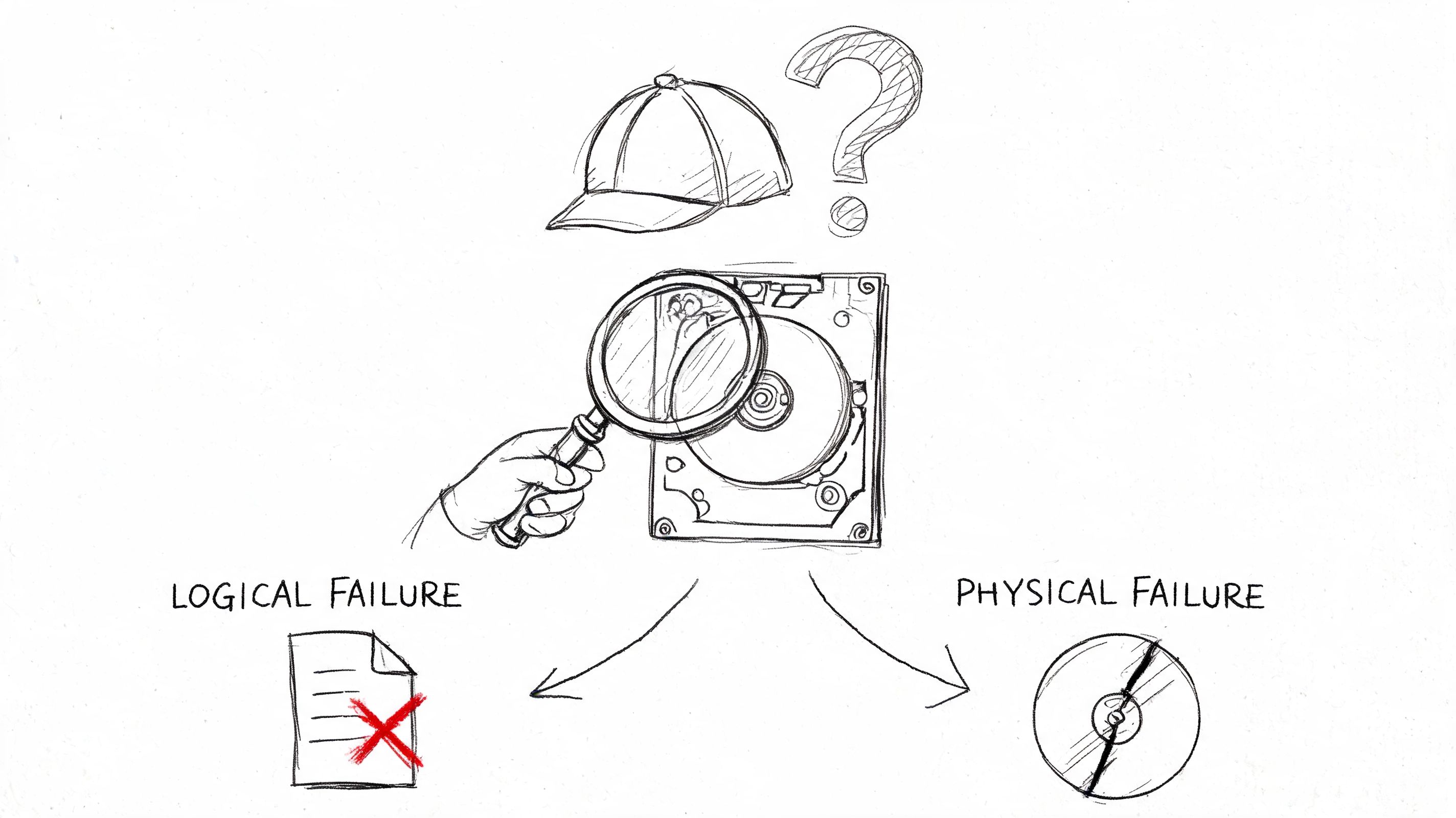
A corrupted drive usually falls into one of two buckets. Logical failure means the data structures are damaged, but the storage media still responds. Physical failure means the hardware itself is failing, whether that’s heads, motor, controller electronics, NAND behavior in an SSD, or media damage.
Signs that point to logical corruption
A logical issue often looks scary but stays recoverable if you don’t make it worse.
Common signs include:
- The drive is detected normally: BIOS, UEFI, or Disk Management can still see the device.
- The partition looks wrong: It shows as RAW, asks to be formatted, or reports file system errors.
- Folders are missing or names are garbled: The underlying data may still exist even though the file system map is damaged.
- The system boots, but files won’t open: Corruption may be isolated to indexes, directory records, or allocation metadata.
- No abnormal mechanical sounds: Silence is a much better sign than clicking.
The technical reason is straightforward. The operating system depends on file system tables and chains to know where each file begins, how it continues, and what name and path it belongs to. If those structures are damaged, the data blocks can still be present but hard to assemble cleanly.
How specialists approach logical recovery
Recovery work on logical corruption follows a disciplined sequence. According to Gillware’s explanation of hard drive recovery with bad sectors, logical corruption is the most common defect in hard drive recovery scenarios. Their described process starts with diagnostics using tools such as chkdsk on Windows or badblocks on Linux to identify soft bad sectors. For deeper issues, recovery software scans the file system, detects broken data chains, and reconstructs allocation using file system tables. Once the media is readable, technicians create a forensic clone of the entire disk before using proprietary recovery tools, because working on the original drive risks further degradation (logical corruption methodology and cloning sequence).
That order matters. Diagnosis first. Clone second. Recovery work third.
Practical rule: If the source drive is the only copy of your business data, treat it like evidence. You don’t experiment on evidence.
Signs that point to physical failure
A physical failure usually announces itself more bluntly.
Look for these symptoms:
| Symptom | What it usually suggests | Safe response |
|---|---|---|
| Clicking or grinding | Head, platter, or actuator trouble | Power down and stop |
| Burn smell or visible board damage | PCB or power event | Stop and isolate |
| Drive not detected at all | Electronics, firmware, or severe media failure | Don’t keep rebooting |
| Spins up, drops out, reconnects | Unstable hardware state | Attempt no casual scans |
| Extremely slow reads with escalating errors | Media degradation | Clone only if safe and controlled |
A drive that vanishes from BIOS is not the same problem as a drive that appears with a corrupt NTFS volume. One needs data-structure work. The other may need electronics, firmware handling, or controlled lab intervention.
Why diagnosis changes the whole strategy
If it’s logical, you might have a path to careful DIY recovery. If it’s physical, the same DIY tools can grind the drive into a worse state.
This distinction also matters when a business is choosing new storage. The old HDD versus newer SSD discussion isn’t just about speed. Failure behavior changes, too. If your office is planning a refresh, this comparison of solid-state drive vs hard drive options for Indy businesses helps frame the reliability trade-offs in plain terms.
A simple decision test
Use this short test before you proceed:
- Detected, quiet, and file-system weirdness only: likely logical.
- Undetected, noisy, or electrically suspect: likely physical.
- Partially readable but unstable: mixed case. Treat it as fragile and move toward cloning, not repair.
That last category catches a lot of SMBs. The drive mounts sometimes. A few folders open. Others hang forever. That’s when business owners get tempted to keep digging manually. Resist that urge. Mixed failures are where rushed recovery attempts go sideways fast.
The Safe Path to DIY Recovery Cloning Your Drive
If the drive appears stable enough for a controlled read and you’re dealing with a likely logical problem, the safest DIY path is cloning. Not copying files. Not dragging folders onto a USB drive. Cloning.
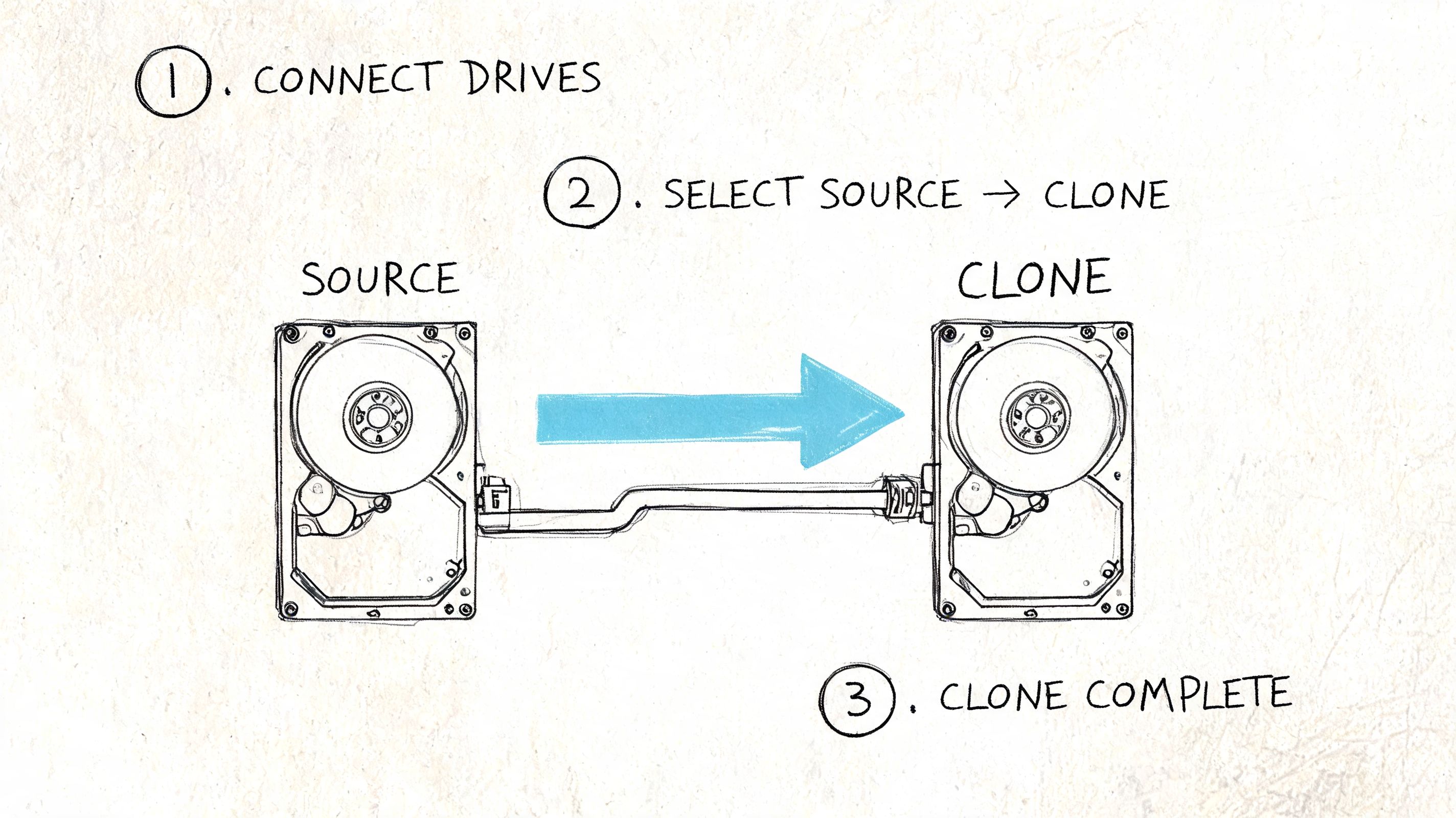
That means making a bit-level duplicate of the source to a separate target and doing your recovery work on the clone. The original stays untouched as your fallback.
Why cloning comes first
A file copy only grabs what the file system can still see. A clone captures the good, the bad, the hidden, and the damaged areas as completely as the hardware allows. That gives you options later, including file system repair on the image, partition reconstruction, or file carving.
For data recovery from corrupted hard drive cases, this is the line I don’t want SMB owners to cross: never perform your first serious recovery attempt against the original disk if you can avoid it.
What you need on the bench
Set up a clean recovery environment before you begin.
| Tool | Platform | Key Feature | Best For |
|---|---|---|---|
| GNU ddrescue | Linux | Handles read errors intelligently and logs progress | Failing or unstable drives |
| Clonezilla | Linux boot environment | Broad imaging support | Structured cloning tasks |
| R-Studio | Windows and macOS | Recovery plus imaging features | Mixed office environments |
| DMDE | Windows, macOS, Linux | Deep partition and file-system inspection | Advanced logical recovery |
| Disk drill-style consumer tools | Varies | Easier interface | Simple logical issues after cloning |
You also need:
- A healthy destination drive: Equal or greater capacity than the source.
- A separate workstation: Don’t perform recovery from the affected production machine if you can help it.
- Stable power: A flaky power strip is a lousy lab partner.
- Patience: Recovery from a damaged disk can take a long time.
The basic workflow
Connect drives correctly
Use the failed or corrupted drive as the source. Connect a healthy blank drive or large image destination as the target. Double-check which is which before running anything destructive.
If this is a laptop drive from an office in Greenwood or downtown Indy, I prefer connecting it to a known-good workstation with direct SATA or a reliable adapter. The less mystery in the chain, the better.
Start with a non-destructive first pass
GNU ddrescue is a strong choice because it reads good sectors first and keeps a map file so you can resume. That matters when the drive is unstable.
sudo ddrescue -f -n /dev/sdX /mnt/recovery/disk.img /mnt/recovery/ddrescue.log
In that command:
/dev/sdXis the source drive./mnt/recovery/disk.imgis the output image file on a healthy destination./mnt/recovery/ddrescue.logis the map file that tracks progress.-ntells ddrescue to skip aggressive retries on the first pass and capture the easy reads first.-fallows writing to the output target.
That first pass is about preservation. Get the readable data while the drive is cooperating.
After the first pass
Once the easy sectors are captured, you can decide whether a second pass is worth the stress on the source. On a healthy-enough disk with some weak sectors, a limited retry pass may help. On a drive that’s getting hotter, slower, or noisier, stop.
A lot of business owners make the mistake of believing more retries always mean more recovered data. Sometimes they do. Sometimes they’re what pushes the drive over the edge.
Here’s a useful visual walkthrough before you get deeper into tool choices:
What to do with the clone
After the image or clone is created, all further work happens there.
Mount it read-only first
If possible, inspect the image in read-only mode. See whether partitions appear correctly. If the file system mounts, copy the highest-value business data first. Accounting exports, legal matter folders, line-of-business databases, payroll records, and current project files should go before photo archives and old downloads.
Then choose the right recovery method
Different corruption types need different approaches.
- Deleted files on an otherwise healthy structure: Metadata-based recovery can work well.
- Formatted or lost partition: Signature-based scanning may be more useful.
- Damaged directory tree: Partition tools and file system reconstruction become more important.
- Severely broken structure: File carving can recover content, but often without original names and folders.
The key trade-off is convenience versus completeness. Friendly GUI tools are easier to use. They also make it easier to click the wrong thing without realizing what changed.
What works and what doesn't
A few blunt truths help here.
- Working from a clone works. It preserves your fallback.
- Installing recovery software onto the original disk doesn’t.
- Targeted extraction of critical folders works better than random full-drive browsing.
- Fixing the file system before imaging the source usually doesn’t.
- Read-only inspection is smart. Blind write operations are not.
The best DIY recovery sessions feel slow and boring. Fast, improvised recovery is usually where the damage happens.
Where business continuity enters the picture
Even if you recover the data, the event exposed a bigger weakness. A company with solid backups, endpoint protection, and documented recovery procedures doesn’t have to turn one bad drive into a week-long outage. Immutable off-site backups, tested restores, endpoint controls like Bitdefender GravityZone, and a NIST CSF-aligned operational approach begin paying for themselves in such situations. Recovery is emergency medicine. Business continuity is the habit that keeps you out of the ER.
When to Stop and Call the Professionals
DIY has a place. Pride shouldn’t run the recovery plan.
There are clear stopping points where continued homegrown work becomes reckless, especially if the drive holds client files, regulated records, or the only copy of the company’s active data. If your office deals with HIPAA data, legal records, financial documents, or CMMC-sensitive project material, you need a much lower tolerance for gambling.
The red flags that should end DIY attempts
Stop and hand it off if any of these are true:
- The drive clicks, grinds, or beeps
- It disappears from BIOS or the operating system entirely
- It has visible electrical damage
- Your cloning pass stalls hard or returns a flood of read errors
- The data is business-critical and there is no verified backup
- The device was dropped, overheated, or exposed to liquid
- You’re dealing with a RAID set and don’t fully understand stripe order, parity, or controller dependencies
A lot of people wait one step too long. They hear the clicking, run one more scan, and turn a potentially recoverable drive into a parts donor.
Why professional recovery can be worth the money
Professional intervention is not magic, but it’s often much more capable than small-business owners assume. One long-established provider profile notes that ACE Data Recovery, founded in 1981, reports a 98% success rate for crashed or corrupted hard drives and related storage cases, including some drives called unrecoverable by others. The same source says professional recovery in the U.S. typically runs $100 to $300 per hour, can exceed $1,000 per drive depending on complexity, and contrasts that with DIY software averaging about $90. It also notes that many providers reduce risk with a no-recovery-no-charge model (professional recovery success rates and cost ranges).
That trade-off makes sense when the alternative is permanent loss of contracts, records, or operational data.
What pros actually do differently
Professional recovery teams can bring tools and processes that a standard IT bench doesn’t have:
- Class 100 cleanroom work for drives that need internal access
- Bit-level imaging hardware designed for unstable media
- Controller and PCB handling when electronics are involved
- Firmware and translator work on drives with internal access issues
- Controlled RAID reconstruction when multi-disk storage fails
- Chain-of-custody practices that matter for confidential business information
The point isn’t that every drive needs a lab. The point is that some drives absolutely do, and the damage curve gets steeper every time the wrong person “tries one more thing.”
A practical line in the sand
If you’ve already reached the limit of a careful clone-first workflow, stop there. Don’t convert a manageable logical recovery into a physical disaster because the office needs an answer before lunch.
For organizations that already know the drive is beyond safe DIY, a dedicated business data recovery service is the right next step. The cost of expert help usually looks much smaller when you compare it to halted operations, compliance exposure, and the time your team is wasting hovering around a dead machine.
Conclusion Your Data Is Your Business Secure It
A corrupted hard drive creates two jobs. The first is recovery. The second is making sure you never have to bet the company on a single disk again.
The safe workflow is simple even when the situation isn’t. Stop using the drive. Diagnose the failure type. Clone before recovery. Work from the copy. Escalate quickly if the symptoms point to hardware trouble. That sequence protects recoverability and keeps bad decisions from stacking up.
Recovery solves the incident, not the weakness
Most Indiana SMBs don’t lose sleep over file system metadata, bad sectors, or forensic imaging. They lose sleep over payroll, customer trust, and whether the team can work tomorrow morning. That’s why the bigger lesson isn’t just about tools like ddrescue or partition scanners. It’s about building an environment where one failed device doesn’t take down the business.
A stronger stack usually includes:
- Immutable off-site backups so ransomware and accidental deletion don’t wipe out every copy
- Endpoint protection such as Bitdefender GravityZone to reduce corruption tied to malware and unsafe behavior
- Documented restore procedures so backups aren’t just theoretical
- Modern storage planning instead of waiting for aging drives to fail in place
- Zero Trust thinking and NIST CSF-aligned security practices so business continuity and cybersecurity support each other
- Routine reviews of line-of-business systems including servers, workstations, and network storage
Prevention pays better than emergency recovery
That’s the part business owners along the I-65 corridor and across the Indy metro eventually figure out. Emergency recovery is expensive mostly because it arrives without warning. Prevention costs less in stress, less in downtime, and less in wasted labor.
If you want a practical starting point, review these data loss prevention best practices for Indiana businesses. The right backup policy, storage lifecycle plan, and endpoint controls can turn a future drive failure into a routine restore instead of a full-blown business interruption.
Your data is not a side issue. It is your scheduling, billing, contracts, files, records, and operating memory. Protect it like revenue, because that’s exactly what it is.
If your business in Greenwood, Indianapolis, or anywhere in the surrounding metro needs a second opinion on a failing drive, a stronger backup plan, or a cleaner recovery process, talk to Finchum Fixes IT. Ask for a Free Network Assessment or a Security Risk Audit. It’s a straightforward way to find weak points before the next corrupted drive turns into real downtime.