How Do You Stop Spam Emails in Outlook? An Indy Guide
If you run a business off Main Street in Greenwood, in a Johnson County office park, or anywhere along the I-65 corridor, spam email isn’t a small annoyance. It steals attention, buries real work, and raises the odds that someone on your team clicks the wrong thing while rushing through a crowded inbox.
Most owners I talk to don’t ask, “how do you stop spam emails in outlook” because they love tweaking settings. They ask because the front desk is wasting time, accounting is worried about fake invoices, and sales keeps missing real customer replies under junk. That’s a business continuity problem. When critical systems go down, downtime can cost up to $9,000 per minute. Spam is smaller than a full outage, but it pushes in the same direction. It creates distraction, delays, and avoidable mistakes.
The good news is that Outlook gives you useful tools. The bad news is that user-level tools only solve part of the problem.
Your Inbox Is Costing You Money
A common Southside scenario looks like this. A small company in a Greenwood business park opens Outlook every morning and starts with triage. Delete fake invoices. Delete “urgent” shipping notices. Delete sketchy payroll alerts. Then somebody asks whether a vendor message disappeared into Junk.
That first chunk of the day adds up fast. It’s not dramatic enough to feel like a server crash, but it has the same effect on the business. People spend paid time sorting junk instead of answering customers, shipping orders, or sending quotes. That’s wasted tech time dressed up as “just email.”
Spam isn’t only an inbox issue. It’s a workflow issue.
The Federal Trade Commission’s guidance on getting less spam is blunt about the problem. Spam is a persistent nuisance that hurts inbox productivity, and blocking specific addresses or whole domains can help against repeat offenders.
For business owners, that means two things.
- User habits matter: Your team should know how to mark junk, block obvious repeat senders, and check the Junk folder for legitimate mail.
- Business controls matter more: If your company depends on email for scheduling, invoicing, patient communication, bids, or support tickets, you need a bigger plan than “everyone clean up your own inbox.”
If you haven’t thought about spam as part of your broader security posture, it belongs in the same conversation as phishing, account compromise, and data exposure. This Indiana business guide to preventing data breaches is a good companion read because inbox chaos and breach risk often travel together.
TL;DR
- Start with Outlook basics: mark spam as junk, block repeat senders, and review your Junk folder regularly.
- Use the right filter level: stronger Outlook filtering catches more junk, but it can also bury legitimate business email.
- Don’t rely on manual blocking alone: spam often returns from new addresses.
- Create custom rules: route suspicious mail by sender, keywords, or patterns before it interrupts staff.
- For Microsoft 365, use admin controls: organization-wide protections work better than one user fixing one inbox.
- Treat spam as an ROI issue: less inbox clutter means more billable work, fewer mistakes, and a more predictable monthly IT budget.
The Quick Fixes Every Outlook User Should Do Today
Start with the tools already in Outlook. They won’t solve every spam problem, but they’ll clean up a lot of noise if your team uses them consistently.
Pick the right Junk Email level
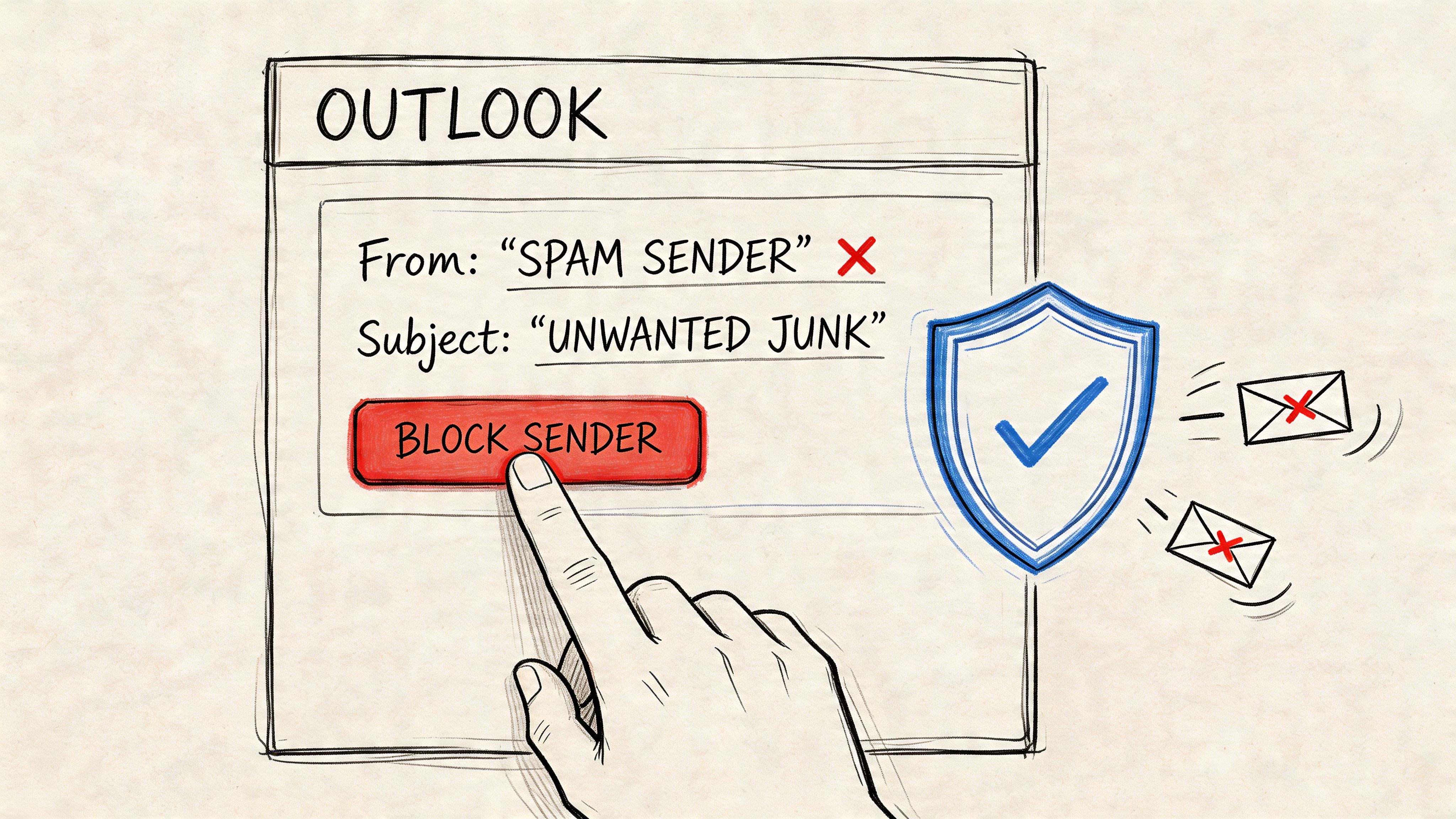
Microsoft gives Outlook several Junk Email Filter levels. The default is No Automatic Filtering, though Outlook still evaluates messages using blocked senders lists. You can increase that to Standard or Safe Lists Only. Microsoft also notes the trade-off clearly. More aggressive filtering increases the risk that legitimate business email gets flagged as junk in the first place, as explained in Microsoft’s Outlook junk filter documentation.
For most businesses, Standard is the sane choice. It gives you more protection without turning the inbox into a fortress that blocks normal work.
Use this rule of thumb:
| Setting | Best for | Risk |
|---|---|---|
| No Automatic Filtering | Light spam volume, careful users | More junk reaches inboxes |
| Standard | Most SMBs | Some legitimate mail may hit Junk |
| Safe Lists Only | Highly restricted workflows | High chance of missing real business email |
Block senders and domains the right way
If the same sender keeps showing up, block them. If the junk keeps changing names but comes from the same company or pattern, block the domain instead.
That’s a better use of your time than playing email whack-a-mole one message at a time.
Try this sequence with staff:
- Mark obvious junk as junk. That helps train the system.
- Block the sender when it’s a repeat nuisance from one address.
- Block the domain when spam rotates across multiple addresses from the same source.
- Add important contacts to Safe Senders so vendor quotes, customer replies, and line-of-business notifications don’t vanish.
A lot of teams also benefit from simple outside reading on email spam blocking tips because it reinforces the difference between deleting a message and training or blocking against future mail.
Don’t set traps for yourself
There’s one Outlook option that sounds appealing but can backfire fast. You can configure Outlook to permanently delete suspected junk instead of moving it to the Junk folder. For a busy office, that feels clean and efficient. It also removes your safety net.
Practical rule: If your business depends on incoming email for revenue, don’t skip the review folder unless you have strong admin-side controls already in place.
For firms handling sensitive workflows, this matters even more. A medical office thinking about HIPAA, a machine shop working toward CMMC requirements, or any Indiana company using NIST CSF as a security baseline needs to favor controlled filtering over blind deletion.
Pair spam cleanup with account security
Spam reduction also gets easier when account security is tighter. If attackers or shady marketers can’t keep abusing weak credentials and exposed logins, your inboxes stay healthier. That’s one reason I always pair spam cleanup with multi-factor authentication best practices for business.
A cleaner inbox starts with better user settings. It stays clean longer when the account behind it is locked down.
Why Manually Blocking Spam Is a Losing Battle
A lot of business owners get stuck here. They block one sender. Then five more appear. They block those. Then the same scam shows up again from brand new addresses.
That’s not bad luck. That’s how the system works now.
Why the spam keeps coming back
A 2025 Have I Been Pwned analysis discussed in this review says 80% of SMB email lists were compromised in recent breaches, leading to 300% spam spikes post-exposure. That’s the missing piece most Outlook guides ignore. Once your address is exposed through a breach, a scraped website, a vendor leak, or a list sale, spammers don’t need to keep using the same sender identity.
They just generate fresh ones.
That’s why blocking a single email address often feels useless. You’re closing one door while a dozen windows are still open.
Blocking works best in narrow cases
Manual blocking still has a place. It’s useful when:
- One persistent nuisance sender keeps hitting a shared mailbox.
- A known bad domain keeps sending fake promotions or junk offers.
- A one-off campaign is flooding one employee and you need fast relief.
It doesn’t work well when your company address has already circulated widely.
If spam is coming from endless new addresses, the problem isn’t one sender. The problem is that your address is now part of a larger spam ecosystem.
That’s also when spam starts blending into phishing. The fake Microsoft alert, the fake payroll notice, the fake voicemail transcription. The subject lines change, the domains rotate, and the volume trains employees to click quickly just to get through the day.
For business owners in Greenwood and across Central Indiana, that’s where the conversation has to move from inbox cleanup to protection strategy. If the junk traffic is growing because your addresses are exposed, your next step isn’t more clicking. It’s better filtering, better authentication, and tighter phishing defenses. This guide on protecting your business against phishing attacks with ROI in mind fits that next stage.
The business impact is bigger than annoyance
When staff manually block spam all day, they aren’t doing revenue work. Worse, they start normalizing suspicious email. Once people get used to seeing junk constantly, they stop slowing down to inspect it.
That’s when invoice fraud, fake password reset emails, and account compromise walk in through the front door.
Build a Smarter Defense with Custom Outlook Rules
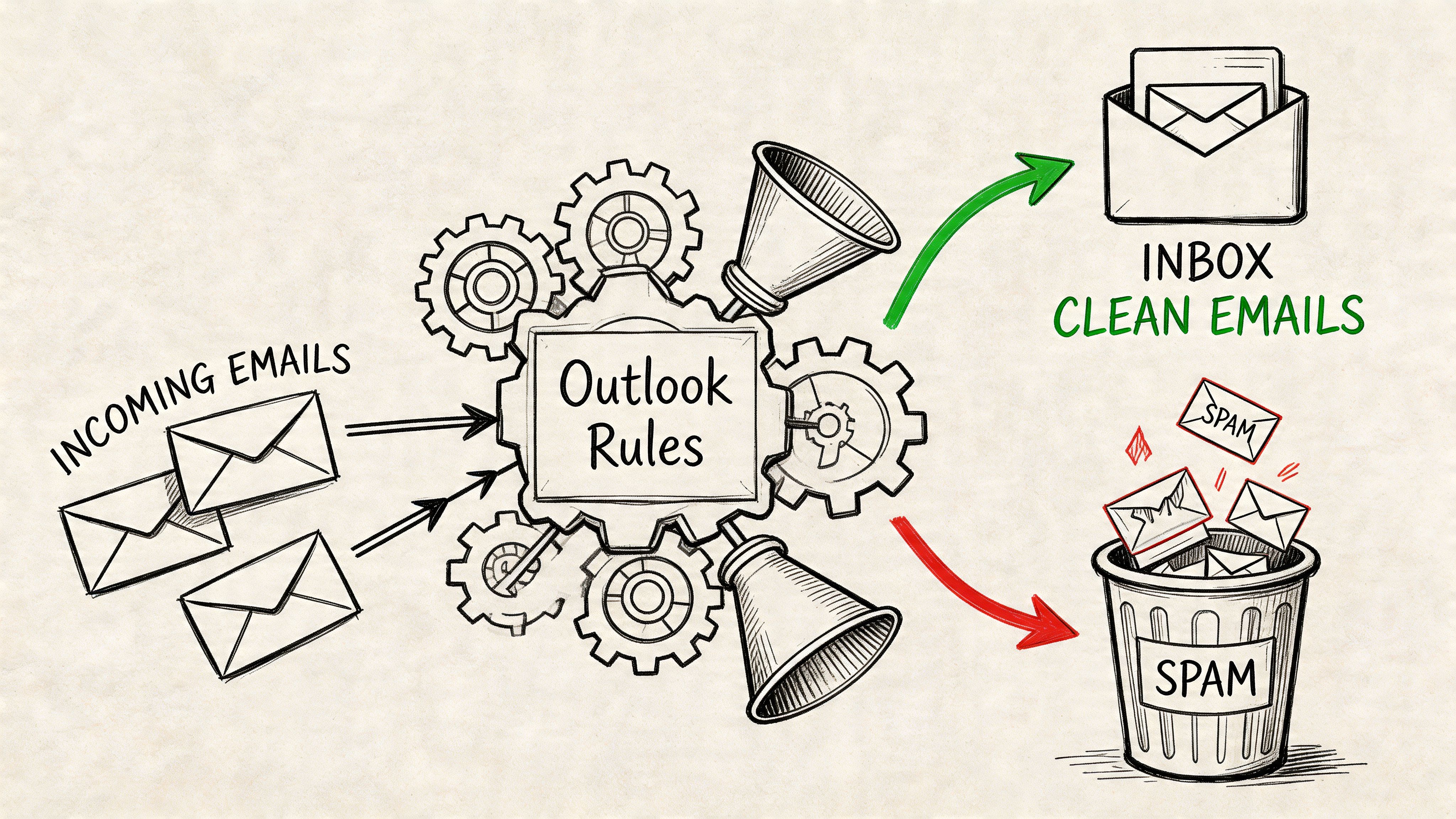
If basic blocking is a flyswatter, Outlook Rules are a screen door. They let you filter patterns before messages interrupt your team.
For a small office, that’s one of the best middle-ground tools available. It’s still easy enough for power users to manage, but it’s much more effective than deleting junk one message at a time.
Use rules for patterns, not random guesses
A law firm near the I-65 corridor might keep seeing fake invoice emails. A contractor might get endless shipping notices for orders nobody placed. A clinic might receive spoofed “secure document” messages that aren’t tied to any real patient system.
Those are good rule candidates because they follow patterns.
Set rules around things like:
- Suspicious subjects: invoice reminders, urgent payment requests, odd voicemail alerts
- Unwanted sender patterns: recurring domains or naming conventions
- Keywords in the body: common promotional junk phrases or fake account warnings
- Routing actions: move to Junk, send to a review folder, or flag for follow-up
A practical rule setup
Inside Outlook, create a rule that catches a repeated pattern and sends it somewhere safe for review instead of deleting it outright.
A simple workflow:
- Open an example message.
- Create a rule based on specific words in the subject or sender domain.
- Route matching messages to a folder named something like Spam Review.
- Check that folder daily for a week.
- Tighten the rule if it catches too much. Broaden it if junk is still getting through.
That review period matters. Business owners often get too aggressive too early and then miss something important from a customer or supplier.
Field-tested advice: Build rules in layers. First route. Then review. Only after that should you consider delete actions.
What rules are good at, and what they’re not
Rules work well for repeat nuisances. They also help teams stay sane when a specific junk theme takes over for a week or two.
They don’t replace organization-wide email security. They’re also not ideal for defending against polished impersonation attempts that look almost legitimate.
Here’s a quick way to understand:
| Tool | Good for | Weak against |
|---|---|---|
| Blocked Senders | One repeat offender | Rotating spam campaigns |
| Outlook Rules | Pattern-based junk | Sophisticated impersonation |
| Safe Senders | Protecting wanted mail | New external threats |
For companies trying to formalize email security, this broader list of email security best practices for Indianapolis businesses helps put rules in the right place. They’re useful, but they’re only one layer.
Keep the rulebook clean
Don’t let employees create dozens of overlapping rules nobody understands. That turns Outlook into a mystery machine where messages disappear for reasons nobody can explain.
Use plain names like:
- Fake invoices
- Promo junk
- Vendor allow list
- Review suspicious attachments
That way, if a mailbox starts behaving strangely, somebody can troubleshoot it without burning half a morning.
The Admin-Level Toolkit for Microsoft 365
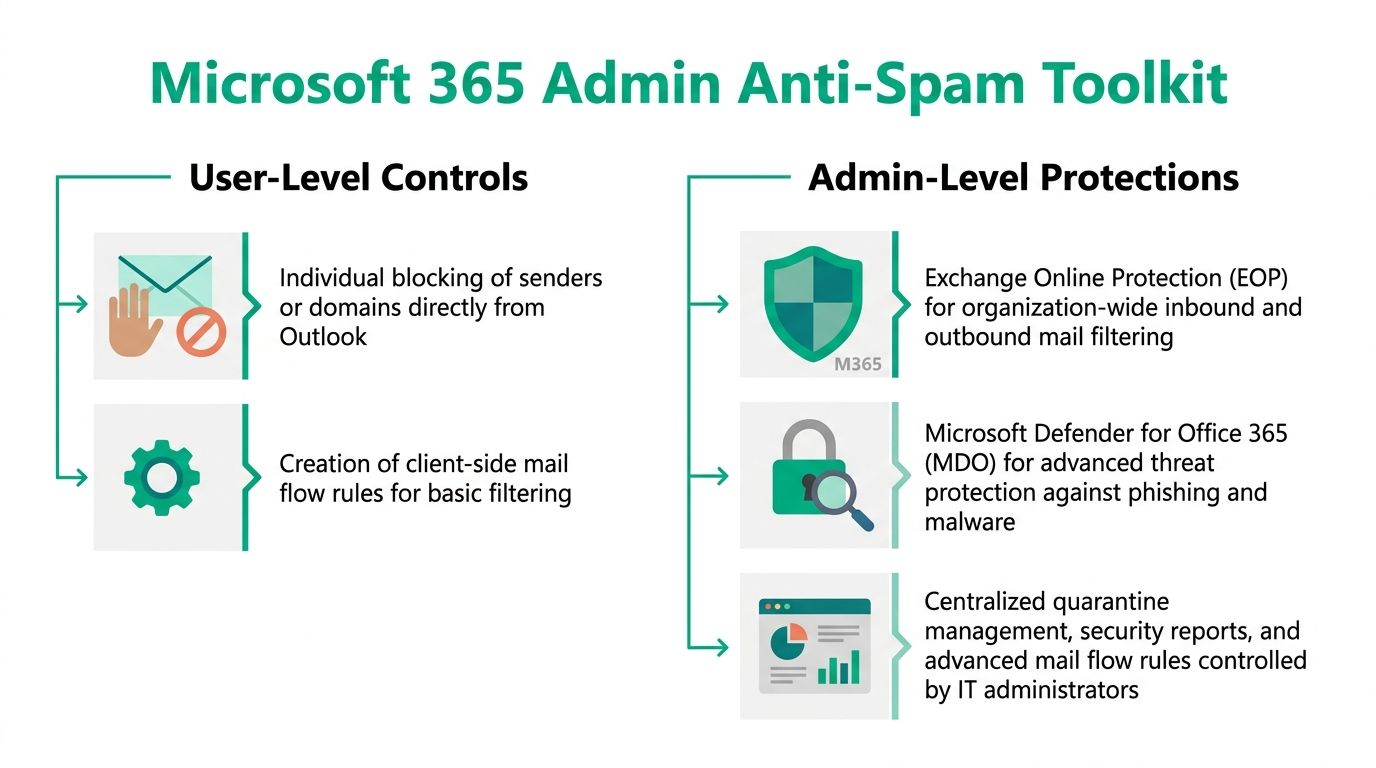
If your company uses Microsoft 365, the primary answer to how do you stop spam emails in outlook isn’t sitting only in each user’s desktop app. It’s in the admin controls that govern the whole environment.
That’s where small and mid-sized businesses usually separate into two groups. One group keeps fighting spam one mailbox at a time. The other group configures tenant-wide protections that cut noise, reduce spoofing, and give IT a central place to review what happened.
What Microsoft 365 gives you beyond Outlook
At the admin level, you’re no longer limited to one employee clicking “Block Sender.” You can manage:
- Exchange Online Protection for organization-wide filtering
- Anti-phishing and anti-impersonation policies
- Spoof intelligence settings
- Central quarantine management
- Mail flow rules that flag, redirect, or quarantine risky messages
- Safe sender and allowed domain strategies that support real business workflows
That’s the level where a finance inbox, helpdesk mailbox, and executive account can all get different treatment based on risk.
Why this matters for Indiana SMBs
A 2025 Verizon DBIR summary referenced here reports that Business Email Compromise incidents rose 15%, with SMBs losing an average of $50,000 per attack. The same source says properly configured IT-managed rules in the Microsoft 365 admin center, including Strict spoof intelligence, can reduce false negatives by 40%.
That’s the main business case for admin-side email security. It isn’t about making Outlook look tidy. It’s about reducing the chance that a fake message reaches the person who can wire money, change payroll details, release protected information, or approve a bad document request.
User settings help with spam. Admin controls help with fraud.
For healthcare groups thinking about HIPAA, manufacturers and subcontractors dealing with CMMC, or any growing business aligning with NIST CSF, this distinction matters. Compliance doesn’t care that an employee meant well when they clicked a polished fake email. It cares whether the organization had appropriate controls.
The controls that actually move the needle
The most important admin-side habits are boring. That’s usually a sign they work.
Tighten spoof and impersonation handling
Business Email Compromise often succeeds because the email doesn’t look like spam at all. It looks like your owner, your controller, your law firm, or your bank.
Admin-side anti-impersonation policies can flag suspicious display names, unusual sender behavior, or lookalike domains before they hit a user’s inbox.
Use organization-wide safe lists carefully
Safe lists are useful. They’re also dangerous when treated casually. If your team allows too broadly, you create clean lanes for bad traffic. Safe listing should focus on known, necessary senders, not giant categories.
Build transport and mail flow rules around business risk
A company with recurring vendor invoice fraud attempts might quarantine external messages that mimic internal departments. A healthcare office may want suspicious messages with urgent attachment language sent to review instead of the inbox. A logistics company might put extra scrutiny on shipping and payment notifications.
That’s where managed IT earns its keep. The right controls fit the way the business operates.
Don’t confuse AI hype with email security basics
There’s plenty of noise right now around Microsoft, OpenAI, automation, and AI-driven platforms. If you’re sorting through that bigger market conversation, this piece on comparing Microsoft Mai and OpenAI is a useful read for context. But for inbox protection, the fundamentals still matter more than buzzwords.
You need strong filtering, sender validation, good policies, review workflows, and smart exceptions.
Tie email security to the rest of the stack
Email doesn’t live alone. It connects to identity, endpoint security, cloud controls, and monitoring. Strong Microsoft 365 mail protection works best when it sits inside a broader stack that may include Zero Trust architecture, Bitdefender GravityZone on endpoints, SOC-as-a-Service monitoring, and documented response procedures.
That’s how you move from “my inbox is messy” to “our business can absorb threats without losing a day of work.”
When to Call for IT Reinforcements
There’s a point where DIY spam control stops saving money and starts burning it.
If three employees spend chunks of every day sorting junk, checking false positives, and asking each other whether a message is real, you’re already paying for email management. You’re just paying for it badly. The cost shows up as delayed work, missed responses, and interruptions that break concentration.
The signs you’ve outgrown user-level fixes
You need IT reinforcements when any of this is true:
- Critical messages keep landing in Junk
- Fake invoice or executive impersonation emails are reaching staff
- Multiple users report the same campaigns
- Nobody can explain why some emails disappear
- Your business has compliance obligations
- You need consistent behavior across every mailbox, not personal guesswork
This is especially common in older office environments around Central Indiana where tech debt piles up. Aging servers, hybrid Microsoft setups, inherited domains, old distribution lists, and half-documented rules create ideal conditions for email chaos.
The technical reason this gets messy fast
Outlook.com’s anti-spam system assigns messages a Spam Confidence Level, or SCL. Based on thresholds, some messages may be deleted before users ever see them in Junk, while others are routed into the junk folder. Microsoft’s Outlook anti-spam explanation for senders and admins makes the trade-off clear. If an admin misconfigures thresholds, legitimate messages can disappear, or spam can flood inboxes.
That’s not a desktop support issue. That’s mail flow management.
Good email security blocks junk without blocking business. That balance takes tuning.
What managed support usually adds
A strong managed IT provider doesn’t just “fix Outlook.” They line up the full stack around business continuity.
That can include:
| Need | Managed approach |
|---|---|
| Better filtering | Microsoft 365 policy tuning and review workflows |
| Stronger endpoint defense | Tools like Bitdefender GravityZone |
| Faster detection | SOC-as-a-Service monitoring |
| Safer infrastructure | Zero Trust controls and identity hardening |
| Business resilience | Immutable off-site backups and tested recovery plans |
When we’ve audited similar Indiana environments, the trouble usually isn’t one bad setting. It’s a chain of weak controls. Mail rules nobody owns. Authentication records left half-finished. Shared mailboxes with broad permissions. No one reviewing quarantine behavior. No one checking whether the finance team is getting hammered with impersonation attempts.
That’s where predictable monthly IT support beats random bursts of cleanup. It converts chaos into process. It also frees your staff to do the jobs you hired them for.
If your internal team is bogged down with basic ticket noise, this look at Tier 1 helpdesk support for Indy businesses gives a good sense of what should be standardized and what needs higher-level engineering attention.
Think in ROI, not just annoyance
A business owner shouldn’t have to become a mail security specialist. Your time belongs in operations, sales, compliance, and customer service. An office manager shouldn’t spend the morning deciding whether a fake Microsoft alert is dangerous. Your accounting lead shouldn’t have to reverse-engineer why an invoice notice vanished.
Professional email protection costs money. So does every minute your team loses to inbox clutter, every delayed response to a customer, and every fraud attempt that gets one click closer to becoming a real incident.
Frequently Asked Questions About Outlook Spam
Should I block every spam sender I see
No. Block obvious repeat offenders and bad domains when the pattern is clear. But if every message comes from a brand new address, you’ll waste time without fixing the underlying issue. In that situation, stronger filtering and admin-level controls matter more than more clicking.
What if spam is spoofing my own company domain
That’s a business problem, not just an Outlook problem. When criminals make messages look like they came from your company, user-level blocking won’t solve it. You need proper Microsoft 365 policy work and domain authentication controls handled by someone who understands business email security.
Is it smart to use Safe Senders for vendors and clients
Yes, in a controlled way. Safe Senders can help prevent legitimate business communication from getting filtered incorrectly. Keep the list tight. Add known vendors, clients, and line-of-business systems you trust. Don’t turn it into a giant exception list.
Can Outlook rules stop phishing
They can reduce noise and catch repeated patterns. They can’t be your only phishing defense. Good phishing protection combines user awareness, admin-side filtering, identity security, endpoint security, and monitoring.
Should key employees get new email addresses
Sometimes that helps, especially when one mailbox has become a magnet for junk over time. But it’s not a magic reset. If the business keeps the same weak controls, the new address can end up in the same cycle. For executives, finance, HR, and anyone handling sensitive workflows, better protection matters more than starting over.
Can spam filters stop ransomware
They help reduce one common delivery path. They do not replace layered security. Real protection comes from combining email filtering with MFA, endpoint protection, least-privilege access, backups, and monitoring. If ransomware hits, recovery quality often depends on things far outside the inbox, including backup integrity and, in worst cases, bit-level data recovery strategy.
What’s the best first step for a small Indiana business
Start with the basics inside Outlook. Then look at Microsoft 365 admin controls if the spam is affecting multiple users or touching financial and operational workflows. If the issue keeps returning, bring in outside help before the lost time turns into a bigger security event.
If your team in Greenwood or the Indianapolis area is tired of fighting the same inbox battles every week, Finchum Fixes IT can help you sort out what’s a quick settings issue and what needs a real security fix. A Free Network Assessment or Security Risk Audit can uncover weak mail policies, spoofing exposure, endpoint gaps, and the hidden costs of wasted tech time before they turn into downtime.