Securing a Laptop: Essential SMB Guide
A Johnson County employee leaves a company laptop in a car after a meeting off the I-65 corridor. The window gets popped, the laptop disappears, and now the problem isn't the hardware. It's access. Email. Client files. Saved browser sessions. VPN tokens. Maybe a cloud drive synced to accounting, patient records, or project documentation.
That's why securing a laptop has to be treated as a system, not a shopping list. A cable lock by itself won't save you. Antivirus by itself won't save you. A strong password by itself definitely won't save you. What works is a layered setup that combines firmware controls, patching, encryption, endpoint security, access controls, backups, physical safeguards, and a policy your staff can realistically follow.
TL;DR
- Treat laptops like business-critical systems: a missing device can create downtime, client-data exposure, and compliance issues.
- Start below Windows: lock down BIOS/UEFI, enable Secure Boot, and keep firmware and apps patched.
- Make stolen hardware useless: require full-disk encryption with BitLocker and TPM.
- Protect logins: enforce phishing-resistant MFA, VPN access, and Zero Trust-style verification.
- Use management tools: MDM lets IT push policy, track devices, and remotely wipe missing laptops.
- Plan for recovery: use immutable off-site backups and fast incident reporting.
- Don't ignore physical security: cable locks, anchor points, alarms, and no-unattended-device rules still matter.
- Turn security into process: a written checklist keeps your team consistent and audit-ready.
The Real Cost of a Lost Laptop in Central Indiana
For a lot of Greenwood and Indianapolis business owners, laptop loss still gets filed under “annoying but manageable.” That's the wrong category. It belongs under business continuity.
A stolen or missing laptop can stop sales, delay invoicing, interrupt field service, and expose regulated data in one move. If that device was the employee's daily workstation, the outage starts immediately. If it also held cached files, active sessions, or saved credentials, the security incident starts at the same time.
Some reports say a laptop is stolen every 53 seconds in the U.S., and nearly half of those thefts happen indoors, including offices and hotels, not just parking lots or sidewalks (Everki laptop theft statistics). That changes the conversation. This isn't just about street crime. It's about normal business environments where people get comfortable and let their guard down.
Why owners feel the pain first
When a laptop disappears, the employee loses a machine. The owner loses momentum.
In a small or midsize business, one laptop often acts like four systems at once:
- Workstation: email, documents, browser sessions, Teams or Zoom, accounting access
- Identity token: saved passwords, MFA prompts, VPN trust, cloud app sessions
- Field office: quotes, presentations, CRM notes, customer files
- Compliance risk: HIPAA, CMMC, or contract data that shouldn't leave your control
That's why I push owners to read laptop loss through the same lens as business continuity vs disaster recovery. Replacing hardware is disaster recovery. Keeping operations moving and data protected after the loss is business continuity.
A laptop incident gets expensive fast when your team has to stop working while you figure out what was on the device, what accounts were signed in, and whether the data was encrypted.
The local version of the problem
Around downtown Indy, Greenwood business parks, and the coffee-shop meeting circuit that runs through Johnson County, the pattern is predictable. Staff move between office, vehicle, home, and client site. Every handoff creates an exposure point.
That's also why generic travel advice can still be useful. If you've got mobile staff, this practical guide on laptop security for digital nomads is worth skimming because it focuses on real movement, public spaces, and unattended-device habits instead of just office policy.
Security is cheaper than interruption
The return on laptop security is stability. You're reducing downtime, reducing scramble, and turning ugly surprise costs into predictable monthly controls. For most SMBs, that's the difference between “IT as random repair bill” and “IT as operating discipline.”
If a single missing laptop can halt work, trigger legal review, force password resets across the company, and put client trust at risk, then securing it isn't overhead. It's basic operational hygiene.
Building Your Foundation BIOS Hardening and Patching
A laptop that leaves the office every day needs a security baseline that starts before Windows even loads. If that baseline is weak, every control you add later rests on shaky ground.
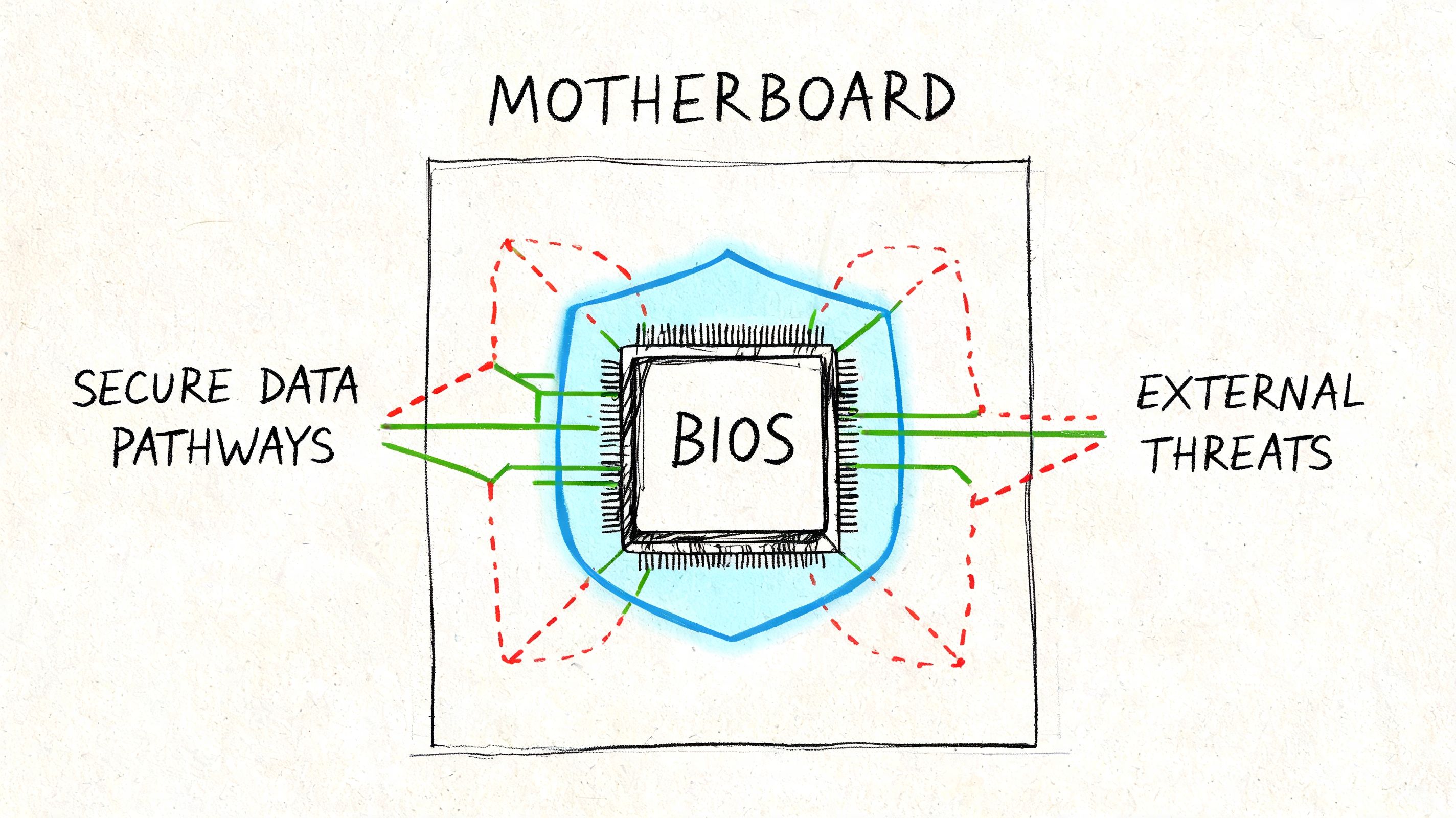
In Central Indiana SMBs, I still see the same avoidable gap. The company buys decent laptops, sets up Microsoft 365, installs antivirus, and never touches firmware settings or patch discipline. Then one missed update, one BIOS setting left open, or one machine allowed to boot from a random USB drive turns a routine support issue into an incident.
Lock down BIOS and UEFI first
BIOS and UEFI settings are not your whole security strategy. They are the first layer of control over how the device starts, what hardware it trusts, and whether basic protections can be bypassed by someone with the laptop in hand.
For a business-ready baseline, set these controls before the laptop goes to an employee:
-
Set an admin password in BIOS/UEFI.
This blocks casual changes to boot order, security settings, and virtualization options. -
Disable external boot where the business does not need it.
If your team is not imaging machines from USB on a regular basis, leave that path closed. -
Enable Secure Boot.
Secure Boot helps prevent unauthorized boot loaders and low-level tampering. -
Turn on TPM support.
TPM gives Windows a hardware-backed place to store cryptographic material and supports later controls like BitLocker. -
Review vendor security settings on business-class devices.
Dell, HP, and Lenovo often include options for port control, device protections, and tamper reporting that are worth using.
These settings do not stop every attack. They do cut off cheap, common methods that waste time, complicate investigations, and increase the odds of data exposure.
Practical rule: If a stolen or borrowed laptop can be reconfigured at boot by anyone who has it for ten minutes, your security system is incomplete.
That matters for compliance too. A medical practice handling patient data and a machine shop working toward CMMC need documented, repeatable controls. BIOS hardening helps prove that company laptops are configured to a defined standard, not left to employee preference.
Patching is operations, not user choice
Patching fails in small businesses for a predictable reason. It gets treated like an occasional reminder instead of an operating process.
In a 10 to 50 user company, inconsistency causes as much pain as the missing patches themselves. One laptop is current. One has not rebooted in three weeks. One is missing browser updates because the user clicked "later" every day. That inconsistency creates security exposure and drives up support time because no two systems behave the same way.
A workable patch standard covers three layers:
| Area | What to patch | Why it matters |
|---|---|---|
| Firmware | BIOS/UEFI, vendor drivers, security firmware | Fixes low-level flaws and hardware security issues |
| Operating system | Windows security and quality updates | Reduces exposure to known exploits and stability problems |
| Applications | Browsers, Office apps, PDF tools, remote access software | Closes common entry points used in phishing and malware attacks |
If you want a plain-language breakdown of how to turn this into a repeatable process, this guide on patch management for business protection explains the business side well.
What works in real offices around Greenwood and Johnson County
Good patching has to fit how your staff work. Field employees close laptops instead of restarting them. Sales staff work from home two days a week. Medical and professional offices cannot afford updates hitting in the middle of a busy morning.
So set policy around the business, not around wishful thinking.
- Assign maintenance windows. Pick update times that match your workflow and make restart expectations clear.
- Test updates on a small group first. That matters more if you rely on line-of-business software, industry plugins, or older print systems.
- Use RMM or MDM reporting. Guessing which laptops are patched is how exceptions turn into incidents.
- Prioritize security updates. Cosmetic feature changes can wait. Security fixes usually should not.
- Escalate repeat noncompliance. A laptop that misses patch cycles over and over is a management problem, not just a technical one.
ROI shows up here in plain terms. A managed patch process costs far less than emergency support, downtime after a failed update, or the legal and operational mess that follows a preventable compromise.
Where businesses usually get this wrong
The common mistake is treating every laptop the same while ignoring business context.
A Greenwood accounting firm, a Franklin medical office under HIPAA, and a small defense supplier reviewing CMMC requirements all need patched, hardened laptops. But they may need different update timing, testing tolerance, and documentation. That is why laptop security works best as a system. Standard build. Standard firmware settings. Standard patch cadence. Documented exceptions.
That approach gives you something better than a checklist. It gives you control.
Your Digital Armor Endpoint Protection and Encryption
A patched laptop can still hand over credentials, sync client files to the wrong place, or give an attacker a foothold inside your business. I see that gap often with small and mid-sized companies in Greenwood, Franklin, and across Johnson County. They buy antivirus, confirm it installed, and assume the device is protected.
A business laptop needs a security system, not a single tool. The goal is straightforward. Stop common threats early, contain suspicious activity fast, and make a stolen device a hardware replacement issue instead of a reportable data exposure.
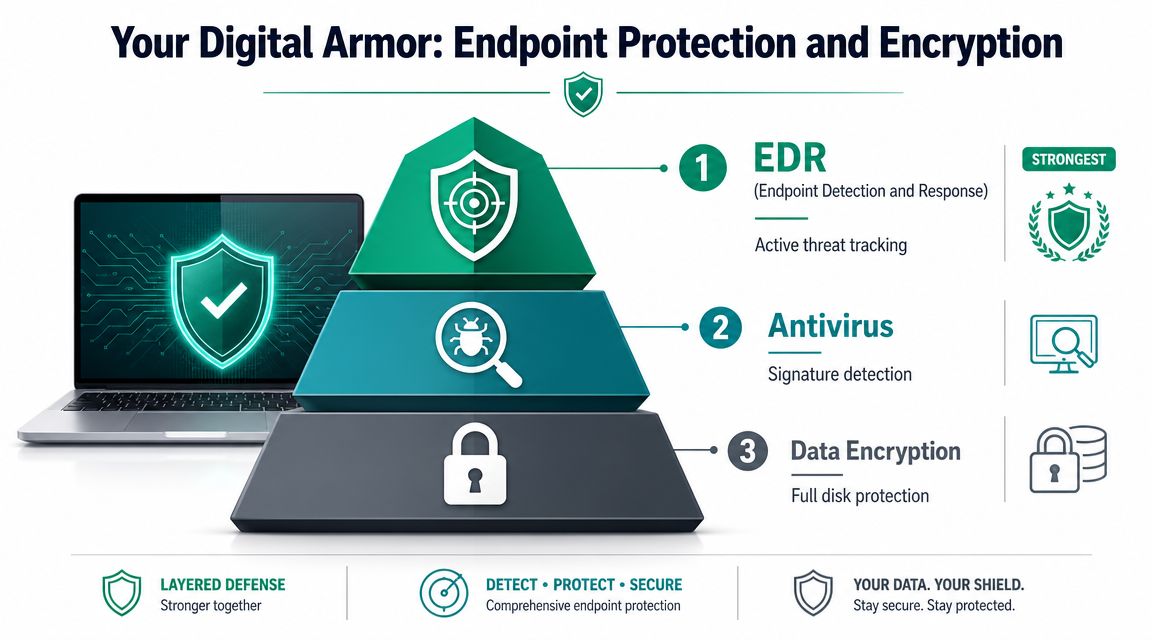
Antivirus handles known malware. EDR helps catch what slips past it.
Traditional antivirus still matters. It blocks a lot of commodity malware, malicious downloads, and known bad files. For many businesses, though, the higher risk now is behavior that looks ordinary at first glance. A stolen session token. PowerShell abuse. A user opening the wrong attachment, then a legitimate process getting used for the next step.
EDR exists for that reason. It records endpoint activity, flags suspicious behavior, and gives your IT team or security provider a way to isolate a machine before one bad laptop turns into company-wide downtime.
For Indiana SMBs, the practical decision is not just which product to buy. It is who is watching it, how alerts get triaged, and how quickly someone can respond on a Tuesday afternoon when your office manager is trying to process payroll. If you want a side-by-side review, this guide to endpoint protection software for Indiana businesses lays out the trade-offs clearly.
A solid endpoint standard usually includes:
- Real-time malware protection
- EDR or MDR coverage
- Host firewall managed by policy
- Application control where the workflow supports it
- Removal or shutdown of unnecessary services
- Tamper protection so staff cannot disable security tools without approval
Full-disk encryption changes the outcome of laptop loss
Laptops get left in cars, conference rooms, hotels, job sites, and break rooms. In Central Indiana, that is not a theory. It is a routine business risk. The control that matters most after the device leaves your hands is full-disk encryption.
For Windows fleets, the standard I recommend is BitLocker with TPM, backed by documented recovery key handling. That setup protects data if someone steals the laptop, removes the drive, and tries to read it from another system. Without encryption, a Windows password is only one layer. The storage itself becomes the target.
For HIPAA, CMMC, and similar requirements, encryption supports a defensible process. If a device goes missing, you need to show that company or patient data was protected at rest, keys were controlled, and the laptop was part of a managed environment. That is the difference between an internal asset-loss ticket and a much more expensive compliance review.
Configuration details decide whether the tools actually help
I do not recommend checkbox security because checkbox security fails during real incidents. The settings and operating process matter as much as the product name.
| Control | Good | Better |
|---|---|---|
| Disk protection | Software encryption enabled | BitLocker with TPM and documented recovery key handling |
| Malware defense | Basic antivirus | EDR with centralized monitoring and isolation capability |
| Login protection | Password only | Local login plus corporate identity controls and MFA for business apps |
| Network exposure | Firewall defaults | Firewall managed by policy, unused services disabled |
That table also points to ROI. Better controls cost more up front, but they reduce cleanup time, legal exposure, and lost staff hours after an incident. For a Johnson County business with a lean team, that matters. A single encrypted, centrally monitored laptop is far easier to recover from than a loosely managed device with customer data and no visibility.
What keeps failing in the field
These are the patterns that still cause trouble:
- Shared local admin accounts
- Users working as local admins every day
- Recovery keys stored carelessly or without access control
- Security tools deployed without anyone reviewing alerts
- “We have antivirus” treated as the entire endpoint plan
The businesses that handle laptop incidents well usually have the same traits. Standard endpoint stack. Central management. Encryption enabled. Clear owner for alert review. Written policy that matches the technical controls.
MFA is part of that system too, especially once laptops connect to Microsoft 365, cloud line-of-business apps, and remote access tools. If you want a plain-English explanation for owners and department leads, this comprehensive guide to MFA security is a useful companion read.
Controlling Access MFA VPNs and Zero Trust
A secure laptop can still become a problem if the wrong person signs in. That's why access control matters as much as the device itself.
Around Central Indiana, I see this most often with hybrid teams. The laptop is fine. The user is working from home, a hotel, a client site, or a coworking spot. The weak point is the login path between that person and the company's cloud apps or network.
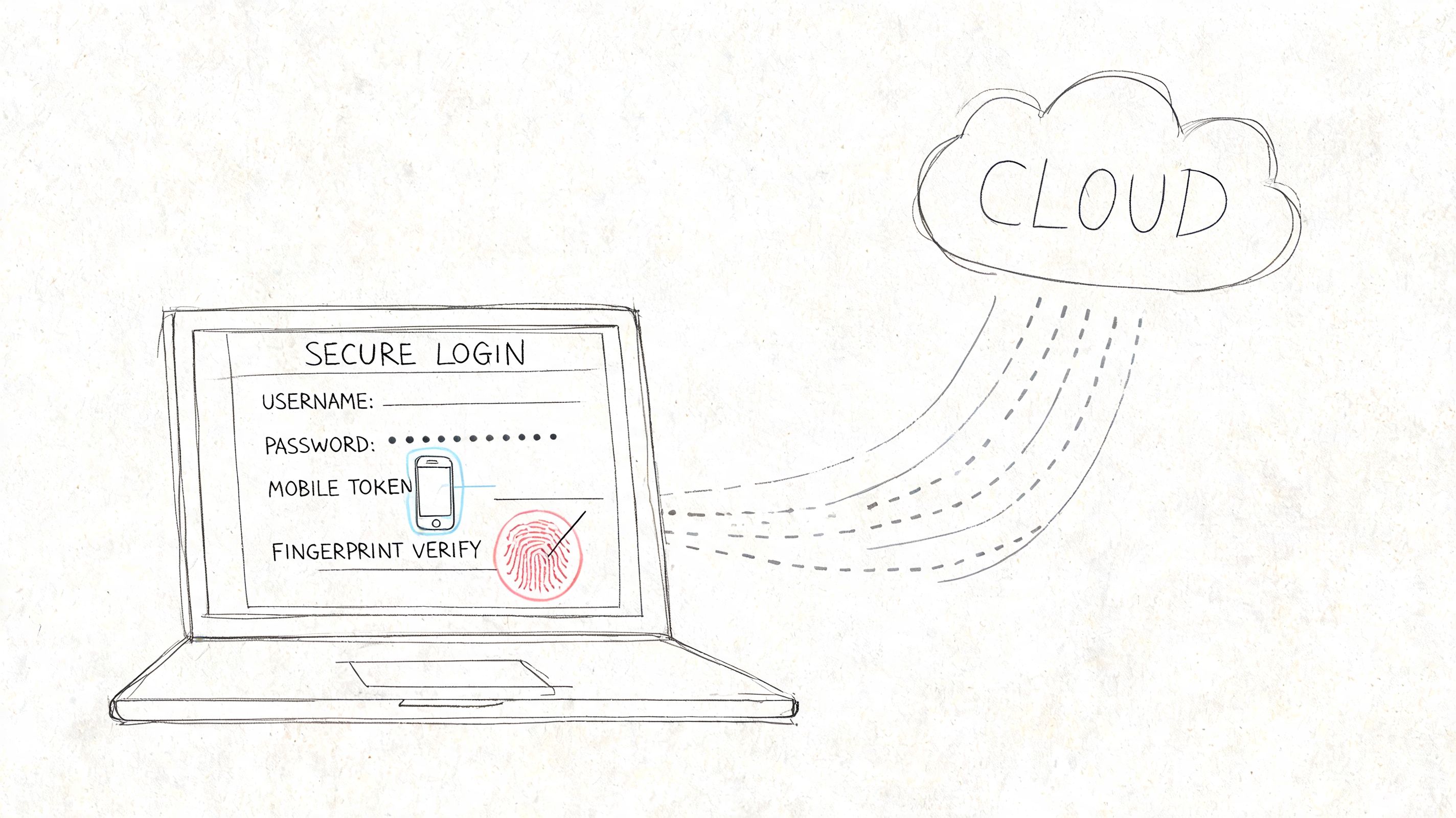
Passwords alone are done
NIST's usable-cybersecurity research makes a point many IT teams learn the hard way. Security controls have to be usable or people work around them. The same material notes that the human element is involved in up to 74% of successful cyberattacks, which is why strong, simple authentication matters so much (NIST usable cybersecurity research).
That's the argument for phishing-resistant MFA. Not just “MFA somewhere.” The right kind, rolled out in a way users can live with.
For owners who want a plain-English companion read, this comprehensive guide to MFA security is useful because it frames MFA in business terms, not just technical terms.
Good access policy looks like this:
- Require MFA for Microsoft 365, Google Workspace, VPN, and line-of-business apps
- Prefer phishing-resistant methods where supported
- Block legacy authentication
- Use a password manager so staff don't reuse passwords
- Review sign-in logs and risky sign-in alerts
If you're building policy right now, this article on MFA best practices for business lines up well with a practical SMB rollout.
Zero Trust in plain English
Zero Trust sounds bigger than it is. For laptops, it means never trust a device or user just because they have the password or happen to be on the right network.
A Zero Trust-style laptop setup checks multiple things before access is granted:
- Is the user who they claim to be?
- Is the device enrolled and compliant?
- Is the sign-in normal for that user?
- Is the application access appropriate for their role?
That's a cleaner model than old-school trust based on “inside the office equals safe.” In modern SMBs, especially along the I-65 corridor where people work from everywhere, that assumption falls apart fast.
Security gets stronger when access depends on identity, device health, and policy together. It gets weaker when access depends on location alone.
VPNs and Wi-Fi still matter
Cloud adoption changed the perimeter, but it didn't remove the need for secure transport. If staff connect back to file shares, internal apps, or management systems, use a business-grade VPN and require it for remote access. Don't let employees decide when they “really need” it.
For offices with stubborn connectivity problems, especially older buildings around downtown Indy, we often pair secure remote access with UniFi networking and latency-optimized mesh nodes to keep wireless stable enough that people won't disable security controls out of frustration. Bad Wi-Fi creates bad behavior. People tether, bypass policy, or save files locally because the approved path is annoying.
This short explainer is useful for leadership teams reviewing login risk and conditional access:
What owners should enforce
Don't leave these decisions loose.
- No public Wi-Fi without company protection: if staff travel, they need a clear rule.
- No password-only access to business systems: every critical app gets MFA.
- No unmanaged personal laptops touching company resources: if it isn't enrolled, it doesn't connect.
- No broad access by default: sales doesn't need engineering data, and vice versa.
The strongest laptop in the world won't help if a stolen password opens the door anyway.
The Safety Net Management Backups and Physical Security
A Greenwood employee leaves a laptop in a car outside a client meeting in Carmel. The device is gone when they come back. At that point, the question is not whether you bought good security software. The question is whether your business can lock the device, confirm what data was exposed, restore the user's files, and keep work moving the same day.
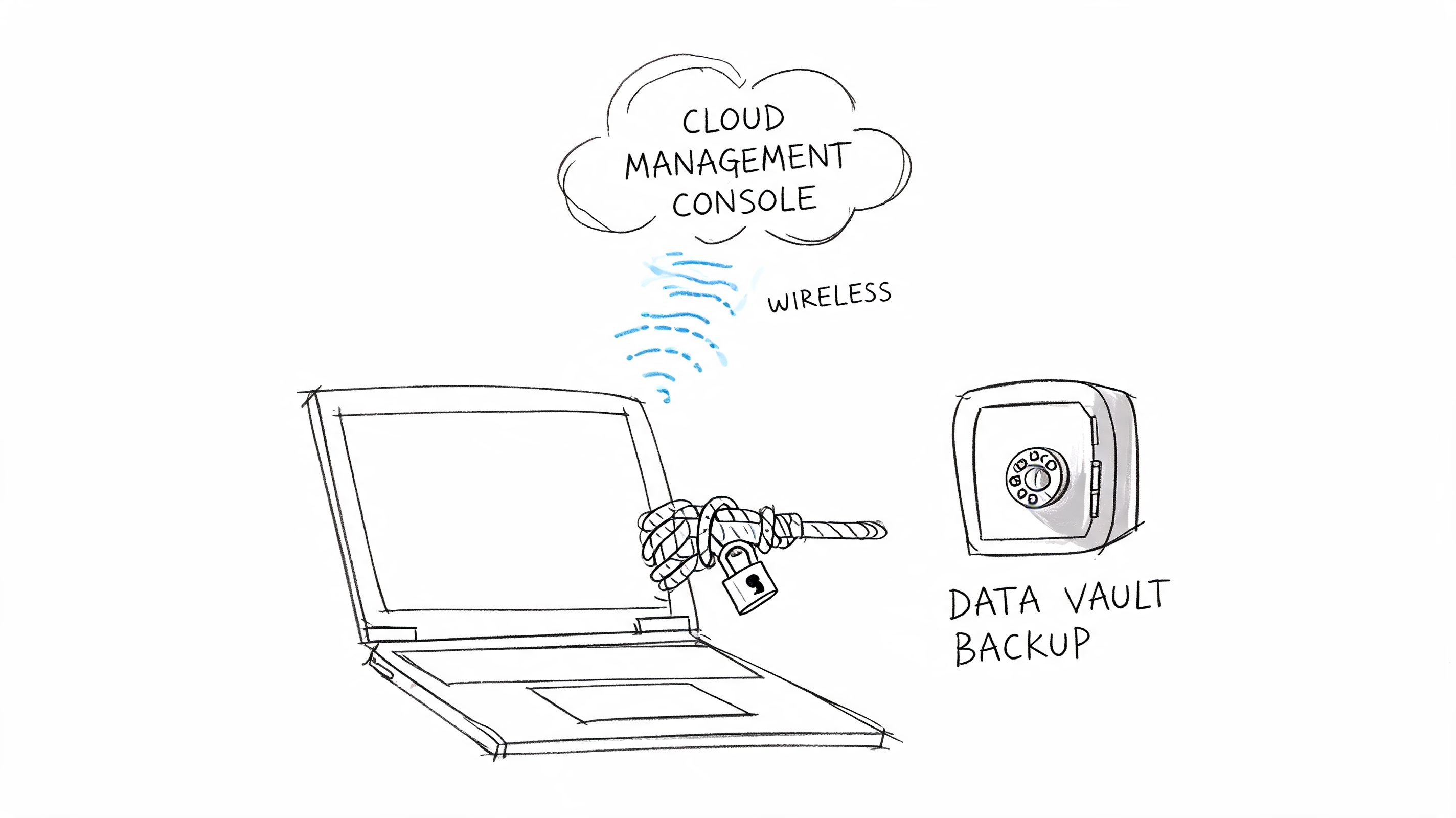
MDM gives you control after the laptop leaves the office
If staff take laptops home, to job sites, or into healthcare and manufacturing environments around Central Indiana, every machine needs to stay under management. In Microsoft shops, that usually means Intune. Other platforms can do the job too. What matters is consistent control.
MDM should enforce encryption, screen lock timing, approved apps, update compliance, and device health checks. It should also let your team isolate, lock, or wipe a missing laptop fast. For SMBs dealing with HIPAA, CMMC, or client security questionnaires, that management layer is part of the system, not an optional add-on.
Remote wipe also needs a real process behind it. Test it. Decide who approves it. Verify the laptop checks in often enough for the command to matter. I have seen companies assume they had this covered, then lose hours during an incident because no one knew who had admin rights or whether the device was still reporting to the console.
Backups have to survive the incident
A laptop backup plan has one job. It must let the user get back to work without rebuilding files from memory, old email attachments, or whatever happened to be saved on a shared drive last week.
For most small and midsize businesses, the right setup includes:
- Cloud-managed endpoint backup for user data
- Version history for accidental changes or deletions
- Off-site protected copies for business-critical data
- Documented restore tests, with named owners and expected recovery times
If you are reviewing recovery strategy, this guide to enterprise backup solutions that support uptime covers the bigger business case.
Owners often treat backup as a server problem. In practice, the latest quote, patient document, CAD revision, or project spreadsheet often lives on a laptop first. If that file is not syncing correctly or backing up off the device, the business still takes a hit after theft, hardware failure, or ransomware.
Good backups reduce downtime and confusion. Staff know where the clean copy lives, who restores it, and how long recovery should take.
Physical security still matters
Physical control is the part many teams skip because it feels basic. It is still one of the cheapest ways to prevent an incident.
A laptop has to stay in your possession long enough for encryption, device management, and access controls to do their job. That means setting rules for where devices can be left, how they are transported, and what staff should do in shared offices, client sites, schools, clinics, and hotels. Business owners who want a broader view should spend a few minutes understanding physical security, especially the way it ties people, process, and the environment together.
Cable locks still make sense at fixed desks and reception counters, but only if they attach to something that cannot be picked up and carried off. In coworking spaces, conference venues, and temporary work areas, policy matters more than hardware. The better rule is simple. If the device cannot stay with the employee, it should be secured in an approved location or taken with them.
Use a decision rule that fits the actual work environment.
| Situation | Better control |
|---|---|
| Reception desk or fixed workstation | Cable lock to a true anchor point |
| Hot desk or coworking space | Lock plus staff policy, or no unattended device at all |
| Travel and hotels | Carry-on control, careful room-safe judgment, no unattended conference-room devices |
| Shared public area | Short possession chain, privacy screen, and immediate reporting if missing |
Managed support ties this together. Whether your team runs Intune internally, uses co-managed IT, or works with Finchum Fixes IT for endpoint policy enforcement, the goal is the same. Backups, management, and physical handling need to operate as one business-ready security system.
Your Action Plan A Laptop Security Checklist for Your Business
A Greenwood employee leaves a laptop at a client site in Indianapolis on Thursday afternoon. By 4:30, leadership needs clear answers. Was the drive encrypted? Can IT lock or wipe it? Was any regulated data stored locally? Who reports the incident, and how fast? If your team has to figure that out in the moment, the problem is not the missing laptop. The problem is the missing system.
That is why the checklist matters. For Central Indiana businesses, laptop security has to be repeatable, auditable, and tied to business policy, not left to individual judgment. If you handle patient information, controlled technical data, financial records, or client files, this is also how you support HIPAA, CMMC, and insurance requirements without turning every device review into a fire drill.
What your policy should require
Set a hard standard. If a laptop cannot meet these requirements, it should not store or access company data.
- Encryption required: every company laptop uses full-disk encryption.
- MFA required: all core business accounts use strong authentication.
- Managed status required: every laptop is enrolled in your MDM or endpoint management platform.
- Patch compliance required: OS, browser, and security updates are enforced by policy.
- Incident reporting required: staff report a missing laptop immediately.
- Backup path required: business files must sync or back up to approved storage.
- Physical handling required: no unattended devices in vehicles, meeting rooms, or public spaces.
If you want to compare these laptop standards with the rest of your security program, review this 2026 small business cybersecurity checklist.
SMB Laptop Security Policy Checklist
| Control Area | Policy Requirement | Verification Method |
|---|---|---|
| Encryption | Full-disk encryption enabled on every company laptop | MDM or device inventory report |
| Authentication | MFA required for email, VPN, and cloud apps | Identity platform policy review |
| Device Management | Laptop enrolled in approved management platform | Enrollment dashboard |
| Patching | Automatic OS and application updates enforced | Patch compliance report |
| Endpoint Protection | Approved endpoint security agent installed and active | Security console status |
| Backup | User data stored in approved synced or backed-up location | Restore test and backup report |
| Remote Response | Remote lock or wipe capability enabled | Quarterly test on sample device |
| Physical Security | Staff follow unattended-device and travel rules | Policy acknowledgment and manager review |
| Access Control | Least-privilege access assigned by role | Periodic access review |
| Incident Response | Lost or stolen devices reported immediately | Ticket history and response log |
The manager's part
A checklist without ownership turns into wishful thinking.
In smaller companies, I usually see three workable models. Internal IT owns verification and reports exceptions monthly. A managed provider owns the reporting and gives leadership a dashboard. Operations owns policy, while IT owns enforcement. Any of those can work if the owner is clear and the review cadence is fixed.
The weak model is the common one. HR assumes IT handled encryption. IT assumes managers collected policy acknowledgments. Leadership assumes the MDM dashboard means every device is covered. Then a laptop goes missing and nobody can prove the controls were in place.
The best laptop policy is one a manager can verify in five minutes and an employee can follow on a bad day.
The business case is simple
This is not about collecting security tools. It is about reducing downtime, protecting client data, and avoiding expensive cleanup after a lost or stolen device. A standard laptop build also lowers support costs. New hires get the same setup. Replacements happen faster. Compliance reviews go more smoothly because the evidence already exists.
That is the return SMBs in Johnson County should care about. A business-ready laptop security system gives you fewer surprises, faster recovery, and less risk tied to every device your team carries out the door.
If your company has laptops moving between Greenwood, Indianapolis, and client sites across Central Indiana, now is the right time to pressure-test your setup. Schedule a Free Network Assessment or Security Risk Audit with Finchum Fixes IT to identify weak spots in encryption, endpoint protection, device management, Wi-Fi access, and backup readiness before a lost laptop turns into a business interruption.